VLAN Steering with Extreme AP
This document shows how to configure Extreme Networks AP to integrate with RansNet HSG for VLAN steering capabilities. Refer to VLAN Steering Over Captive Portal for details on how the setup works.
Step 1: Planning Configuration
- Login to Extreme Cloud IQ
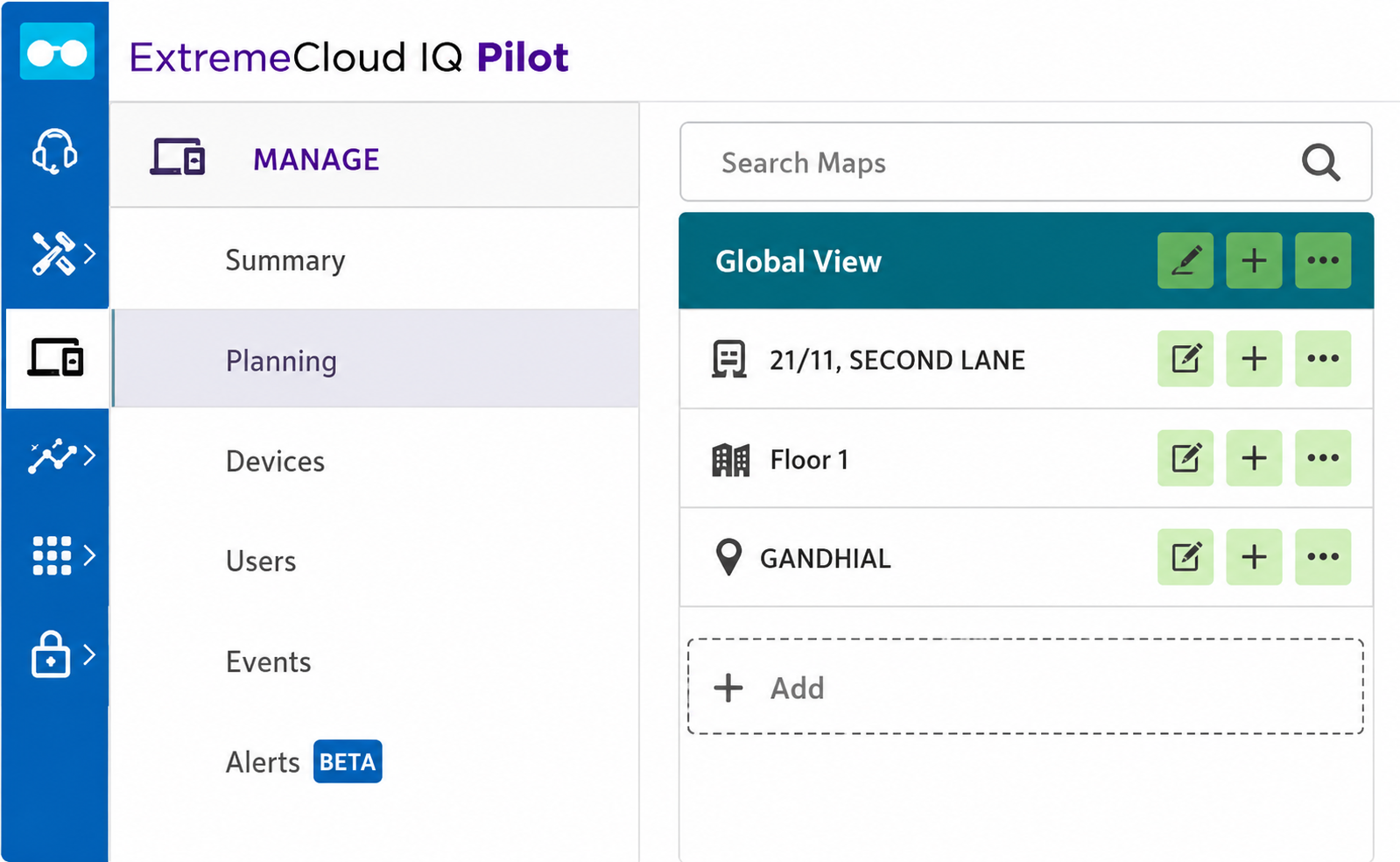
- Navigate to Manage > Planning to configure the planning session (location, building, floor)
Step 2: Configure Network Policy
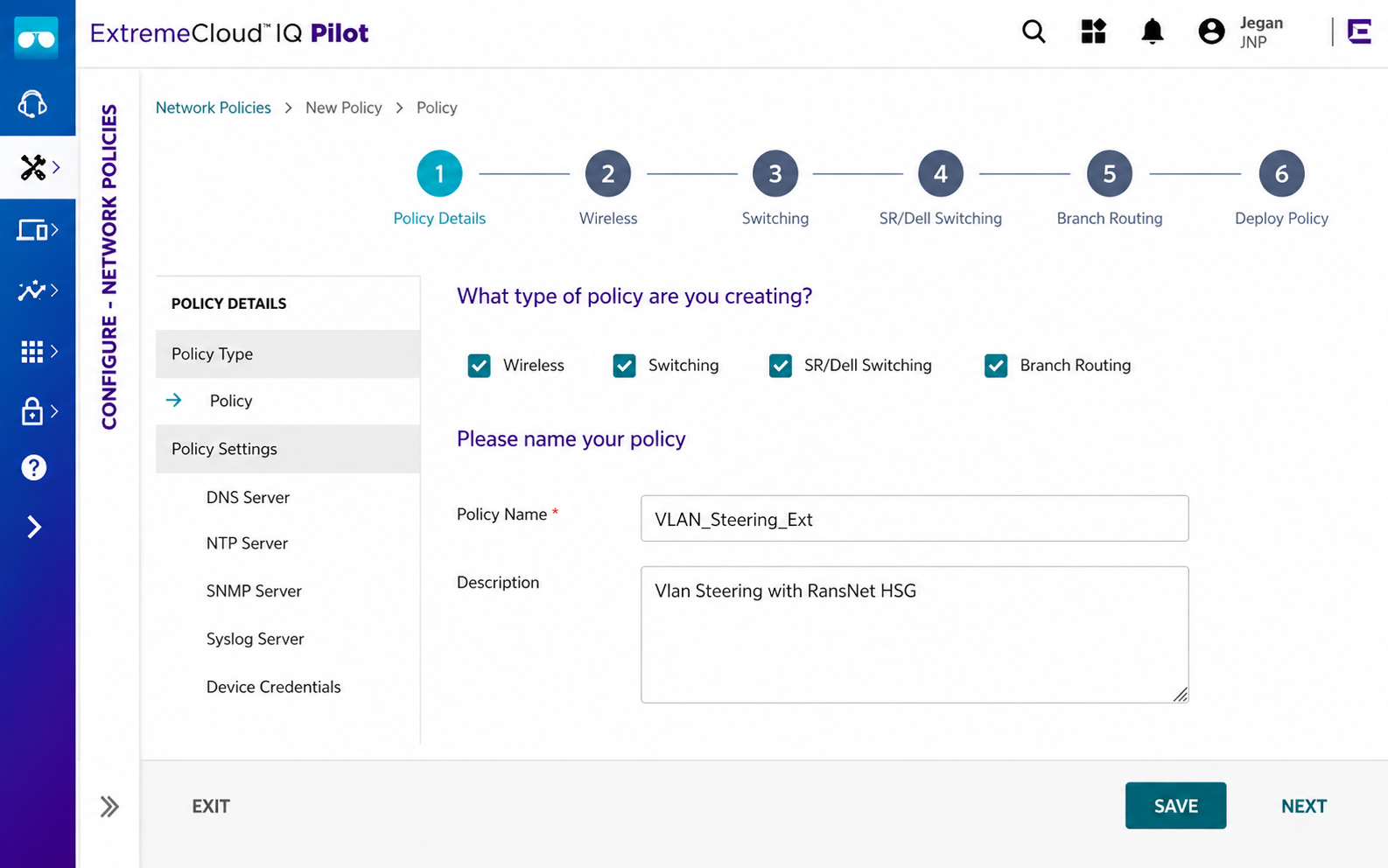
- Navigate to Configure > Network Policy
- Click ADD NETWORK POLICY
- Fill in the Policy Name and Description fields
- Click SAVE and NEXT
Step 3: Configure SSID
- Click the + icon to configure SSID details
- Enter the SSID name and Broadcast Name
- Select OPEN from the SSID Usage dropdown
- Under User Access Settings, click the + sign in the Default User Profile section
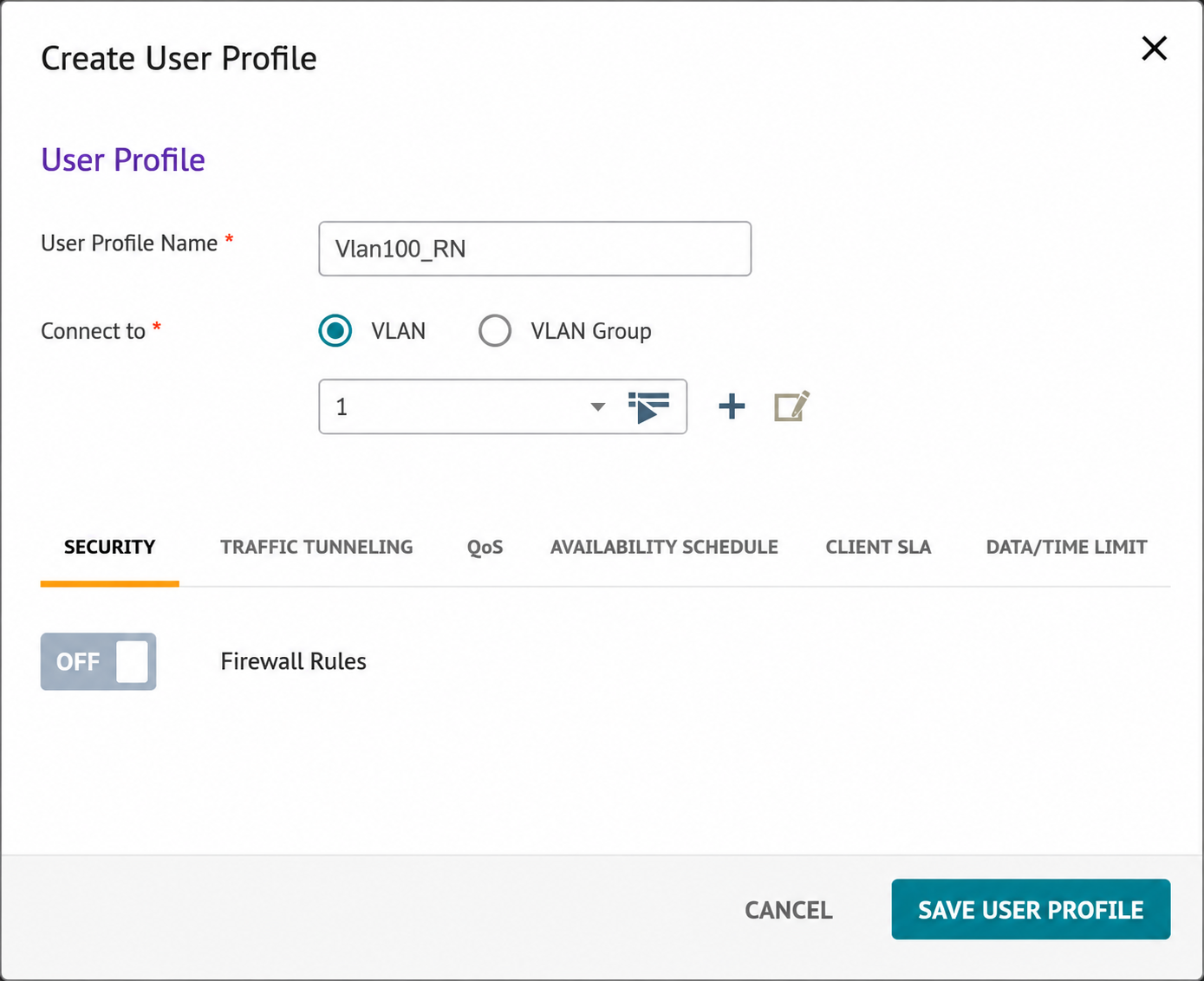
- Enter a Profile Name
- Select VLAN from the Connect to dropdown and click +
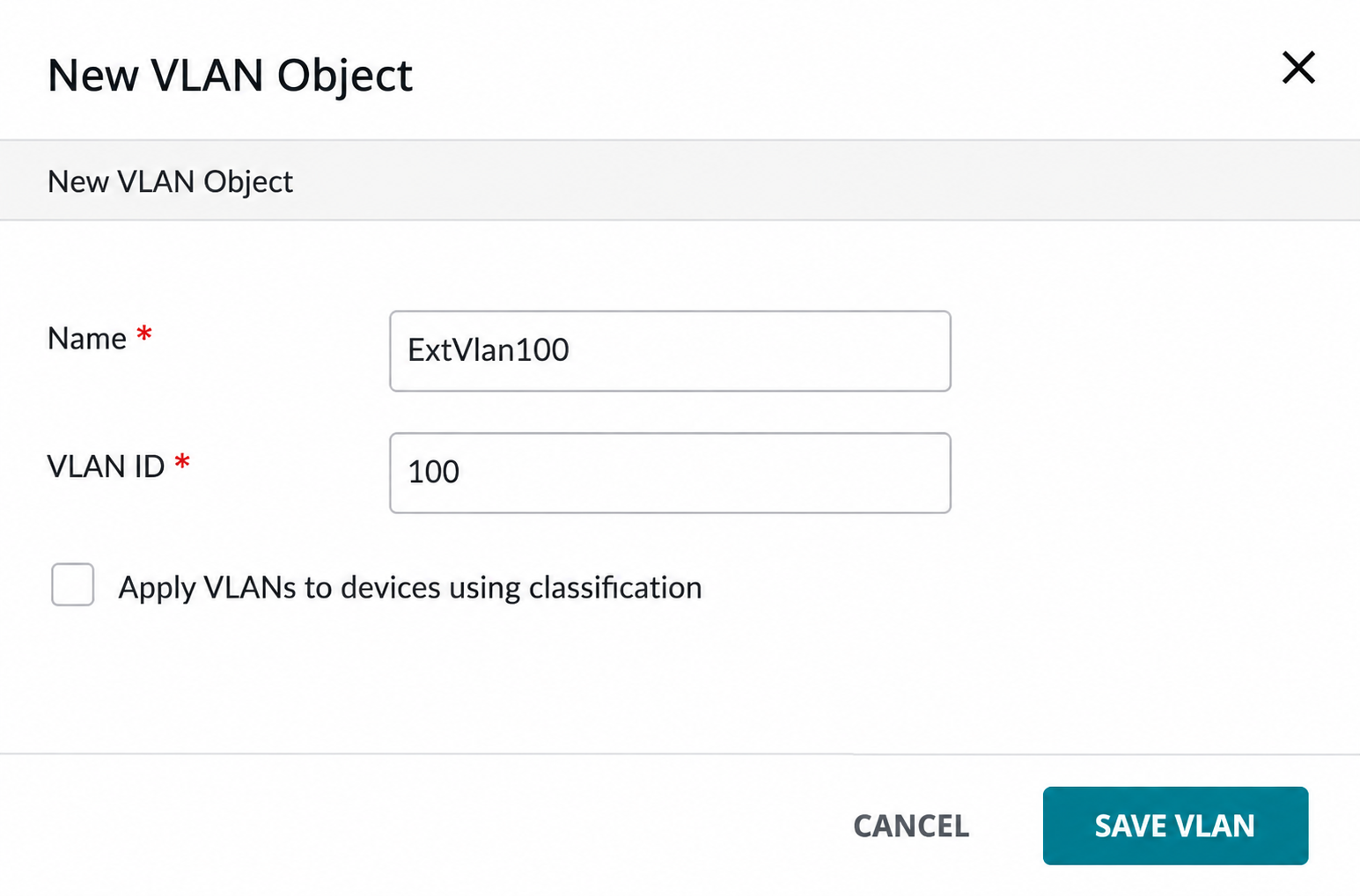
- Enter the VLAN Name and VLAN ID, then click SAVE VLAN
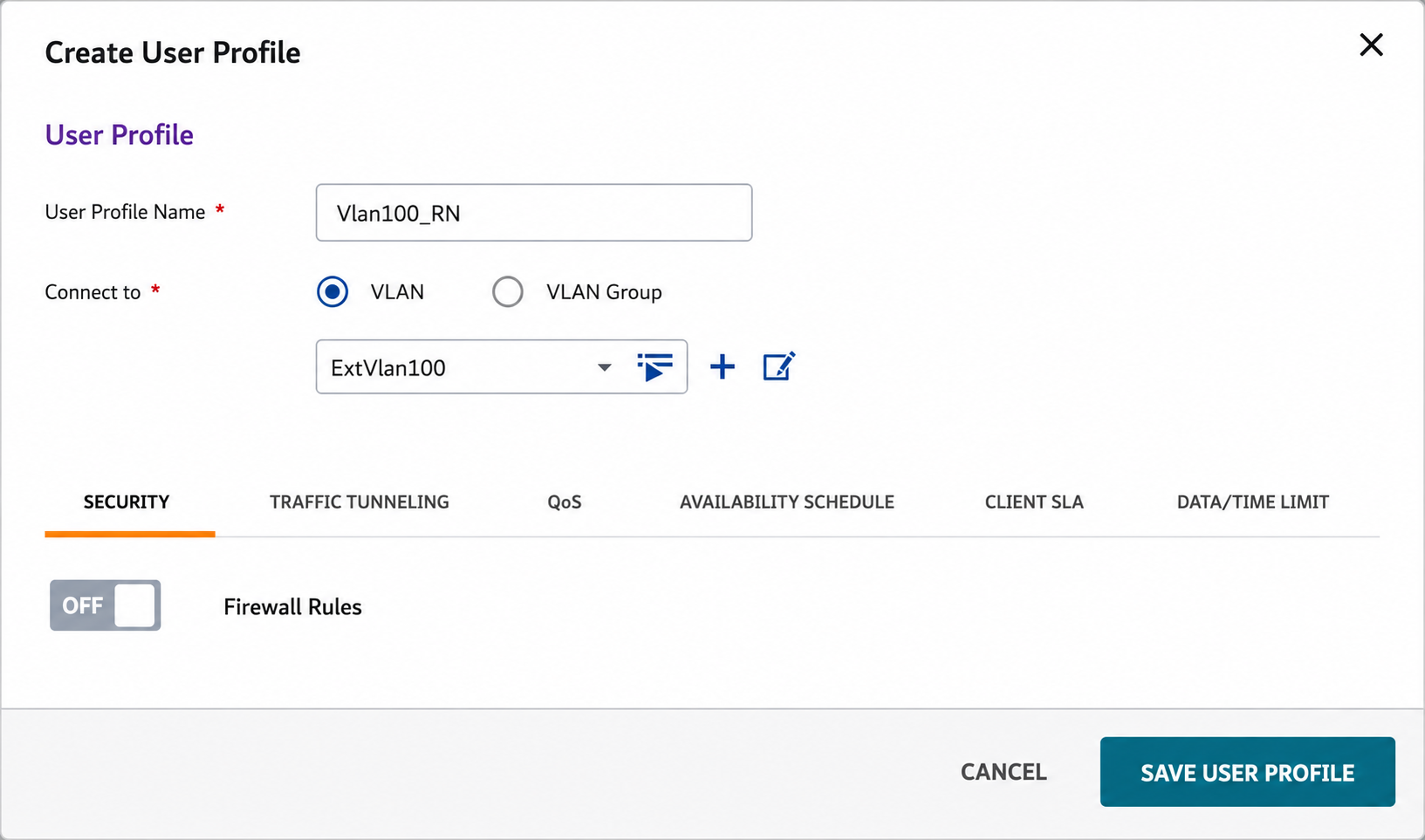
- Click SAVE USER PROFILE
Step 4: Enabling MAC Authentication
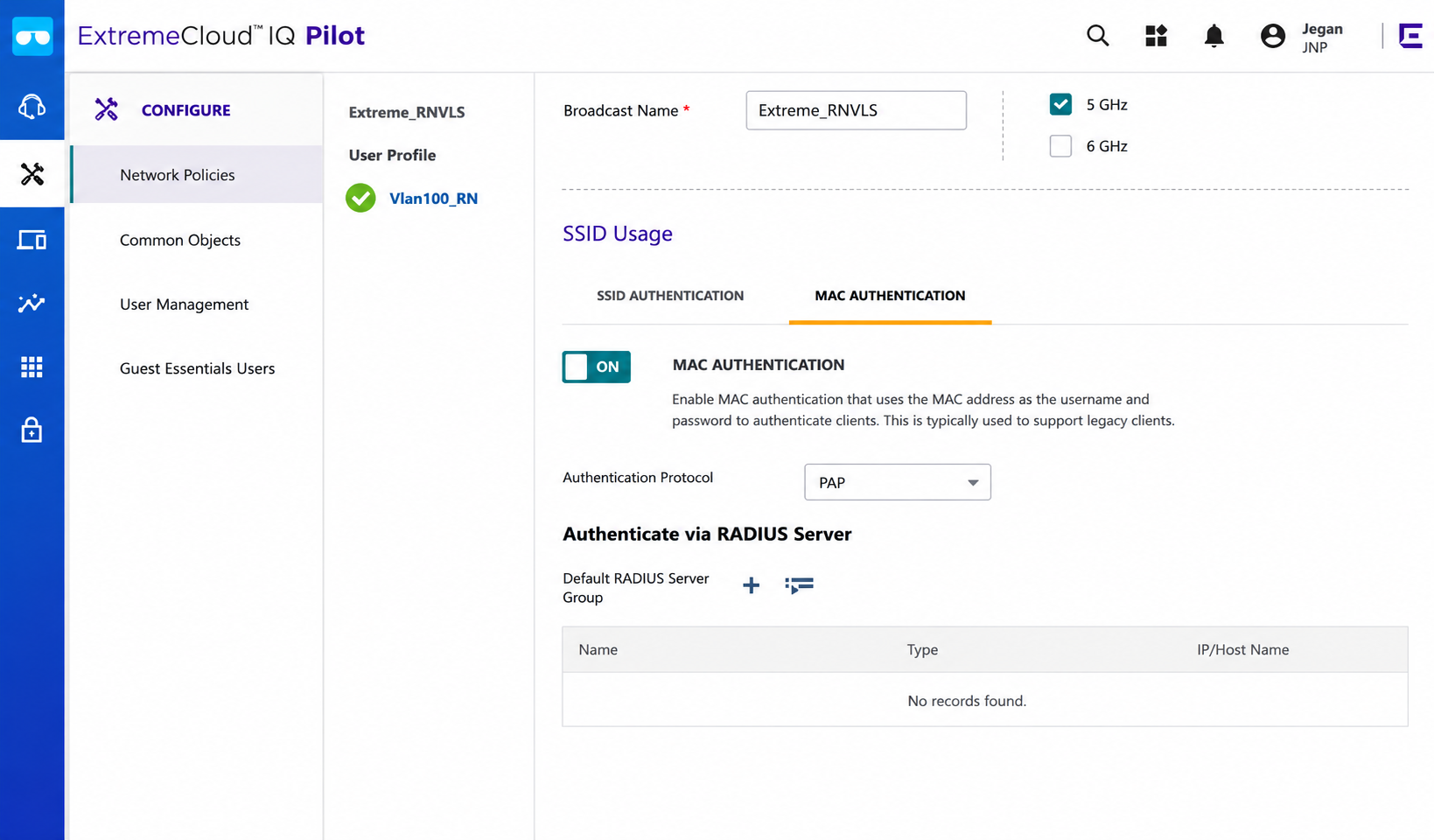
- In the SSID Usage section, select MAC AUTHENTICATION
- Enable the MAC AUTHENTICATION toggle
- Select PAP from the Authentication Protocol dropdown
- Click + to configure the RADIUS server in the Authenticate via RADIUS Server section
Step 5: Configure RADIUS Server
- Click + to configure RADIUS server settings
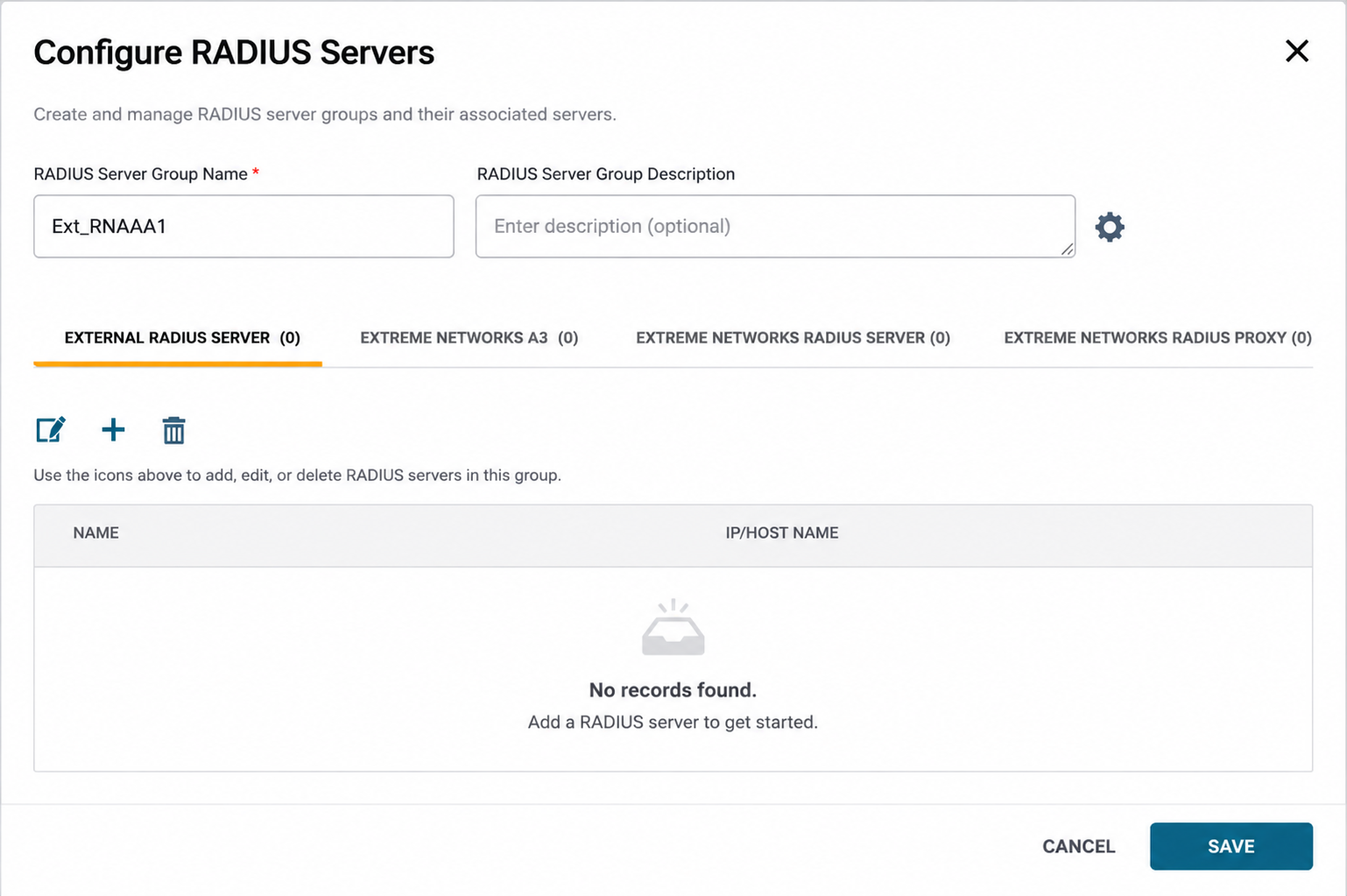
- Enter the RADIUS server details
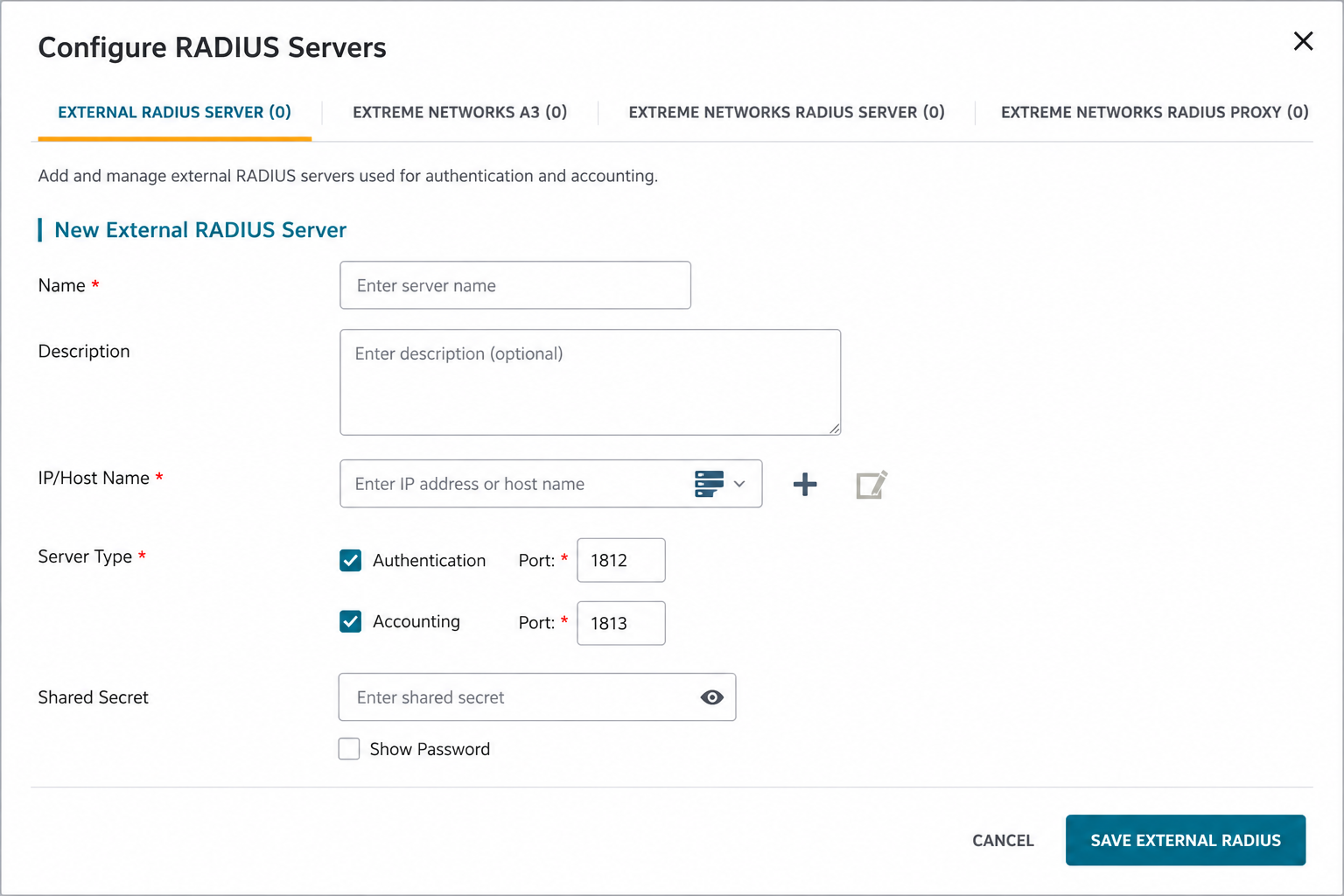
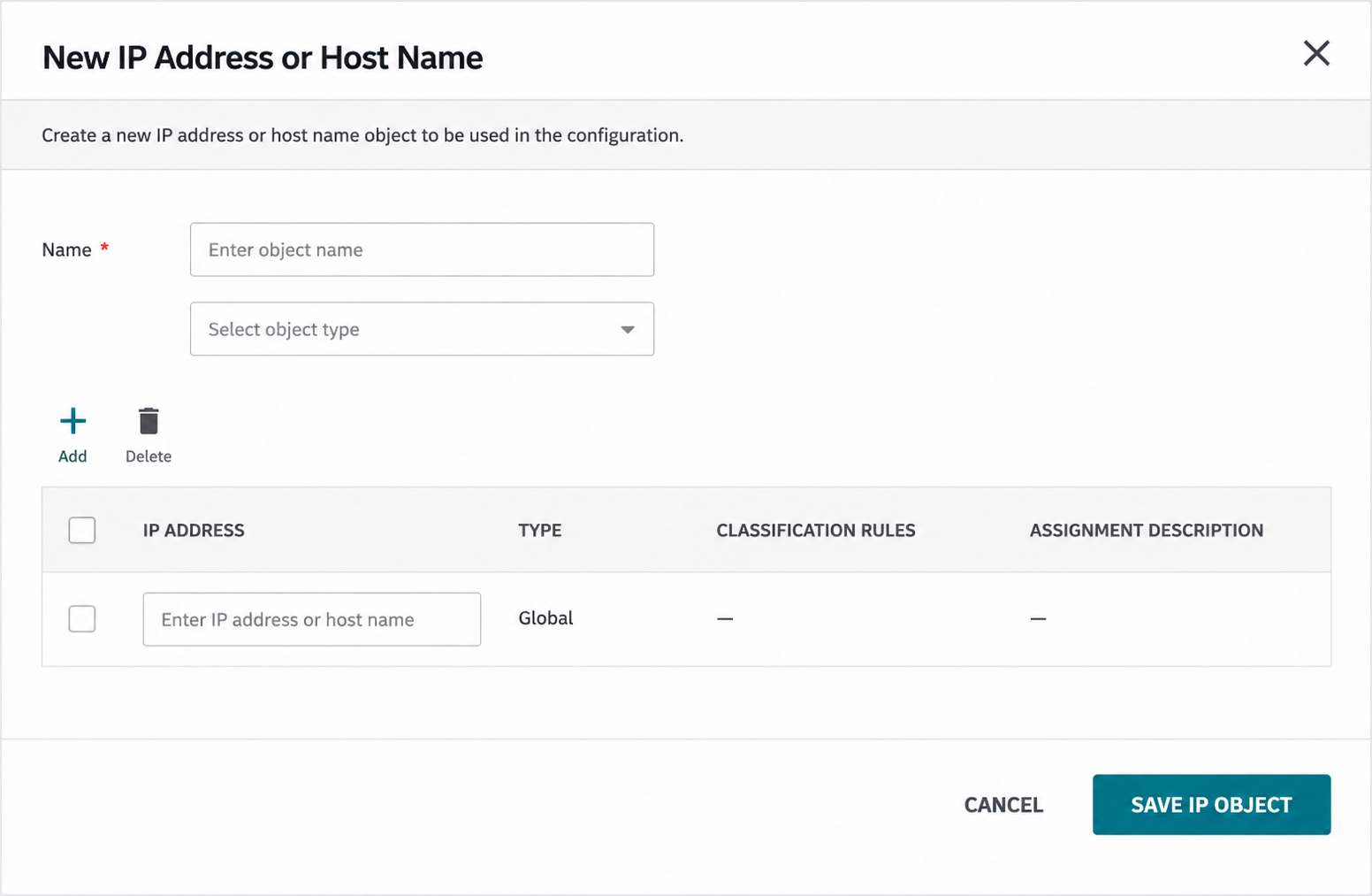
- Click + to add the RADIUS server IP
- Enter the RADIUS host name, IP address, and click SAVE
- Click SAVE EXTERNAL RADIUS
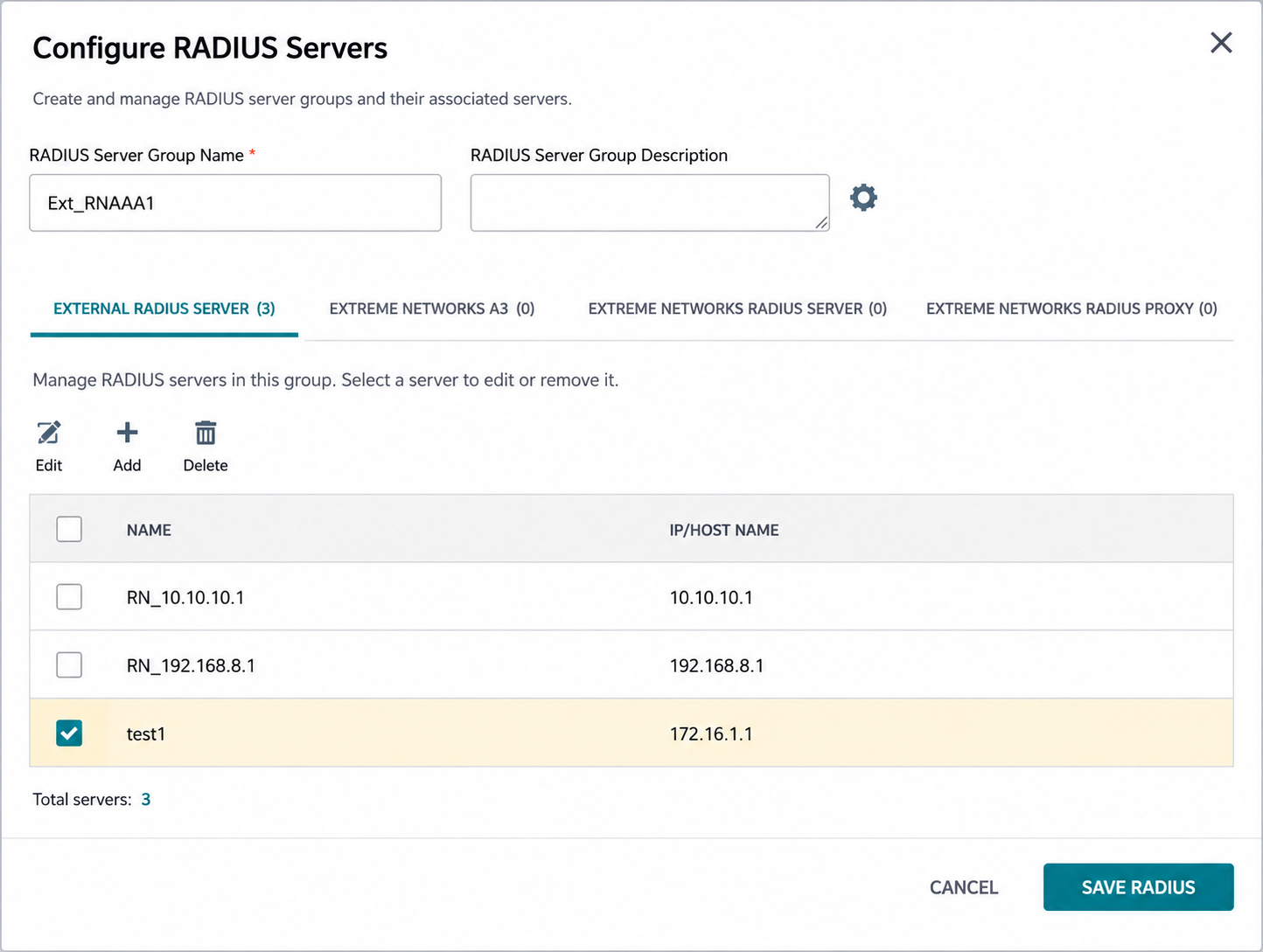
- Select the configured RADIUS Server and click SAVE RADIUS
Test the VLAN steering configuration