Hotel Wi-Fi Hotspot Management (HSIA)
High Speed Internet Access (HSIA) is an essential investment for any modern hotel. This document describes how to integrate HSG (Hotspot Gateway) with Oracle Opera Property Management System (PMS) using the FIAS (Fidelio Interface Application Specification) protocol to enable seamless, automated guest authentication using room number and last name.
Once integrated, guest account information is continuously synchronized from Opera PMS to HSG's local authentication database. When guests connect to Wi-Fi, they are automatically redirected to a captive portal where they log in using their room number and surname — no vouchers, no manual account creation, no front desk involvement. HSG handles captive portal, authentication, bandwidth management, access control, and accounting.
Use Cases
| Hotel Scenario | HSIA Benefit |
|---|---|
| Multi-property hotel chains | Deploy identical HSIA configuration across multiple properties. Guests enjoy consistent login experience (room number + last name) at every location. Centralized PMS synchronization ensures seamless account management across the chain. |
| High-turnover properties (Extended stay, budget hotels) | Automatic guest account creation when checked in via PMS; automatic deletion when checked out. Eliminates manual voucher printing, front desk intervention, and reduces support burden. |
| Revenue-generating properties | Offer tiered HSIA service: free standard (2 Mbps), premium paid tier (10 Mbps), or loyalty/membership upgrades. Monetize connectivity while improving guest satisfaction. |
| Data-driven marketing | Capture guest email and phone number via PMS sync. Build customer database for post-stay marketing campaigns, loyalty programs, and analytics on guest demographics. |
| Service recovery | Quickly upgrade guests to premium HSIA as a service recovery gesture (room upgrade, complaint resolution). Update guest profile in real time without manual voucher generation. |
| Room maintenance & transfers | When guests are moved to a different room during their stay, HSIA access automatically updates to the new room number via PMS sync. No interruption to guest connectivity. |
Requirements
Hardware & Software Infrastructure
- HSG (Hotspot Gateway) — Acts as the HSIA platform: handles captive portal login, guest authentication, bandwidth management, and internet gateway functions
- Opera PMS Server — Running FIAS interface module (licensed module required); must be reachable from HSG on configured port for real-time guest synchronization
- Wi-Fi Access Points (APs) — Broadcast the hotel's guest SSID (e.g., "Hotel-Guest" or "Hotel-WiFi"); redirect unauthenticated clients to HSG captive portal
- Network Connectivity — HSG must have IP connectivity to PMS server on configured port (typically TCP/1433 for SQL Server, or custom port if configured differently)
- Internet Uplink — HSG must have reliable, sufficient internet bandwidth to serve all guest devices simultaneously (size based on guest capacity and expected bandwidth consumption)
Configuration Prerequisites
- HSG provisioned and onboarded to mfusion
- Guest VLAN created and configured on HSG (e.g., VLAN 200 for segregation from staff networks)
- At least one hotspot instance configured on HSG (mapped to guest VLAN)
- Opera PMS server running and accessible; FIAS module installed and enabled; guest database populated
- WiFi APs configured to redirect HTTP/HTTPS traffic from unauthenticated clients to HSG on configured port
Architecture Overview
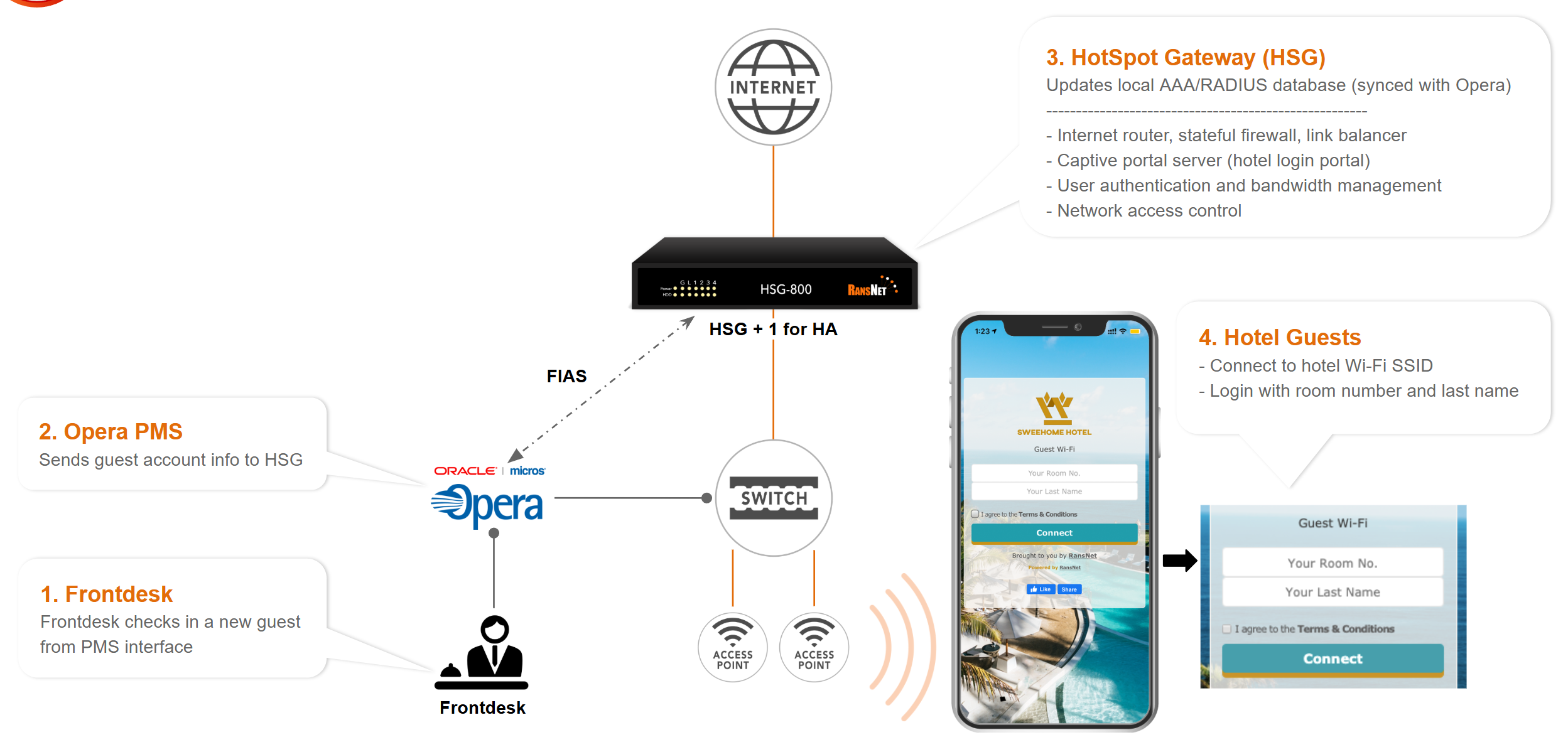
HSIA is delivered through a seamless integration between your hotel's PMS and HSG. Here's how the guest journey works from check-in through internet access:
Solution Workflow
The integrated HSIA solution operates as follows:
Step 1 – Guest Check-in
When a guest checks into the hotel, Front Desk staff creates or updates the guest record in Opera PMS. PMS maintains:
- Room Number
- Guest Last Name
- Check-in Date
- Check-out Date
- Room Status
- Guest Account Status
Step 2 – PMS Synchronization
Using the FIAS interface, Opera PMS sends guest account information to HSG. HSG receives and stores guest data in its local authentication database. Guest records are continuously updated whenever room occupancy, guest status, check-out, or room transfers occur.
Step 3 – Guest HSIA Access
The guest connects to the hotel's HSIA network (broadcast SSID) and is automatically redirected to the HSG captive portal page. The login form presents:
- Room Number (username field)
- Guest Last Name (password field)
- Optional fields: Terms & Conditions, marketing consent, promotional content
Step 4 – Guest Authentication
After the guest submits credentials, HSG validates them against the synchronized PMS database. If credentials match an active guest record, access is granted according to the configured guest access profile.
Step 5 – Internet Access
Upon successful authentication, HSG applies the guest access profile, including:
- Internet access permissions
- Bandwidth limitations
- Session timeout policies
- Access control policies
- User activity logging
The guest can access the Internet until logout, session expiration, or hotel check-out.
Integration Components
| Component | Function |
|---|---|
| Opera PMS | Guest reservation system maintained by Front Desk; maintains guest check-in/check-out status, room assignments, and guest profile information |
| FIAS Interface | Fidelio Interface Application Specification — industry-standard protocol enabling real-time guest data synchronization between Opera PMS and HSG. When a guest checks in/out or transfers rooms, PMS automatically sends updates to HSG. |
| Hotspot Gateway (HSG) | Hotel HSIA platform: receives guest data from PMS, hosts the captive portal, authenticates guests using PMS credentials, manages bandwidth per guest profile, tracks usage, and enforces access policies |
| Wi-Fi Access Points (APs) | Broadcast the hotel's guest HSIA network SSID (e.g., "Hotel-Guest-WiFi"). Any unauthenticated device connecting to this SSID is redirected to the HSG captive portal for login. |
| Guest Device | Guest smartphone, laptop, or tablet. Guest connects to hotel HSIA network and logs in using their room number (username) and last name (password) from PMS. |
HSIA Architecture Diagram
HSIA Configuration
The HSIA setup involves configuring HSG to synchronize with your Opera PMS system and establish the guest authentication workflow. This section walks through each configuration step.
PMS Integration Setup
Navigate to HOTSPOT USERS → User Management → Import → PMS Import.
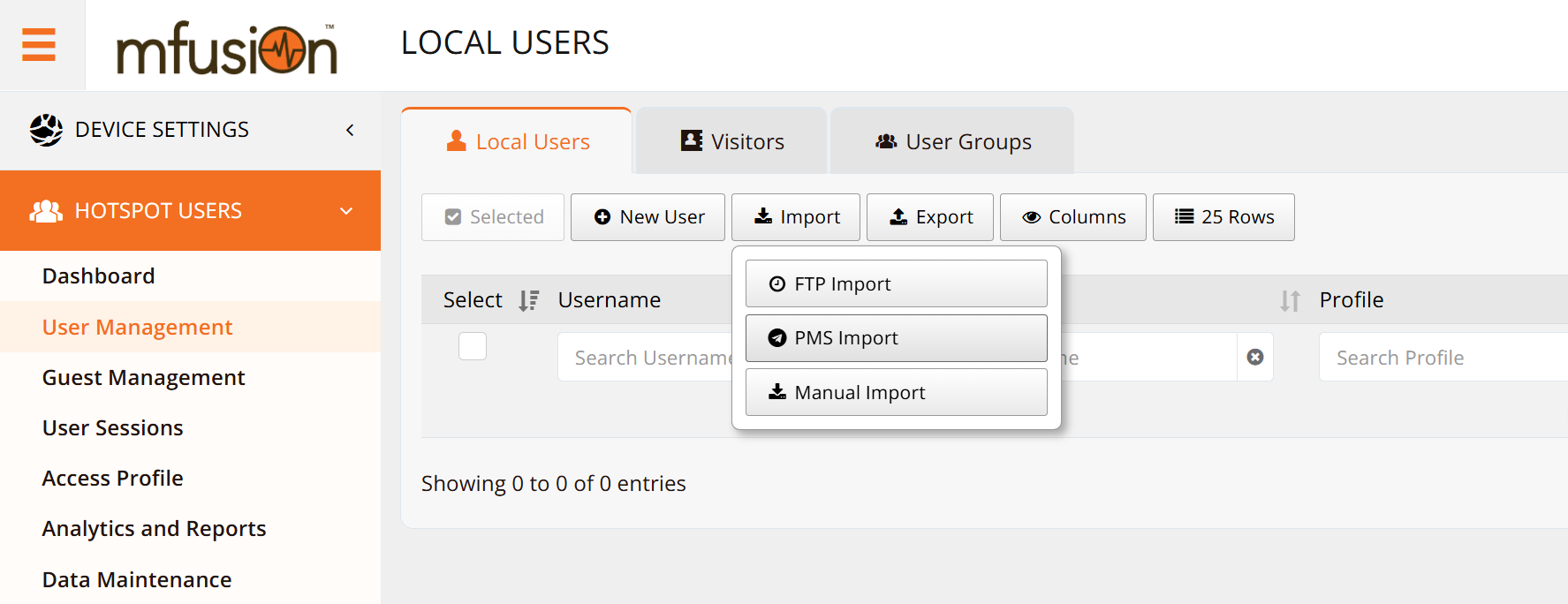
This section establishes real-time communication between HSG and Opera PMS. Once configured, HSG periodically synchronizes guest check-in/check-out status from the PMS and automatically creates/deletes guest accounts in the HSIA platform.
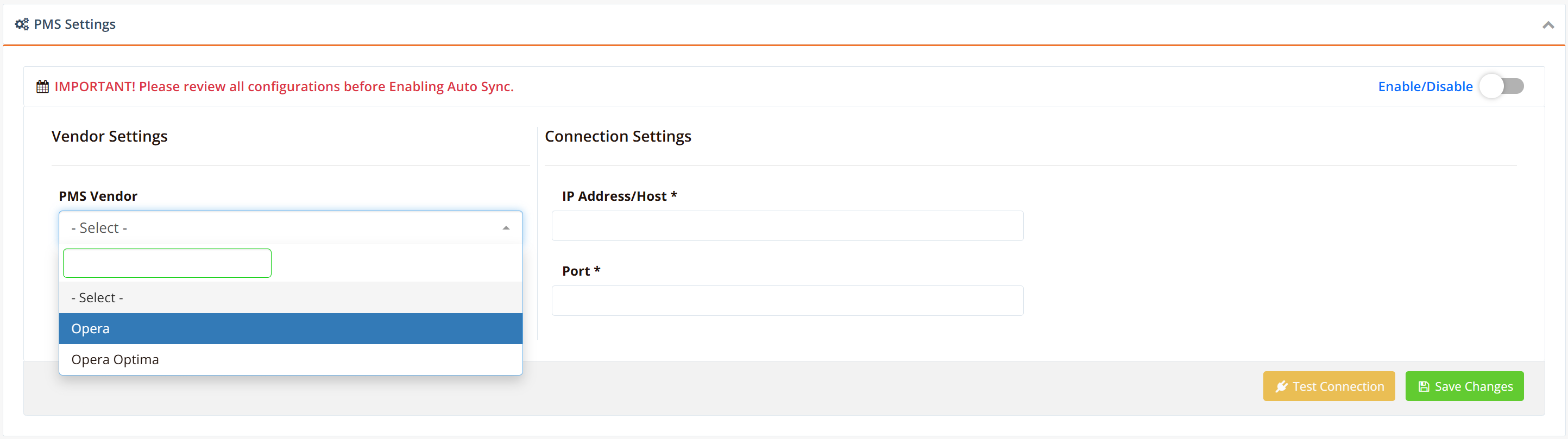
Configuration Parameters
| Parameter | Description | Example |
|---|---|---|
| PMS Vendor | Select the PMS platform (e.g., Opera PMS) | Opera PMS |
| Sync Interval | How frequently HSG synchronizes guest records from PMS | Every 15 minutes |
| IP Address / Hostname | PMS server IP address or hostname | 192.168.1.50 or pms.hotel.local |
| Port | Communication port used by PMS interface service | 1433 |
Configuration Procedure
- Enable PMS Integration using the toggle switch
- Select Oracle Opera as the PMS Vendor
- Enter the PMS Server IP Address or Hostname
- Enter the PMS Interface Port (provided by PMS administrator)
- Specify the synchronization interval (e.g., 15 minutes)
- Click Test Connection to verify connectivity
- Confirm the connection test returns success
- Click Save Changes
Validation
After configuration:
- HSG must be able to reach the PMS server on the specified IP and port
- Connection test must return successful status
- Synchronization logs should show successful guest record retrieval (see Verification section below)
PMS User Mapping
The PMS Mapping section defines how guest information from the PMS is mapped into the HSG authentication database. Each PMS field is associated with a corresponding HSG authentication attribute, allowing guests to authenticate using information already in the PMS without manual account creation.
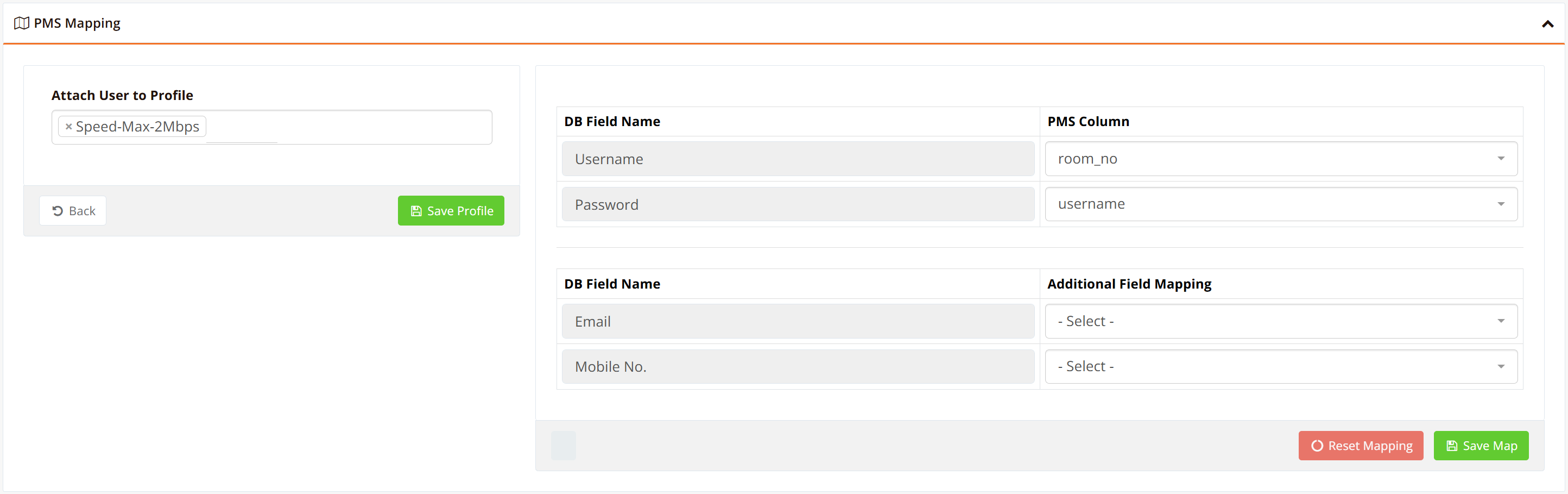
Assign User Profile
Select the HSG User Profile that will be automatically assigned to all guest accounts synchronized from the PMS.
Typical guest profiles:
- Standard Guest Internet
- Premium Guest Internet
- VIP Guest Internet
- Conference Guest Internet
The selected profile determines:
- Bandwidth limits
- Session timeout
- Access restrictions
Click Save Profile after selecting the appropriate profile.
Authentication Field Mapping
Configure the authentication field mapping to match your hotel's captive portal login method.
Example: Room Number + Last Name Authentication
| HSG Database Field | PMS Field |
|---|---|
| Username | Room Number |
| Password | Guest Last Name |
In this configuration:
- Guest enters Room Number as username
- Guest enters Last Name as password
- HSG validates credentials against synchronized PMS records
- This is the most commonly used configuration for hotel guest Wi-Fi access
Additional Information Mapping
Optional guest information can also be synchronized for marketing and analytics:
| HSG Database Field | PMS Field | Use Case |
|---|---|---|
| Guest Email | Marketing campaigns, guest analytics | |
| Mobile No. | Guest Mobile Number | SMS authentication, SMS marketing, contact analytics |
After completing the mapping configuration, click Save Map.
Verification
Test 1: PMS Synchronization
Verify that guest records are successfully synchronized from PMS to HSG:
- Create a test guest account in Opera PMS or perform a new guest check-in
- Wait for the next synchronization cycle or manually trigger synchronization from the PMS interface
- Navigate to Hotspot Users → User Management → Local Users
- Verify the guest account has been automatically created and assigned to the configured guest profile
- Confirm the account displays "pms" under the "Created By" column (indicates PMS import)
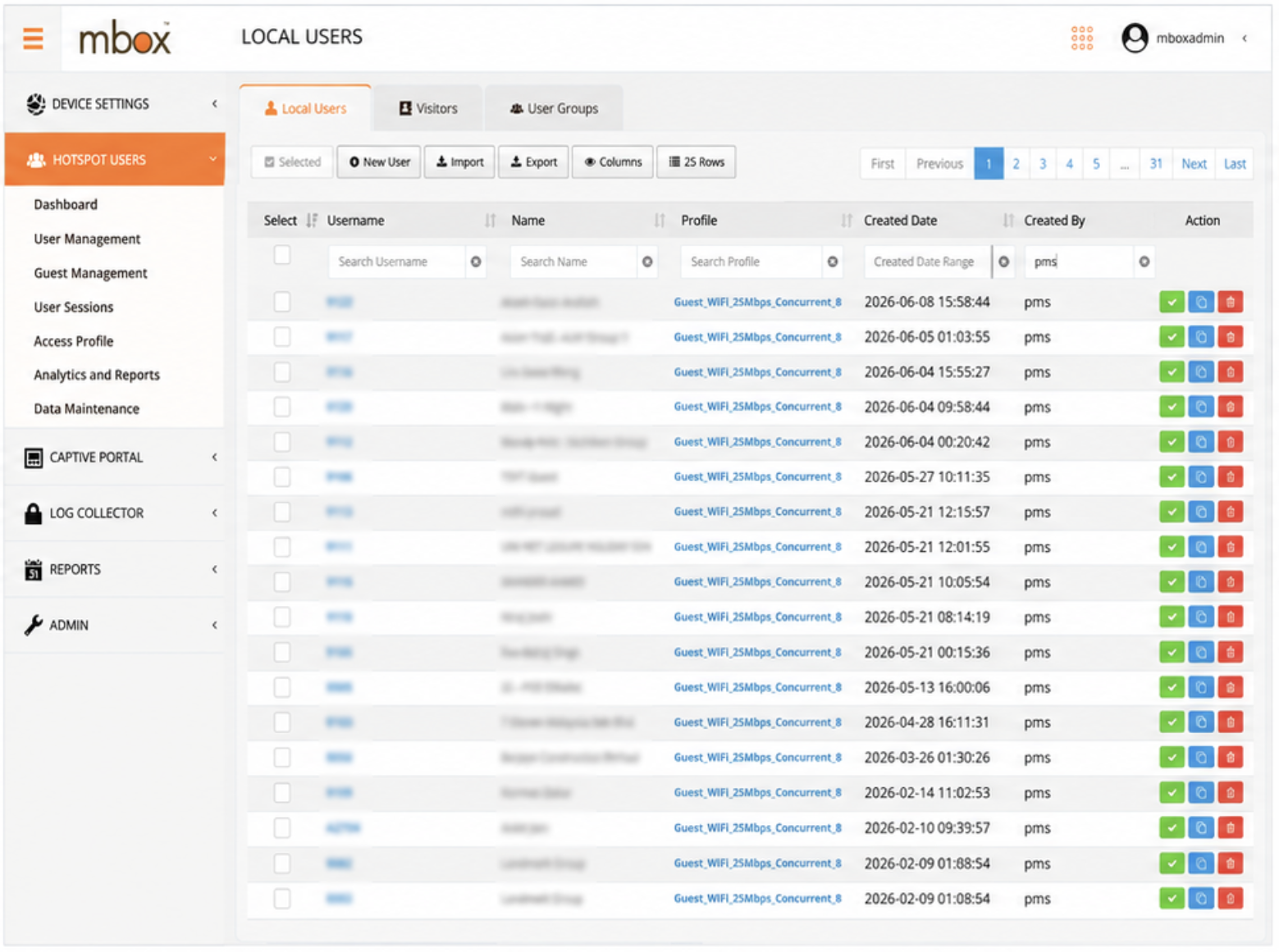
Expected Result: New guest account appears in HSG local database with "pms" origin and correct profile assignment.
Test 2: PMS Communication Log Verification
Verify that HSG is successfully communicating with PMS:
- Navigate to HOTSPOT USERS → Analytics and Reports
- Review the PMS communication logs
- Verify successful synchronization events showing incoming PMS messages (GO) followed by acknowledgement responses (ACK)
The presence of GO and ACK message exchanges indicates successful communication between PMS and HSG.
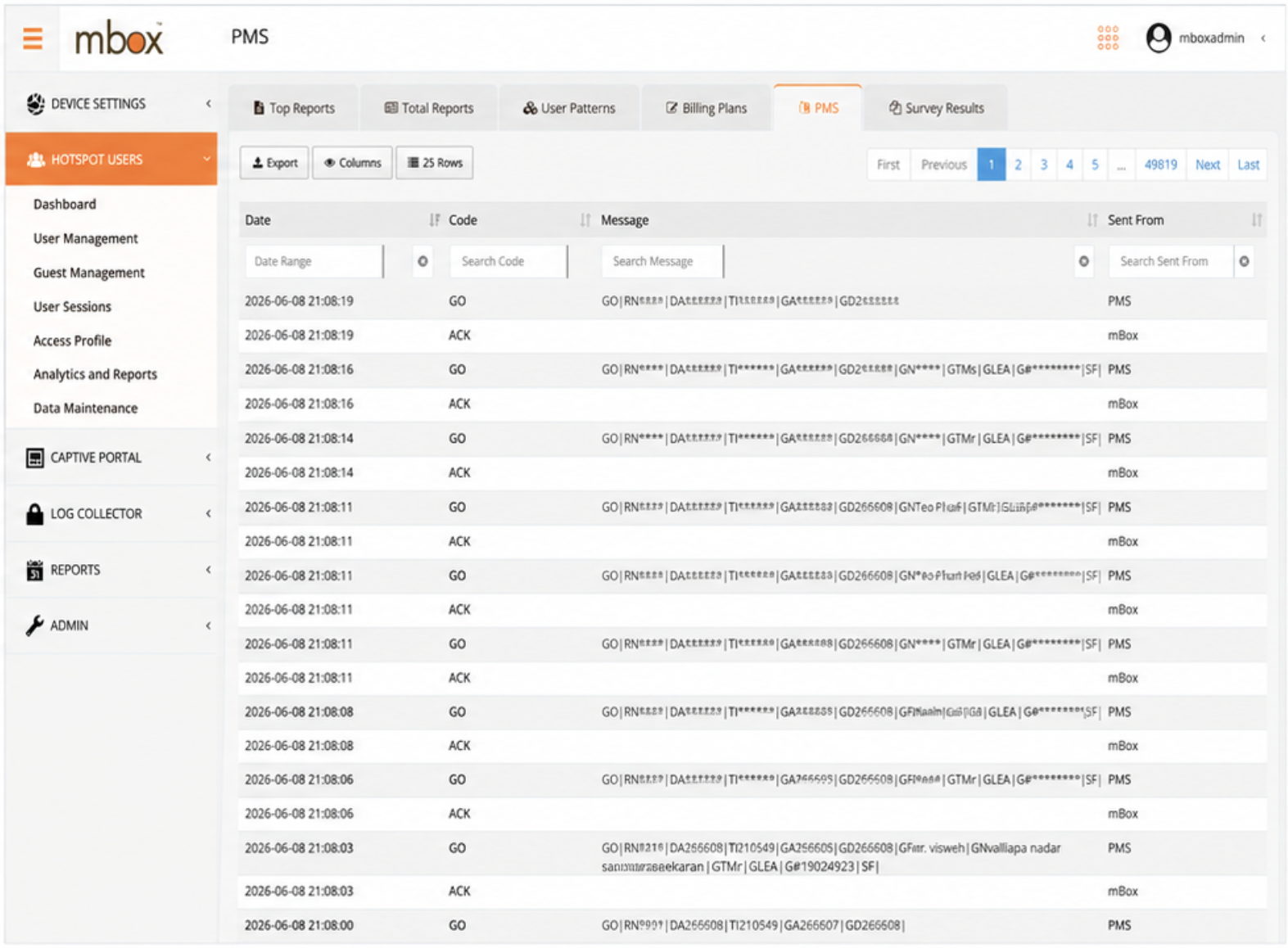
Expected Result: Communication log displays regular GO/ACK exchanges with no error messages.
Test 3: Guest HSIA Login Verification
Test end-to-end guest authentication and HSIA access:
- Connect a test device to the hotel's HSIA network (guest SSID)
- Open a web browser; device should be automatically redirected to the HSG captive portal login page
- Enter guest credentials:
- Room Number (in username field)
- Guest Last Name (in password field)
- Click Connect to authenticate
- If credentials match a synchronized PMS record, guest receives HSIA access per configured profile
Expected Result: Guest is granted HSIA internet access according to the assigned access profile. Guest can browse normally and is subject to bandwidth/session limits and access policies defined in the profile.
Troubleshooting
| Guest Symptom | Likely Cause | Solution |
|---|---|---|
| "Guest account not found" at login | Guest not yet synchronized from PMS (delay in sync cycle) or guest not checked in | Have guest contact front desk to verify check-in in Opera PMS. Wait for next sync cycle (typically 5-15 minutes). Manually trigger sync from HSG to speed up account creation. |
| Guest can't access HSIA after room transfer | Room transfer not yet synchronized or new room number not updated in HSG | Room transfer in PMS triggers automatic account update in HSG. Wait for next sync cycle. Confirm room transfer was completed in Opera PMS (not just a move request). |
| Guests lose HSIA access at checkout time | Automatic account deletion when PMS registers guest departure | This is expected behavior for security. If guest stays longer, front desk must extend checkout in PMS; HSIA access automatically resumes at next sync. |
| Multiple guests in same room can't share HSIA | Field mapping only uses one guest name (primary/lead guest from PMS) | All guests in the room should log in with the same room number + lead guest's last name. Configure multiple device/bandwidth limits per profile if they need simultaneous devices. |
| Operational Symptom | Likely Cause | Solution |
|---|---|---|
| PMS Connection Test Fails | PMS server unreachable, wrong IP/port, network firewall blocking, or PMS FIAS module offline | Verify PMS IP address and port are correct. Test HSG → PMS connectivity using ping <pms-ip>. Check network firewall allows traffic on configured port. Verify Opera FIAS module is running in PMS. |
| Guest Records Not Appearing in HSG | Synchronization cycle hasn't run yet, or sync disabled | Check last sync timestamp in HSG logs. Manually trigger sync from PMS interface. Confirm guest check-in actually occurred in Opera PMS (not just reservation). Wait for next automatic sync cycle. |
| GO/ACK Messages Missing from Logs | PMS→HSG communication broken, firewall blocking, or PMS not configured correctly | Verify PMS has correct HSG IP address and port. Check HSG firewall allows inbound PMS traffic. Confirm PMS FIAS module is enabled and configured. Review PMS logs for FIAS outbound connection errors. |
| High Sync Latency | Network latency between HSG and PMS, or PMS server overloaded | Monitor network latency between HSG and PMS (aim for < 100ms). If latency is high, move HSG and PMS to same network segment. Check PMS server CPU/memory utilization. |
| Bandwidth Limits Not Applied | Wrong profile assigned to guest, or profile missing bandwidth limits | In HSG, verify guest account is assigned to correct profile. In mfusion, verify profile has bandwidth limits configured. Restart hotspot service: security hotspot <lanif> stop; start. |
| Front Desk Reports High Support Calls | Guests confused about HSIA login process | Verify in-room Wi-Fi setup cards are clear and readily available. Customize captive portal with hotel name/logo (improves user confidence). Add portal splash page with support phone number. Consider adding "Need Help?" link to FAQ. |
Best Practices
PMS Synchronization & Operational Reliability
- Configure appropriate sync intervals — Start with 15-minute intervals; reduce to 5 minutes for high-turnover hotels (frequent check-ins/check-outs). More frequent syncs = faster account creation/deletion.
- Monitor communication logs regularly — Check PMS communication logs weekly for synchronization errors. Early detection prevents guest HSIA access issues.
- Maintain PMS as authoritative source — HSG's local guest database is temporary. Always keep your PMS as the single source of truth for guest records. If HSG database is reset, all guest records are recovered from PMS on next sync.
- Network reliability — If HSG and PMS are in different subnets or datacenters, monitor network latency. High latency delays account synchronization and impacts guest login experience. Aim for < 100ms round-trip time.
- Backup and disaster recovery — Regularly backup your PMS. If PMS becomes unavailable, guests cannot check in or access HSIA until service is restored.
Guest Experience & Satisfaction
- Customize captive portal branding — Update the portal page with hotel logo, brand colors, and hotel name. Professional branding increases guest confidence and reduces support calls.
- Provide clear login instructions — Include in-room Wi-Fi setup cards explaining that username is room number and password is last name. Reduces front desk support load.
- Set appropriate session timeouts — Balance guest convenience (longer sessions) with security (shorter sessions on shared devices in public areas). Suggested: 24 hours for room access, 2 hours for lobby/business center.
- Offer tiered service profiles — Example: Standard (2 Mbps, complimentary), Premium (10 Mbps, upsell), Loyalty Members (unlimited). Creates revenue opportunity and improves guest satisfaction.
- Add portal messaging — Display hotel amenities, room service phone number, or special offers on the portal splash page to enhance guest experience.
Network Segmentation & Security
- Isolate guest HSIA traffic — Use a separate VLAN (e.g., VLAN 200) dedicated to guest HSIA traffic. This prevents guests from accessing hotel staff networks, POS systems, or administrative servers.
- Restrict guest inter-VLAN access — Disable
client-local-accessin the hotspot instance to prevent guests from communicating with other VLANs (printers, internal services, etc.). - Never expose management interfaces — Ensure SSH and GUI access to HSG are restricted to staff network only. Never allow guest HSIA users to access HSG management.
- Apply traffic filtering — Use firewall policies to block P2P apps, torrenting, and other bandwidth-intensive applications that degrade HSIA for other guests.
- Monitor guest activity — Enable logging and periodically review session data for policy violations or suspicious behavior (credential sharing, excessive bandwidth use, etc.).
- Keep firmware updated — Regularly update HSG firmware to receive security patches and performance improvements. Refer to Release Notes for details.
Related Features & Customization
For detailed information on customizing your hotel HSIA deployment, refer to:
- Hotspot Instance Configuration — Configure the HSIA network VLAN, DHCP, session timeouts, and per-user bandwidth limits
- Captive Portal Configuration — Customize the guest login portal with hotel branding, terms, and promotional content
- Hotspot Authentication (RADIUS/UAM) — Advanced authentication methods (LDAP, social media integration) if you want additional login options beyond PMS credentials
- User Management — Manage guest accounts, manual account creation for staff/special guests, import/export user lists
- Access Profiles — Define multiple HSIA service tiers (standard, premium, VIP) with different bandwidth limits, access restrictions, and pricing