Hotspot Instance
A hotspot instance is a virtual hotspot access controller that handles traffic from a specific client network (LANIF). Each instance maps to a LAN interfaces (LANIF), with independent configuration for authentication, portal, DHCP, and access policies. Multiple instances allow HSG to serve different client networks (or SSIDs) with different user experiences and security policies.
Core Concepts
LANIF (LAN Interface)
A LANIF is the LAN interface where client traffic enters HSG for a hotspot instance:
- Can be a physical interface or VLAN interface
- Represents a client network (e.g., vlan10 for hotel guests, vlan20 for visitors)
- Each LANIF belongs to exactly one hotspot instance
- When VLANs are configured, the switch port connecting to the physical LAN interface must be configured as a trunk port with 802.1Q VLAN tagging
DHCP, Portal, AAA, and Access Control
Each hotspot instance combines the following key functions:
- DHCP Server — Issues IP addresses to client devices (unless DHCP relay is configured)
- Captive Portal — Redirects unauthenticated users to a login page (either locally hosted on HSG or externally hosted)
- AAA/RADIUS — Forwards user credentials to a local or upstream RADIUS server for authentication and policy retrieval
- Connection Control — Enforces per-user bandwidth limits, session timeouts, data quotas, and access policies
Note
If the LANIF interface already has a dhcp-server configured, do NOT enable DHCP within the hotspot instance. Running two DHCP processes on the same network causes conflicts.
Architecture Example
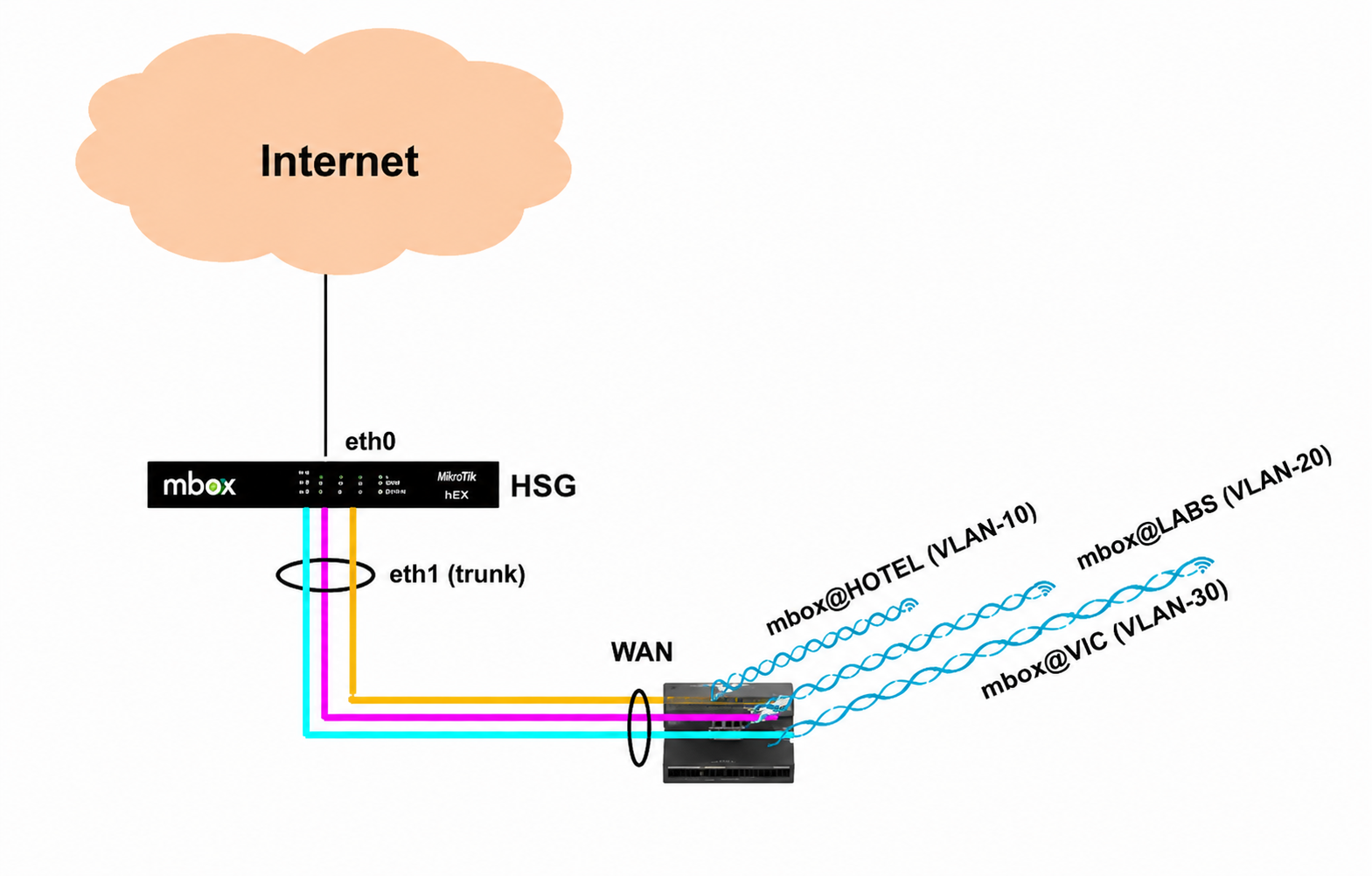
| Instance | LANIF | SSID |
|---|---|---|
| HOTEL | vlan10 (172.16.10.0/24) | mbox@HOTEL |
| ADS | vlan20 (172.16.20.0/24) | mbox@ADS |
| TVC | vlan30 (172.16.30.0/24) | mbox@TVC |
Configuration
Hotspot instance configuration is done via GUI or CLI. This section focuses on hotspot-specific settings. For network infrastructure (WAN/LAN interfaces, routing, etc.), refer to Network Configuration.
User authentication (RADIUS/UAM) and captive portal customization are covered in separate sections:
GUI Configuration:
Navigate to Device Settings → Security → Hotspot, then click Add Hotspot:
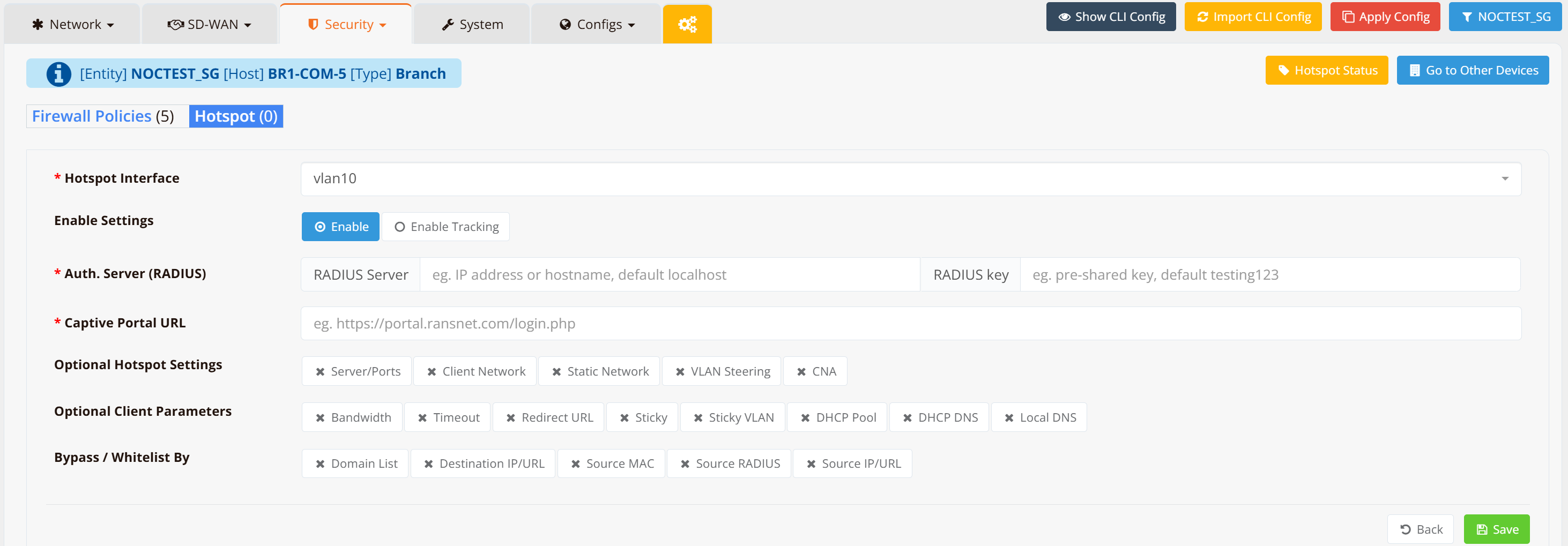
CLI Configuration:
mbox# configure
mbox(config)# security hotspot <LANIF>
Info: Client gateway is 172.16.10.1
Info: Client network is 172.16.10.0
Info: Client netmask is 255.255.255.0
Compulsory Commands
These settings must be configured for each instance to function:
hotspot-portal
Configure the user login portal URL:
Parameters:
<url>— Portal URL (e.g.,https://splash.ransnet.com/demo/hotel/login.php). The portal name must match the exact name (case sensitive) you created earlier.<preshared-key>— Must match the key set in the portal CMS
Important:
- Local portal: Configure DNS rewrite so the portal URL resolves to HSG's loopback address
- External portal: Ensure the URL is accessible and added to the firewall bypass/whitelist
radius-server
Configure the RADIUS server for user authentication:
Parameters:
<server1>— Primary RADIUS server IP<key>— RADIUS pre-shared key (must match HSG's RADIUS client configuration on the remote server)<server2>— Optional secondary server (uses same key as server1)
Default: If not configured, uses HSG's built-in RADIUS server.
Important: When using external RADIUS servers, register HSG's IP as a RADIUS client (NAS) on the remote server with the matching preshared key.
start / stop
Manage the hotspot service for this instance:
Important: After any configuration change, restart the hotspot service (stop then start).
Important Optional Commands
Use these to customize instance behavior. Default settings apply if not configured.
hotspot-portal external
Disable local portal and require external portal login:
By default, HSG opens HTTP/HTTPS access to clients for local portal access. This command hardens security by disabling access to HSG services (especially the GUI).
hotspot-server
Configure the hotspot server IP and ports:
By default, HSG uses the LANIF primary IP and auto-generates unique port numbers. Use this when:
- HA/failover setup: Configure a shared VIP so both active/standby units use the same hotspot server IP
Note
When hotspot service starts, HSG removes the LANIF IP and creates a virtual tunnel interface bound to the hotspot server IP. The original LANIF IP is restored when the service stops.
hotspot-splash
Configure the splash/landing page URL:
By default, same as the portal URL. Use when the portal is on a third-party server and you want a different splash page.
hotspot-access
Apply firewall ACL rules within the instance:
By default, authenticated users have full outbound access. Use this to restrict certain traffic (e.g., block email, FTP).
Example: Block email and FTP:
hotspot-access 10 deny tcp dport 20
hotspot-access 11 deny tcp dport 21
hotspot-access 12 deny tcp dport 110
hotspot-access 13 deny tcp dport 25
Note
Unlike normal firewall rules (implicit deny-all), hotspot instances have implicit permit-all for authenticated users. Explicit deny rules block specific traffic.
Client Network Configuration
client-network
Define the permitted client networks within this instance:
By default, HSG generates the client network from the LANIF setting. Use this to include additional subnets (e.g., behind a Layer 3 switch).
Compulsory if: Clients have static IPs (e.g., from a third-party controller). Configure the range to exclude static clients, then use client-static to identify them.
client-static
Allow static-IP devices to access hotspot:
When HSG runs DHCP, it expects all client IPs from its DHCP pool. Use this to whitelist devices with static IPs or addresses from other DHCP servers (e.g., third-party WLC).
Default: Disabled
client-local-access
Allow clients to access other hotspot instances:
By default, clients cannot access other networks (no inter-instance access). Use yes to allow cross-instance access (e.g., printer in another VLAN).
DHCP Configuration
client-dhcp
Configure the DHCP address pool:
By default, HSG assigns from the first available IP (e.g., 192.168.1.1/24 → first client gets 192.168.1.2). Use this to specify a different range.
client-dhcp-dns
Configure DNS servers issued via DHCP:
By default: 8.8.8.8 (Google DNS)
client-dhcp-helper
Enable DHCP relay (forward to upstream DHCP server):
Disables local DHCP and relays requests to upstream servers. If multiple servers specified, clients select from all offers.
Compulsory with: client-static (since external DHCP now assigns IPs)
Per-User / Per-Device Optional Commands
These settings can be configured globally (CLI) or per-user/connection. If both are configured, RADIUS settings override CLI settings.
client-bandwidth
Limit download/upload bandwidth per device:
If not configured, no speed limit applies.
client-timeout
Set idle and session timeouts:
idle-seconds— User session expires after inactivitysession-seconds— User session expires after absolute time (even if active)
When either timeout expires, user must log in again.
client-sticky
After a user's first successful login from a device, client-sticky lets that device reconnect automatically — without being prompted to log in again — for the duration of the account's validity period. This delivers a seamless experience, particularly valuable for hotel guests who reconnect throughout their stay.
| Command | Description |
|---|---|
client-sticky start <days> |
Keeps the user session sticky for <days>, counted from first use (the initial login). |
client-sticky last <days> |
Keeps the user session sticky for <days>, counted from last use (the most recent activity). |
client-sticky clean |
Resets all stored sticky data. All users must log in again. |
client-sticky-vlanlist <vlan10,vlan20,...> |
Allows clients to roam across the listed VLANs without re-logging in. For example, a user logged in on vlan10 is auto-logged-in when roaming into vlan20. |
Sticky session data is stored in the RADIUS database and can be viewed under HOTSPOT USERS → User Sessions → Client Sticky Sessions.
Note
client-sticky only works for on-premise deployments where the HSG is the local gateway. For CloudX designs (where an HSA acts as a local mini-hotspot gateway), use the portal-sticky feature instead to achieve seamless re-login.
Note
client-sticky is completely seamless, so there is no option to redirect the user to an external landing URL (e.g., marketing pages) on re-login. If you need a landing page on return, use portal-sticky.
How it works:
When a returning user obtains an IP and initiates any connection through the HSG (web or non-web), the HSG looks up its MAC ↔ username mapping in the sticky session table and authenticates with RADIUS on the user's behalf before the captive portal appears (background auto-login). This bypasses the portal login while still performing a full authentication — RADIUS continues to track each session for analytics and enforces the account's access policy (speed, time, and quota). If the account has expired, the auto-login fails and the user is returned to the portal landing page to log in again.
Tip
During mass-reconnection events — for example, when Wi-Fi recovers after an outage and all users reconnect at once — the background auto-login may lag behind the captive portal for some users, causing them to still see the portal page. To overcome this, combine client-sticky with the portal-sticky feature.
redirect-url
Redirect user to a landing page after login:
Can be a local HSG-hosted page or external URL (e.g., promotional website).
Bypass/Whitelist Configuration
Allow user access without authentication based on specified criteria.
Destination Domain
Permit access to specific domains (and all subdomains):
Important: Prefix each domain with a dot (.) so subdomains are automatically included. For example, .ransnet.com permits portal.ransnet.com, www.ransnet.com, and all other subdomains.
Destination Domain List
Similar to Destination Domain, but allows bulk domain imports from a list file.
Destination IP / URL
Permit access to specific URLs, IP addresses, or subnets:
Supports FQDNs, URLs, individual IPs, and subnet ranges (CIDR notation).
Source MAC (Entry)
Permit access based on device MAC address:
Devices with these MAC addresses bypass authentication.
Source IP / Subnet (Entry)
Permit access based on client source IP or subnet:
Clients with these IPs or from these subnets bypass authentication.
Source MAC (RADIUS Setting)
Permit access based on RADIUS MAC address authentication. Register device MAC addresses in RADIUS user database via User Management → Import.
Session Persistence
Seamless Re-login
Enable seamless session re-login after captive portal login. Clients don’t need to re-authenticate when returning to the hotspot.
Session Duration
Control how long user sessions remain valid:
- Since first login — Keep session active for N days from initial login (then re-authenticate)
- Since last login — Keep session active for N days from last use (sliding window)
CLI Example: Complete Instance Configuration
security hotspot vlan10
  hotspot-portal https://splash.ransnet.com/hotel/login.php key hotel123
  radius-server 192.168.1.100 radius-key-123
  client-dhcp 172.16.10.10 255.255.255.0 lease 3600
  client-dhcp-dns 8.8.8.8 8.8.4.4
  client-timeout 600 3600
  client-bandwidth 10000000 5000000
  start
Verification and Troubleshooting
Use these commands to verify hotspot instance configuration and diagnose issues:
show security hotspot
Display all configured hotspot instances:
Output shows instance name, LANIF, WANIF, DHCP settings, portal URL, and service status (running/stopped).
show security hotspot clients
List all connected clients for a specific instance:
Output shows client MAC address, assigned IP, authentication status, bandwidth usage, and session duration.
Related Features
- Captive Portal Configuration — Customize login page branding, authentication methods, and portal behavior
- Hotspot Authentication (UAM/RADIUS) — Detailed authentication methods and RADIUS integration
- User Management — Create and manage user accounts for hotspot access
- Access Profiles — Define bandwidth limits, session timeouts, and access policies per user group
- HotSpot Gateway Overview — Architecture, deployment modes, and user access flow