Tracking Features
RansNet SD-WAN routers include a built-in tracking engine that continuously monitors network reachability and automatically reacts to changes. Rather than relying on link-state signals alone (which only detect physical failures), tracking probes real connectivity to a target host — so the router can detect upstream failures, degraded paths, or logical connectivity loss even when a link appears physically up.
When a tracked target becomes unreachable, the router takes a configured action: disabling an interface, withdrawing a route, or resetting a cellular connection. When the target recovers, the action is reversed and the original state is restored.
Use Cases
| Context | What tracking controls |
|---|---|
| Interface settings | Enable or disable the interface |
| Static routing | Inject or withdraw a static route |
| Traffic steering (PBR) | Inject or withdraw a policy-based route |
| BGP network advertisement | Advertise or withdraw a BGP prefix |
| WWAN / SIM | Reset the mobile connection, or switch cellular mode |
| DNS entry (host/rewrite) | Serve the primary IP, a backup IP, or remove the entry |
| System reachability | Reboot the router as a last-resort recovery action |
| VRRP group participation | Join or withdraw from a VRRP group |
Common Options
All tracking contexts share the same set of probe options and the same track <method> ... CLI syntax:
| Field | Description |
|---|---|
| Tracking Method | Track Ping (track icmp) — sends periodic ICMP echo requests to the target. Supports SLA thresholds for nuanced failure detection. Track TCP (track tcp) — attempts a TCP connection to verify reachability; use this when ICMP is blocked by the upstream network or firewall. Track Route (track route) — checks whether a specific prefix is already present in the local routing table, instead of probing a remote host. Use this to gate one feature on the state of another — for example, only advertising a BGP network while a VRRP-managed VIP route is held by this router. |
| Track Host IP | The IP address or FQDN to probe. Typically the next-hop router or a reliable host beyond it (e.g., 8.8.8.8). Used with Track Ping/Track TCP only. |
| Tracked Route | The local route prefix to check for presence (e.g., a VRRP VIP as /32, or a prefix installed by another routing protocol). Used with Track Route only. |
| Tracking Interval (s) | How often probes are sent, in seconds (e.g., 30) |
| Ping SLA | Enable SLA-based tracking: the action is triggered when latency or packet loss exceeds the configured thresholds, even if the host is technically responding to probes. Applies to Track Ping only. |
| Maximum Latency (ms) | Round-trip latency threshold in milliseconds. Probes exceeding this value count as failures (e.g., 100). Applies only when Ping SLA is enabled. |
| Maximum Packet Loss (%) | Percentage of lost probe packets before the tracked object is considered down (e.g., 20). Applies only when Ping SLA is enabled. |
| Source IP | Source IP address for probe packets. Specify when verifying reachability via a particular path, or when the default source IP is ambiguous on a multi-homed device. Not applicable to Track Route. |
| Log | Log tracking state changes and probe results to syslog. Useful during commissioning and troubleshooting. |
| Reverse | Invert the tracking logic — the configured action triggers when the probe succeeds instead of when it fails. Useful for enabling a backup object only when the primary becomes unavailable. |
Two-consecutive-cycle confirmation is now universal
Every tracking context on this page — interfaces, static routes, PBR, BGP, WWAN/SIM, DNS entries, VRRP, and system reachability — requires two consecutive failed tracking cycles before taking the disruptive action (disabling, withdrawing, resetting, or switching). A single failed probe is logged but otherwise ignored. Recovery is always immediate: as soon as one cycle passes, the router restores the tracked object right away, without waiting for a second passing cycle. This asymmetry means a momentary blip never causes unnecessary churn, while restoration is never artificially delayed.
Tracking Interfaces
Interface tracking ties the administrative state of an interface to the reachability of an external host. If the tracked host becomes unreachable, the router disables the interface — removing it from routing and freeing the path for a backup. When connectivity is restored, the interface is re-enabled automatically.
A common use case is an optional or backup WAN interface: keep it disabled under normal conditions, and only bring it up when the primary WAN's upstream target is no longer reachable (using the Reverse option).
Note
Tracking probes run independently of the physical interface state. A tracked object can be deactivated even when the interface is physically up — for example, if the upstream router is reachable at Layer 2 but connectivity beyond it has failed.
Note
To avoid reacting to a single transient probe loss, the router requires two consecutive failed tracking cycles before disabling the interface. A lone failed cycle is logged but otherwise ignored; the interface is only acted on once the very next cycle also fails. A passing cycle in between resets the count back to zero. Recovery is immediate — as soon as one cycle passes, the interface is re-enabled right away (recovery does not require two consecutive passes).
GUI Configuration
Navigate to Device Settings → Network → Interfaces. Click an interface to open its settings, then click Enable Tracking.

CLI Configuration
Note
Always specify a source IP that belongs to a separate, always-up interface — not the interface being tracked. If you use the tracked interface's own IP as the source, probes will always fail once the interface is disabled, preventing it from ever recovering.
Tracking Static Route
Static route tracking allows a route to be conditionally present in the routing table based on reachability. The route is injected when the tracked target is reachable, and withdrawn when it is not.
This pattern is commonly called a floating static route. It is typically deployed alongside a backup default route at a higher administrative distance. Under normal conditions, the tracked primary route wins; if the primary path fails, the tracked route is withdrawn and traffic falls back to the backup automatically.
GUI Configuration
Navigate to Device Settings → Network → Static Routing. Click to add or edit a route.

In this example, the default route via 100.100.100.1 is only active when the nexthop is reachable. If the upstream fails, the route is withdrawn and a backup (higher-metric) default takes over.
Tip
For deeper upstream validation, track an IP further into the upstream network rather than just the immediate next-hop. This catches scenarios where the next-hop itself is up but connectivity beyond it has failed.
Always specify a Source IP bound to the interface being tracked. In a multi-WAN setup, the probe target may be reachable via an alternate path, causing the probe to succeed even when the intended WAN link has failed — leaving a stale route in the table that attracts traffic it cannot deliver.
CLI Configuration
track tcp and track route are also available — for example, only installing this route while a route learned elsewhere (e.g., via BGP) is present:
Note
Restoring the route is immediate as soon as tracking passes. Withdrawing it requires two consecutive failed cycles — see Common Options.
Tracking VRRP
VRRP tracking monitors a reachability target and stops or resumes a router's participation in a VRRP group based on the result. When the probe fails, the router withdraws from the group entirely — it stops sending advertisements and releases the VIP if it was MASTER — allowing the highest-priority remaining member to take over. When the probe recovers, participation resumes and the MASTER role is reclaimed.
This is the preferred mechanism for ensuring that a VRRP MASTER only holds the VIP when it has a working upstream path. Without tracking, a router whose WAN link has failed will continue to hold the VIP and attract traffic it cannot forward — a split-brain condition.
GUI Configuration
Navigate to Device Settings → Network → Interfaces. Click an interface to open its settings, then expand the VRRP section, edit a VRRP group, and enable Tracking Method.
For a full description of all probe configuration fields, see Common Options.
CLI Configuration
In this example, VRRP group 11 has no explicit enable statement — its active state is governed entirely by the tracking result. The router participates as MASTER when 1.1.1.1 is reachable, and withdraws from the group when the probe fails.
track tcp and track route are also available for VRRP, using the same syntax shown in Common Options.
Tip
Track a host that is reachable via the upstream WAN path — such as the ISP gateway or a public DNS server — rather than a host on the LAN. This ensures the VRRP failover reflects actual WAN reachability, not just local link state.
Tracking Policy-Based Route
Policy-based routing (PBR) allows traffic to be steered based on criteria beyond the destination address (e.g. source subnet, DSCP mark). PBR tracking works the same way as static route tracking — the PBR rule is only active when the tracked target is reachable.
The key advantage of PBR over static routing in a multi-WAN scenario is precedence. In most deployments, the WAN interfaces use DHCP, which installs kernel-level default routes. Kernel routes supersede static routes, so a static backup default may never be reached. PBR operates above the kernel routing table, so a tracked PBR rule will take effect regardless of what kernel or static routes are present — giving you reliable, deterministic traffic steering even in mixed-WAN environments.
GUI Configuration
Navigate to Device Settings → SD-WAN → Traffic Steering. Click to add or edit a rule.

CLI Configuration
In this example, traffic from 192.168.8.0/22 is steered via 100.100.100.1 as long as 1.1.1.1 is reachable. If tracking fails, the PBR rule is withdrawn and traffic follows normal routing.
track tcp and track route are also available, using the same syntax shown in Common Options.
Tip
PBR route tracking will automatically use the nexthop interface as the tracking source. However, you can still explicitly specify tracking source if needed.
Note
Installing the PBR route is immediate as soon as tracking passes. Withdrawing it requires two consecutive failed cycles — see Common Options.
Tracking BGP Route
By default, BGP advertises a connected prefix only when the corresponding interface is up. This works well for physical interfaces, but causes a problem on platforms where LAN interfaces are always logically up regardless of physical connectivity.
On HSA-520 series devices, the LAN interface is a VLAN interface — it remains administratively up even when the downstream switch or cable is unplugged. BGP has no visibility into this failure and will continue advertising the LAN prefix to peers, attracting traffic that cannot actually be delivered. BGP tracking solves this by tying prefix advertisement to a tracked host on the LAN segment.
When the tracked LAN host becomes unreachable (indicating a switch failure, cable pull, or downstream device outage), the router withdraws the BGP advertisement, preventing upstream peers from forwarding traffic down a broken path.
GUI Configuration
Navigate to the BGP configuration section (under SD-WAN or Dynamic Routing, depending on your deployment), and open the advertised network entry:

CLI Configuration
Set the tracked IP to a known-static host on the LAN (e.g. a server or a managed switch with a fixed IP).
track tcp and track route are also available, using the same syntax shown in Common Options.
Note
Advertising the network is immediate as soon as tracking passes (subject to the optional preempt-delay recheck below). Withdrawing it requires two consecutive failed cycles — see Common Options.
A separate, optional preempt-delay can be attached to the announce side only — for example, network 192.168.5.254/24 track icmp 192.168.5.6 30 preempt-delay 60 waits 60 seconds and re-checks once before re-announcing, to dampen a flapping link from repeatedly re-triggering BGP updates. This is independent of, and in addition to, the two-consecutive-cycle confirmation on the withdraw side.
Tracking WWAN/SIM Connections
Connection Reset Behavior
WWAN tracking behaves differently from interface tracking. Rather than permanently disabling the interface on failure, the system briefly resets the cellular connection and immediately attempts to re-establish it. This is intentional.
Cellular networks are not perfectly stable — as a device moves between coverage areas, it can remain radio-associated with a distant tower while losing routable connectivity through that tower's backhaul. From the router's perspective, the interface is "up" but traffic goes nowhere. A connection reset forces the modem to re-register, pick up a nearby tower, and re-establish a fresh PDP context, restoring connectivity within seconds.
This behavior also benefits devices using multi-profile SIMs — a single SIM card with multiple carrier profiles loaded. When one profile fails, the reset cycle allows the system to try the next available profile automatically, without manual intervention.
Note
As with interface tracking, WWAN tracking waits for two consecutive failed cycles before resetting the connection (or triggering SIM failover, if configured) — a single failed probe is logged but not acted on. This applies to all WWAN tracking methods (ICMP, TCP, RSRQ, SINR) and prevents a one-off probe loss or momentary radio blip from causing an unnecessary reset. Recovery, by contrast, takes effect on the very next passing cycle.
GUI Configuration
Navigate to Device Settings → Network → WWAN.

CLI Configuration
Note
WWAN tracking has two additional tracking methods beyond ICMP and TCP: RSRQ (Reference Signal Received Quality) and SINR (Signal-to-Interference-plus-Noise Ratio). Both reflect radio signal quality rather than upper-layer IP reachability, making them useful for detecting degraded radio conditions before connectivity is fully lost. See Choosing RSRQ vs SINR below for guidance on which to use.
SIM Failover (Primary → Backup, by SLA)
On dual-SIM branch routers, WWAN tracking can trigger a failover to the backup SIM when the active connection fails its tracking check or SLA thresholds — not only when the SIM loses registration. Add the failover keyword to the WWAN interface's track command.
CLI Configuration
To fail over on SLA degradation — when latency or packet loss breaches the target even though the host still responds:
Key points:
failover— on tracking (or SLA) failure, the router switches to the backup/standby SIM. Available only onwwan0/wwan1.- The router requires two consecutive failed tracking cycles before switching — a single failed check is logged but not acted on, so a one-off probe loss doesn't trigger an unnecessary failover.
- Once failover occurs, the router stays on the backup SIM until the next reboot. It does not automatically switch back to re-test the primary SIM.
Note
On single-module (active/standby) devices the same modem must redial on the other SIM slot, so each switch takes up to ~2 minutes; on dual-module (active/active) devices the switch is a kernel-level route change (~2–3 seconds). See SIM Failover Behavior for the underlying mechanism.
Warning
The optional restore keyword (e.g., track icmp 1.1.1.1 30 restore 300 failover) makes the router periodically switch back to re-test the primary SIM. Use it with caution: because each SIM switch on single-module devices takes up to ~2 minutes, repeatedly restoring to re-check the primary can severely degrade overall connectivity — and if the primary is still bad, the router fails over again, forming a flapping loop. Leaving restore unconfigured (the default) keeps the connection stable on the backup SIM until you intervene or reboot.
SIM Failover (Primary → Backup, by signal quality)
Reachability alone does not always tell the full story — a SIM can still pass ICMP/TCP tracking while sitting on a degraded radio link that will fail intermittently or throttle throughput. To catch this earlier, track the primary SIM's own signal quality and fail over to the backup SIM once it drops below an acceptable threshold — even though the connection is technically still reachable. Two methods are available: RSRQ and SINR.
Choosing RSRQ vs SINR
| RSRQ (Reference Signal Received Quality) | SINR (Signal-to-Interference-plus-Noise Ratio) | |
|---|---|---|
| What it measures | Cell quality — a combined view of received power (RSRP) and overall received signal (RSSI), reflecting how loaded/congested the serving cell is | How cleanly the modem can decode the signal against noise and interference — the metric closest to actual achievable throughput and modulation rate |
| Typical range | Negative dB (e.g., -3 to -20); less negative is better |
Wider range, can be negative or positive (e.g., -20 to +30); higher is better |
| Best suited for | LTE connections, and detecting cell congestion/loading | 5G NR connections, and detecting genuine link-quality degradation |
| Known limitation | On 5G NR, wide channel bandwidths dilute interference across far more resource elements, and NR deployments typically have fewer neighboring cells competing for spectrum than a dense LTE grid — so RSRQ often stays in a narrow, nearly-flat range and becomes a weak discriminator of real link quality |
Tip
For 5G NR connections, prefer SINR. It's more sensitive to real degradation and correlates directly with the throughput you'll actually get. RSRQ is well-proven on LTE but tends to sit flat on NR, making it a poor trigger for failover on 5G links. For LTE-only deployments, RSRQ remains a solid, widely-used choice.
Since track rsrq and track sinr can run at the same time on one interface (see the key points below), you can also configure both for defense-in-depth — whichever detects the fault first triggers the failover.
CLI Configuration — RSRQ
Set -15 to your own target RSRQ threshold (in dB) — see Signal Quality Reference for typical Excellent/Good/Fair/Poor ranges to help choose a value. The router checks RSRQ every 60 seconds; once a fresh reading is at or below the configured minimum, failover switches to the backup SIM. The log keyword records every tracking cycle — pass or fail — to the system log, which is essential for confirming the feature is active and for diagnosing why (or when) a failover occurred.
CLI Configuration — SINR
Set 0 to your own target SINR threshold (in dB) — see Signal Quality Reference for typical Excellent/Good/Fair/Poor ranges. Behavior is otherwise identical to RSRQ tracking: the router checks SINR every 60 seconds, and failover triggers once a fresh reading is at or below the configured minimum.
Key points:
track rsrq <threshold> <interval> failover log/track sinr <threshold> <interval> failover log— both available only onwwan0/wwan1.<threshold>is in dB; for both metrics a higher value is better, so failover triggers when a valid reading is at or below the threshold.- Same failover behavior as SLA-based tracking above: once failover occurs, the router stays on the backup SIM until the next reboot, unless a
restoreinterval is also configured (see the warning above). - As with SLA-based tracking, a valid-but-poor reading must occur on two consecutive cycles before failover triggers — a single bad reading is logged but not acted on.
- If the modem cannot produce a fresh reading at all (for example, a disconnected antenna, or a transient radio/module glitch), tracking does not fail over on the first missed cycle. It skips up to two consecutive cycles with no reading, then treats the third (and every subsequent) consecutive missing reading as a tracking failure — which, same as above, only triggers SIM failover once it has occurred on two consecutive cycles. See the log examples below. This avoids a false failover triggered by a single momentary reporting gap or a garbled modem response caught mid-transition.
track icmp,track tcp,track rsrq, andtrack sinrcan all be configured at the same time on the same interface — each runs as an independent check, and any one of them failing withfailoverconfigured triggers SIM failover. Use this to combine reachability tracking with one or both signal-quality methods rather than choosing just one.
Watching Tracking Status in the Logs
With log enabled, use show logging system (optionally show logging system include track to filter) to watch tracking activity in real time. With both antennas connected and signal healthy, each tracking cycle logs a pass:
Sat Aug 22 09:57:37 2026 user.info track_iface_wwan0: Sat Aug 22 09:57:37 UTC 2026 start tracking interface wwan0
Sat Aug 22 09:57:37 2026 user.info track_iface_wwan0: tracked host:
Sat Aug 22 09:57:37 2026 user.info track_iface_wwan0: track source:
Sat Aug 22 09:57:37 2026 user.info track_iface_wwan0: track method: rsrq
Sat Aug 22 09:57:37 2026 user.info track_rsrq_wwan0: RSRQ tracking passed. current=-6dB, configured min=-11dB (current meets minimum - no failover).
Sat Aug 22 09:57:37 2026 user.info track_iface_wwan0: tracking passed for wwan0.
SINR tracking logs the same way, tagged track_sinr_wwan0 instead of track_rsrq_wwan0:
Sat Aug 22 09:57:52 2026 user.info track_iface_wwan0: track method: sinr
Sat Aug 22 09:57:52 2026 user.info track_sinr_wwan0: SINR tracking passed. current=13dB, configured min=0dB (current meets minimum - no failover).
Sat Aug 22 09:57:52 2026 user.info track_iface_wwan0: tracking passed for wwan0.
In most cases — for example, gradual telco signal deterioration — the modem continues to produce valid readings that simply decline over time. The first reading at or below the configured minimum is logged as a failed cycle but does not yet trigger failover; only once the next cycle also comes back at or below the minimum does the router perform SIM failover, the same two-consecutive-cycle confirmation used by SLA-based tracking above.
A different corner case shows up in lab testing when signal is lost abruptly — for example, by physically disconnecting the antennas — rather than degrading gradually. In that situation the modem may be unable to produce any reading at all, rather than reporting a poor-but-valid one. Tracking does not fail over on the first missed reading; it logs a skip for each of the first two missed cycles, treats the third (and every subsequent) consecutive missing reading as a tracking failure, and — same as a genuine bad reading — only fails over once that failure has been seen on two consecutive cycles, i.e. the fourth consecutive cycle with no reading (shown here for RSRQ; SINR behaves identically under the track_sinr_wwan0 tag):
Sat Aug 22 10:05:37 2026 user.info track_iface_wwan0: Sat Aug 22 10:05:37 UTC 2026 start tracking interface wwan0
Sat Aug 22 10:05:37 2026 user.info track_iface_wwan0: tracked host:
Sat Aug 22 10:05:37 2026 user.info track_iface_wwan0: track source:
Sat Aug 22 10:05:37 2026 user.info track_iface_wwan0: track method: rsrq
Sat Aug 22 10:05:37 2026 user.info track_rsrq_wwan0: no fresh RSRQ reading available for wwan0 (configured min=-11dB) - skipping this cycle (1/3).
Sat Aug 22 10:05:38 2026 user.info track_iface_wwan0: no tracking result for wwan0 this cycle. doing nothing.
Sat Aug 22 10:07:38 2026 user.info track_iface_wwan0: Sat Aug 22 10:07:38 UTC 2026 start tracking interface wwan0
Sat Aug 22 10:07:38 2026 user.info track_iface_wwan0: tracked host:
Sat Aug 22 10:07:38 2026 user.info track_iface_wwan0: track source:
Sat Aug 22 10:07:38 2026 user.info track_iface_wwan0: track method: rsrq
Sat Aug 22 10:07:38 2026 user.info track_rsrq_wwan0: no fresh RSRQ reading available for wwan0 (configured min=-11dB) - skipping this cycle (2/3).
Sat Aug 22 10:07:38 2026 user.info track_iface_wwan0: no tracking result for wwan0 this cycle. doing nothing.
Sat Aug 22 10:09:38 2026 user.info track_iface_wwan0: Sat Aug 22 10:09:38 UTC 2026 start tracking interface wwan0
Sat Aug 22 10:09:38 2026 user.info track_iface_wwan0: tracked host:
Sat Aug 22 10:09:38 2026 user.info track_iface_wwan0: track source:
Sat Aug 22 10:09:38 2026 user.info track_iface_wwan0: track method: rsrq
Sat Aug 22 10:09:38 2026 user.info track_rsrq_wwan0: no RSRQ reading available for wwan0 for 3 consecutive cycles (configured min=-11dB) - treating as tracking failure.
Sat Aug 22 10:09:38 2026 user.info track_iface_wwan0: tracking failed for wwan0 (1/2) - waiting for confirmation before acting.
Sat Aug 22 10:11:38 2026 user.info track_iface_wwan0: Sat Aug 22 10:11:38 UTC 2026 start tracking interface wwan0
Sat Aug 22 10:11:38 2026 user.info track_iface_wwan0: tracked host:
Sat Aug 22 10:11:38 2026 user.info track_iface_wwan0: track source:
Sat Aug 22 10:11:38 2026 user.info track_iface_wwan0: track method: rsrq
Sat Aug 22 10:11:38 2026 user.info track_rsrq_wwan0: no RSRQ reading available for wwan0 for 4 consecutive cycles (configured min=-11dB) - treating as tracking failure.
Sat Aug 22 10:11:38 2026 user.info track_iface_wwan0: tracking failed for 2 consecutive cycles. Failover SIM card.
Note
On single-module (active/standby) devices, the SIM failover that follows (deregistering, power-cycling the modem, re-registering on the other slot, and coming back up with a new IP) is the same ~2-minute redial process described in SIM Failover Behavior — signal-quality tracking simply adds an earlier trigger condition on top of it.
Switch Cellular Mode (5G → 4G)
RansNet cellular routers can automatically fall back from 5G to 4G LTE when end-to-end connectivity is lost over the 5G path — even when the 5G radio itself appears operational.
When 5G radio coverage is simply unavailable (the RAN is out of range or powered down), the modem falls back to LTE automatically without any tracking configuration. This section addresses a different and more subtle failure mode: the modem is registered on a 5G cell and the radio link is active, but the 5G core network (5GC) has a fault. Traffic enters the 5G RAN but is silently dropped before reaching the internet. From the router's perspective, the wwan interface is up and the modem reports a healthy 5G connection — but no data flows.
A simple connection reset does not resolve this. The modem will re-associate with the same 5G cell and re-attach to the same faulty 5GC. The correct response is to switch the radio access technology to LTE, which uses a completely separate core network (the 4G EPC) and an independent backhaul path, bypassing the faulty 5GC entirely.
Configuring nr-mode with a tracking probe automates this: if the probe target becomes unreachable while in 5G mode, the router switches the modem to LTE and remains on LTE until the next reboot.
CLI Configuration
Key points:
nr-mode NR5G— sets the preferred radio access mode to 5G NRtrack icmp 1.1.1.1 30— probes1.1.1.1every30seconds; probe failure indicates end-to-end connectivity loss.track tcpandtrack routeare also available.failover LTE— switches the modem to LTE mode on probe failure; the router remains on LTE until reboot and does not attempt to switch back to 5G automatically
Note
As with other tracking contexts, the router requires two consecutive failed cycles before switching mode — a single failed probe is logged but not acted on. See Common Options.
Note
Once failover to LTE occurs, the router stays on LTE until the next reboot. It will not attempt to recover back to 5G mode automatically, to avoid flapping between modes. Choose a probe target that is reachable over the 5G path — such as a public DNS server (1.1.1.1, 8.8.8.8).
Tracking System Reachability
System reachability tracking is a last-resort watchdog mechanism that operates at the router level rather than at the interface or route level. Instead of withdrawing a route or disabling an interface on failure, it reboots the router — the assumption being that the device has entered a state it cannot self-recover from, and that a clean restart is the safest way to restore connectivity.
This is appropriate in scenarios where interface and route tracking have not resolved the problem — for example, a software deadlock, a hung process, a routing table inconsistency, or a connectivity issue (e.g., an auto-sensing fault with an adjacent device or a stale cellular attachment) that leaves the router unable to forward traffic despite all interfaces appearing up. Because a reboot is disruptive, system tracking should be configured with a long probe interval and strict failure thresholds to avoid unnecessary restarts.
GUI Configuration
Navigate to Device Settings → System → Other Settings, then open the Tracking tab.
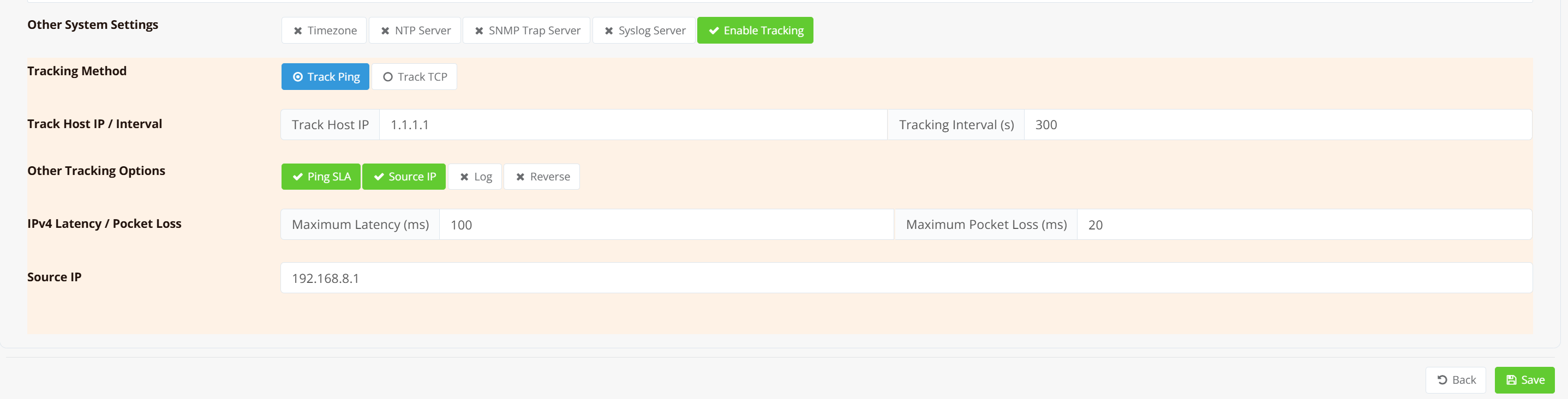
The configuration fields are the same as the Common Options described above. In the example shown, the router probes 1.1.1.1 every 300 seconds using ICMP, with Ping SLA thresholds of 100 ms latency and 20% packet loss. Source IP is bound to 192.168.8.1.
Note
The router requires 2 consecutive probe failures before triggering a reboot. With a 300-second interval, this means the target must be continuously unreachable for at least 10 minutes before any action is taken.
CLI Configuration
Key points:
ip track— configures system-level tracking; unlike interface or route tracking, this command is global and not tied to any specific objecticmp 1.1.1.1 300— probes1.1.1.1with ICMP every300seconds.tcpandroutemethods are also available, using the same syntax shown in Common Options.max 100 20— Ping SLA thresholds: probe fails if round-trip latency exceeds100 msor packet loss exceeds20%src 192.168.8.1— binds probe packets to this source IP, ensuring they follow the intended pathlog— enables verbose tracking messages in syslog; probe results, failure counts, and the reboot trigger are always logged at warning/critical level regardless of this option
Tip
System reachability tracking triggers a full router reboot — a disruptive action that should only fire when all other recovery options have been exhausted. Use a long probe interval (e.g., 300 seconds) with a stable, always-reachable target. Overly short intervals on an unreliable uplink risk repeated reboots that can make the device difficult to recover remotely.
Tracking DNS Entries
A local DNS entry (ip host) can be made conditional on the reachability of a target host. When the tracked host is alive, the router serves its configured IP; when tracking fails, the entry is switched to a backup IP (if configured) or removed entirely, causing lookups to fail rather than return a dead server.
This is useful for directing clients to an active instance when multiple redundant servers exist behind the same hostname, without relying on a load balancer.
CLI Configuration
ip host service.example.com 192.168.1.10 rewrite track icmp 192.168.1.10 15 max 200 20 backup 192.168.1.20
track tcp and track route are also available, using the same syntax shown in Common Options. See DNS Rewrite — Tracked DNS Entry for the full field reference and additional examples.
Note
Serving the primary IP again is immediate as soon as tracking passes. Switching to the backup IP (or removing the entry) requires two consecutive failed cycles — see Common Options.
Related Features
- System Sync — uses a tracked route (
track route) to determine primary/secondary role for offsite HA pairs - VRRP — uses tracking to control group participation and trigger MASTER handover
- DNS Rewrite — tracked DNS entries with automatic backup/removal on failure