Security Logging (Syslog Collector)
RansNet devices provide comprehensive support for security and audit logging via the standard Syslog protocol. Syslogs are classified by severity (Emergency, Alert, Critical, Error, Warning, Notice, Informational, Debug) and facility type, making it easy to filter and route logs based on source and importance.
Many regulations—including Sarbanes-Oxley Act, PCI DSS, and HIPAA—require organizations to collect, store, and analyze logs from all security-relevant systems. This document explains how RansNet devices can function as either syslog clients (sending logs) or syslog collectors (receiving and storing logs from other devices).
Overview
RansNet devices support two deployment modes for security logging:
| Mode | Role | Devices | Purpose |
|---|---|---|---|
| Syslog Client | Exports logs | CMG, HSA, UA, XE, UAP, HSG | Send locally generated logs to a central collector or external syslog server |
| Syslog Collector | Receives & stores logs | HSG, mlog series (LOG-500, LOG-1000, LOG-2000) | Centralize logs from multiple devices; parse and archive in SQL database |
Log Types Supported
RansNet devices generate the following log types:
| Log Type | Source | Content | Auto-Enabled |
|---|---|---|---|
| Firewall Access | Firewall engine | Permit/deny decisions, packet details (source, destination, protocol, port) | Manual (firewall-access rules) |
| DNS Query | DNS resolver | Domain resolution requests (client IP, domain, record type) | Yes (default) |
| DHCP | DHCP server | Device registration events (IP assignment, MAC address, hostname) | Yes (default) |
| RADIUS | Authentication (HSG only) | User sessions (username, MAC, IP, start/end time, traffic volume) | Yes (HSG only) |
| CLI Command | CLI shell | Administrator commands executed | Manual (logging rules) |
Requirements
Before configuring security logging, ensure:
- Firewall access logging: At least one
firewall-accessrule configured on the device (on-device logging) - Syslog export: UDP/514 open between the device and syslog collector (verify with
firewall-inputrules on collector) - Syslog collector: HSG or mlog appliance with sufficient disk space (minimum 10GB for ~90 days of logs)
- Compliance: Understand local data retention regulations (many countries require 90+ days of firewall/URL logs)
Part 1: Configure Syslog Client (Export Logs)
Devices export logs by enabling firewall logging and defining log export rules.
Step 1: Enable Firewall Logging
GUI Configuration
Navigate to Device Settings → Security → Firewall Policies. For each rule you want logged, set the Action to one of:
| Action | Behavior |
|---|---|
permit-log |
Allow traffic and log matching packets |
deny-log |
Block traffic and log matching packets |
CLI Configuration
Use firewall-access rules to log packets passing through the device:
firewall-access 100 permit-log inbound eth0 tcp dport 80 remark "Log HTTP"
firewall-access 101 deny-log inbound eth0 tcp dport 22 remark "Log SSH blocks"
For HSG/HSA (Hotspot Instances):
HSG and HSA maintain separate firewall rules for each hotspot instance. Enable logging per instance:
View Local Logs
To troubleshoot locally, view real-time logs from the CLI:
mbox# show logging system
Info: showing system local logs. use CTL+C to stop
Oct 14 23:22:06 mbox kernel: [3964398.563219] mboxfw-permit:IN=eth0 OUT= SRC=10.99.1.3 DST=10.65.19.9 PROTO=TCP SPT=50467 DPT=22
Note
The show logging system command displays real-time logs only, useful for troubleshooting. RansNet does not retain historical local logs. For persistent logging, configure export rules (Step 2) to send logs to an external collector.
Step 2: Configure Log Export Rules
Define rules to export logs to a syslog collector or external server. Rules are evaluated top-down; the first match applies.
CLI Configuration
Filter Options:
| Filter | Syntax | Purpose |
|---|---|---|
msg <text> |
ip logging 10 host 49.128.58.68 msg mboxfw |
Match logs containing specific text (e.g., firewall logs) |
tag <tag> |
ip logging 11 host 49.128.58.68 tag unbound |
Match by syslog tag (e.g., DNS logs from unbound) |
fac <facility> |
ip logging 10 host 49.128.58.68 fac local1 |
Match logs from specific facility (HSA/branch series only) |
prio <priority> |
ip logging 10 host 49.128.58.68 prio ALERT |
Match by severity level |
all |
ip logging 20 host 49.128.58.68 all |
Export all logs (useful for initial setup) |
Example 1: Gateway Series (CMG/HSG)
!
ip logging 10 host 49.128.58.68 msg mboxfw
ip logging 11 host 49.128.58.68 tag unbound
ip logging 12 host 49.128.58.68 tag dhcp
ip logging 13 host 49.128.58.68 tag radius
ip logging 20 host 49.128.58.68 tag klish
!
Example 2: Branch Series (HSA/UA/XE/UAP)
Branch series supports facility-based filtering only:
Warning
Once a device is configured as a syslog client (log export rules defined), matched logs are sent to the collector and no longer available locally. If you need to retain local logs on HSG for offline access, do NOT configure export rules—instead, use the GUI Log Collector feature to store logs on the device itself.
Verification
| Test | Command | Expected Outcome |
|---|---|---|
| Firewall rules configured | show firewall-access |
Lists rules with permit-log or deny-log actions |
| Debug syslogs | tcpdump interface eth0 port 514 detail |
See if any syslog packets are sent to collector IP |
| Logs being exported | Monitor on collector via GUI | Live logs tab shows incoming messages from this device |
Part 2: Configure Syslog Collector (Receive Logs)
HSG and mlog appliances can receive and store logs from other devices via UDP/514 (syslog protocol).
Step 1: Configure Firewall Rules
Allow incoming syslog traffic (UDP/514):
firewall-input 101 permit inbound eth0 udp dport 514 remark "permit incoming syslogs"
firewall-input 102 permit inbound eth0 tcp dport 443 remark "permit local GUI via https"
Step 2: Configure Log Collector (SQL Database & Rules)
CLI Configuration
!
mfusion mysql-server
 data-path /data
 max-conn 100
 start
!
security log-server
 log-input 100 accept msg mboxfw
 log-input 110 accept tag unbound
 log-input 120 accept tag klish
 log-input 130 accept tag dhcp
 start
!
Verify Status:
LOGGER-PRI# show security logging
Logging service:    running
Log-server:            running
Log-output:            NOT running
GUI Configuration
Navigate to Device Settings → Log Collector or (if managed by mfusion) ORCHESTRATOR → Device Settings → Security → Log Collector.
Click [Add Rule] to define what logs the collector accepts.
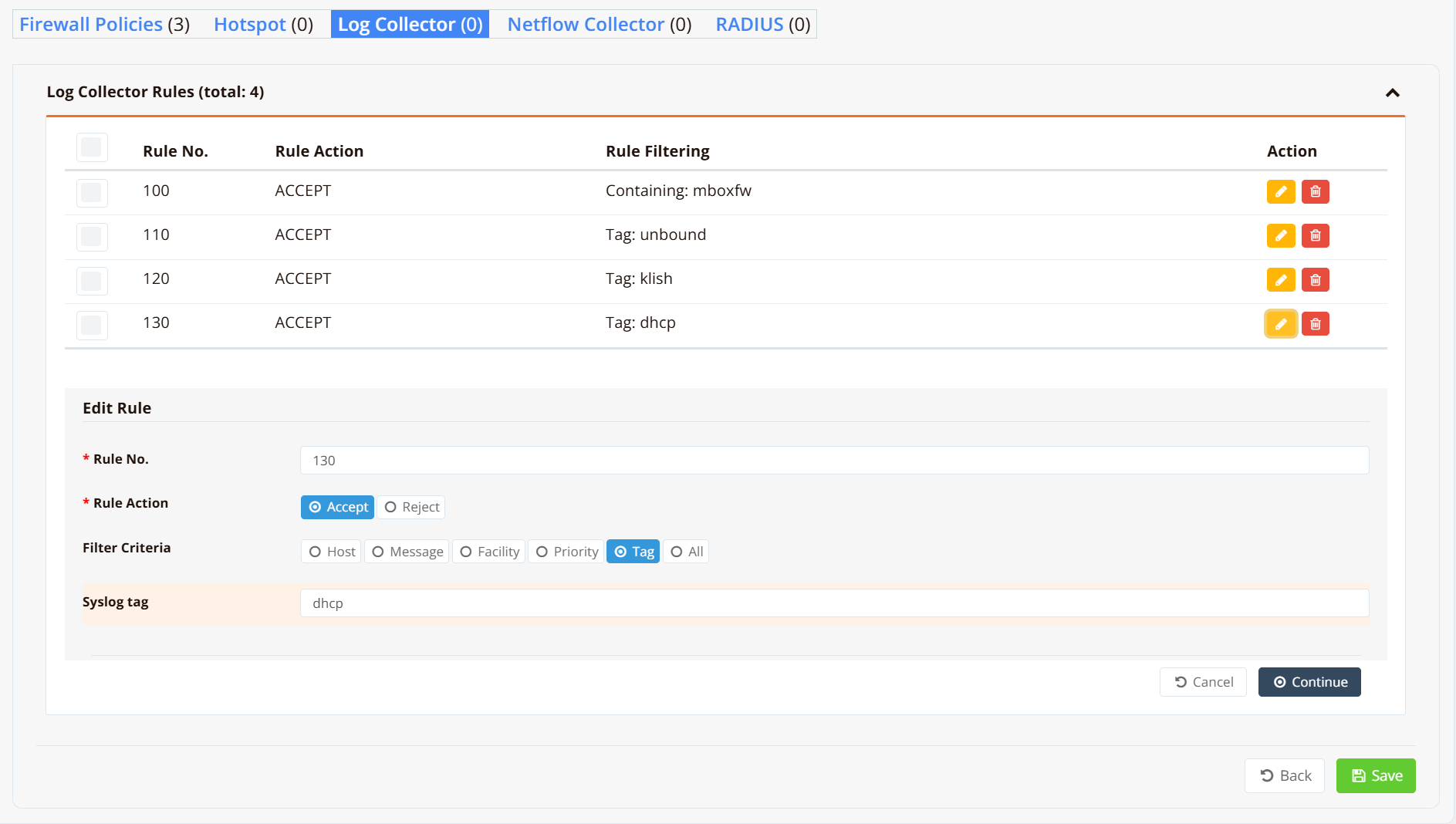
Log Collector Rule Fields:
| Field | Description | Example |
|---|---|---|
| Rule No. | Sequential rule ID (evaluated top-down) | 100, 110, 120 |
| Rule Action | Accept to store matching logs, Reject to discard |
Accept |
| Filter Criteria | Match condition type: Host, Message, Facility, Priority, Tag, or All | Tag |
| Syslog Tag | Tag value to match when using Tag criterion | mboxfw, unbound, dhcp |
Verification
| Test | Command | Expected Outcome |
|---|---|---|
| Debug syslogs | tcpdump interface eth0 port 514 detail |
See if any syslog packets are sent to collector IP |
| Logs arriving | Collector GUI → Live tab | New log entries visible; auto-refresh every 5 seconds |
| Rules configured | Collector CLI → show security logging |
Log-server: running |
Managing Logs (Log Collector GUI)
When configured as a collector, the device provides a web-based interface to view, search, archive, and alert on logs.
Navigate to LOG COLLECTOR → Logs on the appliance GUI.
Live View
The Live tab displays incoming logs in real time, refreshed every 5 seconds by default.
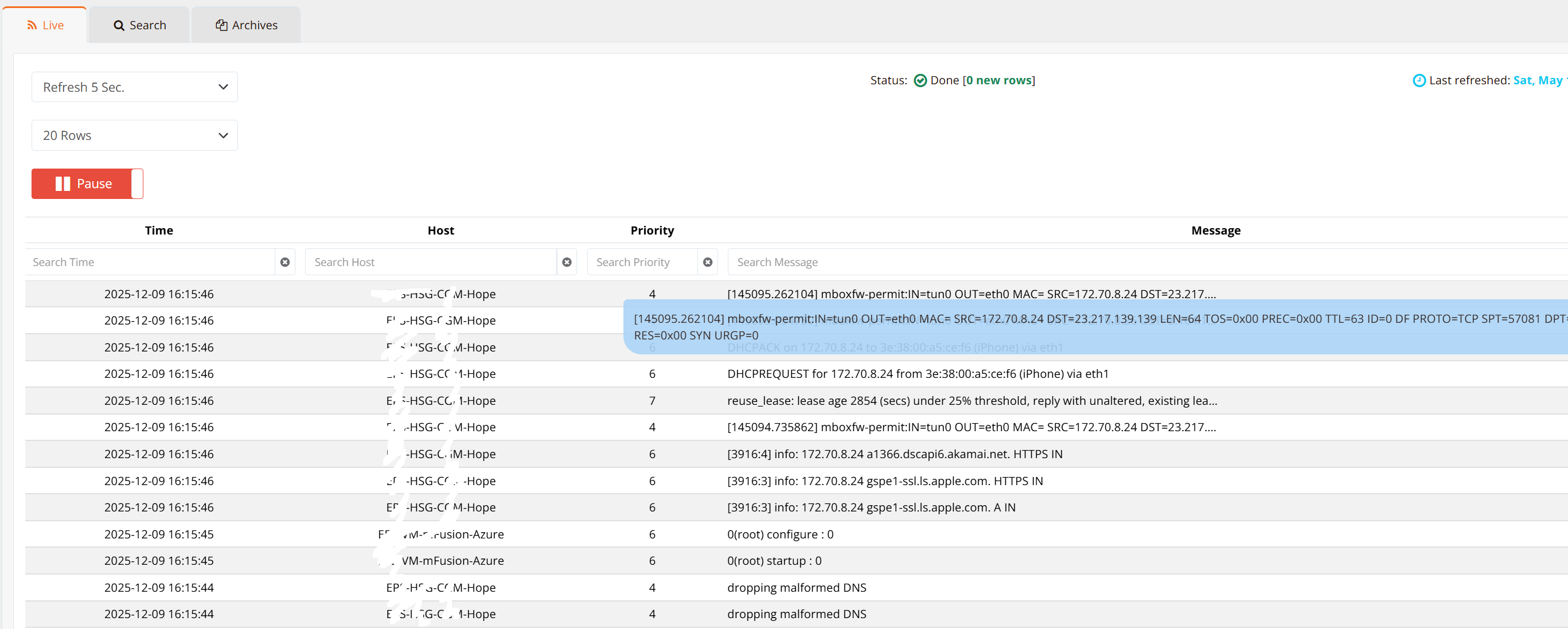
| Feature | Function |
|---|---|
| Pause | Stop refresh for investigation |
| Filter/Search | Display only matching logs (search by content, host, severity) |
| Message Details | Hover or click a log line to view full message contents |
Search & Export
The Search tab allows querying historical logs stored in the SQL database.
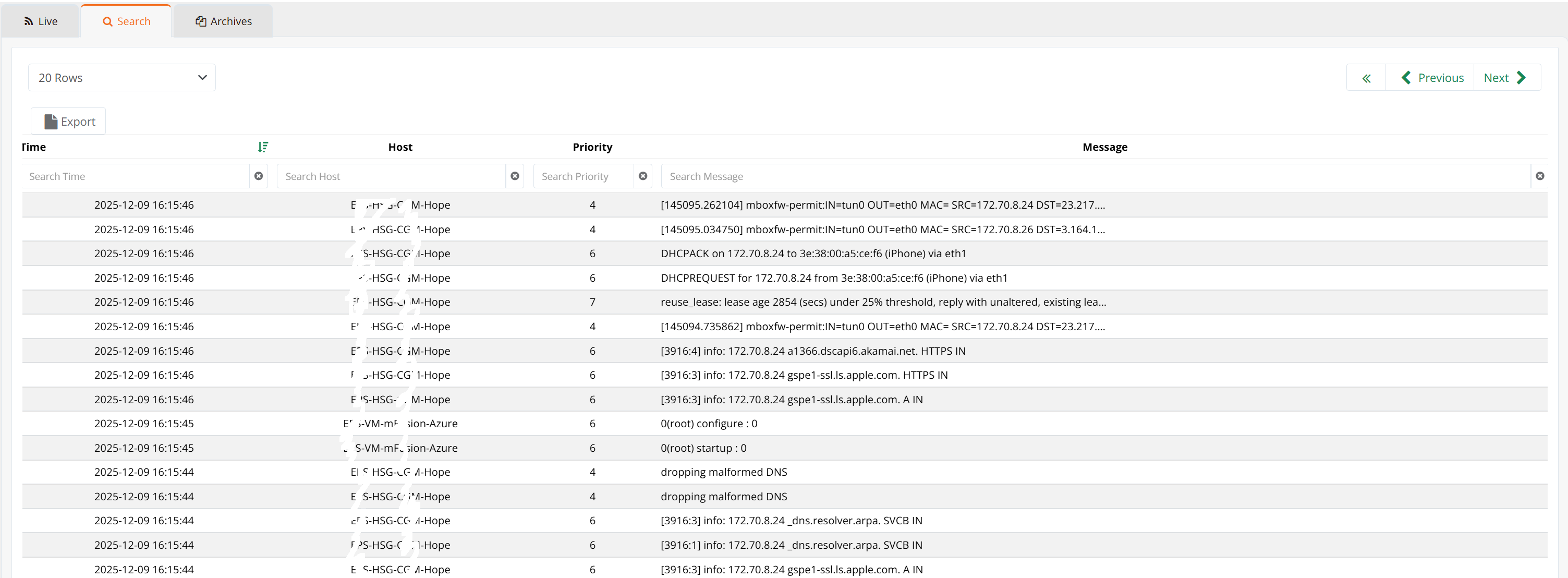
| Feature | Function |
|---|---|
| Search Criteria | Filter by date range, host, message content, severity |
| Export to CSV | Export search results to a downloadable file for offline analysis |
| Retention | Searchable logs depend on the Keep raw logs locally setting (next section) |
Archive
The Archive tab manages long-term log storage. Raw logs are compressed into CSV files and can be kept locally or backed up to external SFTP servers.
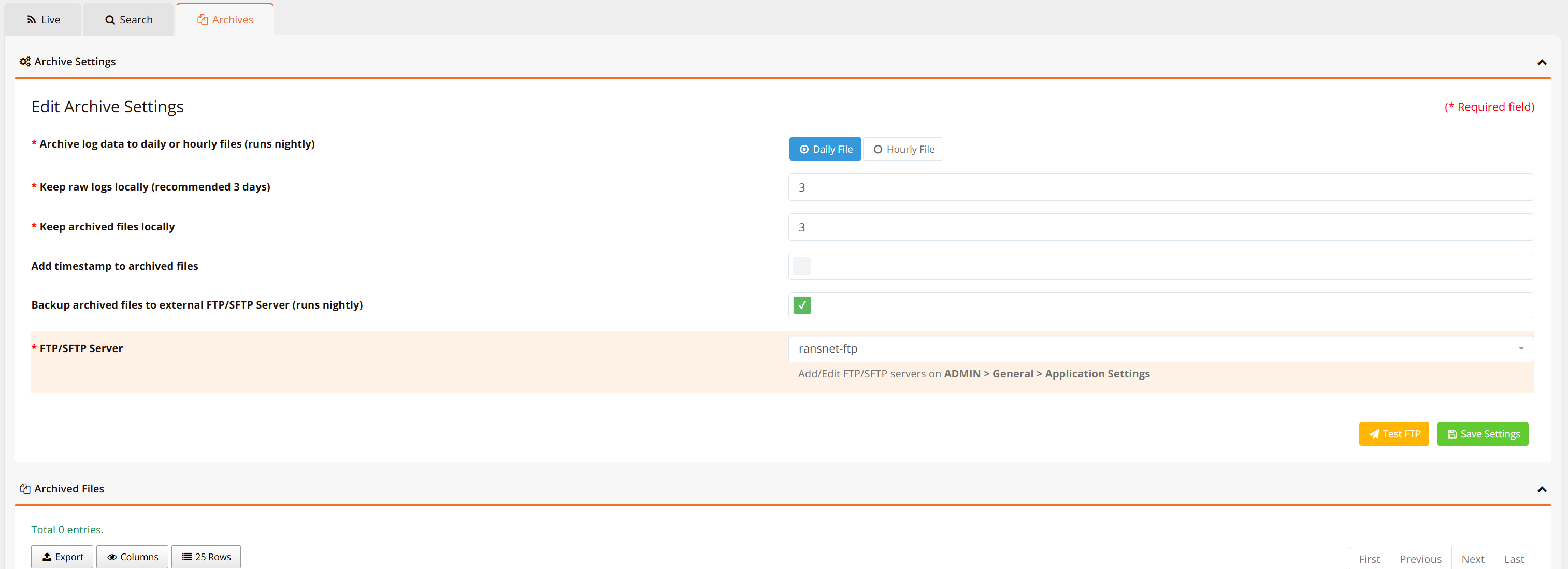
Archive Settings:
| Setting | Description | Recommendation |
|---|---|---|
| Archive log data | Export raw logs to compressed CSV files (daily or hourly). Reduces storage by ~20x. | Daily (unless log volume > 1GB/day, then hourly) |
| Keep raw logs locally | How long to retain uncompressed logs in SQL database for live searching. | 1 day (HSG); 7-30 days (mlog with large disk) |
| Keep archived files locally | How long to retain compressed archives on the appliance. | Per compliance requirements (min. 90 days) |
| Backup to SFTP Server | Automatically copy archives to external FTP/SFTP server nightly. | Recommended for compliance & disaster recovery |
Tip
For typical networks (up to 2,000 users), daily archives are 50–100 MB. HSG's default 90GB disk can store 90+ days of archives. mlog appliances with additional HDD storage can retain 1+ years of logs.
Alarm Rules & Analysis Engine
The Alarms tab configures pattern-matching rules to detect and alert on suspicious log patterns.

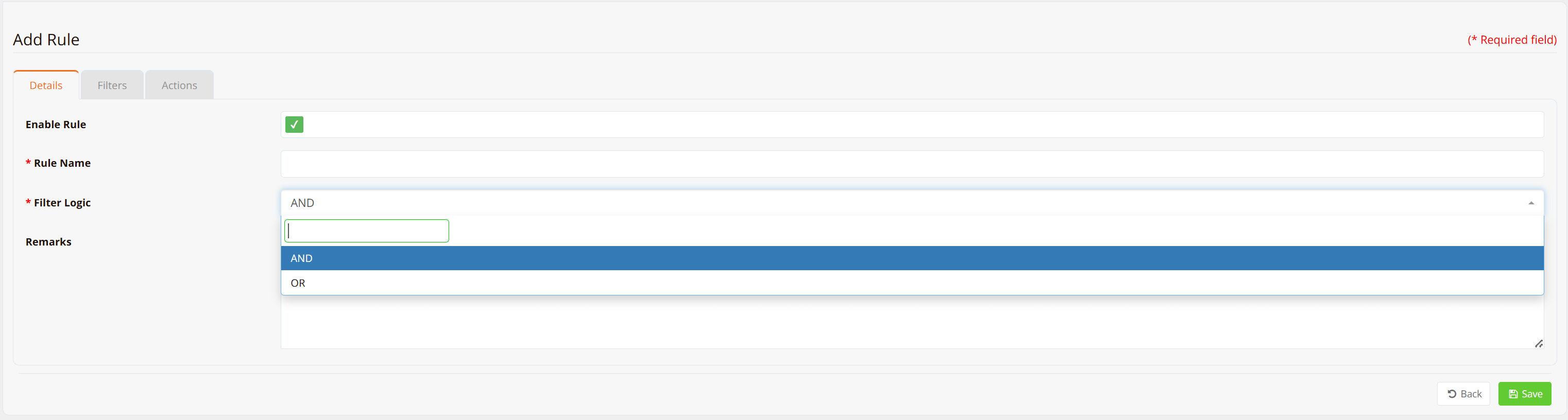
Create a Rule:
Click New Rule to define an alarm condition.
Logical Operators:
| Operator | Behavior |
|---|---|
| and | ALL criteria must match to trigger alarm |
| or | ANY criteria match to trigger alarm |
Filter Criteria:
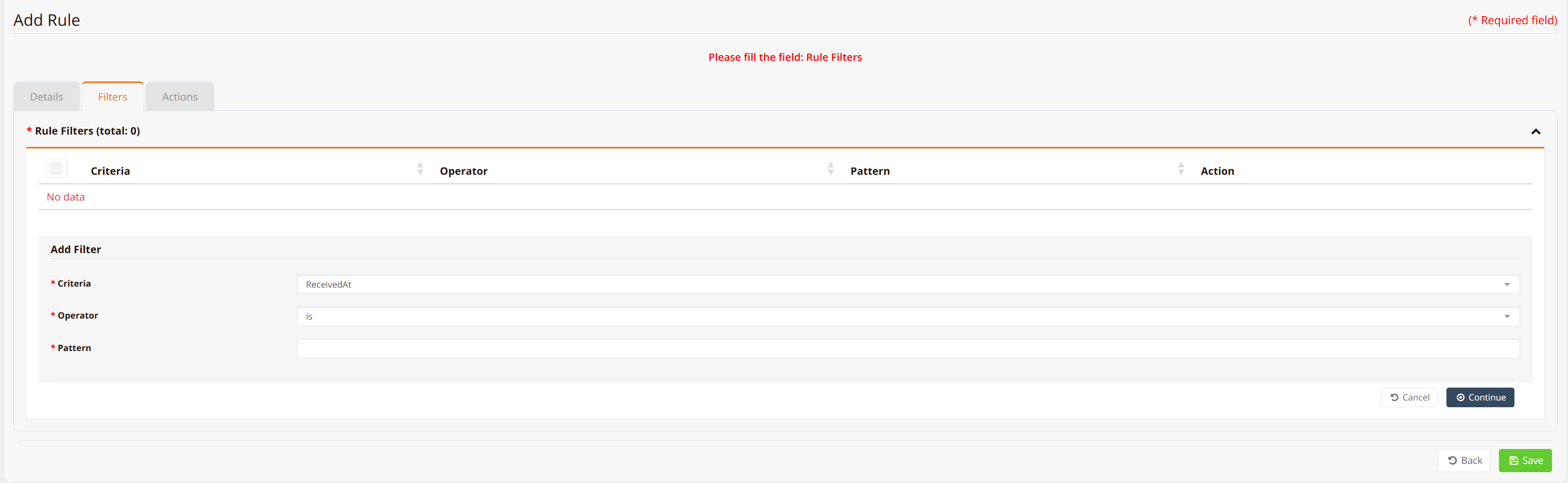
Match by: - Time: Trigger alarm during specific hours - Host: Match logs from specific source devices - Message/Content: Match logs containing specific text patterns
Actions:
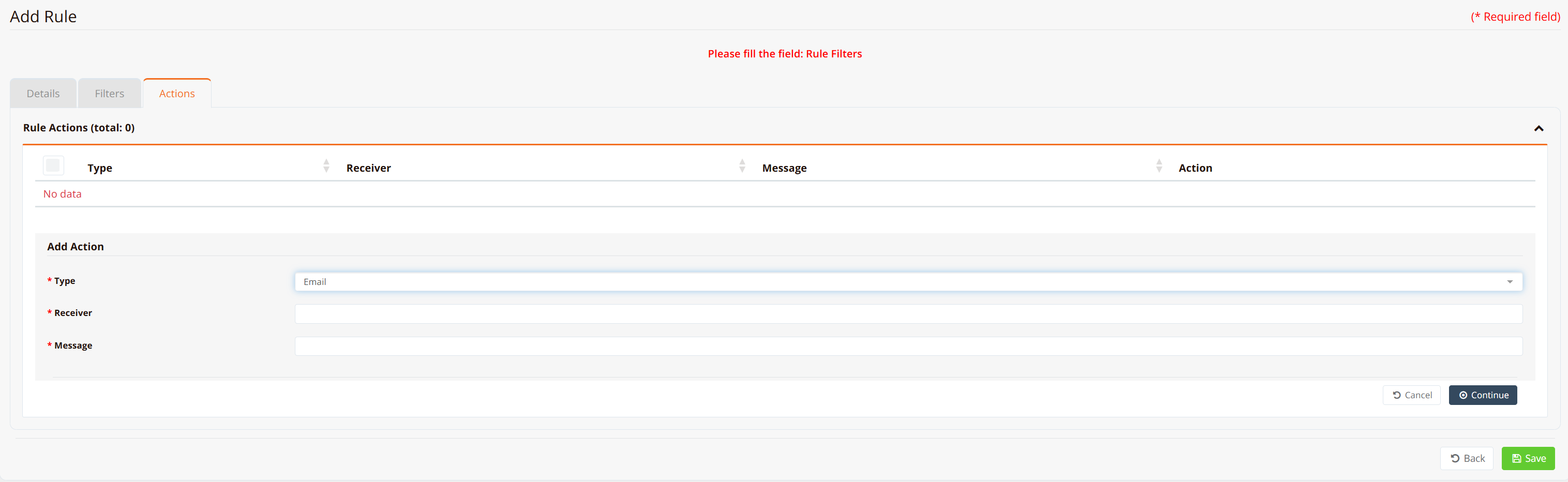
| Action | Function |
|---|---|
| Email Notification | Send alarm to specified email addresses |
| Alert Display | Show in Alarms tab for operator review |
Engine Control:
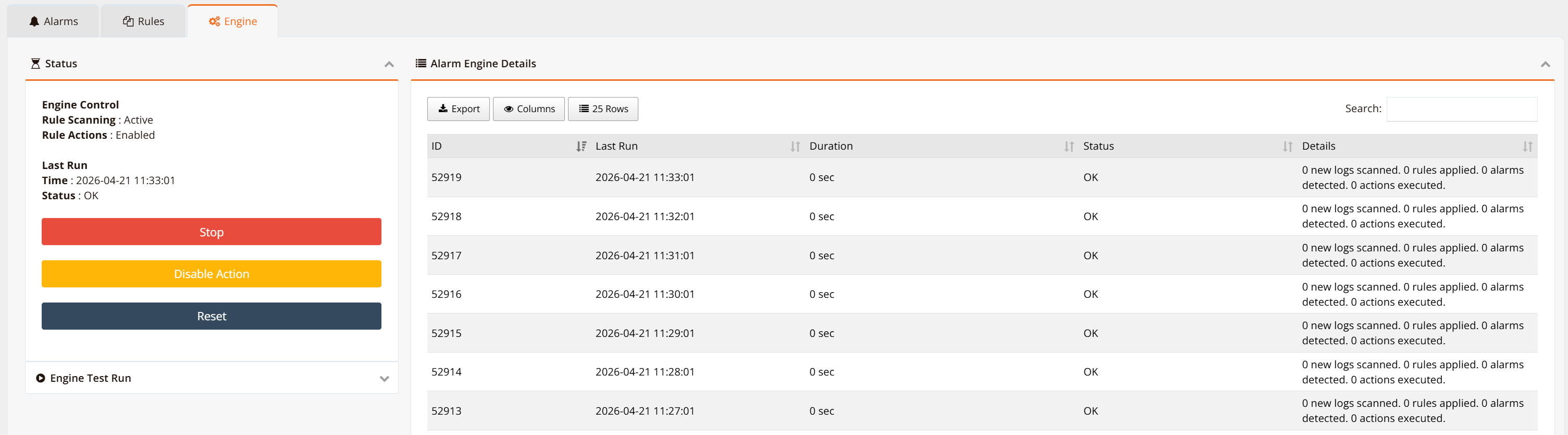
Enable/disable the analyzer engine. The engine runs every 1 minute to evaluate all rules against incoming logs.
Warning
Enabling many rules with large numbers of logs can impact system performance. Start with a few critical rules and monitor CPU usage.
Best Practices
Storage Sizing
Plan disk space based on log volume and retention requirements:
| Scenario | Log Volume | Daily Archive | 90-Day Storage |
|---|---|---|---|
| Small network (< 100 users) | < 100 MB/day | 5 MB compressed | 500 MB |
| Medium network (100–1000 users) | 100–500 MB/day | 25–50 MB compressed | 2.5–5 GB |
| Large network (1000–5000 users) | 500 MB–2 GB/day | 50–200 MB compressed | 5–20 GB |
| Enterprise (> 5000 users) | > 2 GB/day | > 200 MB compressed | Dedicated mlog (multi-TB) |
Compliance & Retention
- Minimum retention: Most countries require 90 days of firewall/URL access logs for internet-facing traffic
- PCI DSS: Retain logs for at least 1 year; keep at least 3 months online
- HIPAA: Retain audit logs for 6+ years for covered entities
- Strategy: Keep 30 days of raw logs locally (fast search), 90+ days of archives (compliance), and optional SFTP backup (disaster recovery)
Syslog Export Best Practices
- Start with "all": When first configuring log export, use
ip logging ... allto capture everything, then tune filter rules after analyzing the output - Avoid duplicates: Ensure firewall rules don't overlap, causing the same log to match multiple export rules
- Named rules: Use remarks to document each export rule's purpose
- Test connectivity: Before relying on a collector, verify UDP/514 is open
High-Availability Logging
- Redundant collectors: Configure multiple export destinations (requires separate
ip loggingrules) - SFTP backup: Archive logs to external NAS/storage for disaster recovery
- Log rotation: Smaller, hourly archives (vs. daily) reduce single-file size and improve retrieval speed
Troubleshooting
| Symptom | Likely Cause | Solution |
|---|---|---|
| Collector not receiving logs | Firewall rule missing; UDP/514 blocked; export rules not configured | Verify firewall-input 101 permit ... udp dport 514 on collector. Check tcpdump interface eth0 port 514 detail |
| Logs appearing but not filtering | Filter criteria doesn't match log format | Test filter rules with all first, then examine log content (Live tab) to refine matching criteria. |
| Disk space full on collector | Archive retention too long or archival disabled | Reduce Keep raw logs locally to 1 day. Enable archival with hourly rotation. Reduce Keep archived files locally to match compliance min. |
| Performance degradation | Analyzer engine running complex rules; high log volume | Disable unnecessary alarm rules. Move to hourly archival. Increase worker processes on SQL server. |
| Logs exported but local logs still needed | Log export rules override local storage (design limitation) | Do NOT configure log export for HSG if local logs are required. Use the Log Collector feature (Part 2) to store logs on-device instead. |
| "Show logging system" returns nothing | Device has no firewall-access rules with logging | Create a firewall-access rule with permit-log or deny-log action. Rule must match traffic to generate logs. |
Related Features
- Firewall Policies — Configure firewall-access rules and logging
- Firewall Objects — Use reusable object groups in firewall rules
- Device Hardening — Secure SSH, GUI, and remote access
- Netflow Collector — Network flow analytics (complements syslog for traffic analysis)