IPSec VPN with Fortinet VPN Gateway
RansNet SD-WAN solutions can establish IPSec VPN tunnels with 3rd-party products using standard IPSec protocols. This interoperability enables hybrid deployments where RansNet branches connect to legacy VPN gateways, allowing multi-vendor networks without vendor lock-in. This document details how to configure IPSec VPN tunnels between RansNet branch routers and Fortinet FortiGate gateways.
In typical hub-and-spoke deployments, only the hub (Fortinet gateway) requires a static public IP address, while remote branches can connect over dynamic broadband, 4G, or 5G. The same configuration patterns apply to other VPN gateway vendors; only the GUI navigation and field names differ.
Note
All RansNet SD-WAN/SD-Branch routers (HSA, UA, CMG series) include both firewall and VPN gateway capabilities, so they can function as either VPN gateways or branch routers. See related documentation for RansNet-to-RansNet VPN setups.
Topology
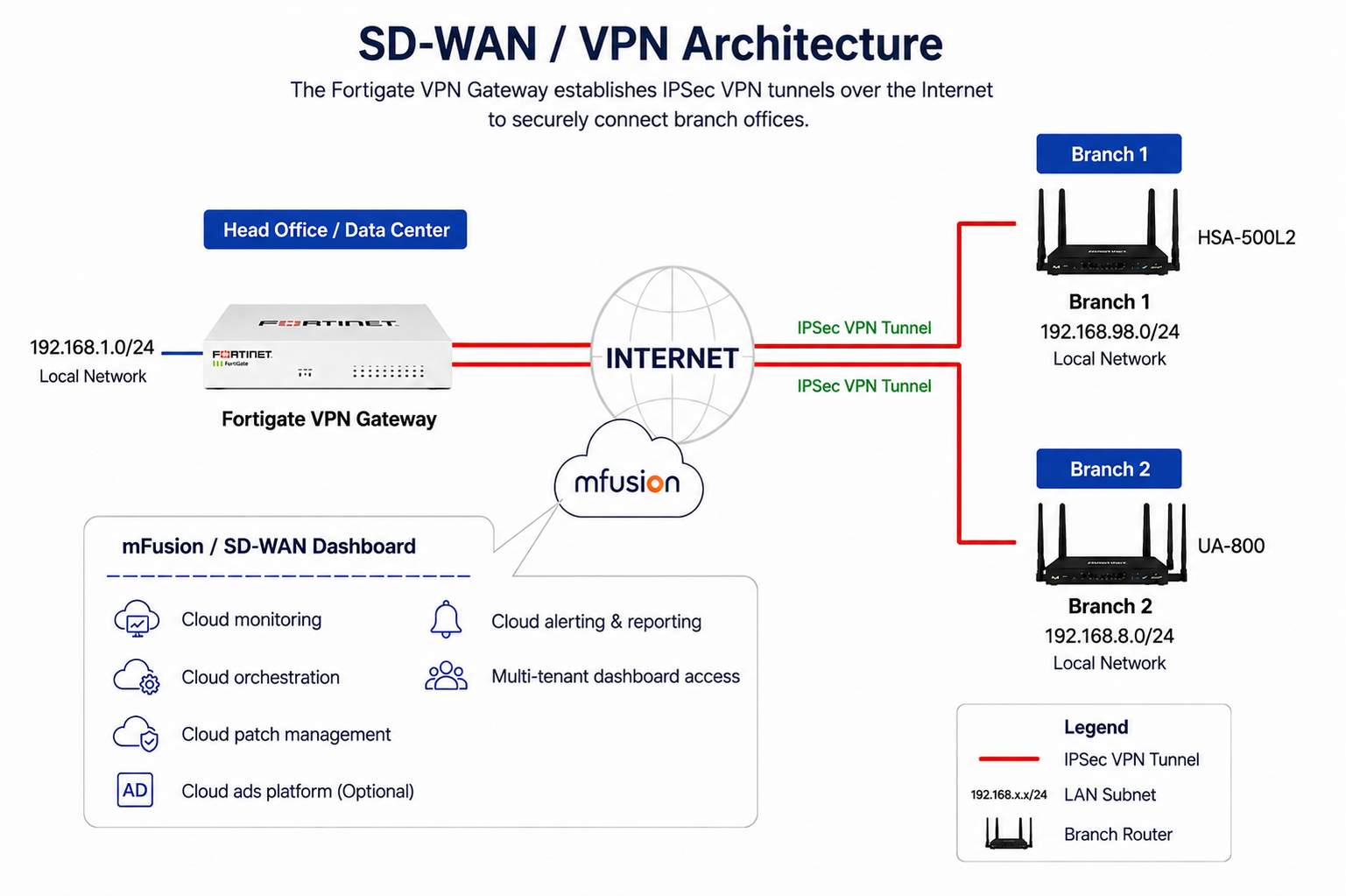
This document uses a hub-and-spoke topology where:
- Hub: Fortinet FortiGate with static public IP acting as the VPN gateway
- Spokes: RansNet branch routers (HSA-520, UA-520, or CMG) connecting over dynamic or static WAN links
- Network connectivity: All branches can reach the hub and each other through encrypted IPSec tunnels
Fortinet Gateway Configuration
This section covers the required VPN and firewall settings on the Fortinet gateway to establish IPSec tunnels with RansNet branch routers. Other Fortinet configuration areas (system, interfaces, etc.) are assumed to be preconfigured and are omitted.
Step 1: Create IPSec Tunnel
Create a custom IPSec tunnel (e.g., “VPN_FN_TO_RN1”).
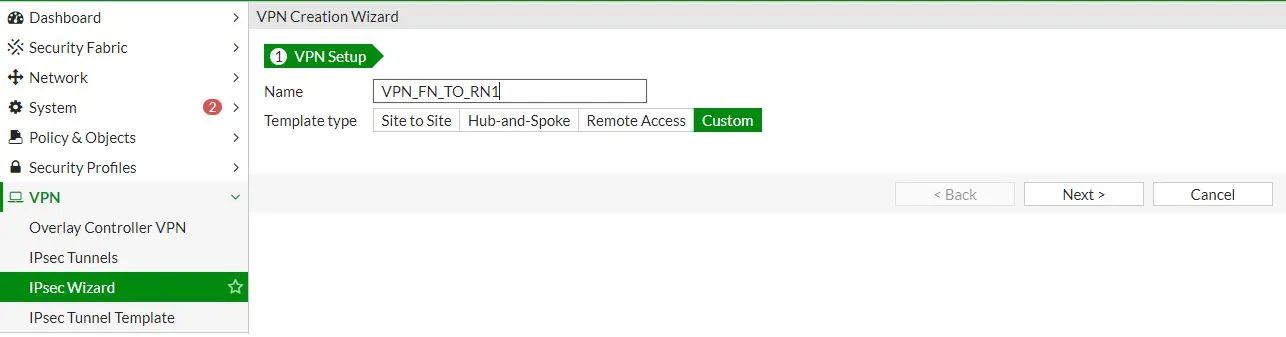
Step 2: Configure VPN Network Settings
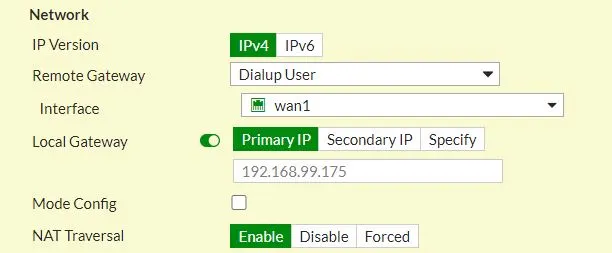
Configure the VPN tunnel network parameters.
Note
- Select Dialup User for Remote Gateway so that branch routers can use dynamic IP addresses
- Enable NAT Traversal if the Fortinet gateway is behind a NAT firewall
- Most other parameters can remain at their defaults
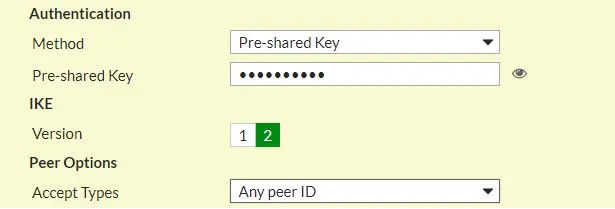
Step 3: Configure Peer Authentication
Configure pre-shared key authentication and set the peer to accept any peer ID.
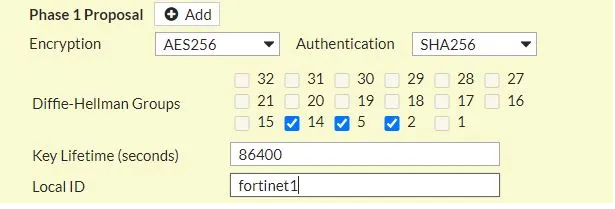
Step 4: Configure Phase 1 (IKE) Proposal
Configure IKE proposal settings.
Note
If the Fortinet gateway is behind a NAT firewall, the Local ID must be explicitly configured to match the gateway's identifier.
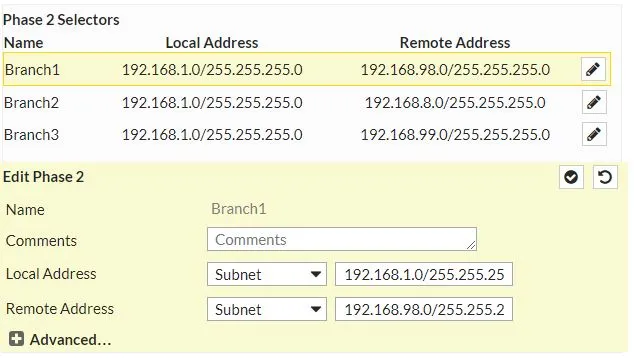
Step 5: Configure Phase 2 (IPSec) Selectors
Configure IPSec selectors defining which traffic is protected by the tunnel.
Note
For deployments with multiple branch routers, add a separate selector for each branch router's remote network.
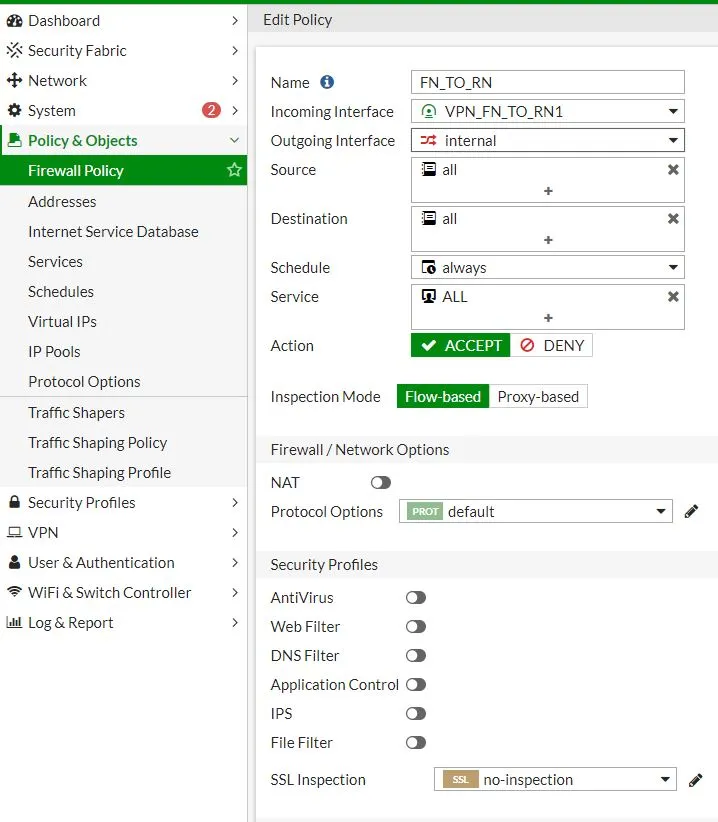
Step 6: Configure Firewall Rules
Configure firewall rules to permit VPN tunnel traffic and disable NAT for inter-site communications.
Firewall Rules Overview:

Firewall Rule Details:
RansNet Branch Router Configuration
Branch routers can connect over dynamic broadband, 4G/5G, or static IP links. Rather than manually configuring each branch router individually, use the RansNet SD-WAN orchestrator (mfusion) to centrally provision and manage all branch VPN configurations. This approach creates a “dummy VPN gateway” on mfusion that emulates the Fortinet settings, allowing mfusion to generate and push configuration to all branches with a few clicks.
Step 1: Provision Branch Routers and Dummy Gateway
- Provision all branch routers on mfusion (see Device Provisioning for details)
- Add a dummy VPN gateway to mfusion to emulate the Fortinet gateway

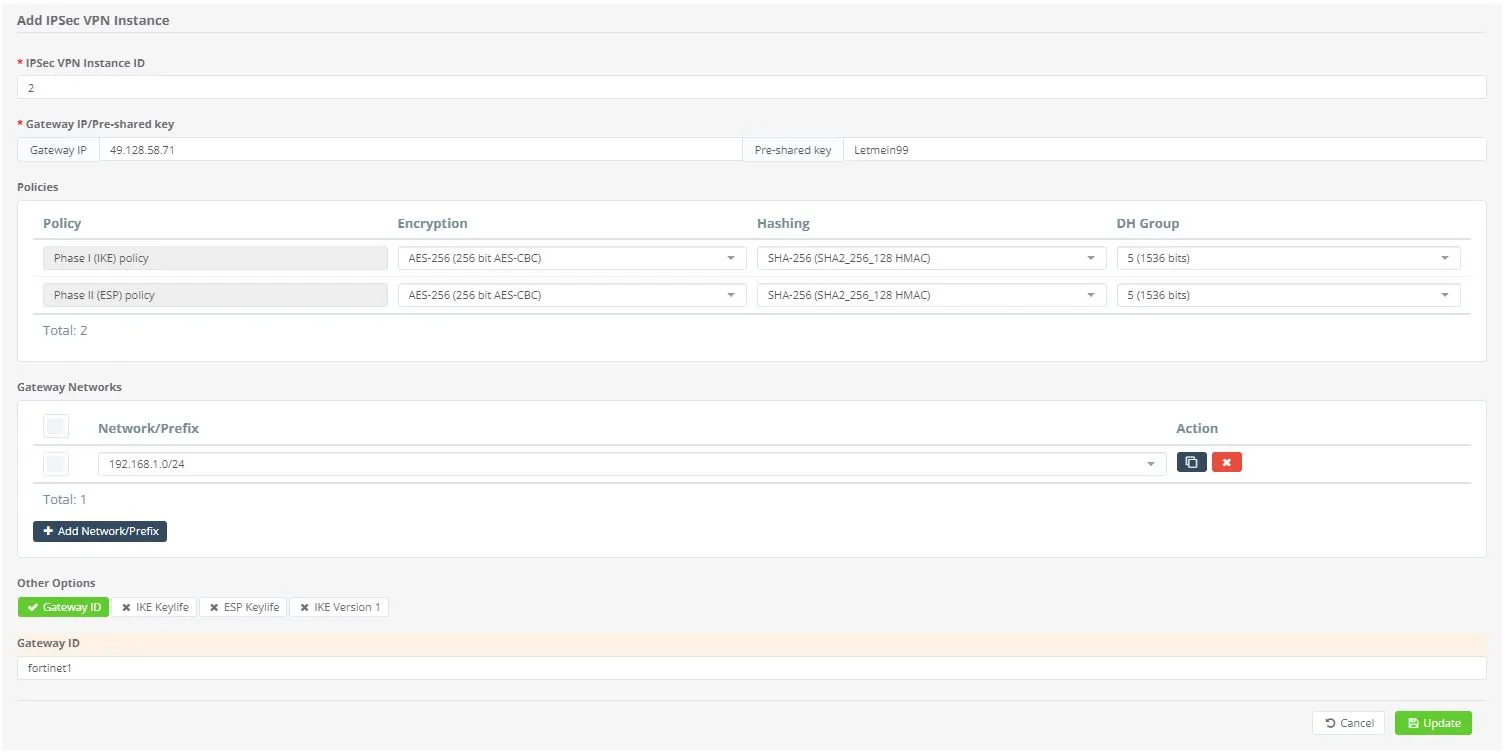
Step 2: Create IPSec VPN Instance
On the dummy VPN gateway, create an IPSec VPN instance with settings that match the Fortinet gateway.
Note
- Gateway IP — The publicly accessible IP address of the Fortinet VPN gateway
- Gateway ID — Must match the “Local ID” configured in Fortinet Step 4 (required if the gateway IP is NATed)
- Pre-shared Key — Must match the key configured on the Fortinet gateway
- Phase I & II Policies — Must match the IKE and IPSec policies on the Fortinet gateway
- Gateway Network — Must match the “Local Address” configured on the Fortinet gateway
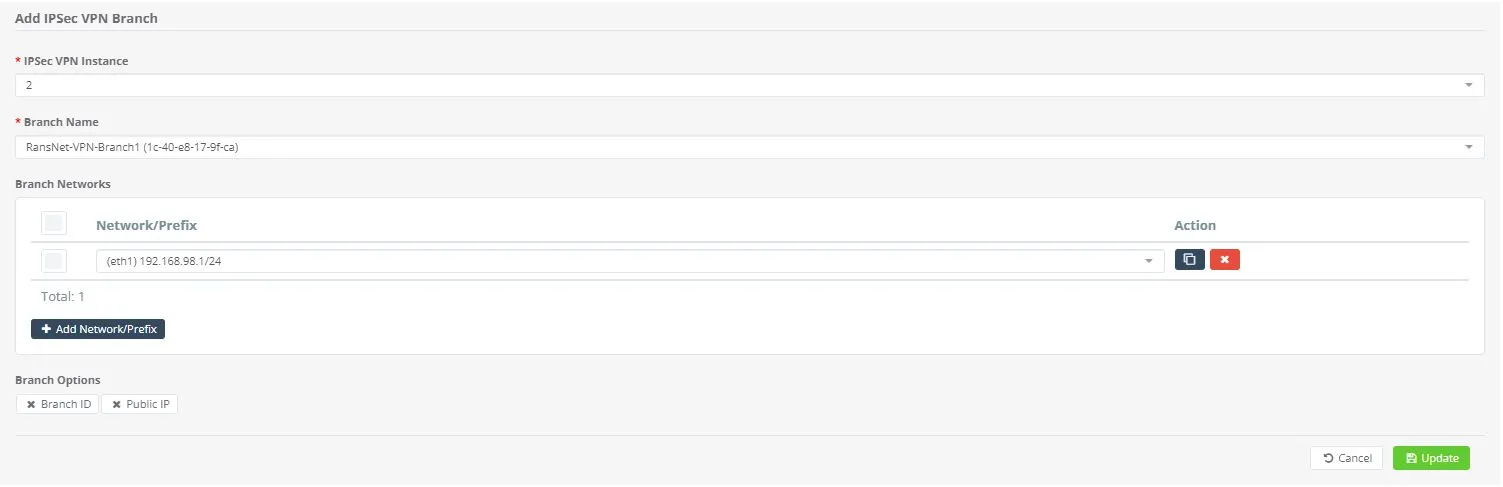
Step 3: Assign Branches to VPN Instance
Assign all branch routers to the VPN instance and configure each branch’s local network.
Note
For multiple branch routers, assign them all to the same VPN instance and configure each router’s unique branch network separately.
Step 4: Apply Configuration
Save and apply the configuration from mfusion.
Note
The configuration push to the dummy VPN gateway will fail (expected behavior — the gateway is not real). However, mfusion will successfully generate and push IPSec configuration to all assigned RansNet branch routers. On the actual Fortinet gateway, ensure you create corresponding Phase 2 Selectors for each remote branch with the correct “Local Address” (gateway network) and “Remote Address” (branch network) pairs.
Step 5: Configure Firewall Rules on Branches
Configure firewall access rules on the branch routers to permit VPN tunnel traffic between the branch LAN and Fortinet gateway network.
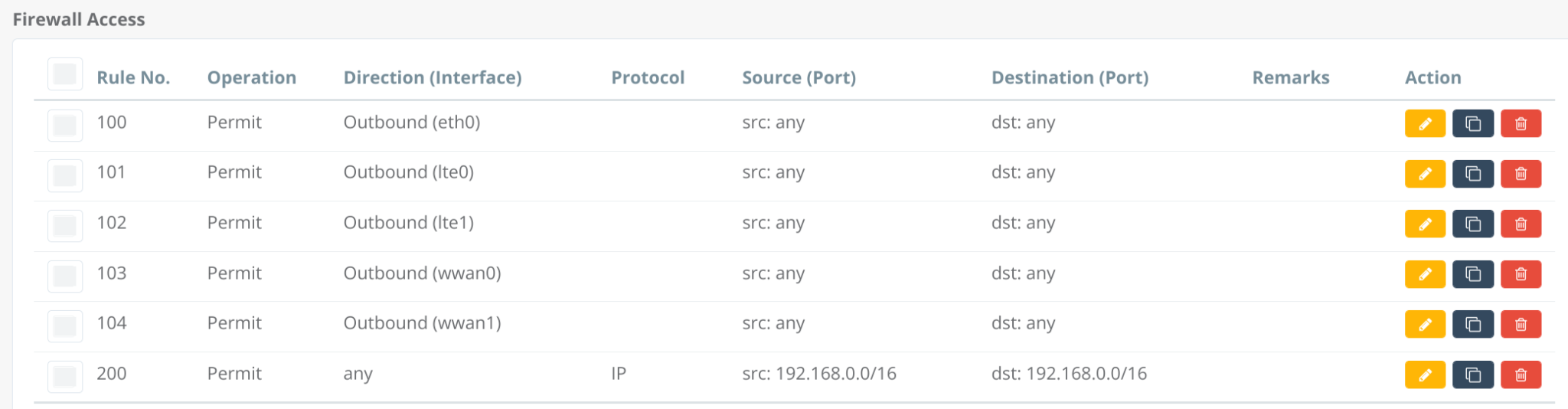
You can create a firewall template and apply it to all branch routers. Ensure rules permit bidirectional communication between the branch network and Fortinet gateway network. NAT is automatically disabled for VPN tunnel networks — no special configuration is required.
Example IPSec Configuration
Below is example CLI configuration generated by mfusion and pushed to a RansNet branch router:
!
ipsec ike-policy 2
 authentication psk
 policy AES-256 SHA-256 5
!
ipsec esp-policy 2
 policy AES-256 SHA-256 5
!
ipsec peer 49.128.58.71
 local-id 1c-40-e8-17-9f-ca
 local-net 192.168.98.1/24
 remote-id fortinet1
 remote-net 192.168.1.0/24
 policy ike 2 esp 2
 psk Letmein99
!
This configuration:
- Defines IKE and IPSec security policies (AES-256 encryption, SHA-256 hashing)
- Establishes a peer relationship with the Fortinet gateway at
49.128.58.71 - Protects traffic between the branch LAN (
192.168.98.1/24) and Fortinet gateway network (192.168.1.0/24) - Uses pre-shared key (PSK) authentication with the configured passphrase
Verification
Verify that IPSec tunnels are established and configured correctly on RansNet branch routers.
| Items to Test | Command | Expected Outcome |
|---|---|---|
| Routing to VPN gateway | show ip route |
Branch router has a route to the Fortinet VPN gateway IP (at minimum, a default route to ISP) |
| IPSec tunnel status | show ipsec status |
IPSec tunnel shows UP status with established IKE and IPSec SAs (Security Associations) |
| Firewall rules | show firewall access-list |
Firewall rules permit bidirectional traffic between branch LAN and Fortinet gateway network |
| Connectivity to Fortinet | ping <fortinet-lan-ip> source <branch-lan-ip> |
Ping succeeds with latency appropriate to internet link |
Troubleshooting
| Symptom | Likely Cause | Solution |
|---|---|---|
| IPSec tunnel stays DOWN | IKE negotiation failed; pre-shared key mismatch; firewall blocking UDP 500/4500 | Verify pre-shared key matches on both Fortinet and RansNet. Check Fortinet IKE logs. Verify firewall permits UDP 500 (IKE) and 4500 (NAT-T) to the Fortinet gateway IP. |
| Tunnel UP but no traffic flows | Phase 2 (IPSec) selectors misconfigured; firewall rules blocking traffic; NAT not disabled | Verify Phase 2 selectors on Fortinet match branch networks. On RansNet, check firewall rules permit traffic between branch LAN and Fortinet network. |
| Partial connectivity (some branches work, others don't) | Phase 2 selectors on Fortinet missing for specific branches; remote network configuration mismatch | On Fortinet, verify a Phase 2 Selector exists for each branch router. Ensure "Remote Address" on Fortinet matches each branch's "Local Network" in mfusion. |
| Intermittent tunnel drops | NAT-T not enabled if gateway behind NAT; firewall timeout on idle tunnels | Enable NAT Traversal on Fortinet if gateway is behind NAT. Check firewall doesn't timeout idle IPSec sessions. |
Run show logging system to inspect IPSec negotiation and tunnel state change logs for detailed troubleshooting.