Device Onboarding
By default, once a device is provisioned on mfusion, it is automatically monitored (same for both RansNet and 3rd-party SNMP devices).
In order for mfusion to manage device configuration (RansNet devices only), the device needs to be onboarded.
Onboarding involves importing the device into the mfusion orchestrator so that you can start configuring SD-WAN features and all other settings to meet your connectivity and security requirements.
Note
For 3rd-party device monitoring, this step is not necessary.
We suggest plotting out the overall network map clearly before you begin, so you know exactly what you intend to achieve. You can use the mfusion topology feature to draw the topology map.
Terminology
Before you begin, it is important to understand some basic terminology and principles used by mfusion.
SD-WAN Device Types
Functionally, there are two types of devices — Gateway and Branch.
-
Gateway devices (CMG/HSG series) function as the central SD-WAN gateway (and/or captive portal gateway). They are usually located at the customer HQ/DC network or in cloud hosting (e.g. VM, AWS, Azure), where central applications reside. Gateways terminate VPN tunnels from branch routers and handle route exchanges for the entire SD-WAN network. They are attached with
Template_mboxduring provisioning. -
Branch devices are the remote routers at each location, typically the branch series (UA/HSA/XE/UAP). Note that CMG/HSG can also be used as a branch device (e.g. for large branch networks with high speed and many users), but branch series devices cannot be used as gateway devices.
GUI vs CLI Configuration
RansNet devices can be configured either through the mfusion orchestrator (recommended) or through the CLI. It is important to understand the differences:
- mfusion orchestrator stores GUI configuration into a device topology database for each device, compiles it into CLI configuration commands, and pushes them to the device for local application.
- CLI configuration (via console or SSH) is not automatically synced to mfusion. You can use the Import CLI Config function to manually merge CLI settings into the GUI later.
Onboard Devices
- Navigate to ORCHESTRATOR → Configuration → Gateway (or SD-Branch).
- Click New Gateway (or New Branch).
- Select the target host.
- Select a Topology Template (see table below).
- Click Select.

Topology Templates
| Template | Description |
|---|---|
| Empty | mfusion will not pre-fill any GUI settings for this device. |
| Default | Matches the device's default CLI configuration. |
| From host ... | Copies GUI settings from an existing device of similar configuration, so you only need to make minor changes (e.g. LAN IP) and resync. |

Import CLI Config
If your device already has existing default or bootstrap CLI configuration that you want to merge into your GUI settings, use the Import CLI Config feature.
Note
If you want to start from a clean/zero config (e.g. using the Empty template), skip this step. Instead, configure GUI settings and use Resync Config to overwrite all existing CLI configs.
To import CLI config:
- Ensure the device is properly bootstrapped, onboarded and online.
- Go to the device list and click on the device MAC address.
-
In the device editing menu, click Import CLI Config (top-right corner).

-
Review the differences between the CLI and GUI settings.

-
Accept the settings you want to keep and click Confirm to Import.
Export/Backup and Import/Restore GUI Config
When onboarding a new device using Topology Templates, you can copy settings from an existing device within the same organization. However, for sharing standard configurations across different organizations or creating backups for later restoration, use the Export and Import feature.
Export/Backup GUI Config
To export a device's configuration as a backup file:
- Open the device editing menu.
-
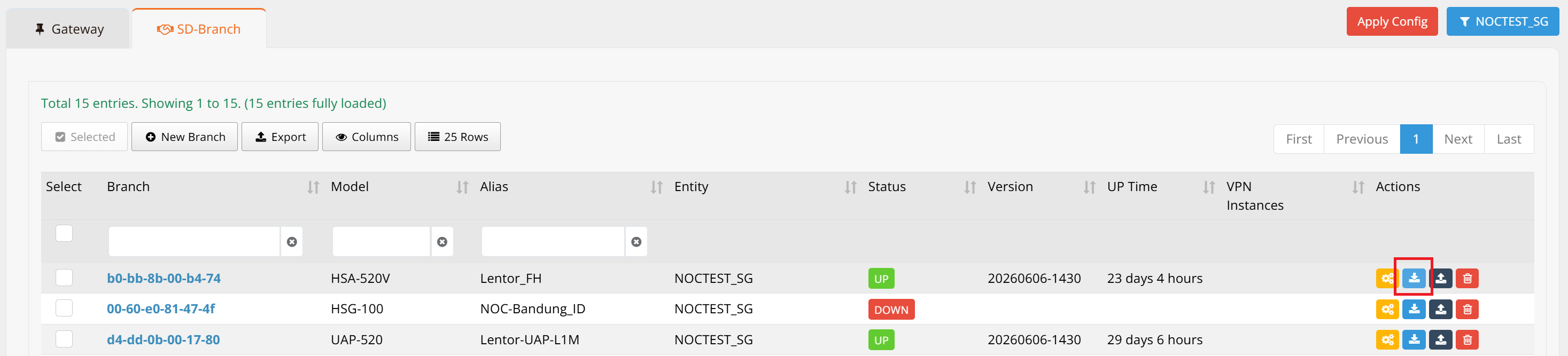
Click the Export Config button.
-
Enter a password to protect the exported file.
The configuration file is now ready to share with other administrators or archive for future use.
Import/Restore Single Device
To import a previously exported configuration into a single device:
- During onboarding, select the Empty template for a new device, or open an existing device's editing menu.
-
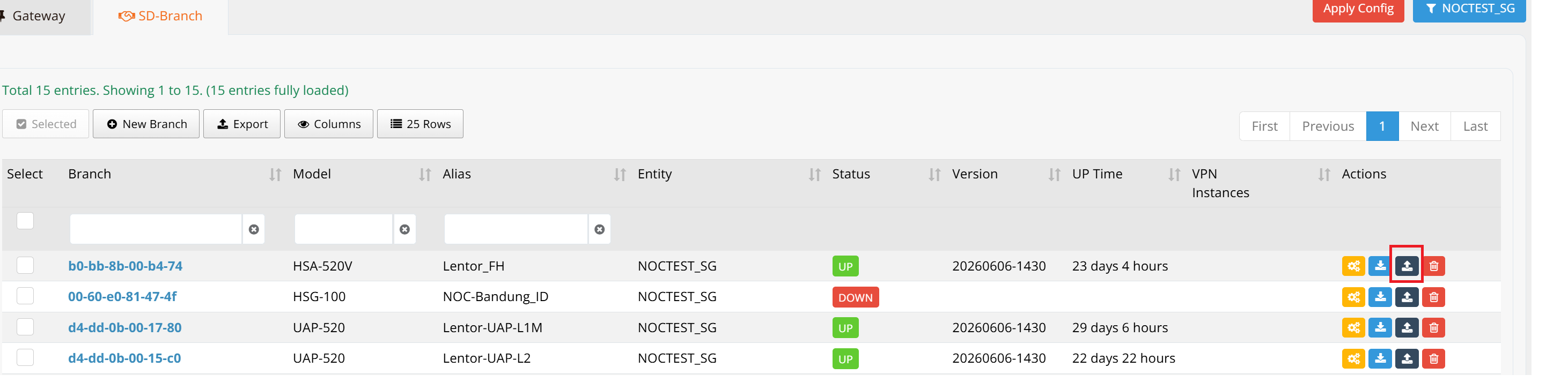
Click the Import Config button and select the backup file.
-
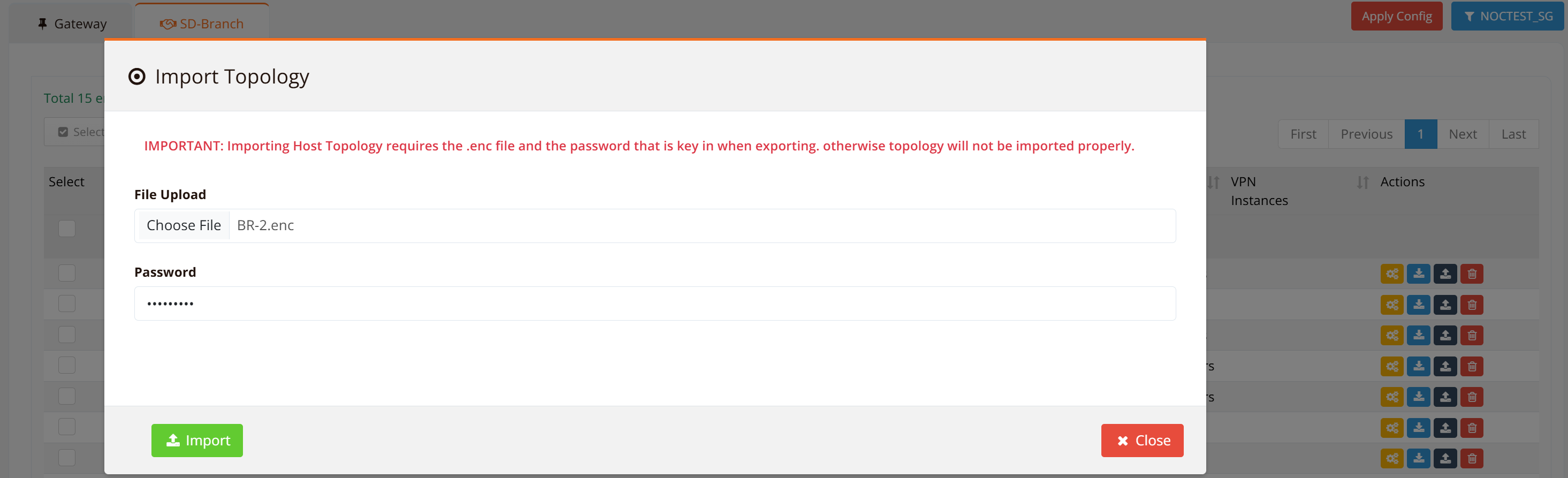
Enter the password to unlock the file and click Import.
Mass Import/Restore Configuration
To import a seed configuration to multiple devices at once:
Step 1: Open Mass Update Dialog
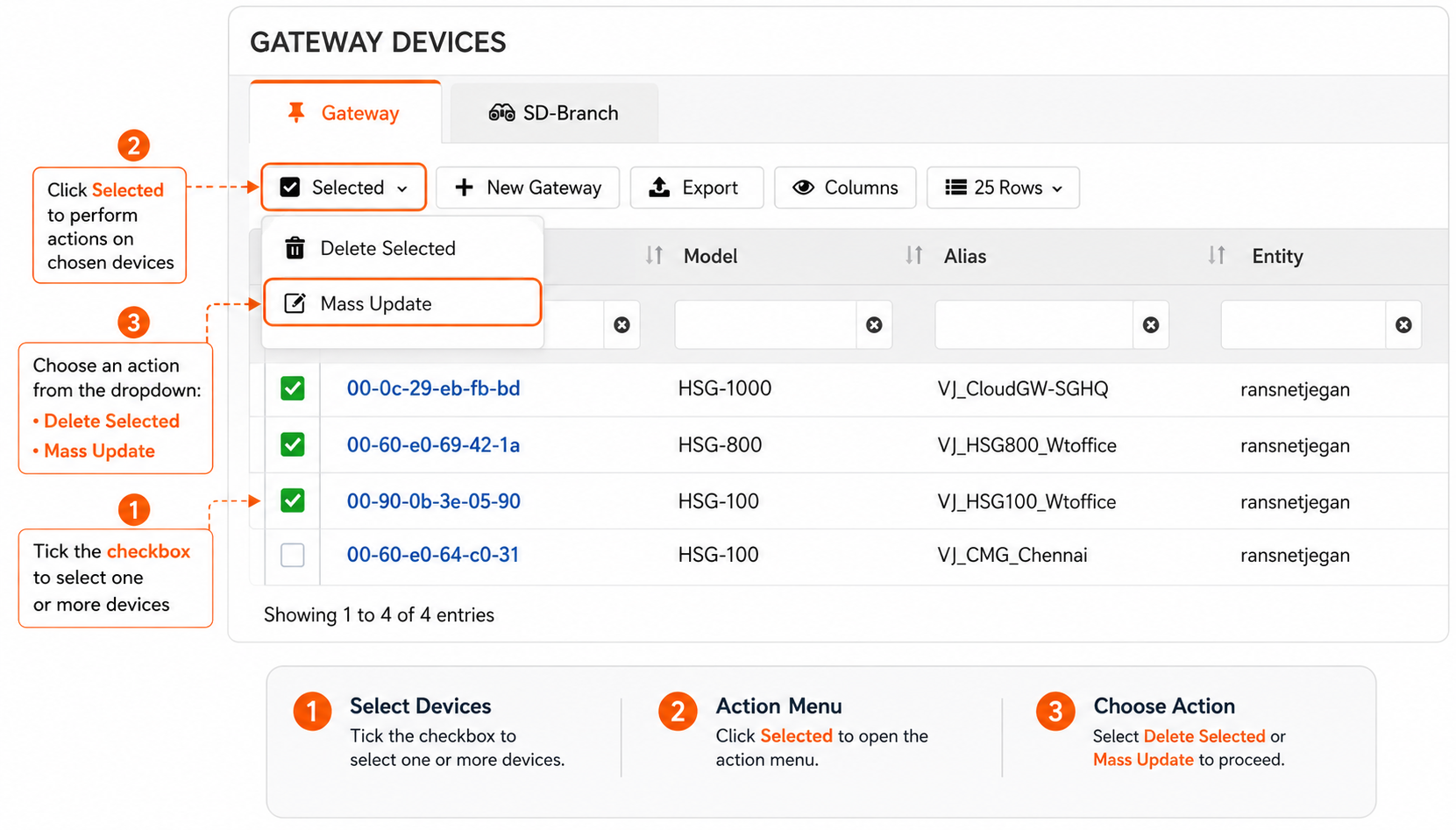
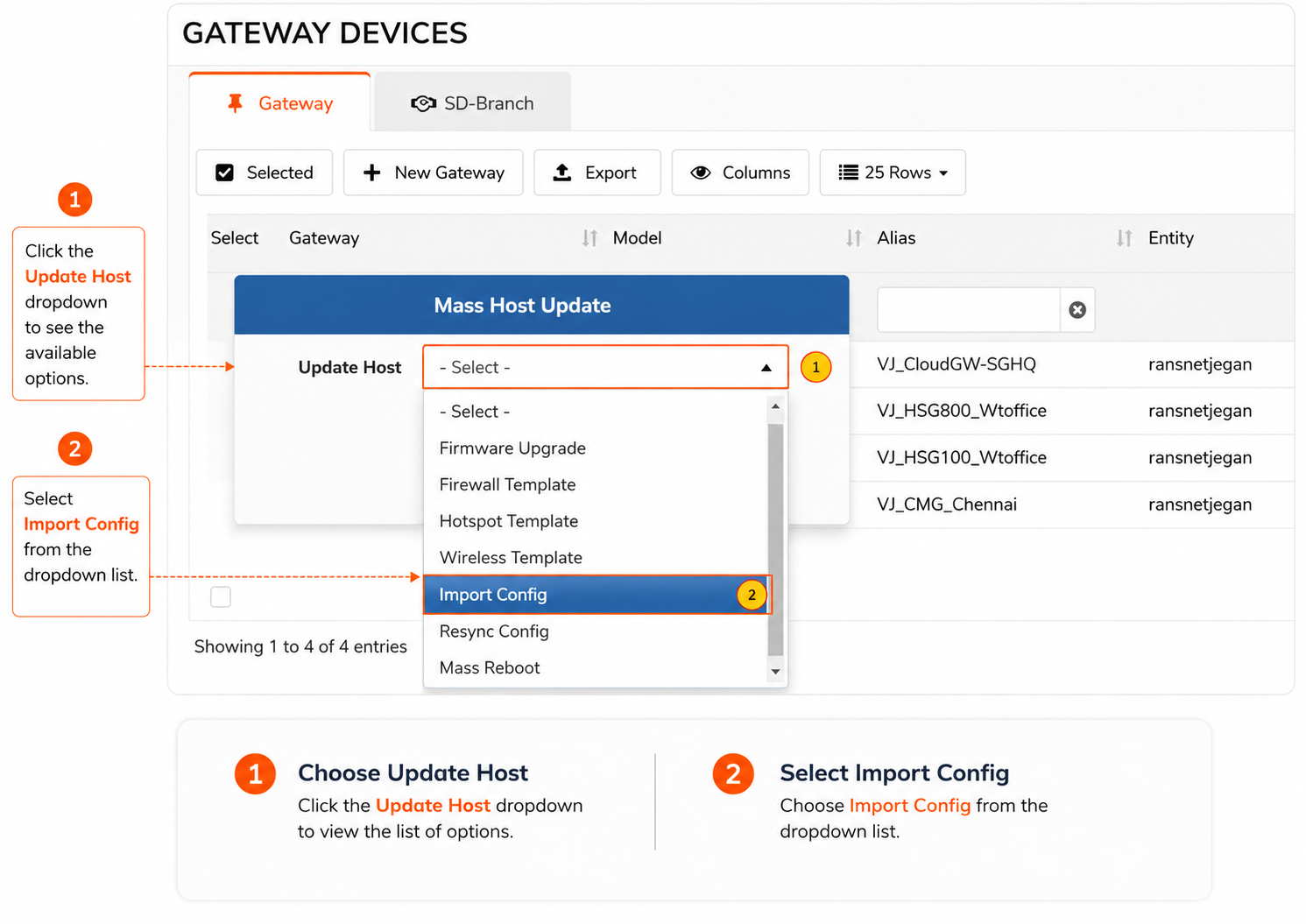
From the device list, click on the Select button and then the Mass Update button to open the bulk operations dialog.
Step 2: Select Import Config Option
In the Mass Host Update popup, select Import Config from the dropdown list.
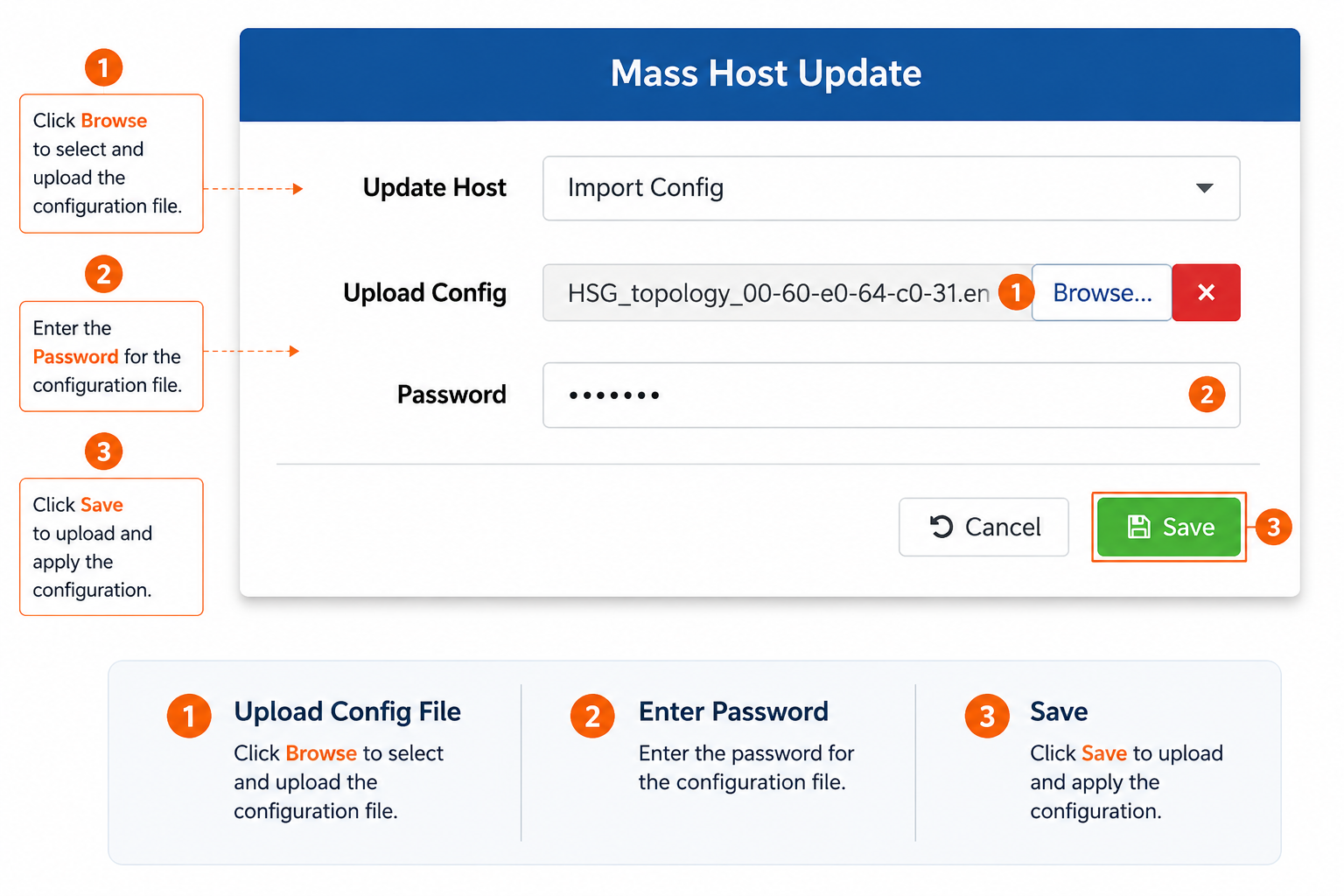
Step 3: Upload Configuration File
Browse and select the backup seed configuration file. Enter the password to unlock the file. Click Save to apply the configuration to all selected devices.
Note
After importing configuration (single or bulk), you may need to update device-specific settings such as WAN IP address, hostname, and routing before resyncing. Each device should have unique IP addresses and hostnames even if they share the same base configuration. Once import is complete, proceed to Resync Config (see next section) to apply the configuration to the devices.
Resync Config
Before making configuration changes, you may optionally run a Resync Config to ensure the GUI configuration is fully synced to the device CLI.
Warning
This action will overwrite all existing CLI settings with the GUI configuration and force a reboot of the device.
Check the following before resyncing
- If you used "Copy from host ..." during onboarding — update interface settings (e.g. WAN/LAN IP) and hostname before resyncing.
- **If you imported a backup GUI config — update the WAN IP and routing so the device can reach mfusion after reboot.
- If you have important bootstrap CLI config (e.g.
ip host portal.ransnet.com ...for on-premise mfusion) — import the CLI config first to merge that setting into the GUI, so the device can still reach mfusion after reboot.
To resync:
- Open the device editing menu.
- Click the Resync Config button from the drop-down menu.

Configuration Safety Net
Whenever mfusion pushes a configuration change to a device, the device automatically checks that it can still reach mfusion after applying the change.
- If connectivity is fine, the check passes and the safety net automatically clears itself — no reboot, no rollback, and the device stops watching for this particular change.
- If the device can no longer reach mfusion after the change (for example, because a WAN, routing, or firewall setting was altered incorrectly), it assumes the change is the cause. After allowing a short grace period for temporary network blips, the device automatically restores its last known-good configuration and reboots — recovering management connectivity on its own, without needing anyone on-site.
Note
This is a built-in safeguard, not a malfunction. Its purpose is to prevent a device from becoming permanently unreachable from mfusion due to a misconfiguration — which would otherwise require physical or console access to fix, especially costly for remote or hard-to-reach locations.
A successful push that doesn't affect connectivity is invisible — no reboot, no rollback, and the check clears itself as soon as connectivity is confirmed. If a push does break connectivity, expect the device to revert and reboot on its own, typically within about 30–45 minutes. Once it comes back online, it will be running its previous working configuration, not the change you just pushed.
If you push a change and later find it's no longer in effect, check whether the device rebooted around that time — this safety net is the most common explanation. Review the device's Operation Log for a [warn] result on that push, correct the underlying issue (e.g. a WAN, routing, or firewall setting that cut off connectivity), and push the corrected change again.
Tip
Changes that affect how the device reaches mfusion — WAN interface settings, default routing, or firewall rules on the management path — carry the most risk of triggering this safety net. Double-check these changes carefully, and consider applying them during a maintenance window in case a rollback-and-reboot cycle occurs.
Avoiding False Recovery Actions
This safeguard reacts purely to whether the device can reach mfusion — not to whether your configuration change was actually correct. That means anything which makes mfusion temporarily unreachable around the time of a push can trigger a rollback even though the change itself was fine. Keep the following in mind:
- On-premise mfusion — make sure your mfusion server stays reachable to its managed devices for at least 45 minutes after any config push. Avoid scheduling mfusion maintenance, restarts, or downtime immediately after pushing changes — a device that can't confirm reachability during that window may revert and reboot unnecessarily, even though the push itself was fine.
- DNS resolution — if a device relies on resolving your mfusion server's hostname rather than a fixed IP, a DNS hiccup at the wrong moment can look identical to a real connectivity failure. If you're on on-premise mfusion, consider adding a static host mapping for your mfusion server (see the
ip hostexample for on-premise mfusion in Resync Config above) to remove DNS as a point of failure for this check. - Pushing too many changes at once — sending a large batch of configuration changes to the same device in quick succession, especially on lower-resource platforms, can strain the device while it's also trying to verify connectivity, increasing the chance of a spurious rollback. Where practical, spread bulk changes to a single device out over time — particularly while staging or preparing new devices.
Zero-Touch Provisioning
You can onboard a device to mfusion, prepare all configurations and resync, before the device is physically online or deployed.
Once the device comes online (e.g. after proper bootstrapping), it will automatically pull its configuration, reboot, and start operating as per your configuration — with no manual intervention required on-site.