SAML SSO Authentication
This guide explains how to configure mfusion to authenticate users via SAML (Security Assertion Markup Language) 2.0 SSO against a corporate identity provider (IdP) — Azure AD/Entra ID, or any generic SAML 2.0 IdP. When enabled, users can sign in with their organization's IdP instead of (or alongside) a local mfusion password. This guide covers the full flow end to end: IdP-side setup, mfusion-side configuration, testing, and what a user sees at login.
Key Concepts
- Authentication — mfusion acts as the SAML Service Provider (SP). The IdP authenticates the user and asserts their identity back to mfusion in a signed SAML Response — mfusion never sees or checks a password for SSO logins.
- Provisioning — A brand-new username asserted by the IdP is auto-created on first login, assigned the Profile Name/Entity Name defaults below. mfusion stores it with a
saml_prefix (e.g. the IdP assertsjdoe, mfusion createssaml_jdoe) — see Username prefix below. A returning SAML user has their email, profile, and entity re-synced to the current defaults on every login — same as LDAP. If you change Profile Name/Entity Name in settings, every existing SAML user picks up the new values automatically the next time they sign in — you don't need to edit users individually. - Account protection — Because of the
saml_prefix, a SAML login's username can't collide with a local or LDAP account's username in the first place. As a backstop, mfusion also refuses the login outright if it ever did match a non-SAML account — SSO can never take over an existing local/LDAP account. - Edit page lock — For SAML-provisioned users, Admin → Users → Edit only allows Enabled and Delete — username, password, profile, entity, and 2FA are all locked, since the account is managed by the IdP. Self-service password reset, change-password, and recovery-email/2FA settings are blocked for SAML accounts the same way they are for LDAP.
- Login — Username-only — SSO does not use email as a login identifier. The username comes from whichever IdP claim is mapped to Username in Assertion Attributes below — a Username-mapped row is required, so there is no NameID fallback if the claim is ever missing from an assertion — then gets the
saml_prefix applied before mfusion looks it up or stores it. - Username prefix — Every SAML-derived username is stored as
saml_<claim value>— you'll see this in Admin → Users and audit logs. This is intentional (not a bug) and is what makes SAML account collisions with local/LDAP usernames structurally impossible. The signed-in admin's own topbar (the username dropdown) shows the claim value with the prefix stripped for readability — everywhere else an admin looks (Admin → Users, audit logs) still shows the fullsaml_-prefixed form, since that's the real stored value. - Single Logout — If IdP SLO URL is filled in, logging out of mfusion also redirects the browser to end the session at the IdP. mfusion's own session always ends immediately regardless — the IdP redirect is best-effort cleanup of the IdP side, not a precondition for mfusion's own logout (the browser may never come back — closed tab, network error, IdP-side issue). Leave IdP SLO URL blank to keep logout mfusion-only.
Notes
- MFA (Multi-Factor Authentication) is the IdP's responsibility, not mfusion's — SAML skips mfusion's OTP entirely, even with Force 2FA OTP on all users on.
- The default Profile/Entity can't be deleted while SAML is enabled.
- Assertion Attributes maps IdP claims to mfusion user fields, with Username required and Email/First Name/Last Name optional (see Assertion Attributes mapping).
- SAML accounts are locked for user management — only Enabled/Delete are editable in Admin → Users, with no self-service password reset, change, or 2FA, same as LDAP.
- mfusion only allows one SAML IdP to be configured per install, matching returning users by username alone (not NameID), so two IdPs asserting the same username would collide into the same account.
Prerequisites
- Create (or identify) the Profile that new SAML users should get, under Admin → Permissions. It must already exist and be enabled.
- Create (or identify) the Entity new SAML users should be assigned to, under Admin → Entities.
- Have your IdP admin ready to exchange two things with you:
- From the IdP, you need: IdP Entity ID (issuer), IdP SSO URL, and the IdP's X.509 signing certificate.
- From mfusion, the IdP needs: this SP's Entity ID and Assertion Consumer Service (ACS) URL — both are in the metadata mfusion generates for you (see Get this SP's metadata below).
Configuration
Navigate to ADMIN → General → Identity Management, expand Enterprise Identity Integration, and enable Use SAML SSO — it sits alongside Use external LDAP server under the same sub-section.

Toggle Use SAML SSO on, then fill in the fields below and click Save.
| Field | Description |
|---|---|
| Identity Provider | Generic SAML 2.0 / Azure AD / Entra ID — informational only, does not change validation, behavior, or auto-fill anything else on this page. Use it as a note-to-self for which claim names your IdP typically uses (see Assertion Attributes mapping below). |
| Setup Method | Manual or Upload/Fetch Metadata (default). The fields below are what actually gets saved either way — this only changes whether they're shown. Manual shows them for typing in directly. Upload/Fetch Metadata hides them and shows two rows instead: an Import Metadata button, then IdP Metadata URL with its own Fetch button (see below); once you import a file or fetch a URL, the fields reveal themselves filled in for you to review. |
| IdP Metadata URL | Optional — an https:// URL to the IdP's own federation metadata. Click the Fetch button beside it to have mfusion fetch and parse it directly, as an alternative to downloading and uploading the file yourself. See Fetch metadata from a URL below. Saving this field by itself changes nothing else — it's purely a convenience for the Fetch button. |
| IdP Entity ID * | The IdP's issuer/entity identifier, e.g. https://sts.windows.net/{tenant-id}/ for Azure AD. |
| IdP SSO URL * | The URL mfusion redirects users to for sign-in, e.g. https://login.microsoftonline.com/{tenant-id}/saml2 for Azure AD. |
| IdP SLO URL | Optional. When set, logging out of mfusion also redirects the browser to end the session here (Single Logout). Leave blank to keep logout mfusion-only. |
| IdP SAML Signing Certificates * | The IdP's public signing certificate (PEM format) — not its HTTPS/TLS certificate or an encryption certificate. Used to verify every SAML assertion is genuinely signed by your IdP. A SHA-256 fingerprint appears next to this field once it's filled in — see Certificate fingerprint below. |
| IdP Rollover Certificate | Optional — see Certificate rollover below. |
| Assertion Attributes * | A repeatable list mapping each IdP claim name to an mfusion user field — see Assertion Attributes mapping below. Exactly one row must map to Username; each target field can only be mapped once. |
| Profile Name * | The profile assigned to every SAML user — new or returning — on every login. Must already exist and be enabled under Admin → Permissions. Changing this reassigns every existing SAML user's profile the next time each of them signs in. |
| Entity Name * | The entity assigned to every SAML user — new or returning — on every login. Must already exist under Admin → Entities. Changing this reassigns every existing SAML user's entity the next time each of them signs in. |
* Required when SAML SSO is enabled — Save is blocked with an error until every required field is filled in and Assertion Attributes has exactly one Username row with no duplicate target fields. Email, First Name, and Last Name mappings stay optional — they only sync profile fields and have no effect on whether SAML SSO itself can function.
Get this SP's metadata
Click View SP Metadata to open this SP's metadata XML — it contains the SP Entity ID, ACS URL, and SLS URL your IdP admin needs. Most IdPs (e.g. Azure AD) can import it directly.
The button sits beside Fetch under Setup Method: Upload/Fetch Metadata — it appears once mfusion has IdP data (a saved config, or after import/fetch).
Import IdP metadata
Default method. With Setup Method = Upload/Fetch Metadata, the connection fields stay hidden behind an Import Metadata button and IdP Metadata URL/Fetch (see Fetch metadata from a URL). Most IdPs publish one metadata XML with their Entity ID, SSO/SLO URL, and signing certificate together.

Click Import Metadata, choose the file — mfusion fills in IdP Entity ID, SSO URL, SLO URL, and Signing Certificates for review. Update saves; the import alone doesn't.
Note
Same fields as Manual mode — only visibility changes. Switch to Manual anytime to edit by hand.
Note
If the metadata contains more than two signing certificates, only the first two import (primary + rollover).
Fetch metadata from a URL
No file handy? Enter the IdP's metadata URL into IdP Metadata URL and click Fetch — same result as Import Metadata, no download needed. View SP Metadata appears beside Fetch once data exists.

The URL must be https:// — http:// is rejected. Loopback, link-local, and reserved targets (e.g. 127.0.0.1, 169.254.169.254) are also blocked. Private ranges (10.x, 172.16.x–172.31.x, 192.168.x) are allowed — many IdPs sit on the same private network as mfusion.
Note
Saving the URL alone does nothing — no auto-fetch. Click Fetch, then Update.
Certificate fingerprint
Once IdP SAML Signing Certificates (or IdP Rollover Certificate) is filled in, a SHA-256 fingerprint appears beside it, with Copy.

Display-only, not saved. Use it to confirm out-of-band with your IdP admin that the certificate is genuinely theirs — instead of eyeballing the full PEM text.
Certificate rollover
Before your IdP switches signing certificates, paste the new one into IdP Rollover Certificate — mfusion trusts both at once, so logins keep working during the changeover. Skip this and every SSO login fails the moment the IdP switches, until an admin updates it by hand.
Fill it in via Upload/Fetch Metadata (if the IdP publishes both certs in its metadata) or Manual (paste it directly). After the switch, move the new certificate up into IdP SAML Signing Certificates and clear IdP Rollover Certificate — or leave both in place; no harm, just no benefit.
Optional — leaving it blank is normal. Test SAML Configuration only validates it when filled in.
Assertion Attributes mapping
Click + Add to map an IdP claim to an mfusion user field, save the row, then click Update to save the section — same pattern as other repeatable-list settings (e.g. FTP Connections).
| Column | Description |
|---|---|
| SAML attribute | The IdP claim name, e.g. uid, email, given_name. |
| User attribute | Target mfusion field — Username, Email, First Name, or Last Name. |
- Exactly one row must target Username — required, no NameID fallback.
- Each target field can only be used once.
- Email/First Name/Last Name are optional and only overwrite when the assertion actually supplies a value — an omitted claim never blanks an existing one.
Common claim names by IdP (the Identity Provider selector doesn't fill these in for you):
| Identity Provider | Username | First Name | Last Name | |
|---|---|---|---|---|
| Generic 2.0 | uid or preferred_username |
email |
given_name |
family_name |
| Azure AD / Entra ID | upn or http://schemas.xmlsoap.org/ws/2005/05/identity/claims/name |
.../claims/emailaddress |
.../claims/givenname |
.../claims/surname |
Warning
Because Profile Name/Entity Name resync on every login, every existing SAML user is also blocked from signing in if these two fields are ever left empty while SAML stays enabled — not just new users. Don't clear them without disabling SAML first.
Testing the configuration
After filling in all fields and clicking Save, click Test SAML Configuration to verify the settings before any user attempts to sign in.

Unlike LDAP, there is no live server to bind to — SAML has no credential to test outside a real browser round-trip through the IdP, so Test SAML Configuration only checks config sanity, not a live connection. The test validates:
- IdP Entity ID and IdP SSO URL are both filled in
- The IdP SAML Signing Certificates field parses as a valid X.509 certificate (and warns if it has already expired) — and IdP Rollover Certificate too, if it's filled in
- The full SAML settings array builds without error
A pass doesn't confirm the IdP accepts the AuthnRequest or that claims map correctly — verify with a real login after Save (see Signing in).
Tip
You don't have to remember to click Test SAML Configuration to catch an expiring certificate — mfusion checks both IdP SAML Signing Certificates and IdP Rollover Certificate every time you open this Settings page, and shows a warning banner if either is within 30 days of expiring or has already expired.
Signing in
Once SAML is enabled and saved, a Sign in with SAML option appears on the mfusion login page, below the regular username/password form.
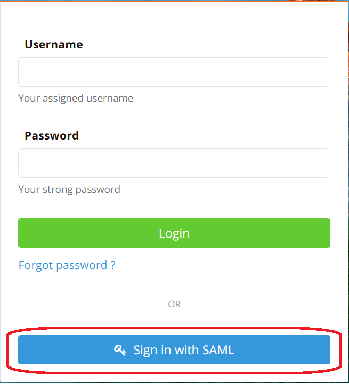
The end-to-end flow:
- User clicks Sign in with SAML on the mfusion login page.
- mfusion redirects the browser to the configured IdP SSO URL with a SAML AuthnRequest.
- The user authenticates at the IdP (however the IdP is configured — password, its own MFA, etc. — this step is entirely the IdP's responsibility).
- The IdP redirects the browser back to mfusion with a signed SAML Response.
- mfusion validates the signature, extracts the username from the claim mapped to Username in Assertion Attributes (and email/first/last name, for any other mapped rows), then:
- New username — auto-provisions the account with the Profile Name/Entity Name defaults, and signs them in.
- Existing SAML-provisioned account with that username — syncs the email if it changed, and reassigns profile/entity to the current Profile Name/Entity Name defaults if either has changed since their last login, then signs them in.
- Existing local or LDAP account with that username — the login is refused with "SSO sign-in failed. Please contact your administrator." SSO cannot sign into or take over an account that isn't already SAML-provisioned.
- The user lands directly in mfusion — no OTP challenge, even if Global 2FA is forced on. mfusion treats the IdP's own authentication (whatever MFA it enforces) as sufficient; this is different from the local/LDAP 2FA flow, which still applies under Global 2FA.
Signing out
Clicking Logout always ends the mfusion session immediately, same as any other user. If IdP SLO URL is configured, mfusion then redirects the browser there to end the IdP session too (Single Logout) before landing back on the mfusion login page. If it's blank, logout stops at mfusion — the user may still show as signed in at the IdP until their IdP session separately expires or they sign out there directly.
Known limitations
- Username length — The IdP-asserted username, after the
saml_prefix, has 45 usable characters. A long claim value — Azure AD'supn, for example, is email-formatted and can run long — may be rejected on first login with a clear "too long" error rather than being silently truncated. If you hit this, map the Username row in Assertion Attributes to a shorter claim (e.g. a directoryuid) instead of an email-style identifier.