User Management
User management in HSG defines the Authentication component of AAA (Authentication, Authorization, Accounting). This page covers how to create user accounts, assign authentication methods (username/password, MAC address, PIN code), configure user information, and manage access rights through profiles or direct assignment.
For detailed information on authentication methods supported by HSG, see Hotspot Authentication Methods.
Manual Account Creation
Manual account creation is appropriate for static user lists: staff accounts, VIP guests, pre-registered members, or small deployments where bulk import isn’t needed.
Creating a User Account
Navigate to HOTSPOT USERS → User Management, then click New User.

Authentication Method
Select how users will log in. HSG supports three authentication methods:
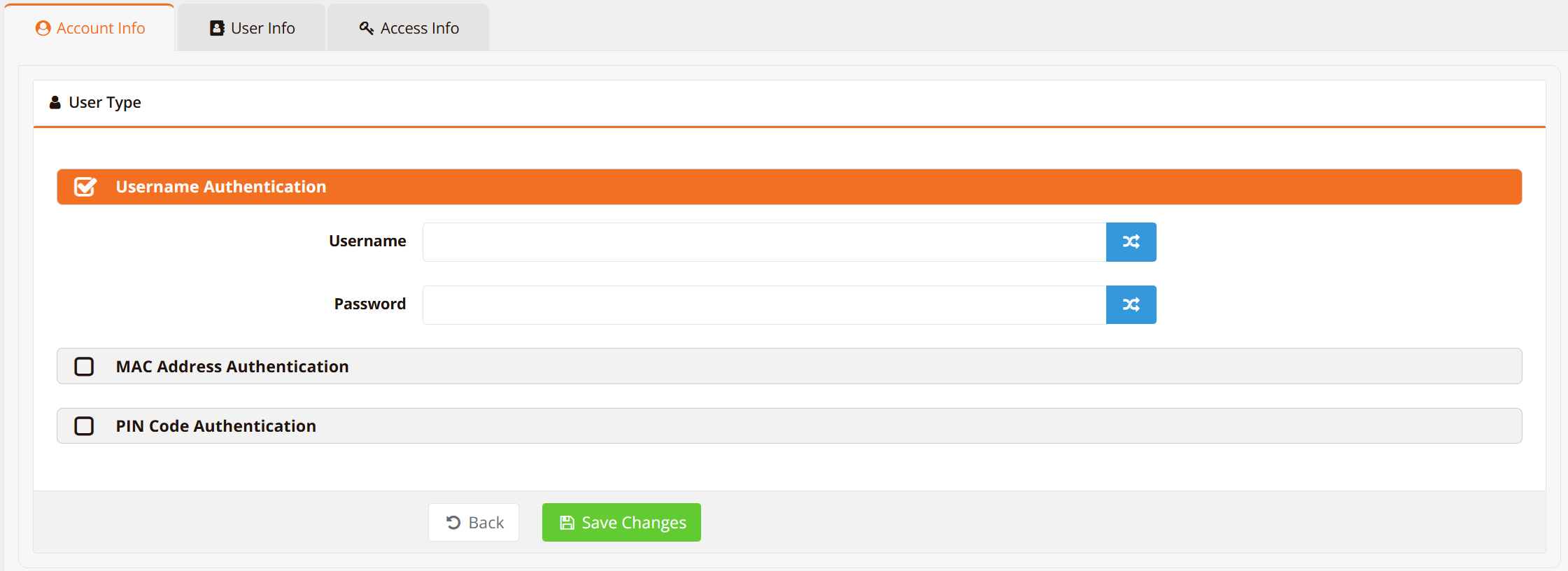
| Method | How It Works | When to Use |
|---|---|---|
| Username & Password | User logs in with username and password on captive portal or via direct access method. Most common and flexible approach. | Standard guest Wi-Fi, staff accounts, hotel guest logins (combined with PMS sync). |
| MAC Address | Specific device MAC addresses bypass authentication entirely. No user credentials required. Useful for automated devices, printers, or whitelisting trusted devices. | Kiosk devices, office printers, IoT devices with no login capability. |
| PIN Code | User enters a numeric or alphanumeric PIN code to authenticate. HSG can generate single-use or multi-use PINs. | Voucher-based access, temporary guest access, promotional campaigns. |
For MAC Address authentication: Enter device MAC addresses individually or bulk import via the Manual Import button. See Hotspot Instance Configuration — MAC Address Whitelisting for details.
For PIN Code authentication: Select Single PIN (one code for all users) or Multiple PIN (unique code per user/device). Configure: - Number of PINs to generate - PIN length (typically 4-8 characters) - PIN composition (numbers only, or letters + numbers)
User Profile Information
Add optional user metadata:
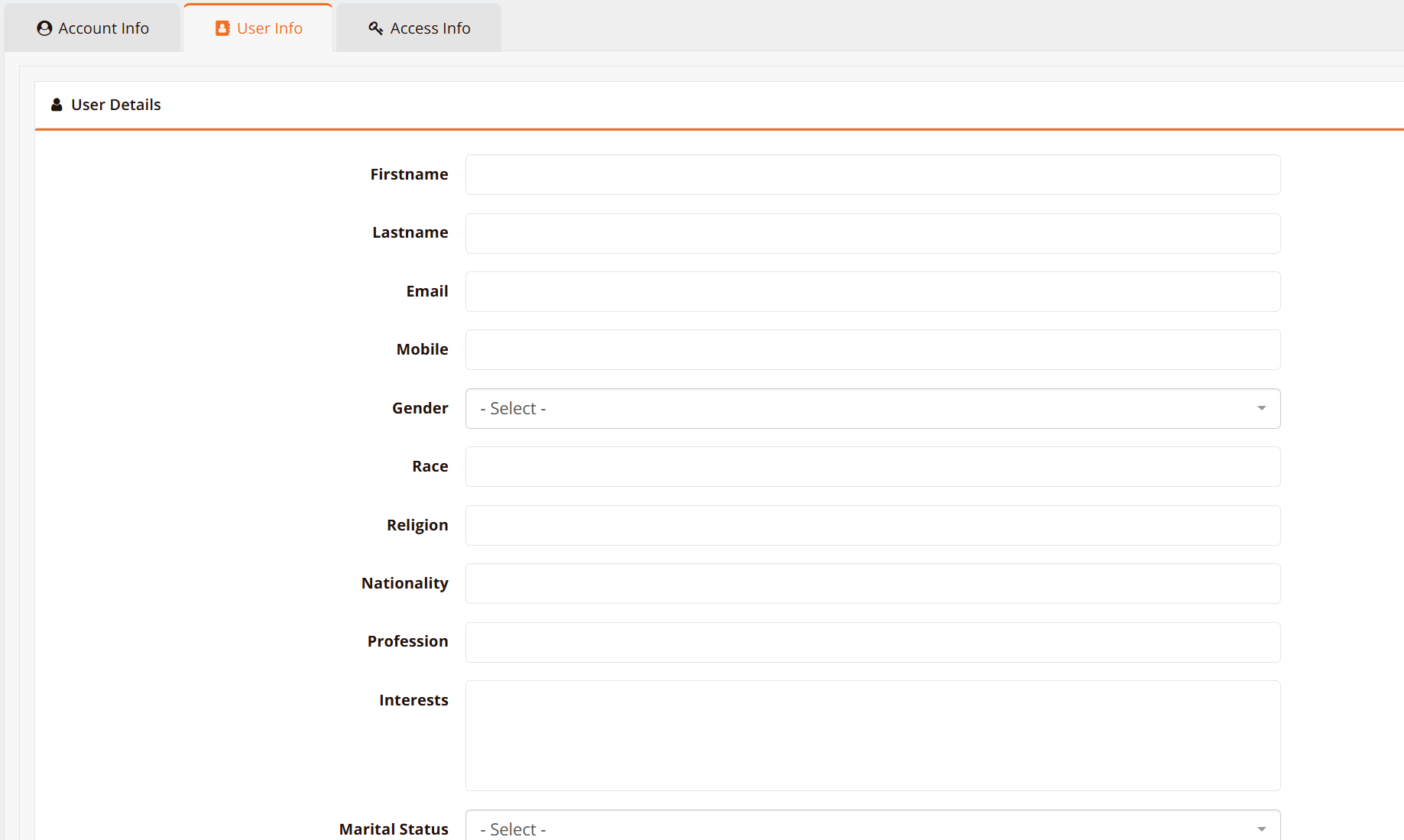
| Field | Purpose | Example |
|---|---|---|
| Name | Display name | John Guest |
| Contact email (can be used for password reset, marketing campaigns) | john@example.com | |
| Phone | Contact phone (can be used for SMS alerts, marketing) | +1-555-1234 |
| Company | Organization/affiliation | Acme Corp |
| Notes | Internal notes for reference | VIP member, extended access |
These fields are optional but useful for: - Marketing and guest analytics - Contact-based notifications (email, SMS) - Internal record-keeping and account auditing
Access Rights Configuration
Define what the user is allowed to do after authentication. HSG provides two approaches:
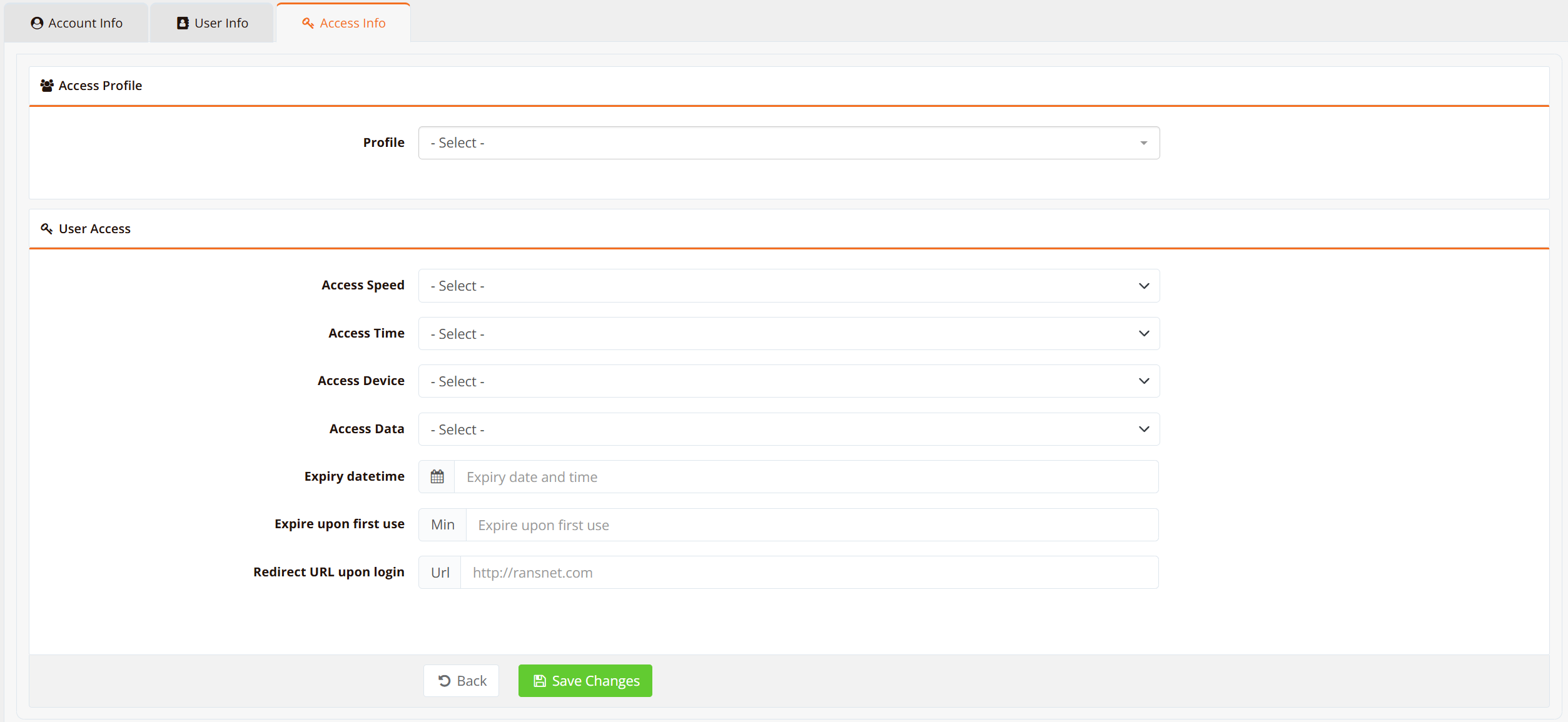
Approach 1: Assign an Access Profile
Profiles pre-define a complete set of access rights. The user inherits all settings from the profile:
- Bandwidth limits (download/upload speed)
- Session timeout (idle and absolute)
- Firewall policies (allowed/blocked traffic)
- Access restrictions (blacklist/whitelist)
Refer to Access Profiles for detailed profile configuration.
Approach 2: Set Access Rights Directly on User
Assign access rights specifically to this user account, overriding or supplementing profile settings.
Warning
Avoid conflicting settings between the assigned profile and user-specific rights. If both profile and user settings define bandwidth limits, the more restrictive value typically applies. Document your intent to prevent confusion during troubleshooting.
Automatic Account Creation
For deployments with large user populations, automate account creation instead of manual entry. HSG supports multiple integration methods:
PMS Integration (Hotel Wi-Fi)
Recommended for: Hotels, resorts, any property management system with guest database.
HSG can synchronize guest accounts in real-time with Opera PMS (or compatible systems) via the FIAS protocol. When guests check in, accounts are automatically created. When they check out, accounts are deleted.
Benefits: - Zero manual account creation - Automatic account deletion on checkout - Real-time sync as guests change rooms or extend stays - Capture guest email/phone for marketing
Setup: See Hotel Wi-Fi Hotspot Management — PMS Integration.
API Integration
Recommended for: Custom CRM systems, billing platforms, membership databases, third-party integrations.
HSG exposes a secure REST API allowing external systems to: - Create/delete user accounts programmatically - Query user session data - Retrieve access logs for billing or analytics
Setup: See Hotspot API Reference.
FTP/SFTP Import
Recommended for: Legacy CRM systems that can export user lists but don’t support API integration.
Configure HSG to periodically pull a user file from an FTP/SFTP server. HSG automatically parses the file and syncs accounts.
Step 1: Configure FTP/SFTP Source
Navigate to HOTSPOT USERS → User Management → Import, then select FTP Import.
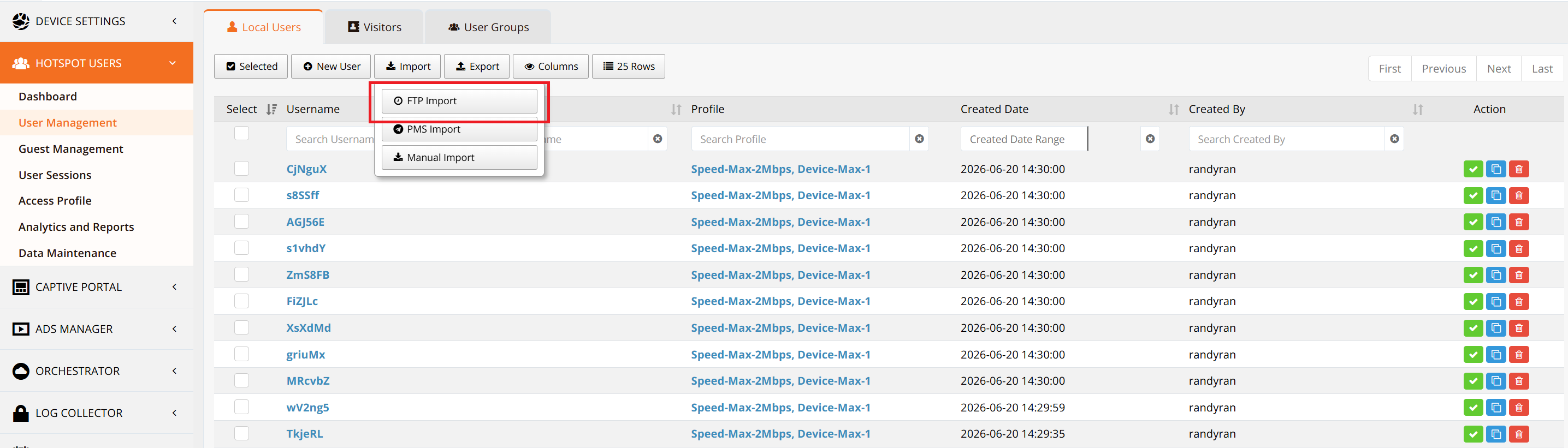
Enter FTP/SFTP server details: - Server IP or hostname - Port (typically 21 for FTP, 22 for SFTP) - Username and password - Remote file path and location - Sync interval (e.g., every 15 minutes)
Step 2: Verify Connection and Sync
Click Test Connection to verify HSG can reach the FTP/SFTP server. Once successful, HSG will automatically pull the file at the configured interval.
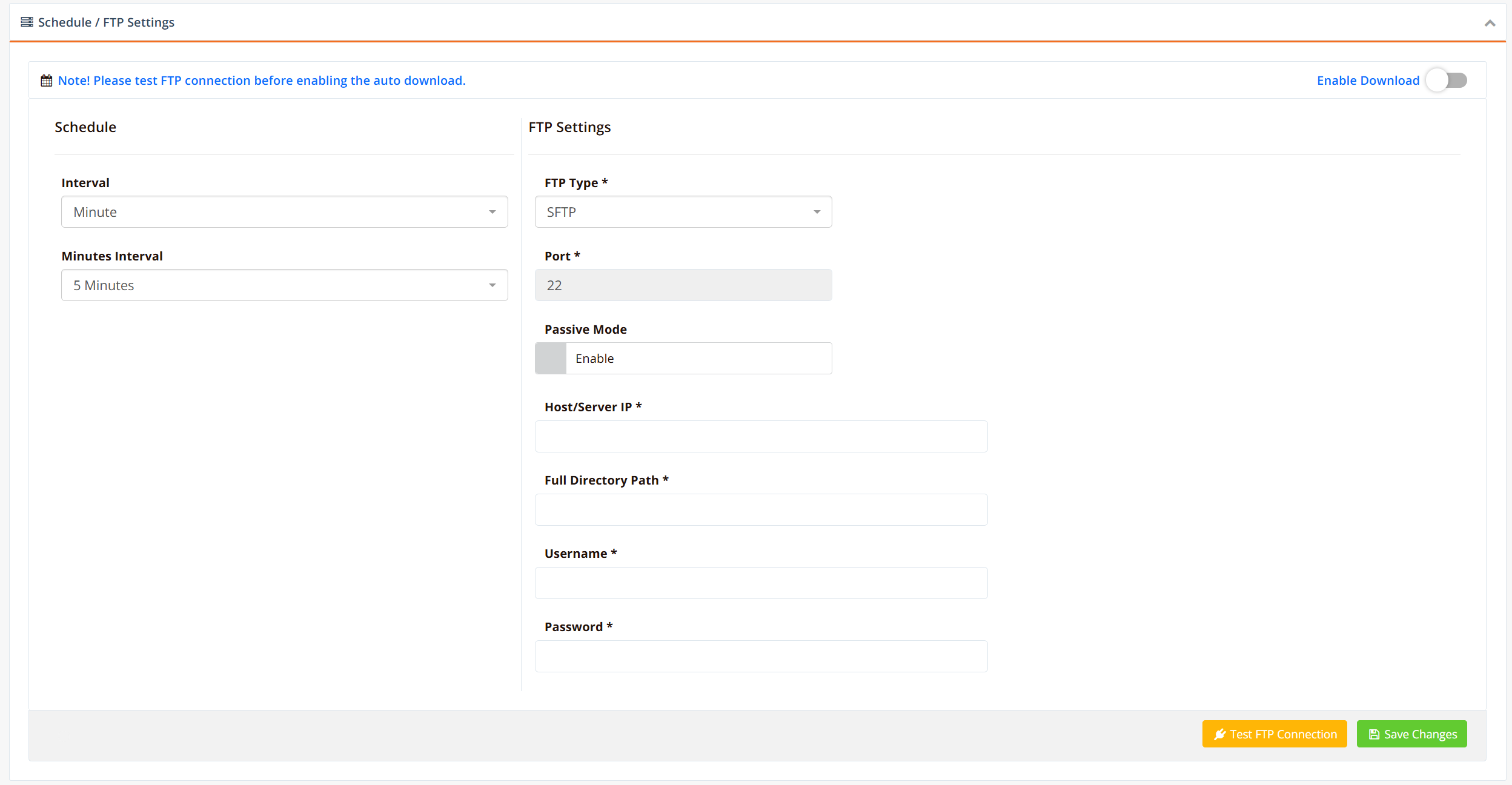
File Format: The remote file must be in CSV format (comma-separated values). See CSV import section below for format details.
CSV File Import
Recommended for: Bulk one-time imports, spreadsheet-based user lists, exports from external systems.
For large user lists or one-off imports, upload a CSV file directly from your computer.
Step 1: Prepare CSV File
Navigate to HOTSPOT USERS → User Management → Import, then select Manual Import.
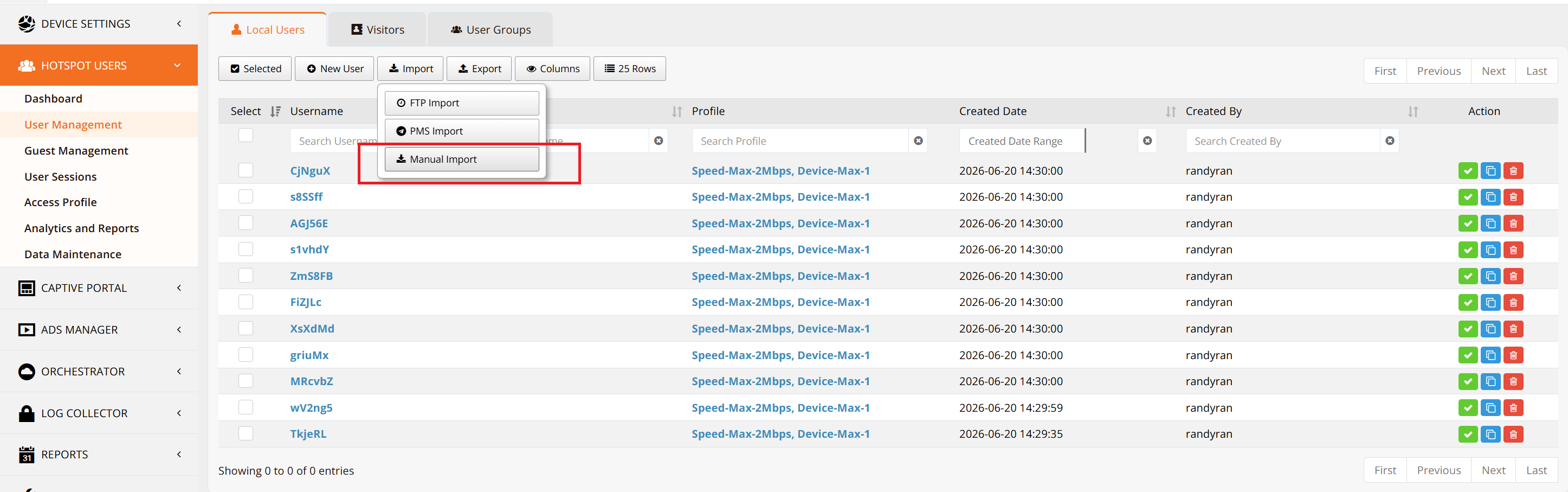
Click Download CSV Format to download a template showing the correct column structure.
Step 2: Upload CSV
Go to Upload CSV tab. Select your CSV file from your local computer. Optionally assign an access profile to all imported accounts.
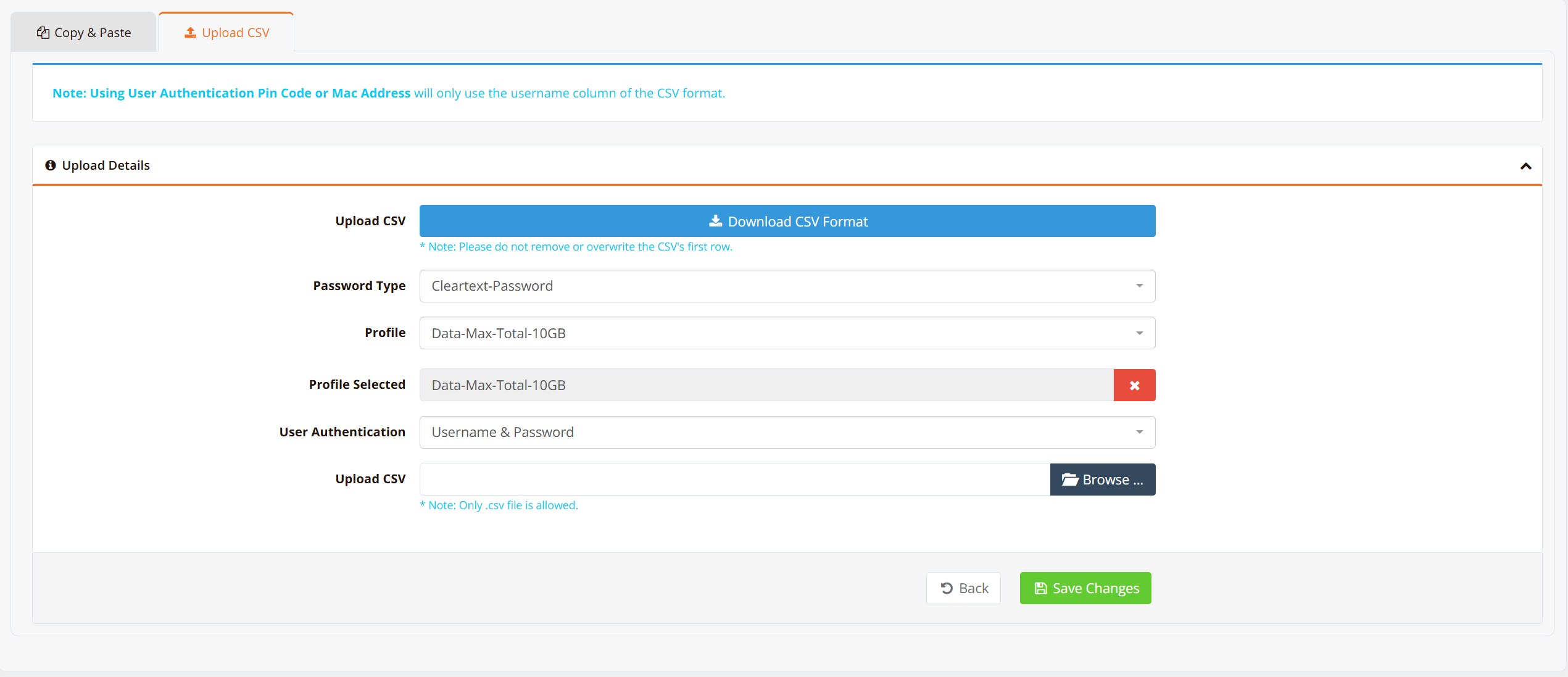
Click Upload to import. HSG validates the file format and creates accounts in bulk.
CSV File Format:
Refer to the template for exact field order. Typical columns:
| Column | Description | Example |
|---|---|---|
| username | Login username (unique) | john_guest |
| password | Password (will be hashed in HSG database) | SecurePass123 |
| User email (optional) | john@example.com | |
| phone | User phone (optional) | +1-555-1234 |
| name | Full name (optional) | John Guest |
| profile | Access profile name to assign (optional) | Standard_Guest |
Verification
After creating or importing user accounts, verify they are properly configured:
Verify Account Creation
Navigate to HOTSPOT USERS → User Management → Local Users. Verify: - New accounts appear in the list - Source column shows: - "manual" for manually created accounts - "pms" for PMS-imported accounts - "import" for CSV-imported accounts - Accounts show correct authentication method (Username, MAC, or PIN)
Verify Login
Test authentication with a real device:
- Connect to the hotel HSIA network (guest SSID)
- Open a web browser (device redirects to captive portal)
- Enter credentials (username + password, or MAC address whitelisted, or PIN code)
- Click Connect and verify internet access is granted
Expected result: Device receives internet access and is subject to bandwidth/timeout limits from assigned profile.
Best Practices
Account Lifecycle
- Regular audits — Periodically review active accounts and delete unused accounts (especially staff or test accounts) to reduce clutter
- Password policies — Enforce strong passwords for staff accounts; use auto-generated passwords for guest accounts
- Automation over manual — Use PMS integration or API for production deployments; manual creation is for testing or edge cases only
- Bulk import testing — Always test CSV imports on a small sample before importing thousands of accounts
User Information
- Capture data for analytics — Email and phone fields enable post-stay marketing and guest analytics
- Privacy compliance — Ensure user data collection complies with GDPR, CCPA, and local privacy regulations
- Retention policies — Define how long user data is retained after account deletion; comply with data retention regulations
Access Rights
- Use profiles for consistency — Define standard profiles (Standard Guest, Premium Guest, Staff) rather than customizing each user
- Avoid permission conflicts — Don’t set conflicting access rights at both profile and user level; document who owns what setting
- Monitor bandwidth — Set realistic bandwidth limits based on your uplink speed and number of concurrent users
- Session timeouts — Balance convenience (longer sessions) with security (shorter sessions on public devices)
Related Features
- Hotspot Instance Configuration — Configure captive portal, DHCP, bandwidth enforcement per user
- Access Profiles — Define reusable access profiles with bandwidth limits, session timeouts, firewall policies
- Hotspot Authentication (RADIUS/UAM) — Detailed authentication methods and RADIUS/PMS integration
- Hotel Wi-Fi Integration — End-to-end guide for PMS-based guest Wi-Fi
- Hotspot API Reference — Programmatic user account creation and session management