IoT Monitoring
The IoT dashboard provides real-time visibility into the IoT sensors connected through RansNet edge routers — smart energy devices (plugs, sockets, switches, breakers) and environmental sensors (temperature, humidity). Sensors publish their readings over MQTT to the edge router, which forwards them across the SD-WAN to mfusion — see IoT Integration for the collection architecture.
Navigate to ORCHESTRATOR → Monitoring → Dashboard and select the IoT tab. Use the [Entity] button in the top-right corner to switch between entities.
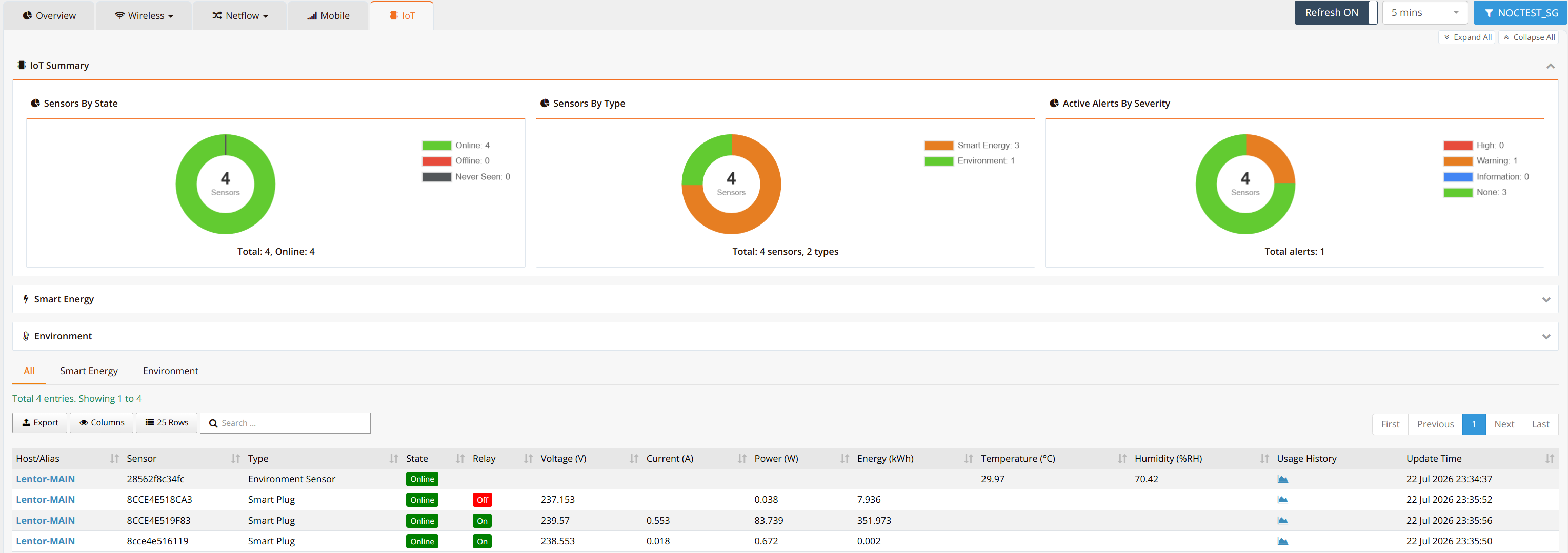
IoT Summary
Three donut charts summarize the sensor population:
| Chart | Description |
|---|---|
| Sensors By State | Online (actively reporting), Offline (no data received recently), or Never Seen (registered but no data yet) |
| Sensors By Type | Sensor family mix — e.g., Smart Energy and Environment |
| Active Alerts By Severity | Sensors with active trigger conditions, classified by severity (High, Warning, Information, None) |
Below the summary, collapsible Smart Energy and Environment sections provide family-specific charts — expand each to view the distribution and trend panels for that sensor type.
Sensor Table
The table lists every sensor, with tabs to filter by family: All, Smart Energy, or Environment. Columns populate according to the sensor type — energy metrics for smart-energy devices, temperature/humidity for environmental sensors.
| Column | Description |
|---|---|
| Host/Alias | The edge router the sensor reports through — click to open the host detail view |
| Sensor | Sensor identifier (device MAC/ID) |
| Type | Sensor type (e.g., Smart Plug, Environment Sensor) |
| State | Online/Offline indicator |
| Relay | Relay state (On/Off) for switchable smart-energy devices |
| Voltage (V) / Current (A) / Power (W) / Energy (kWh) | Live electrical readings (smart-energy sensors) |
| Temperature (°C) / Humidity (%RH) | Live environmental readings (environment sensors) |
| Usage History | Opens the historical trend graph for the sensor |
| Update Time | Timestamp of the last reading |
Note
A sensor is marked Offline when no MQTT reading has been received for several minutes, and is removed from discovery if it stays silent — check the sensor's power and Wi-Fi connectivity, then the edge router's MQTT broker status. See Setup Smartplug Sensor for onboarding steps.
Related Features
- IoT Integration — MQTT collection architecture and edge router configuration
- Smart Energy Series — supported IoT sensor hardware
- Energy Metering Use Case — multi-tenant energy metering deployment
- Monitoring Dashboard — the Overview tab and other dashboard views