Intrusion Prevention
Intrusion Prevention (IPS) blocks traffic to and from known-bad IP addresses and stops common attacks on the router itself. It adds four protections in front of the firewall policies:
- Threat feeds — Lists of malicious IP addresses (hijacked networks, botnet command-and-control servers, Tor exit relays, or your own lists). Traffic to or from a listed address is dropped, both inbound and outbound.
- Block list and exceptions — Your own addresses that are always blocked or never blocked.
- Scan protection — Blocks an internet source that port-scans the router.
- SSH brute-force protection — Blocks an internet source that opens too many SSH connections to the router.
The router keeps the feeds up to date by itself, mostly through mFusion. You choose the feeds per router; mFusion maintains the lists centrally under Threat Feeds.
Use Cases
| Scenario | What IPS does |
|---|---|
| Infected office PC | A PC with malware tries to reach its command-and-control (C2) server. The C2 address is on a threat feed, so the router drops the connection and logs it. The malware cannot get instructions or send data out. |
| Router exposed to the internet | Bots scan every public IP address for open ports and try SSH passwords. Scan and brute-force protection block each bot after a few attempts, for 1 hour or 15 minutes. |
| Compliance requirement | A tender or policy asks for intrusion prevention with threat intelligence at each site. IPS gives you this on every router, without a separate appliance. |
| Block anonymised access | Block a public service at the branch from Tor users with the Tor exit relays feed. |
| Incident response | Block an attacker's address on one router (block list) while you investigate, or on all routers through a custom feed. |
Requirements
| Item | Requirement |
|---|---|
| Router firmware | A release with Intrusion Prevention (security ips). Supported on branch routers (HSA-520, UA-520, XE-300) and Debian 12 gateways. |
| mFusion | Debian 12 mFusion with the Threat Feeds page (ORCHESTRATOR → Security Intelligence → Threat Feeds) for central feed lists and the GUI page. Without it, the router downloads the feeds from their sources directly. |
| Router registration | The router must be registered to mFusion to receive feed lists from it (HTTPS to its own mFusion). |
| Internet access | Only needed for direct downloads: custom feeds, or a built-in feed that mFusion does not serve. |
Topology
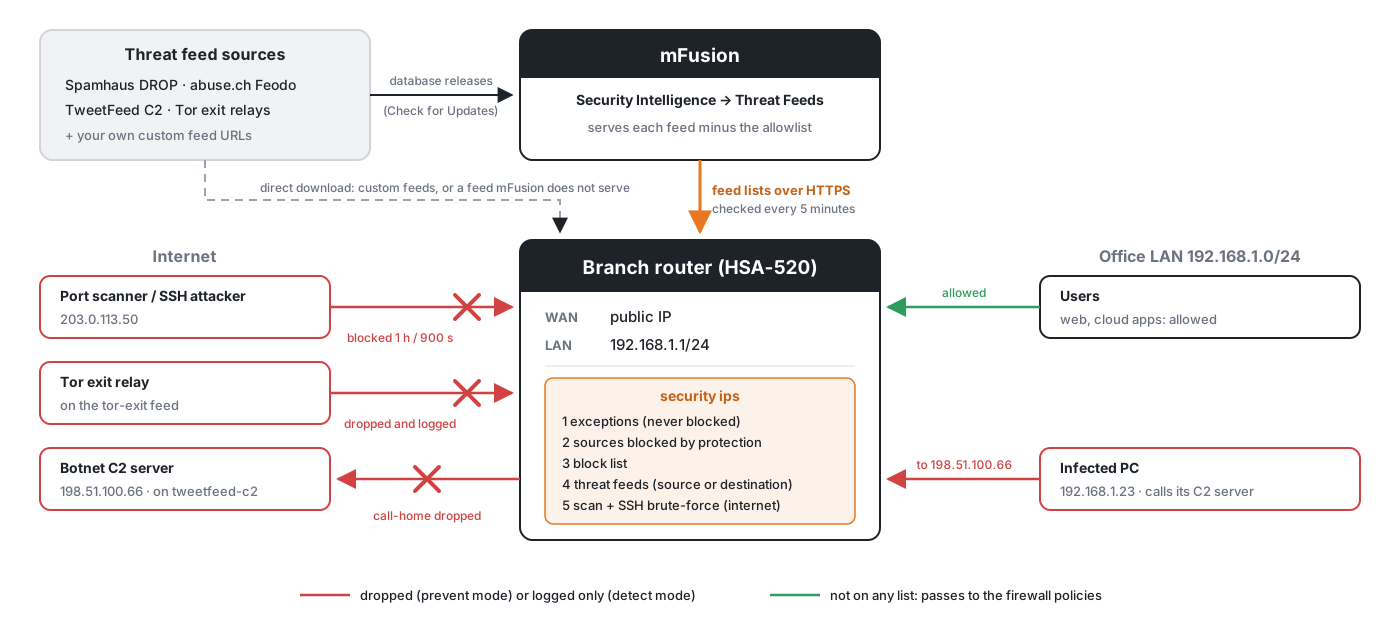
Topology Summary:
- The branch router (HSA-520) has a public WAN address and the office LAN
192.168.1.0/24. - mFusion serves the router the feed lists it uses, without the networks on its allowlist. The router checks them every 5 minutes and downloads only changed lists. When mFusion does not serve a feed (for example a custom feed), the router downloads it directly from its source.
- A port scanner at
203.0.113.50probes the router's WAN. Scan protection blocks it for 1 hour. - A Tor exit relay tries to connect. It is on the
tor-exitfeed, so the router drops it. - An infected PC at
192.168.1.23calls its C2 server198.51.100.66, which is on thetweetfeed-c2feed. The router drops the outbound connection and logs it, so you can find and clean the PC. - Users' normal traffic is not on any list. It passes to the firewall policies as usual.
How the Router Checks Traffic
IPS checks only the first packet of each new connection. Established connections, and traffic that is already allowed, never reach the IPS rules, so the CPU cost stays low even on the XE-300. The checks run in this order; the first match decides:
| Order | Check | Applies to |
|---|---|---|
| 1 | Exceptions — never blocked | All traffic |
| 2 | Sources blocked by scan or brute-force protection (prevent mode) | Traffic to the router |
| 3 | Block list | Source or destination, all traffic |
| 4 | Threat feeds | Source or destination, all traffic |
| 5 | Scan protection and SSH brute-force protection | Traffic to the router from internet sources only |
Sources in private and local ranges (10.0.0.0/8, 172.16.0.0/12, 192.168.0.0/16, 100.64.0.0/10, 169.254.0.0/16, 127.0.0.0/8) are never blocked by scan or brute-force protection, so LAN users and VPN branches cannot lock themselves out.
IPS runs before the firewall policies. A connection that passes IPS is then checked by the firewall policies as usual. IPS can only block; it never permits traffic the firewall denies.
Threat Feeds
| Feed | CLI name | Contents | Updated | Licence |
|---|---|---|---|---|
| Spamhaus DROP | spamhaus-drop |
Networks hijacked or leased by spammers and cybercrime operations. Traffic to or from them is never legitimate. | Every 12 hours | Free to use, with credit to The Spamhaus Project |
| abuse.ch Feodo Tracker | feodo |
Command-and-control servers of banking trojans and loaders (Dridex, Emotet, QakBot). | Every 30 minutes | CC0 |
| TweetFeed C2 | tweetfeed-c2 |
C2 servers (C2, RAT, stealer, ransomware, APT and malware families such as Cobalt Strike) shared by security researchers in the last 30 days. | Hourly | CC0 |
| Tor exit relays | tor-exit |
Current Tor exit relays. Blocks traffic to and from Tor users. | Hourly | Public (Tor Project) |
Retired feed: sslbl
abuse.ch retired the SSL Blacklist (sslbl) in 2025. Routers still accept threat-feed sslbl so older configurations load, but they keep it empty and download nothing. The mFusion GUI no longer offers it: Import CLI Config drops it, and the next Apply Config sends no threat-feed sslbl. Use TweetFeed C2 and abuse.ch Feodo Tracker for botnet C2 servers.
Custom feeds add your own list: any http:// or https:// URL of a plain text file with one IPv4 address or network (A.B.C.D or A.B.C.D/nn) per line. The router ignores other lines. Each router can have up to 8 custom feeds. The router always downloads custom feeds directly and checks them every 60 minutes.
Which feeds to use
Spamhaus DROP, abuse.ch Feodo Tracker and TweetFeed C2 have very few false positives — turn them on everywhere. Turn on Tor exit relays only where you want to block Tor users, because it also blocks their legitimate visits.
GUI Configuration
Navigate to ORCHESTRATOR → Configuration → Branch Devices (or Gateway Devices), open the device, then Security → Intrusion Prevention.
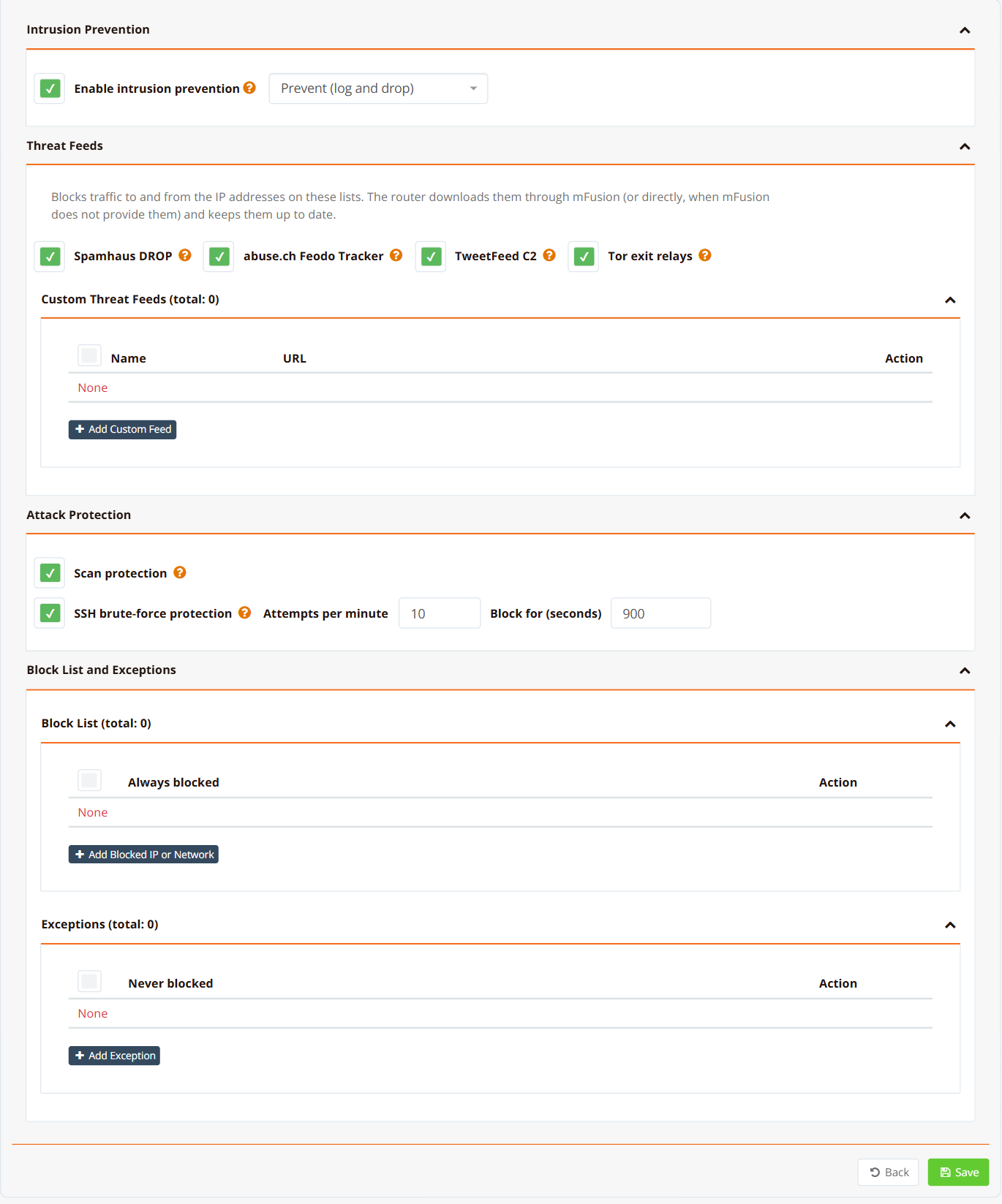
Step 1: Tick Enable intrusion prevention and choose the mode.
Step 2: Under Threat Feeds, tick the feeds to use. Click Add Custom Feed to add your own list.
Step 3: Under Attack Protection, tick Scan protection and SSH brute-force protection as needed.
Step 4: Under Block List and Exceptions, add addresses to always block or never block.
Step 5: Click Save, then Apply Config to push the configuration to the router.
| Field | Example | Description |
|---|---|---|
| Enable intrusion prevention | ticked | Turns IPS on for this router. Unticking it removes the whole security ips section on the next Apply Config. |
| Mode | Prevent (log and drop) |
Prevent drops and logs matching traffic. Detect only logs it — use it to check a feed's impact before you block anything. |
| Spamhaus DROP / abuse.ch Feodo Tracker / TweetFeed C2 / Tor exit relays | ticked | Built-in feeds, each one a threat-feed line. Hover over the ? icon for what the feed holds. |
| Custom Threat Feeds → Name | partner-block |
1–15 lowercase letters, digits or -, starting with a letter or digit. Cannot be a built-in feed name (including sslbl). |
| Custom Threat Feeds → URL | https://lists.example.com/block.txt |
http:// or https:// URL of a plain IP/CIDR list. |
| Scan protection | ticked | Blocks an internet source for 1 hour when it opens more than 20 new TCP connections a second to the router, or sends invalid TCP flag combinations (port scans). |
| SSH brute-force protection | ticked | Blocks an internet source that opens too many SSH connections to the router in a minute. The router finds its SSH ports itself. |
| Attempts per minute | 10 |
New SSH connections per minute from one source before it is blocked (3–100). |
| Block for (seconds) | 900 |
How long a brute-force source stays blocked (60–86400). |
| Block List | 203.0.113.0/24 |
Addresses or networks always blocked, as source or destination. |
| Exceptions | 198.51.100.7 |
Addresses or networks never blocked by any IPS check, for example a partner's VPN endpoint that appears on a feed. |
Import CLI Config reads the router's security ips section back into this page, so changes made on the router's CLI are kept.
CLI Configuration
Enter the IPS section from configuration mode:
security ips
 threat-feed spamhaus-drop
 threat-feed feodo
 threat-feed tweetfeed-c2
 threat-feed custom partner-block url https://lists.example.com/block.txt
 block 203.0.113.0/24
 exception 198.51.100.7
 scan-protection
 brute-force-protection
!
This configuration uses three built-in feeds and one custom feed, blocks one network and never blocks one partner address. It also turns on scan protection and SSH brute-force protection with the defaults (10 connections per minute, blocked for 900 seconds). The mode is prevent by default, so the configuration does not show it.
The router applies changes in the background: the CLI returns at once, and the rules are active within seconds. Feeds start working when their lists have been downloaded.
Detect Mode
To log matches without blocking anything, for example before you turn on a new feed:
Log lines then start with IPS alert <name>: instead of IPS deny <name>:. Return to blocking with no mode (or mode prevent).
Stricter Brute-Force Protection
This blocks a source after 5 new SSH connections in a minute, for 1 hour.
Parameters
| Command | Description | Default | Example |
|---|---|---|---|
security ips |
Turns IPS on and enters its section. no security ips turns it off and removes all its settings. |
off | security ips |
mode <prevent\|detect> |
Drop and log, or log only. | prevent |
mode detect |
threat-feed <feed> |
Built-in feed: spamhaus-drop, feodo, tweetfeed-c2, tor-exit (sslbl is retired and kept empty). |
none | threat-feed feodo |
threat-feed custom <name> url <url> |
Your own list, up to 8 per router. | none | threat-feed custom partner-block url https://lists.example.com/block.txt |
block <A.B.C.D[/mask]> |
Always block as source or destination. | none | block 203.0.113.0/24 |
exception <A.B.C.D[/mask]> |
Never block. | none | exception 198.51.100.7 |
scan-protection |
Block internet port scanners for 1 hour. | off | scan-protection |
brute-force-protection [attempts <3-100>] [block-time <60-86400>] |
Block SSH login floods. | off; 10 per minute, 900 s when on |
brute-force-protection attempts 5 block-time 3600 |
Remove an item with no and the same line, for example no threat-feed tor-exit, no block 203.0.113.0/24 or no brute-force-protection.
Operational Commands
| Command | Description |
|---|---|
show security ips |
Mode, protections, hit counters and the state of each feed. |
show security ips feeds |
Feed table only. |
show security ips blocked |
Sources currently blocked by scan or brute-force protection, with the seconds left. |
show security ips log [lines] |
Recent IPS log lines (default 50). |
clear security ips blocked [A.B.C.D] |
Unblock one source, or all of them. |
clear security ips statistics |
Reset the hit counters. |
Model-Specific Differences
| Platform | Feed lists | Maximum entries per feed | After a reboot |
|---|---|---|---|
| Branch routers (HSA-520, UA-520, XE-300) | Kept in RAM (no flash writes) | 65,536 | The rules are active at once; the feed lists are downloaded again when the WAN is up (retried every minute for the first 30 minutes). |
| Debian 12 gateways | Cached on disk | 262,144 | The rules and the cached lists are active at once, before the network is up. |
A feed longer than the maximum is cut at the maximum. All built-in feeds are far below it (Spamhaus DROP has about 1,800 entries).
Verification
| Items to Test | Command | Expected Outcome |
|---|---|---|
| IPS is active | show security ips |
Mode : prevent and no Firewall rules : NOT ACTIVE line. Last pass : checked at <time> is within the last 5 minutes. |
| Feeds downloaded | show security ips feeds |
Each feed shows its Entries (for example spamhaus-drop 1746), Source mFusion (or direct) and Last check ok. |
| Feed matches traffic | show security ips after traffic to a listed address |
The feed's Hits counter increases. |
| Blocked traffic logged | show security ips log 20 |
Lines such as IPS deny tweetfeed-c2: IN=vlan1 OUT=eth0 SRC=192.168.1.23 DST=198.51.100.66 ... show the feed, the interfaces and both addresses. |
| Brute-force protection | Open more SSH connections per minute than the limit from an internet test host, then show security ips blocked |
The test host's address is listed with the seconds left, for example 203.0.113.50 timeout 812. |
| Unblock a source | clear security ips blocked 203.0.113.50 |
[info] 203.0.113.50 unblocked. |
| Address on a feed | mFusion Threat Feeds → Lookup | Lists the feeds and entries that contain the address. |
Example of a healthy status:
IPS threat prevention
  Mode             : prevent
  Last pass        : checked at 2026-11-19 02:22:45
  Exceptions       : 0
  Block list       : 0 entries, 0 hits
  Scan protection  : on, 0 hits (scanners blocked 3600s)
  Brute-force      : on, SSH port(s) 22, 10 connections/min, block 900s, 0 hits
  Blocked sources  : 0 (show security ips blocked)

  Threat feed      Entries  Source   Updated           Hits       Last check
  -----------      -------  ------   -------           ----       ----------
  tor-exit         1279     mFusion  2026-11-18 17:09  0          ok
  feodo            1        mFusion  2026-11-18 17:19  0          ok
  spamhaus-drop    1746     mFusion  2026-11-19 02:12  0          ok
  tweetfeed-c2     174      mFusion  2026-11-18 17:10  0          ok
Source shows where the list came from: mFusion, direct (from the feed's own URL) or retired (sslbl, kept empty). A small feed such as feodo can have very few entries when few C2 servers are active; that is normal.
Troubleshooting
| Symptom | Likely Cause | Solution |
|---|---|---|
A feed shows 0 entries and Last check download failed ... |
The router cannot reach mFusion or the feed's URL | Check the WAN and DNS with ping <mFusion address>. The router keeps the last list it had and retries every 15 minutes. For a custom feed, check that the URL opens and returns a plain list. |
Last pass says waiting for the network (cached lists used) |
No default route yet (boot, WAN down) | Normal while the WAN is down. The router downloads the lists when the WAN comes up. |
A feed has 0 entries with Source mFusion |
The feed is switched off on mFusion (Served to Routers) | Turn it back on under Threat Feeds → Feeds, or remove the feed from the router. |
| A legitimate site or partner is blocked | Its address is on a feed (false positive) | Find the feed with mFusion Threat Feeds → Lookup. Add the address to the mFusion Allowlist (fixes every router at its next check), or add an exception on this router only. |
| A user cannot reach the router after many SSH logins | Brute-force protection blocked their public address | Run show security ips blocked, then clear security ips blocked <address>. Raise attempts, or add an exception for a trusted management address. |
| A log server or monitoring host is blocked as a scanner | Many new TCP connections a second from an internet address | Add an exception for the host. UDP traffic (syslog, NetFlow, SNMP traps) never triggers scan protection. |
Firewall rules : NOT ACTIVE |
The IPS rules were removed, for example by a manual firewall flush | Wait for the next 5-minute pass, which rebuilds them, or run security ips again in configuration mode. |
The CLI rejects a threat-feed custom line |
Name or URL format | Use 1–15 lowercase letters, digits or -, and a URL with only letters, digits and . _ ~ : / ? = % + -. |
Best Practices
Deployment
- Start in detect mode on a new feed. Run
mode detectfor a day, checkshow security ips logfor unexpected matches, then return to prevent mode. - Turn on Spamhaus DROP, Feodo and TweetFeed C2 everywhere. They have very few false positives and protect both the router and the LAN.
- Fix false positives centrally. Use the mFusion Allowlist rather than per-router exceptions, so every router gets the fix.
- Use the log to find infected hosts. An outbound
IPS denyfrom a LAN address to a C2 feed means that host is very likely infected — isolate and clean it.
Security Best Practices
- IPS does not replace the firewall. Keep management services (SSH, GUI) closed to the WAN with firewall input rules; brute-force protection is a second layer.
- Add exceptions for your own management addresses (mFusion, NOC networks) so a scan or login burst from them never locks you out.
- Keep the threat feed database current — Use Check for Updates on the Threat Feeds page regularly, because C2 addresses change within days.
- Device hardening — For CLI login lockout and password policy, see Device Hardening.
Related Features
- Threat Feeds — The feed lists mFusion serves, the allowlist and lookup.
- Firewall Policies — Access and input rules that run after IPS.
- Web Filtering — Block domains, apps and categories by DNS.
- Log Collector — Keep IPS log lines centrally.
- Device Hardening — CLI login lockout and password policy.