Analytics and Reports
Analytics and Reports turns hotspot session data into usage charts and logs: who uses the hotspot most, when it's busiest, how quotas and billing plans are used, and what happened on the captive portal. Use it for capacity planning, spotting heavy users, and checking billing, PMS and quota activity.
Navigate to HOTSPOT USERS → Analytics and Reports. The page has nine tabs:
| Tab | Shows |
|---|---|
| Top Reports | Top users, devices or gateways by logins, time or traffic |
| Total Reports | Total logins per hour across the day |
| User Patterns | Repeat logins per hour |
| Billing Plans | Users and revenue per billing plan |
| PMS | Messages exchanged with the hotel Property Management System |
| Survey Results | Answers guests gave to portal surveys |
| Quota Purchase | Data quota top-ups bought by users |
| Quota Usage | Data quota consumed by each user |
| Portal Audit Logs | Captive portal events per user and device |
Note
Screenshots on this page have usernames masked.
Filter Reports
The chart tabs (Top Reports, Total Reports, User Patterns and Billing Plans) show the previous day by default — see the Date Report under each chart. Click Filter Reports (top right) to change what they show:
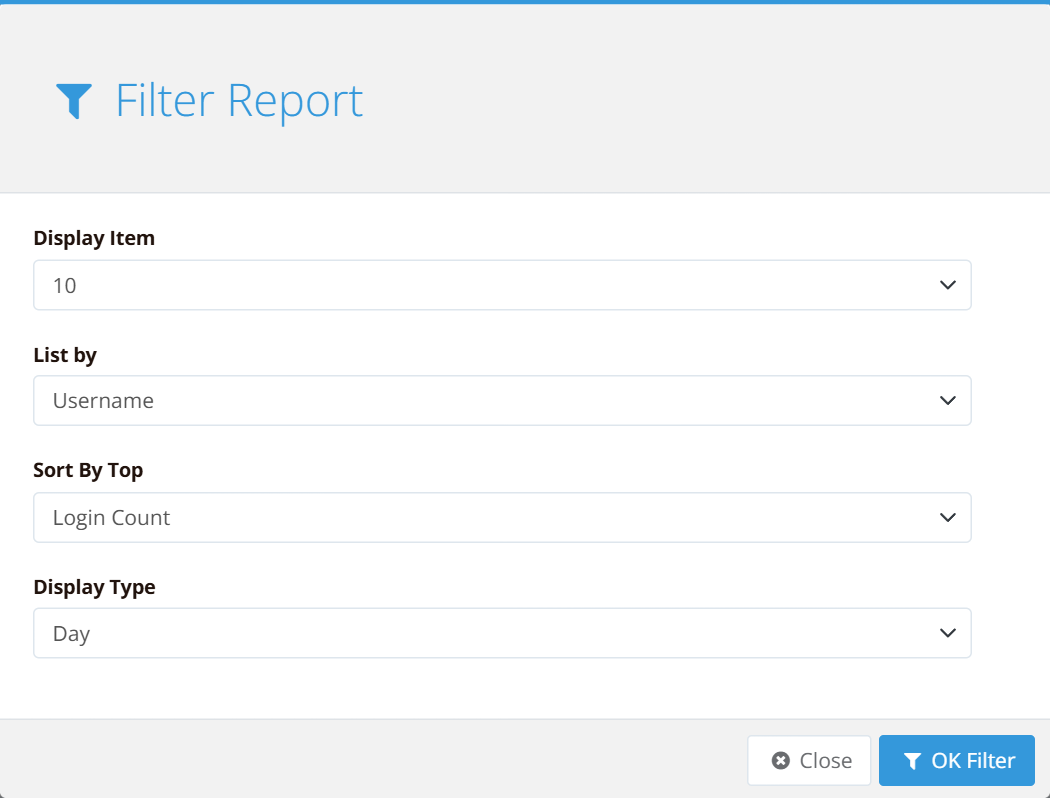
| Field | Options | Description |
|---|---|---|
| Display Item | 10, 25, 50, 100 | How many entries to show in Top Reports |
| List by | Username, MAC Address, Nas IP | Rank by user account, by device, or by hotspot gateway |
| Sort By Top | Login Count, Time Usage, Upload, Download | The measure used to rank entries |
| Display Type | Day, Week, Month, Year | Reporting period |
| Date Range | Date picker | The period to report on |
Click OK Filter to apply.
Tip
For example, to find the heaviest downloaders last month, set List by to Username, Sort By Top to Download and Display Type to Month.
Top Reports
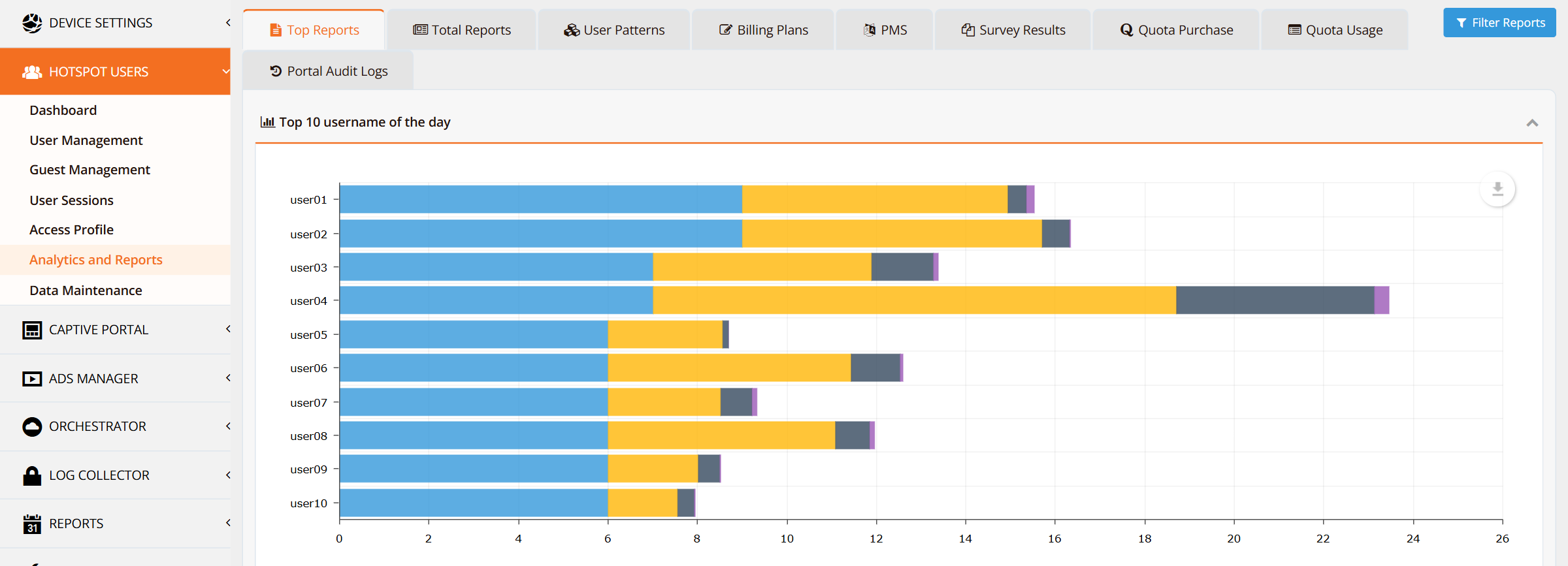
Ranks the top entries (by default the top 10 usernames of the day, by login count) in a stacked bar chart of login count, time used, upload and download. Expand Top Reports Details below the chart for the same data as a table. Use Filter Reports to rank by device or gateway instead, or by a different measure.
Total Reports
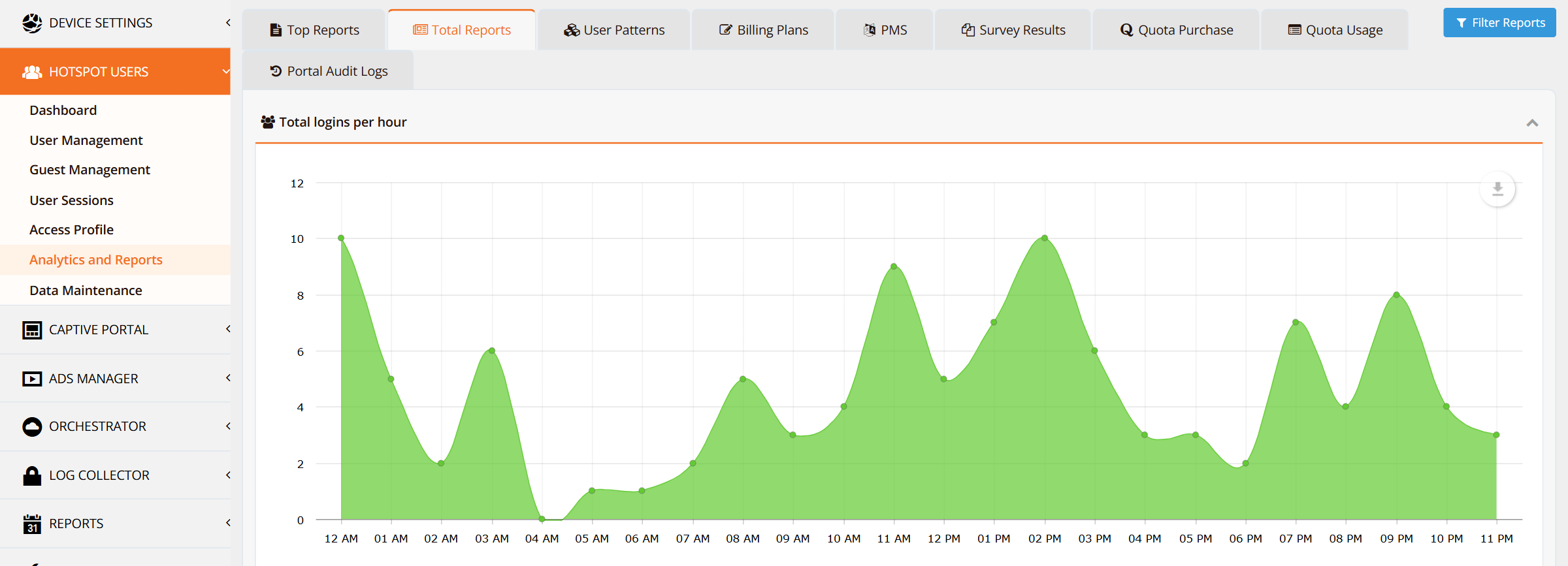
Shows the total number of logins per hour over the day — useful for finding peak hours and planning capacity or maintenance windows.
User Patterns
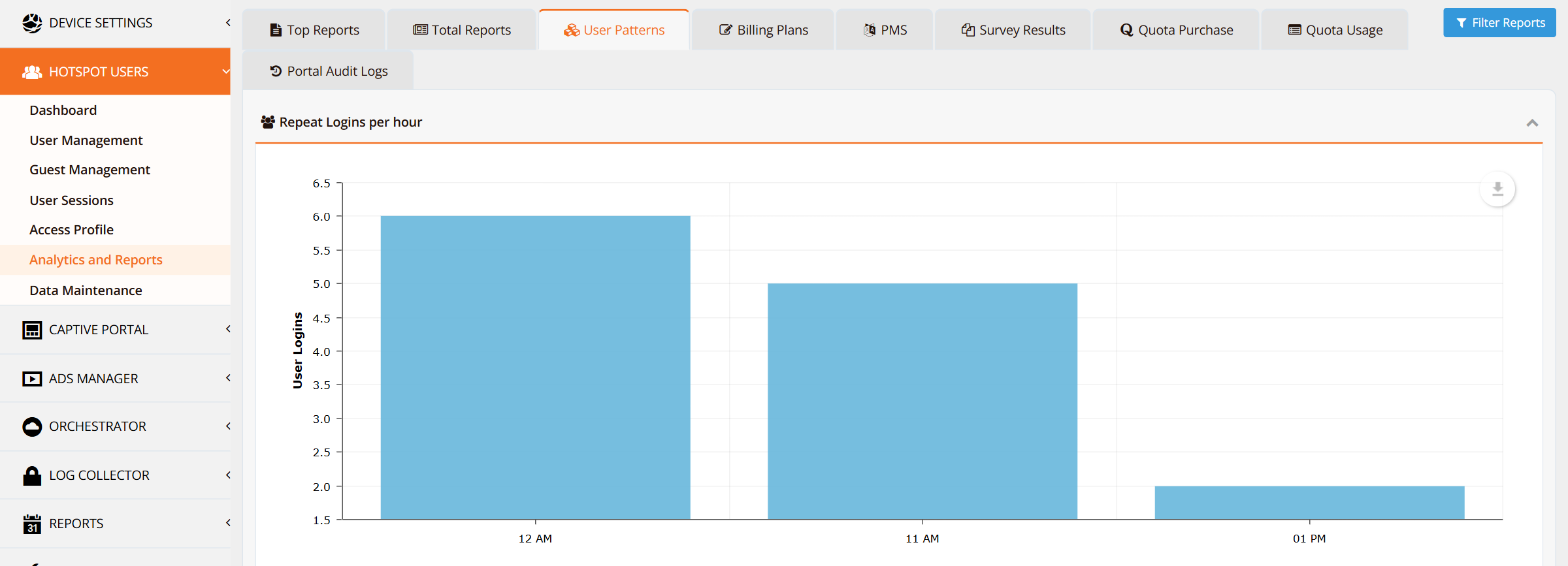
Shows repeat logins per hour — users logging in again during the period. Many repeat logins in a short time can point to sessions dropping (weak Wi-Fi coverage, idle timeouts set too short) rather than genuine new visits.
Billing Plans
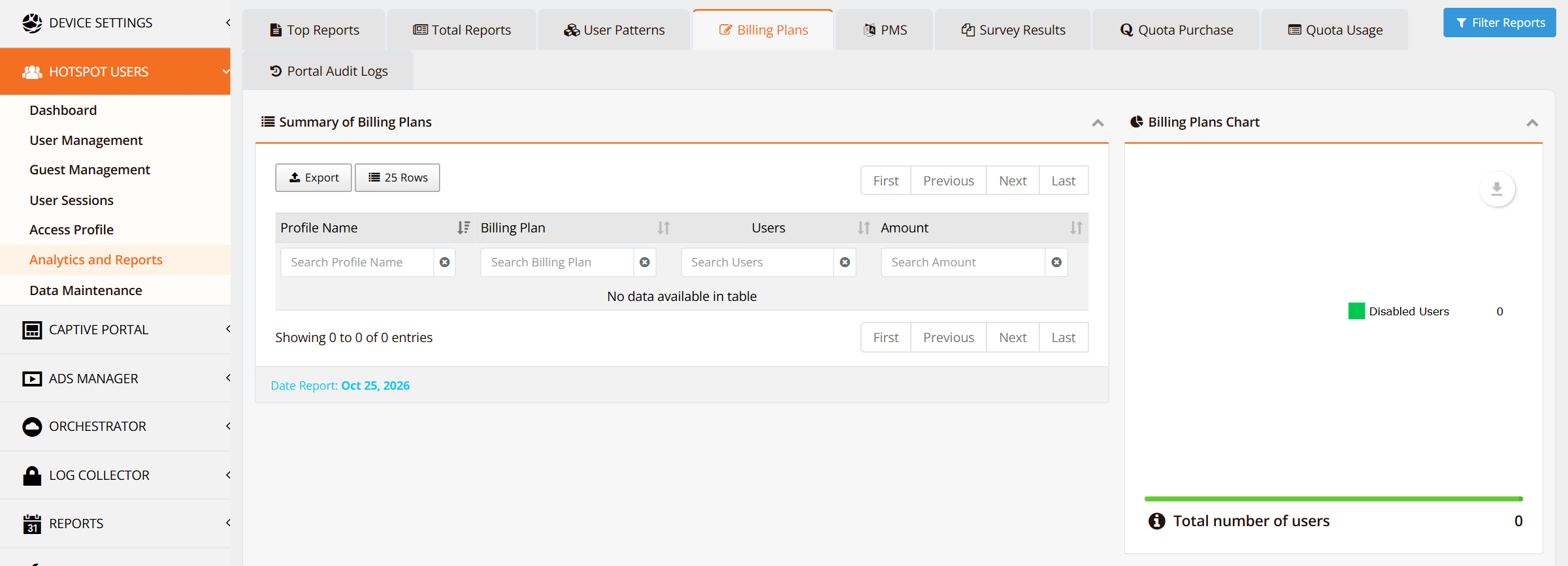
Summary of Billing Plans lists each access profile and billing plan with its number of users and the amount charged. Billing Plans Chart shows the share of users per plan, with the total number of users below it. See Guest Management — Billing Plans.
PMS
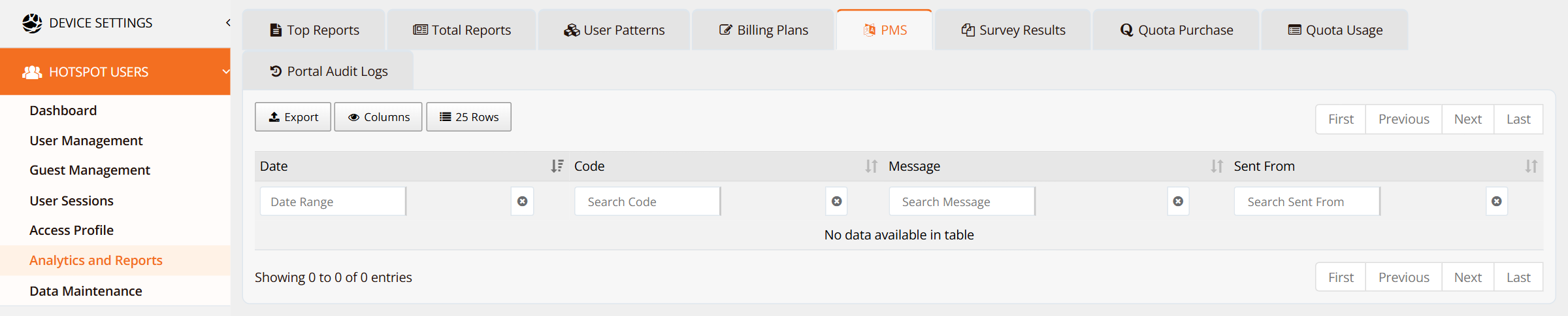
Logs the messages exchanged with a hotel Property Management System (PMS): date, message code, message content, and the system it came from. Use it to confirm that check-in, check-out and room-move messages are reaching the hotspot. See User Management — PMS Integration and Hotel Wi-Fi Hotspot.
Survey Results
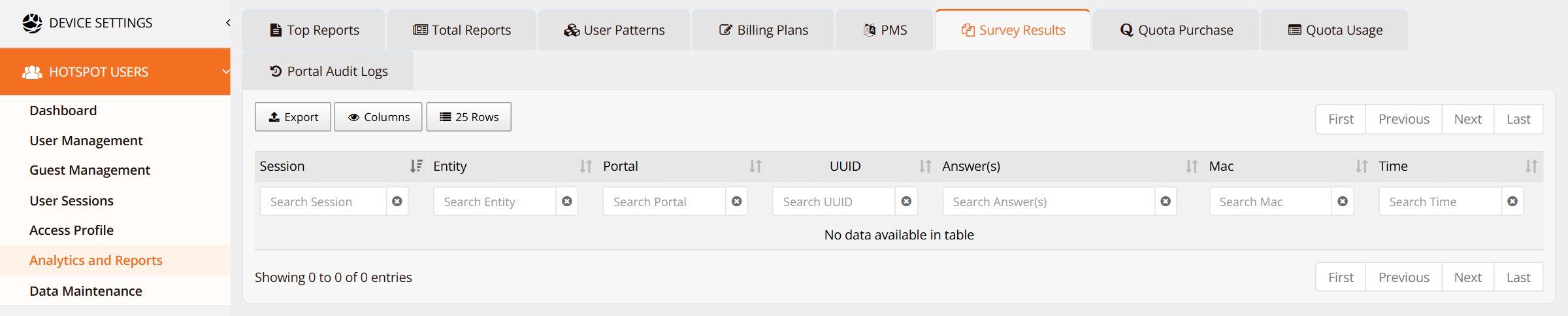
Lists the answers guests submitted to surveys on the captive portal, with the session, entity, portal, device MAC and time of each response.
Quota Purchase

Lists data quota top-ups bought by users: transaction time, username, plan, currency, amount, user profile, remarks and who created the entry. See Payment Gateway.
Quota Usage
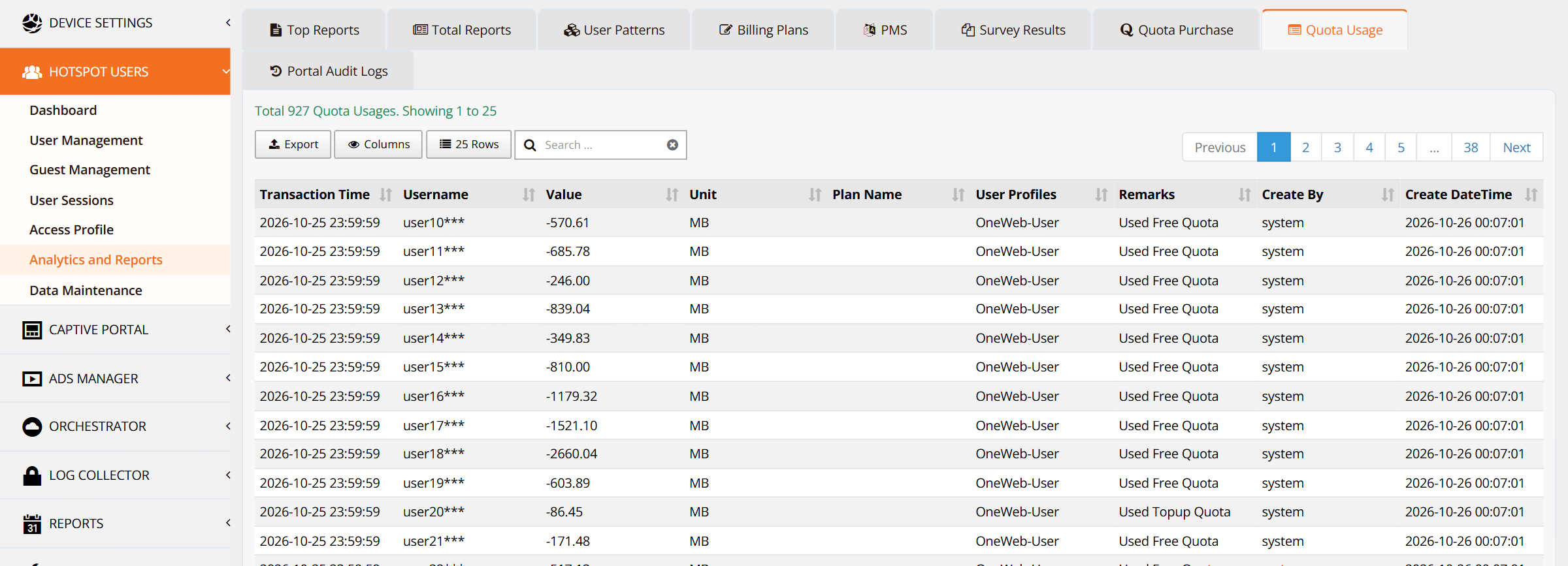
Lists data quota deducted from each user's account: transaction time, username, amount (Value, negative for usage) and unit, plan, user profile, and a remark such as Used Free Quota or Used Topup Quota. Entries created automatically by the system show system in Create By. See Access Profile — Data Quota Control.
Portal Audit Logs

Records captive portal events for each user and device: date and time, username, MAC address, portal, portal folder, event, status, message and media. Use it to follow a guest's steps through the portal when investigating a login or registration problem. Retention is set under HOTSPOT USERS → Data Maintenance.
Verification
| Items to Test | Where | Expected Outcome |
|---|---|---|
| Reports have data | Total Reports | Hourly login counts for the Date Report day |
| Filter works | Filter Reports → change Display Type to Week → OK Filter | Charts and Date Report update to the new period |
| Quota tracking | Quota Usage, search by username | Deductions appear for users who used data |
| PMS link | PMS after a test check-in | A new message from the PMS appears |
Best Practices
- Check peak hours before maintenance — use Total Reports to schedule changes outside busy hours.
- Watch repeat logins — a spike in User Patterns often means a coverage or timeout problem rather than more guests.
- Use Top Reports by Download to find heavy users — then adjust their Access Profile limits if needed.
- Export for long-term records — report data follows the retention set in Data Maintenance; export anything you need to keep longer.
Related Features
- User Sessions — live and historical session details
- Access Profile — data and time quotas
- Guest Management — billing plans
- Monitoring Reports — scheduled reports delivered by email