Backup and Restore
Backup and Restore keeps encrypted copies of the mFusion server's settings and data, and brings them back on the same server or on a new one. Backups run automatically every night as the first step of Data Maintenance, or on demand, and can be exported to an SFTP server. A restore shows what a backup file holds, backs up the current data first, and can replace everything or merge only what is missing.
Navigate to ADMIN → General → Backup & Restore. The page has two sections: Auto Backup (the nightly schedule) and Backups (the backup files on this server).
How It Works
A backup file (.menc) is an encrypted archive of the items ticked under Backup Contents. Each item is backed up and restored as a whole, because its parts belong together:
| Item | What it holds |
|---|---|
| Orchestration | Settings, accounts, permissions, entities, devices, SD-WAN (with its VPN certificates and profiles), the audit log, and mFusion monitoring (settings, history, trends and alerts). Kept together so every device matches its monitoring host. |
| Hotspot | Hotspot users, profiles, quota, purchases, sessions, and the captive portal pages. Kept together so users and their portals match. |
| Log Collector | Log Collector settings and the collected logs |
| CLI Config | The server's CLI configuration (startup config) and its own SSL VPN server certificates and keys. Restoring it needs a reboot. |
Items only appear when their module is on: Hotspot with Hotspot, Log Collector with the Log Collector.
Settings (users, devices, profiles, portal pages and so on) are always backed up in full. Records (hotspot sessions, monitoring history, logs, the audit log) are backed up for the Data range only, for example the last 1 or 15 days. Records older than Data Maintenance keeps are not in the database any more, so no backup holds them either.
Note
A backup file can be restored on this server or on another mFusion server. Anyone who has the file can restore it on an mFusion server, so treat backup files as sensitive (see Best Practices).
Auto Backup
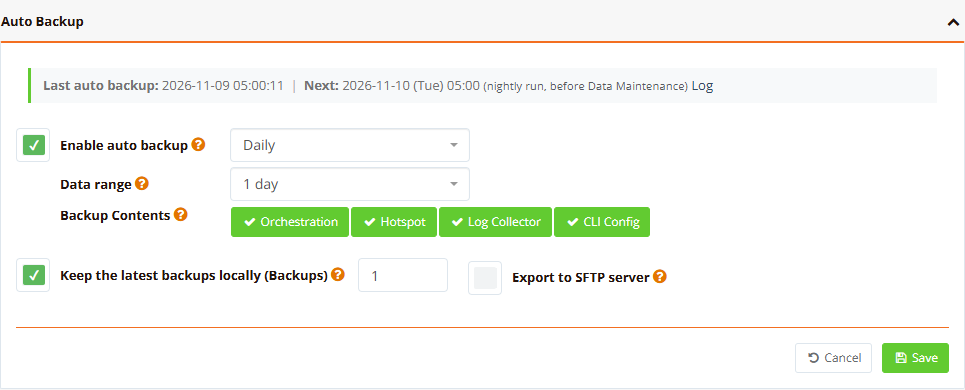
| Setting | Default | Description |
|---|---|---|
| Enable auto backup + schedule | off, Daily | Ticked: a backup is made Daily, Weekly or Monthly. It runs at 05:00 as the first job of the nightly Data Maintenance run, before the cleanup jobs, so each backup holds the data as it was before that night's deletions. |
| Data range | 1 day | Days of records each backup holds: 1, 3, 7, 10, 15, 30 or 45 days, or Since the last auto backup |
| On day of week | Sunday | Weekly only: the day the backup is made |
| On day of month | 1 | Monthly only. 29, 30 or 31 means the last day in a shorter month. |
| Backup Contents | all | The items to back up, see How It Works. At least one. |
| Keep the latest backups locally (Backups) | on, 3 | How many auto backups stay on this server (1–30); older auto backups are removed after each new one. Unticked: no auto backup is kept once it is exported. |
| Export to SFTP server | off | Upload each auto backup to the selected SFTP server from FTP Connections (type SFTP or SFTP with Key). Copies on the SFTP server are never deleted by mFusion. |
Tick Keep the latest backups locally, Export to SFTP server, or both. The status line at the top shows the last auto backup, the next run, the last export result and a Log link.
A server that was off at 05:00 catches up at the next nightly run: a backup is due when none succeeded since the start of the current day, week or month. A failed export is retried at the next run, and the file is kept on the server until it has been uploaded. On an HA pair, auto backup runs on the primary only.
Tip
Use Daily with a Data range of 1 day and Export to SFTP server. Each night's file then holds that day's records, the SFTP server keeps the full series, and the local disk only holds the last few. See Restoring a Series of Daily Backups.
Backups
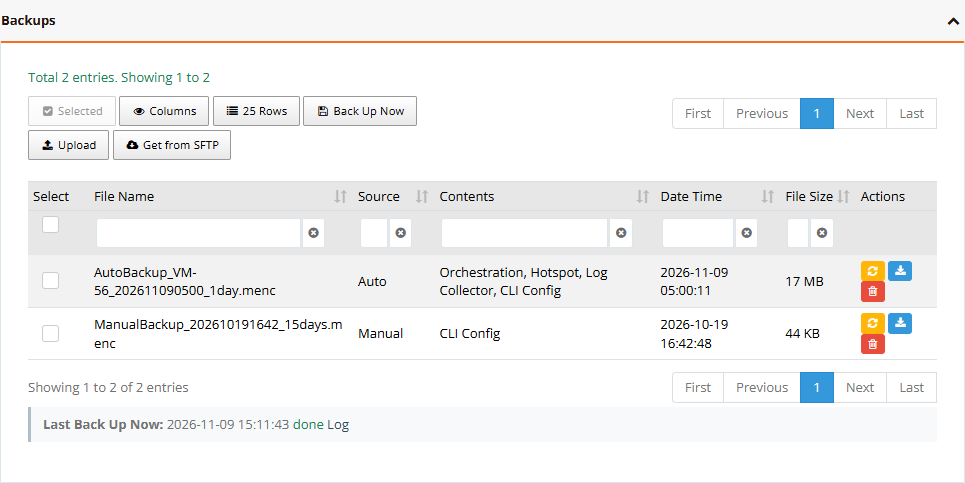
The list shows every backup file on this server:
| Column | Description |
|---|---|
| File Name | <Name>_<date and time>_<data range>.menc, for example AutoBackup_<hostname>_202611090500_1day.menc |
| Source | Auto, Manual (Back Up Now), Before restore (the safety backup of a restore), Uploaded or From SFTP |
| Contents | The items the file holds. A file from an older version shows Checked at restore until it is opened once. |
| Date Time, File Size | When the file was made, and its size |
| Actions | Restore, Download, Delete |
The buttons above the list:
| Button | What it does |
|---|---|
| Back Up Now | Make a backup now, see Back Up Now |
| Upload | Add a .menc file from your PC (up to 5 GB), for example a backup from another server. If a file with the same name exists, you are asked to confirm before it is replaced. |
| Get from SFTP | List the .menc files on one of your SFTP servers and copy one to this server, for example a backup exported by auto backup. A file with the same name is replaced only after you confirm. |
| Selected | Delete the ticked files |
Last Back Up Now and Last Restore under the list show the result of the last run, with a Log link. Only auto backups are removed automatically (by Keep the latest backups locally); manual, uploaded, fetched and before-restore files stay until you delete them.
Back Up Now
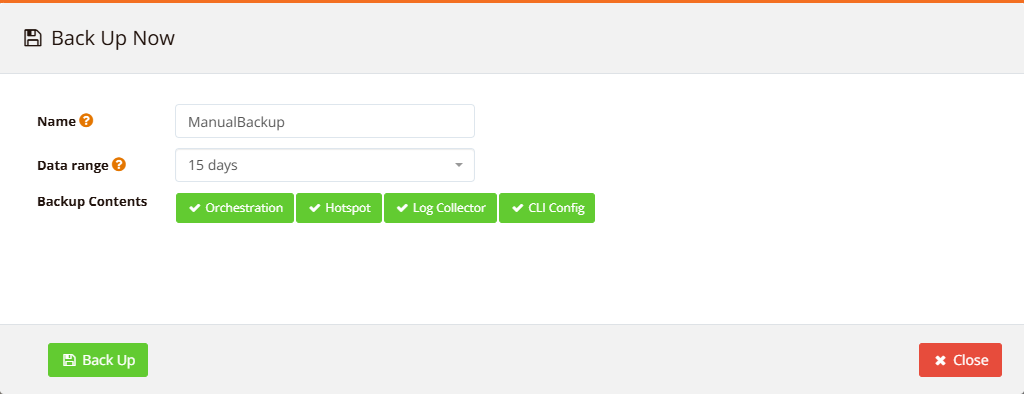
| Field | Default | Description |
|---|---|---|
| Name | ManualBackup | Letters, digits, - and _. The date and data range are added to the name. AutoBackup and BeforeRestore are reserved. |
| Data range | 15 days | Days of records to include; settings are always backed up in full |
| Backup Contents | all | The items to back up |
Click Back Up. A window follows the backup log until it is done; the new file then appears in the list.
Restore
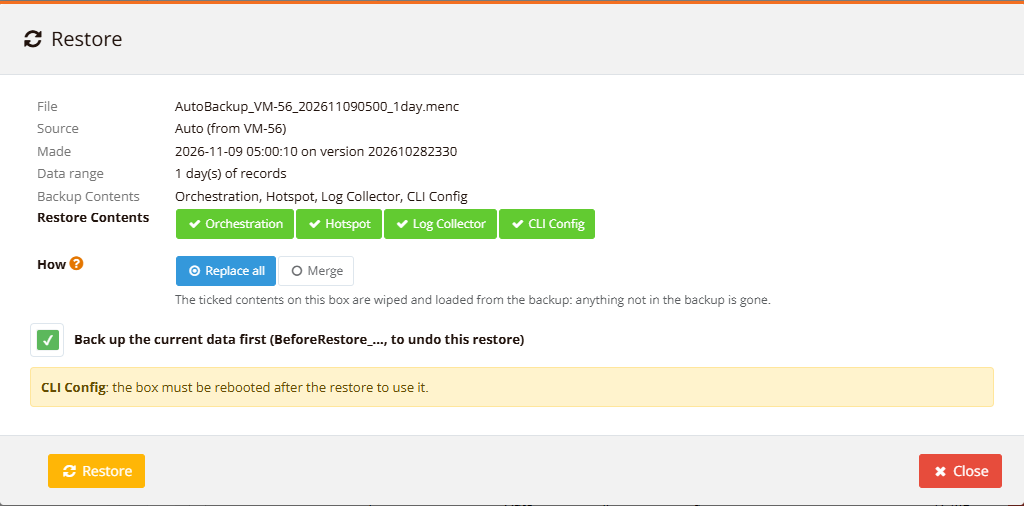
Click Restore on a file in the list. mFusion first reads the file and shows what it holds:
| Field | Description |
|---|---|
| File, Source, Made, Data range, Backup Contents | What the file is: where it came from (and from which server), when and on which mFusion version it was made, how many days of records it holds, and its items |
| Restore Contents | The items to restore. Only items the file holds and whose module is on here are offered. |
| How | Replace all or Merge, see below. The hint under the buttons explains the selected one. |
| Back up the current data first | On by default. Before restoring, the current data of the same items is backed up to a BeforeRestore_... file. To undo the restore, restore that file with Replace all. |
| How | What happens | Use it for |
|---|---|---|
| Replace all | The ticked items on this server are wiped and loaded from the backup. Anything not in the backup is gone, including records older than the backup's data range. | A full return to the backup: a new server, a broken server, undoing a restore |
| Merge | Nothing is wiped. What is only in the backup is added, what differs is updated to the backup's copy, and everything else on this server is kept. The CLI config is still replaced. | Bringing back what is missing, for example older daily backups |
Click Restore and confirm. A window follows the restore log until it is done.
The popup warns before you start when:
- CLI Config is ticked: the server must be rebooted after the restore to use it.
- The file was made on a newer mFusion version: settings added since may not load. Upgrade this server first.
- The file was made on an older version: after the restore, the upgrade steps since that version are redone automatically (menus, converted settings), and the result is written to the audit log (
Admin.RestoreUpgradeSteps). - Merge is chosen for a file from another server: rows are matched by their ID, so a row here with the same ID as one in the backup is overwritten. Use Replace all for a clean copy.
- An item cannot be restored here because its module is off.
Restoring a Series of Daily Backups
With daily backups of 1 day each, every file holds one day of records. To bring back several days:
- Restore the oldest file with Replace all.
- Restore each newer file with Merge, oldest to newest.
The settings then end up as in the newest file, and the records of every day are added.
Moving to a New Server
- On the old server, make a backup (or use the latest auto backup) and Download it, or export it to SFTP.
- Install the new server on the same or a newer mFusion version.
- On the new server, open Backup & Restore and use Upload (or Get from SFTP).
- Restore the file with Replace all and every item ticked.
- If CLI Config was restored, reboot the server.
- Check the items in Verification.
What Is Not in a Backup
| Not included | Where it comes from instead |
|---|---|
| Firmware images (Firmware Releases) | Upload them again from the release files provided by RansNet support |
| Report output files of Scheduled Reports | Kept by Data Maintenance; export them to SFTP there |
| Archive files of Data Maintenance | Exported to SFTP by Data Maintenance |
| Ad server data and ad media (Ads Manager) | Not backed up; keep a copy of the ad media |
| Captive portal templates | Part of the mFusion server; kept by write erase. On a new server, use Get Latest Template under CAPTIVE PORTAL → Templates |
| WireGuard keys of this server | Generated by the server; peers must be updated if the server is replaced |
| Records older than the data range | Kept in the database only as long as Data Maintenance keeps them |
Upgrading from Earlier Versions
The upgrade to this version converts the old auto backup settings:
- Auto backup no longer runs at its own time: it moves to the nightly Data Maintenance run at 05:00.
- External FTP/SFTP storage on an SFTP connection becomes Export to SFTP server, with 1 copy kept on the server as before.
- External FTP/SFTP storage on a plain FTP connection: FTP is not offered any more, so export is turned off, 3 copies are kept on the server, and the audit log says so (
Admin.AutoBackupUpgrade). Pick an SFTP server under Export to SFTP server. - Local Drive becomes Keep the latest backups locally.
Important
Review the Auto Backup section after the upgrade, especially when the export used an FTP connection.
Verification
| Items to Test | Command | Expected Outcome |
|---|---|---|
| Auto backup ran | Status line of Auto Backup | Last auto backup today at about 05:00, and Next at the next scheduled day |
| Auto backup job | Data Maintenance → Scheduled Jobs | Auto backup (Backup & Restore) with result OK |
| Export works | Status line, or Get from SFTP | Export done; the new file is listed on the SFTP server |
| Backup holds what you need | Contents column, or Restore (then Close) | The expected items |
| Backup can be read | Restore on the file | The popup shows the file's details instead of an error |
| Backup and restore activity | Audit Logs, filter Backup or Restore |
Admin.AutoBackup Done, ManualBackup, ManualRestore entries with no errors |
Troubleshooting
| Symptom | Likely Cause | Solution |
|---|---|---|
| No auto backup last night | Auto backup off, not due (weekly / monthly), or this is an HA secondary | Check Enable auto backup and the schedule; on an HA pair it runs on the primary |
Admin.AutoBackup Error in the audit log |
Backup failed, for example disk full | Open Log in the status line; free space under Data Maintenance |
| Export failed | SFTP server unreachable, wrong credentials, or no write permission | Use Test under FTP Connections; the file stays on the server and is exported at the next run |
| Get from SFTP says no SFTP server | No connection of type SFTP | Add one under FTP Connections |
| Restore shows "cannot be read" | Not an mFusion backup file, or the download was incomplete | Download or fetch the file again and compare its size |
| Restore shows "made by an older system (before 2024)" | Backup format no longer supported | Restore it on a server of that version, upgrade, then make a new backup |
| An item is not offered under Restore Contents | The file does not hold it, or its module is off here | Turn the module on first, or use a backup that holds the item |
| Menus or settings missing after restoring an old backup | Upgrade steps could not be redone | Check Admin.RestoreUpgradeSteps in the audit log; run the upgrade again |
| CLI settings not active after restore | CLI config is applied at boot | Reboot the server |
Best Practices
- Export to SFTP: a backup kept only on the server is lost with the server. Keep the SFTP server's own backup and access control separate from mFusion.
- Daily, 1 day, exported: small nightly files, the full history on the SFTP server, and a quick restore of any day.
- Keep the safety backup on: the
BeforeRestore_...file is the only way to undo a restore. Delete it once the restored server is checked. - Restore on the same or a newer version: upgrade the target server first; never restore a newer backup on an older server.
- Test a restore: restore a recent backup on a test server from time to time to make sure the files are complete.
Security Best Practices
- Treat backup files as sensitive: they hold user accounts, password hashes, device credentials and certificates. Store them only on servers with restricted access, and do not send them by email.
- Use SFTP with a key: prefer SFTP with Key connections over passwords, with an account that can only write to the backup folder.
- Limit who can restore: Backup & Restore is a super administrator page; keep that profile to a few named accounts with 2-factor authentication.
- Clean up downloads: delete downloaded or uploaded copies once they are no longer needed, and review the audit log (
Admin.BackupDownload,Admin.BackupFetch) for unexpected activity.
Related Features
- Data Maintenance: how long data is kept, the nightly run, Scheduled Jobs
- Application Settings → FTP Connections: SFTP servers for export and Get from SFTP
- mFusion Sync (HA): a standby server kept in sync, in addition to backups
- Audit Logs