Identity Management
Navigate to ADMIN → General → Identity Management.
Identity Management controls how users authenticate to this mFusion instance: local password and lockout policies, two-factor authentication, integration with corporate identity providers, and login page notices. Settings here apply globally, so configure them according to your organisation's security policy before onboarding users.
Note
This tab was previously named Account Security. Each section is collapsible and has its own Save / Cancel buttons: save each section on its own after making changes.
Account Policy
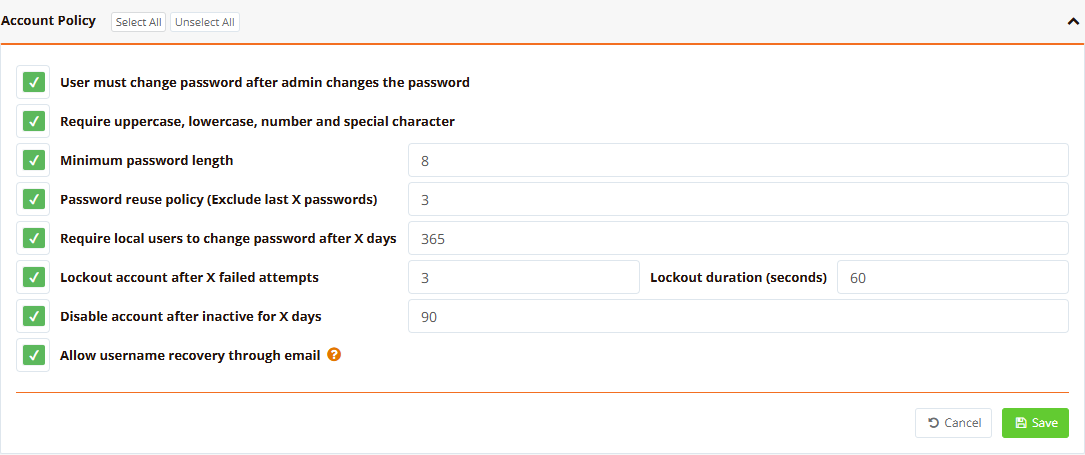
Account Policy enforces password and account lifecycle rules across all local user accounts. Each rule can be enabled or disabled on its own.
| Setting | Description |
|---|---|
| User must change password after admin changes the password | Force a password change on the user's next login after an administrator resets their password. The user cannot access the dashboard until the change is completed. |
| Require uppercase, lowercase, number and special character | Enforce password complexity |
| Minimum password length | Minimum number of characters required for all passwords |
| Password reuse policy (Exclude last X passwords) | Number of previous passwords that cannot be reused |
| Require local users to change password after X days | Password expiry: local users must set a new password once their current one is older than the specified number of days. Applies to local accounts only; LDAP and SAML users authenticate against their directory/IdP, which owns their password policy. |
| Lockout account after X failed attempts | Number of consecutive login failures before the account is locked; Lockout duration (seconds) controls how long the account stays locked before it unlocks by itself |
| Disable account after inactive for X days | Disable the account when no login activity is detected for the specified number of days |
| Allow username recovery through email | Let users retrieve their username via a registered recovery email |
Locked and inactivity-disabled accounts are listed in the user management table (shown as disabled) and can be re-enabled by a super-administrator at any time. Re-enabling an account resets the failed-attempt counter and the inactivity timer.
2-Factor Authentication
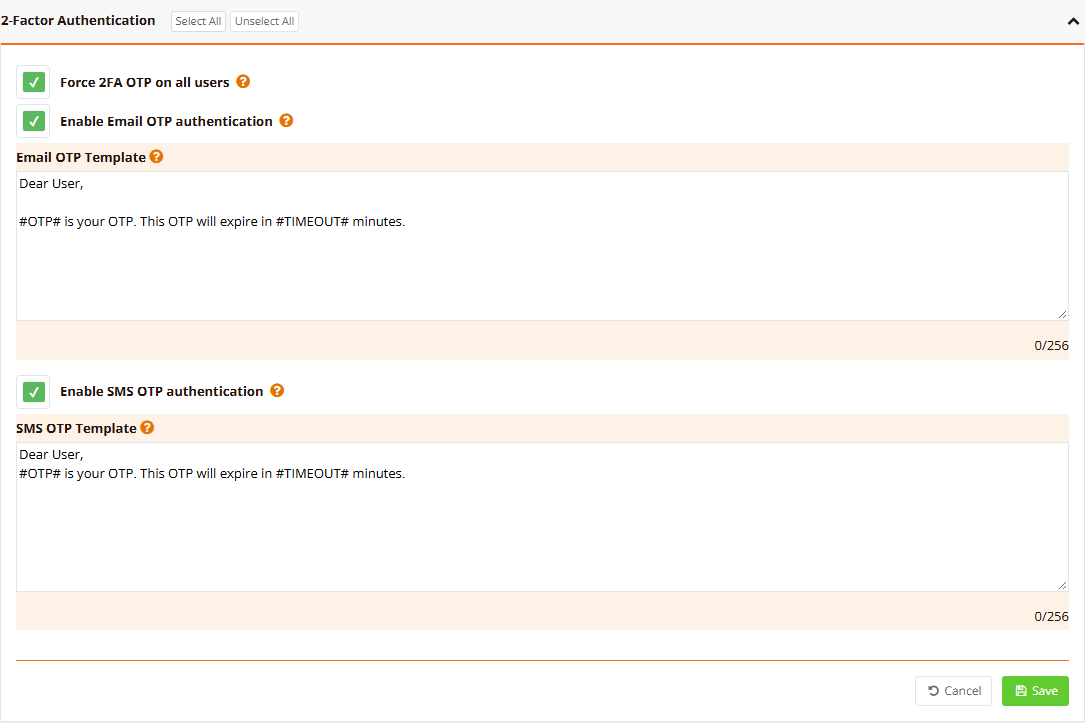
This section controls the 2FA policy for dashboard login. mFusion delivers the one-time password (OTP) by email or SMS (or both), and each delivery method has its own message template.
| Setting | Description |
|---|---|
| Force 2FA OTP on all users | Enforce OTP login for every user, regardless of their individual profile settings |
| Enable Email OTP authentication | Enable OTP delivery via email (requires SMTP to be configured) |
| Email OTP Template | Message body of the OTP email (up to 256 characters). Use #OTP# and #TIMEOUT# as placeholders. |
| Enable SMS OTP authentication | Enable OTP delivery via SMS (requires the SMS Gateway to be configured) |
| SMS OTP Template | Message body of the OTP SMS (up to 256 characters), with the same placeholders |
Info
Once 2FA is enabled at the system level, individual administrators can activate it for their own account under My Profile.

Each user selects their preferred OTP delivery method (email or SMS) and registers the matching contact details. Their current password is required to save the change.
Enterprise Identity Integration
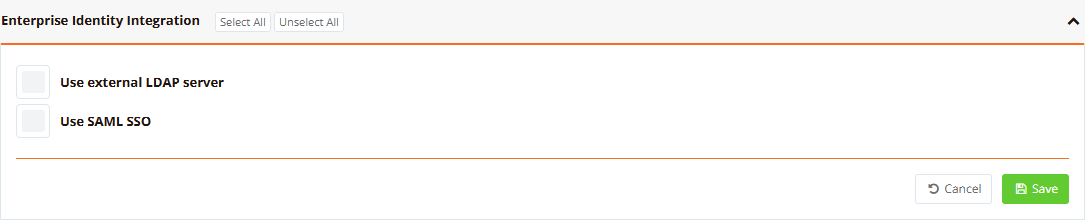
mFusion can delegate dashboard authentication to your corporate identity infrastructure. Two integrations are available and can be enabled independently:
| Integration | Use When | Setup Guide |
|---|---|---|
| Use external LDAP server | Users should log in with their LDAP / Active Directory username and password | LDAP Authentication |
| Use SAML SSO | Users should sign in through a SAML 2.0 identity provider (e.g. Azure AD / Entra ID) | SAML SSO |
Both integrations share the same account model: directory users are auto-provisioned on first login with a configured default Profile and Entity, their details are re-synced on every login, and their accounts are directory-managed. Only Enabled and Delete remain editable under Admin → Users.
Login Page Notices
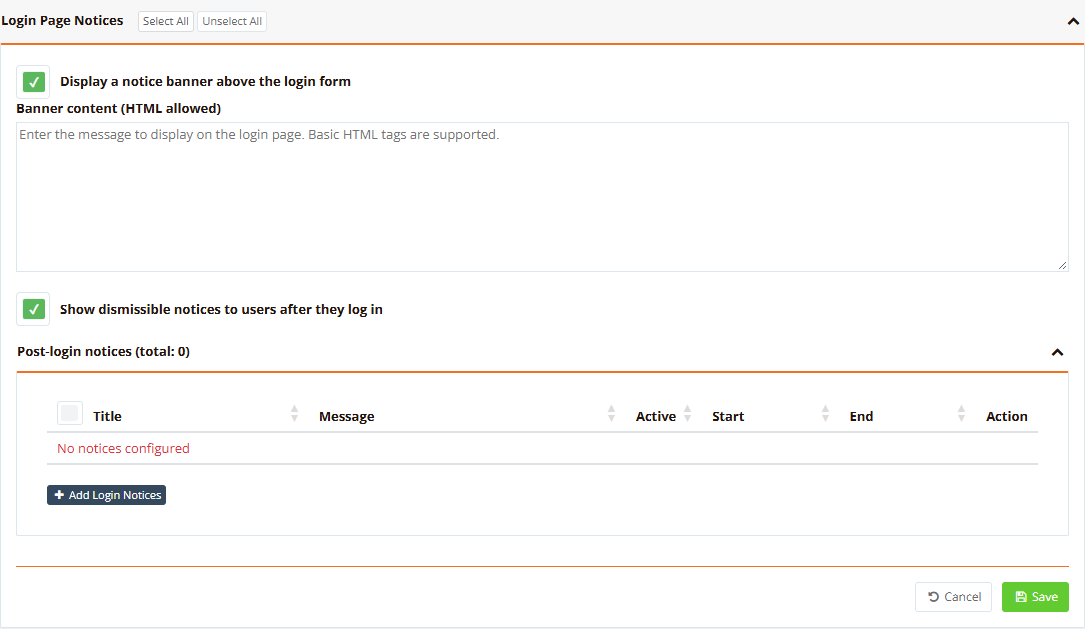
Two types of notices can be shown to users:
| Setting | Description |
|---|---|
| Display a notice banner above the login form | Show a pre-login banner on the mFusion login page, for example an acceptable-use policy or maintenance notice. Basic HTML tags are supported in Banner content. |
| Show dismissible notices to users after they log in | Post-login notices displayed after a successful login. Each notice has a title, message, active toggle, and an optional start/end schedule; users can dismiss each notice on its own. Click + Add Login Notices to create a new entry. |
Note
All account security events (login attempts, lockouts, password changes and forced resets) are recorded in the Audit Logs with timestamp, source IP and the acting user.
Security Best Practices
- Turn on lockout and complexity together: a short lockout (for example 3 attempts, 60 seconds) slows password guessing without locking out users for long.
- Force 2FA for administrators: dashboard accounts can push configuration to every managed device.
- Prefer LDAP or SAML for staff accounts: leavers lose access when their directory account is disabled, without a separate clean-up in mFusion.
- Disable inactive accounts: the inactivity rule removes forgotten accounts that would otherwise keep working.
Related Features
- LDAP Authentication
- SAML SSO
- Application Settings: SMTP and SMS gateway used for OTP delivery
- Audit Logs