Threat Feeds
The Threat Feeds page in mFusion manages the lists of malicious IP addresses that routers use for Intrusion Prevention. mFusion keeps a threat feed database, serves each router the feeds its configuration names, and leaves out the networks on your allowlist. You can see every entry and check whether an address is listed.
Navigate to ORCHESTRATOR → Security Intelligence → Threat Feeds. The page has four tabs — Feeds, Entries, Lookup and Allowlist — and shows the installed threat feed database version at the top.
How Feeds Reach the Routers
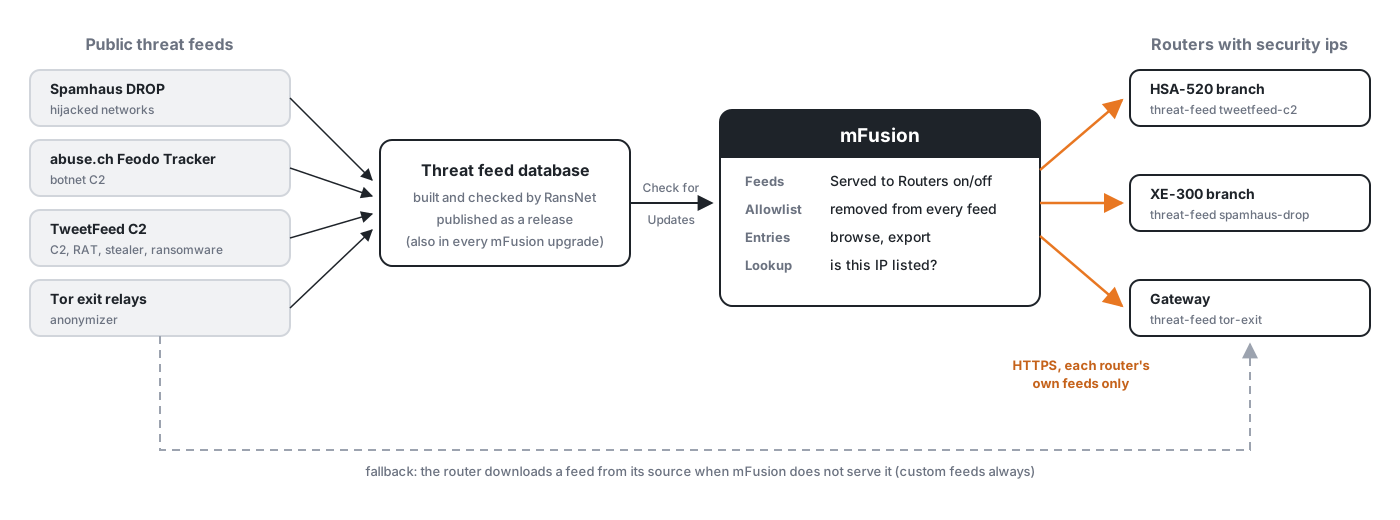
Flow Summary:
- RansNet builds the threat feed database from public threat feeds, checks it, and publishes it as a release. Each mFusion upgrade also includes a version.
- mFusion loads a newer release when you click Check for Updates → Update now. mFusion does not download the feeds from their sources itself.
- Each router with
security ipsasks its own mFusion every 5 minutes, over HTTPS, whether its feeds changed. It downloads only a changed list. mFusion serves the list without the Allowlist networks. - A feed switched off on the Feeds tab is served empty: routers clear it at their next check.
- A router downloads a feed directly from its source when mFusion does not serve it — no threat feed database on mFusion, the router is not registered, or a custom feed (always direct).
Feeds
The Feeds tab lists the feeds in the installed database.
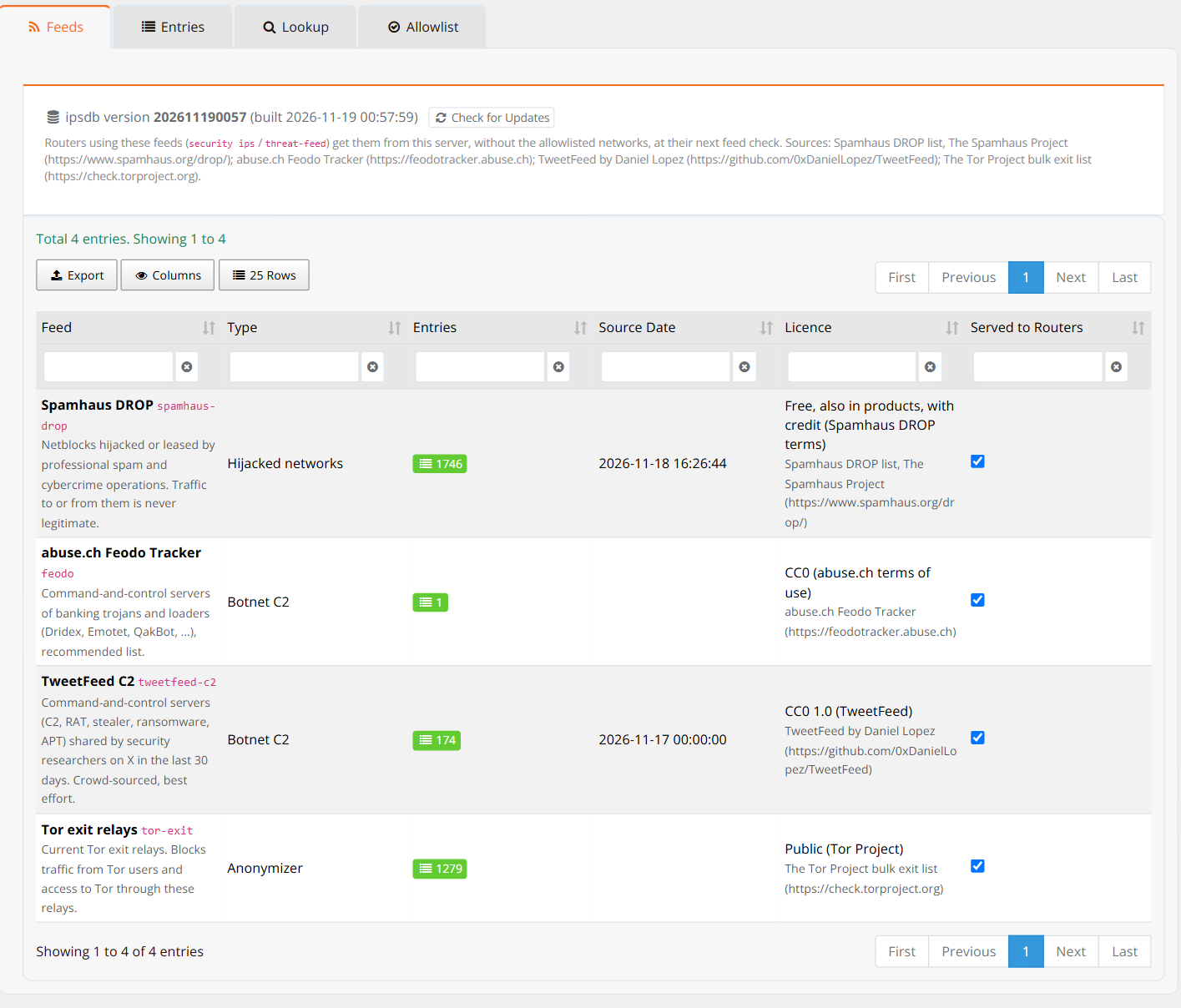
| Column | Description |
|---|---|
| Feed | Feed title, its CLI name (used in threat-feed <name>) and a description of what it holds. |
| Type | What the entries are, for example Hijacked networks, Botnet C2 or Anonymizer. |
| Entries | Number of networks in the feed. Click it to open the feed on the Entries tab. A blue allowlisted label shows how many entries the allowlist removes or splits. |
| Source Date | When the source last changed the list, if the source says. |
| Licence | The source's licence and the credit it asks for. |
| Served to Routers | Untick to stop a feed on every router (see below). |
| Feed | CLI name | Contents | Licence |
|---|---|---|---|
| Spamhaus DROP | spamhaus-drop |
Netblocks hijacked or leased by professional spam and cybercrime operations. | Free, also in products, with credit to The Spamhaus Project |
| abuse.ch Feodo Tracker | feodo |
Command-and-control servers of banking trojans and loaders (Dridex, Emotet, QakBot), recommended list. | CC0 |
| TweetFeed C2 | tweetfeed-c2 |
Command-and-control servers (C2, RAT, stealer, ransomware, APT) shared by security researchers on X in the last 30 days. Crowd-sourced, best effort. | CC0 1.0 |
| Tor exit relays | tor-exit |
Current Tor exit relays. | Public (Tor Project) |
All feeds are licensed for commercial use. The SSL Blacklist (sslbl) is no longer in the database: abuse.ch retired it in 2025. Routers keep a configured threat-feed sslbl empty. See Intrusion Prevention — Threat Feeds.
Switching a Feed Off
Untick Served to Routers to stop a feed everywhere at once — for example when a feed causes false positives across many sites. mFusion asks you to confirm. Every router using the feed then gets it empty at its next feed check (within 5 minutes) and stops blocking its addresses. A router does not download a switched-off feed from its source either.
The router's configuration keeps its threat-feed line, so ticking the box again restores the feed without Apply Config. Each change is recorded in the audit log.
Entries
The Entries tab lists the networks of one feed. Choose the feed in the Feed selector.
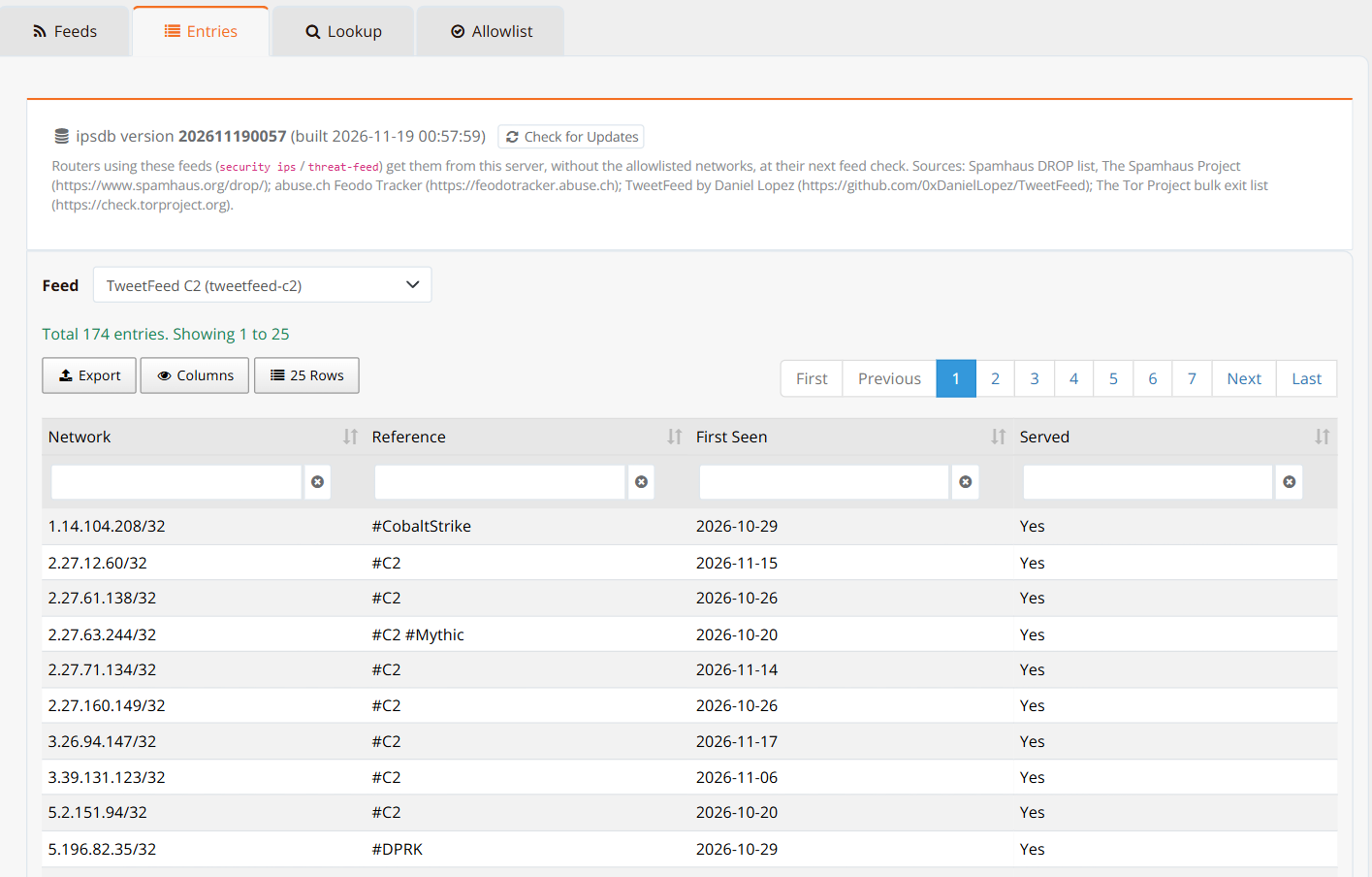
| Column | Description |
|---|---|
| Network | The address or network, in CIDR notation. |
| Reference | The source's reference for the entry, for example the Spamhaus SBL ID, or the TweetFeed tags (#CobaltStrike, #C2). |
| First Seen | When the source first listed it, if known. |
| Served | Yes, or Allowlisted when the allowlist removes the entry or part of it. |
Use the column filters to search, and Export to save the list.
Lookup
The Lookup tab tells you which feeds list an IP address or network — useful when a router blocked an address you did not expect, or to check an address from a security alert.
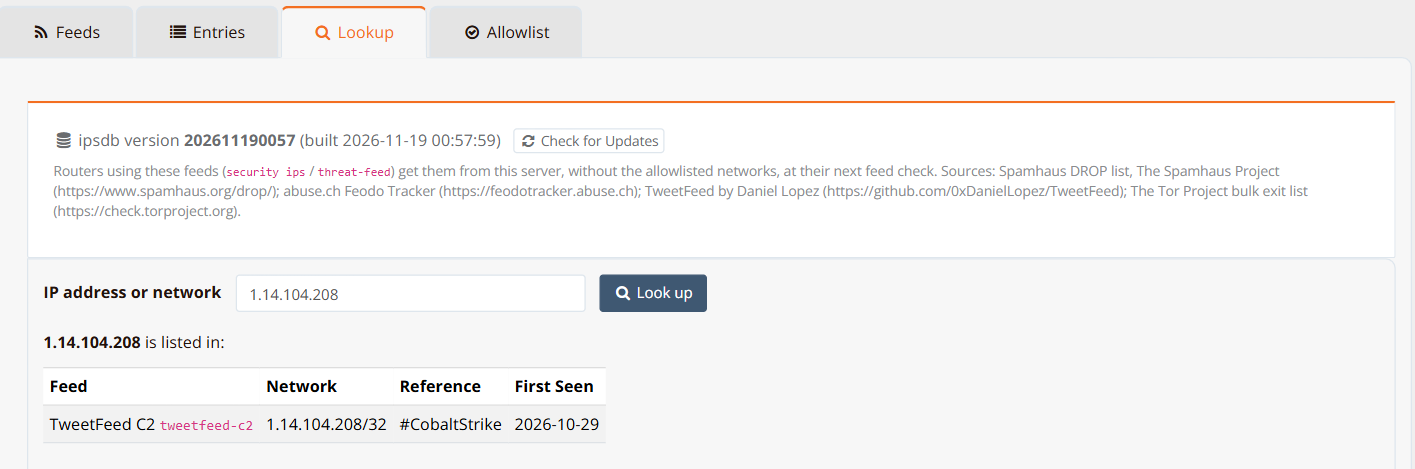
Enter an address or network and click Look up. The result shows each matching feed with the listed network, its reference and first-seen date. If an allowlist entry covers the address, the result says so; routers do not get that part of the feed.
Allowlist
Networks on the Allowlist are never served to the routers in any feed. A feed entry that contains an allowlisted network is split around it. Use the allowlist to fix a false positive for every router at once; an exception line in a router's security ips section fixes one router only.
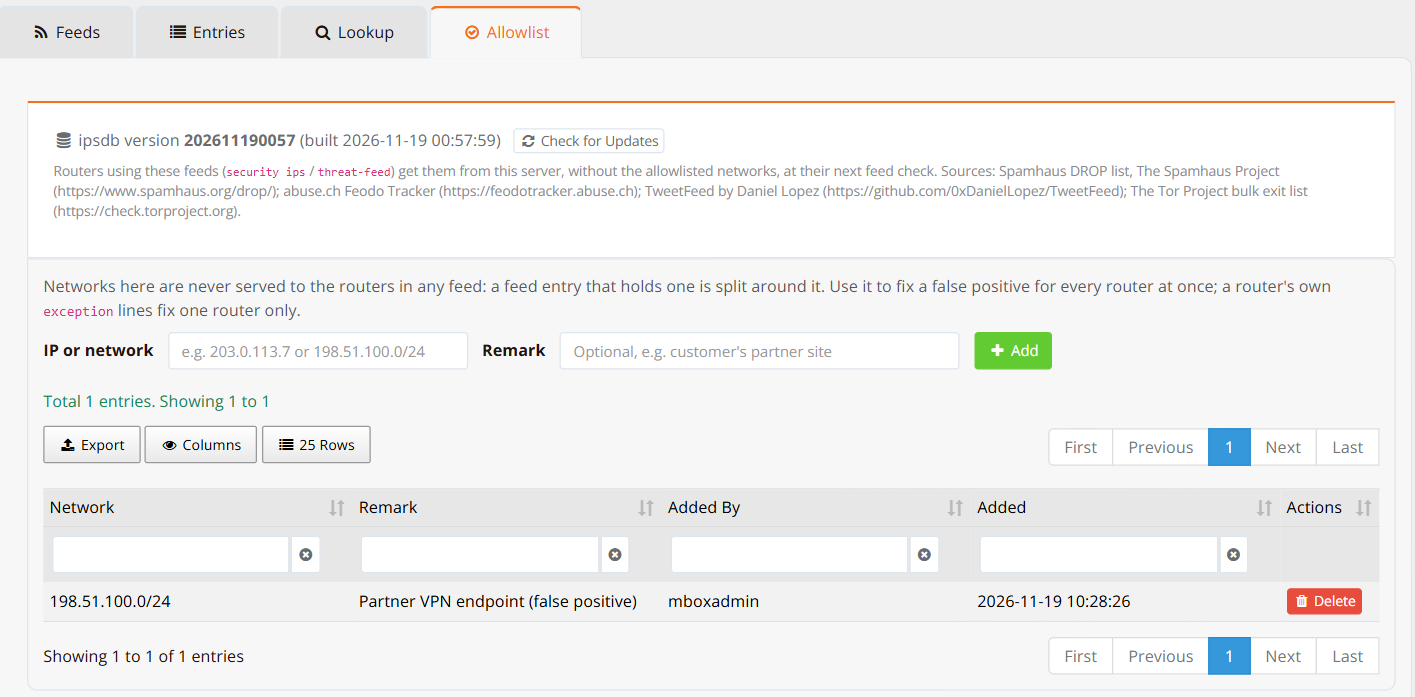
| Field | Example | Description |
|---|---|---|
| IP or network | 198.51.100.0/24 |
IPv4 address or network in CIDR notation. |
| Remark | Partner VPN endpoint (false positive) |
Optional. Why the network is allowlisted. |
Click Add. Routers get the changed feeds at their next check (within 5 minutes); no Apply Config is needed. Delete removes an entry. Each change is recorded in the audit log.
Tip
Keep a remark on every entry. Review the allowlist from time to time: a network that was a false positive can later be used for an attack.
Updating the Threat Feed Database
Each mFusion release includes a threat feed database version, and an upgrade never installs an older version than the one in use. Threat feeds change quickly (C2 servers move within days), so update between releases:
Step 1: On any Threat Feeds tab, click Check for Updates next to the database version.
Step 2: If a newer version is available, click Update now. mFusion downloads the release, verifies its checksums, version and format, and loads it.
| Message | Meaning |
|---|---|
| Up to date (latest release …) | The installed version is the latest release. |
| Version … is available. with an Update now button | A newer release exists. |
| unable to reach the … release server | mFusion has no outbound HTTPS access to GitHub (api.github.com). Update with the next mFusion upgrade instead. |
| … needs a newer mFusion release | The release uses a newer package format. Upgrade mFusion first. |
| this is a read-only (replica) server | On an HA pair, update on the primary; the replica receives it. |
After an update, routers download the changed lists at their next check (within 5 minutes).
Note
The Served to Routers switches and the Allowlist are part of the mFusion configuration and are included in Backup and Restore. The feed data itself is not: it comes from the threat feed database release.
Verification
| Items to Test | Where / Command | Expected Outcome |
|---|---|---|
| Database installed | ORCHESTRATOR → Security Intelligence → Threat Feeds | The page shows the database version and four feeds with their entry counts. |
| Router gets feeds from mFusion | Router CLI: show security ips feeds |
Each feed shows Source mFusion and Last check ok, with the same entry count as the Feeds tab (less any allowlisted entries). |
| Allowlist reaches routers | Add a network, wait 5 minutes, then Lookup the network and check the router | Lookup shows the network as allowlisted; the router's feed entry count goes down accordingly. |
| Feed switched off | Untick Served to Routers, wait 5 minutes, router CLI: show security ips feeds |
The feed shows 0 entries on the routers. |
Troubleshooting
| Symptom | Likely Cause | Solution |
|---|---|---|
| The page says the threat feed database is not installed | mFusion has not been upgraded to a release with Threat Feeds yet | Upgrade mFusion. Until then, routers download their feeds directly from the sources. |
Router shows Source direct instead of mFusion |
The router cannot reach mFusion, is not registered to it, or mFusion has no database | Check the router's registration and its HTTPS connection to mFusion. The direct download keeps the router protected in the meantime. |
| Check for Updates shows that no release is published or the update account was refused | mFusion cannot read the release repository | Contact RansNet support. Update with the next mFusion upgrade instead. |
| A legitimate address is blocked on many routers | False positive in a feed | Lookup the address, then add it to the Allowlist. |
A feed has very few entries (for example feodo with 1) |
The source currently lists few active servers | Normal. Feodo Tracker lists only servers active right now. |
Related Features
- Intrusion Prevention — Configure
security ipsand the feeds on each router. - Apps & Categories — Domain and app lists for DNS filtering and steering, under the same Security Intelligence menu.
- Backup and Restore — What an mFusion backup holds.