Full Mesh SD-WAN
RansNet Full Mesh SD-WAN lets every device in a group establish a direct, encrypted tunnel to every other device — with no central hub in the data path. mFusion orchestrates the entire mesh: it assigns tunnel IPs, distributes peer keys, and keeps every router's peer table in sync, so administrators only manage one VPN instance instead of a full mesh of manual peer configurations.
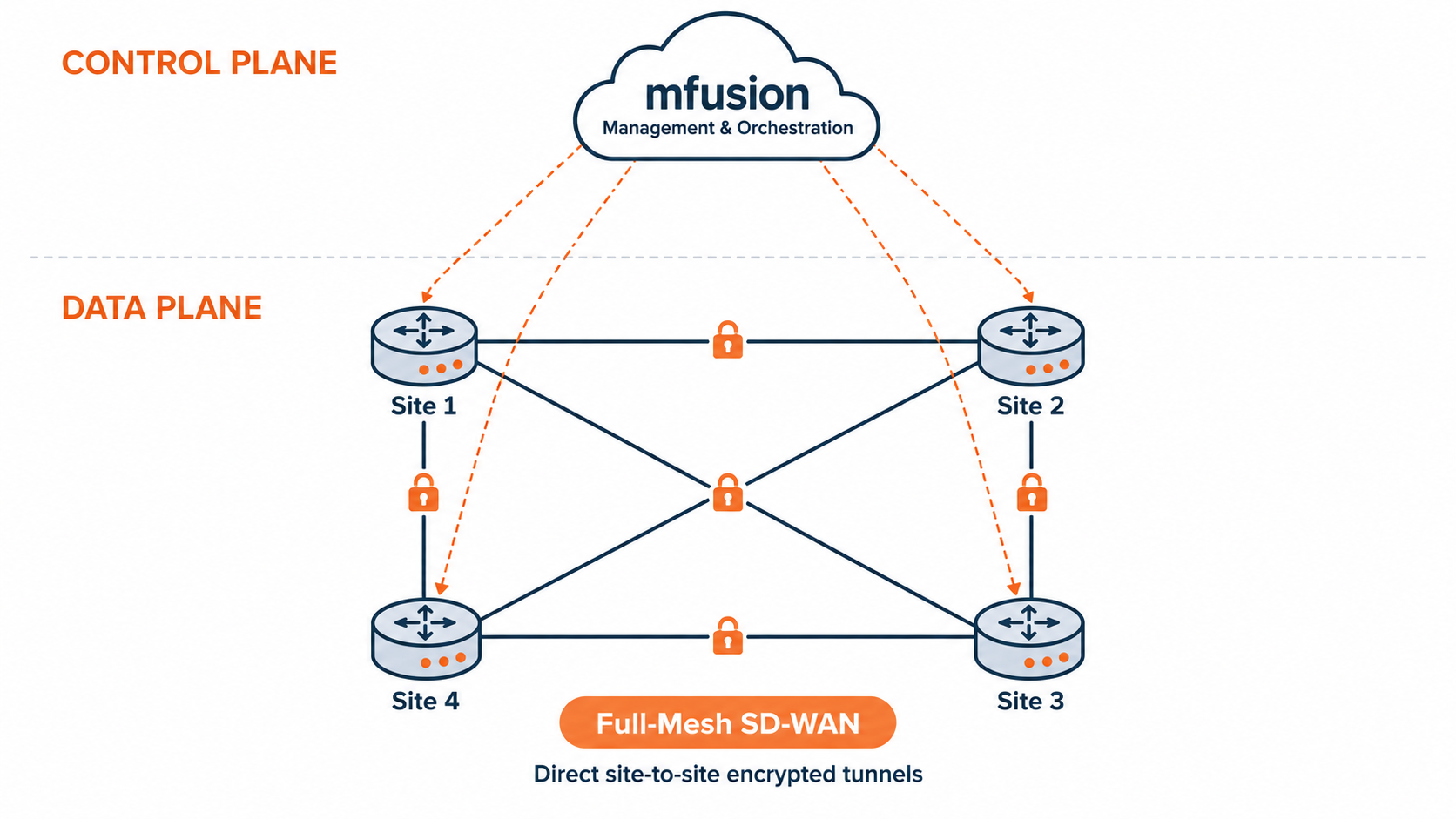
Overview
How It Works
RansNet Full Mesh SD-WAN is built on WireGuard as the encryption protocol and orchestrated centrally by mFusion, using RansNet's patent-pending peer-management technology.
When devices are assigned to a Full Mesh VPN instance:
- mFusion assigns each device a tunnel IP from the instance's VPN address pool and pushes the resulting configuration.
- Peer keys and endpoint information are learned and distributed automatically. Each router generates its own WireGuard key pair and reports its reachable endpoint address back to mFusion; mFusion then relays this information to every other peer in the mesh.
- Routers auto-establish direct tunnels to their peers. Depending on the VPN mode (below), a tunnel is either brought up immediately or triggered by traffic destined for that peer — avoiding the need to keep every tunnel in a full mesh active at all times.
Mesh Modes: Static, Dynamic, and Hybrid
Each device in a Full Mesh VPN instance operates in one of two modes, and a single mesh can freely mix both:
| Mode | Behavior | Best for |
|---|---|---|
| Static | The WireGuard peer and tunnel are configured immediately for every other peer in the mesh, whether or not traffic is currently flowing. | Devices that need instant, always-on connectivity to all peers — e.g. a headquarters or data-center router that must be reachable without delay. |
| Dynamic | The router keeps peers dormant (route + traffic watch installed, but no WireGuard peer configured) until it observes traffic destined for that peer's network. Once traffic is seen, the tunnel is built on demand. Idle tunnels are automatically torn down after a period of inactivity. | Branch/spoke devices that rarely need to talk to every other branch directly — avoids wasting resources on tunnels that are never used. |
Because mode is set per device, a single VPN instance can run in hybrid mode — for example, a HQ/hub-like device set to Static (always reachable, near-instant tunnels) while branch devices are left on the Dynamic default. This reproduces a hub-and-spoke-like experience for the common case, while still giving any two branches the option to establish a direct tunnel on demand, without needing a separate hub-and-spoke VPN instance.
Control Plane vs. Data Plane
mFusion is purely the control plane for Full Mesh — it distributes peer keys, endpoint IPs, and tunnel-IP assignments, but it never sits in the actual traffic path. Once a tunnel is up, the encrypted WireGuard data plane runs directly between routers with no dependency on mFusion.
This separation matters for how the mesh behaves if a device loses connectivity to mFusion, or mFusion itself becomes unreachable:
- Existing, already-stable tunnels are unaffected. Any peer pair that already has a working WireGuard configuration continues to pass traffic normally — the data plane does not depend on an active mFusion connection.
- New state changes cannot be propagated. If a router's endpoint IP changes (see Endpoint IP below) while it or mFusion is unreachable, that update cannot be relayed to the rest of the mesh. Peers keep trying the router's last-known address until control-plane connectivity is restored.
- No manual recovery step is needed. Once mFusion connectivity is restored, any changes that occurred during the outage — endpoint IP changes, newly added devices, etc. — are synced and propagated to all peers automatically.
Endpoint IP: Auto Public IP, Auto Private IP, and Static IP
Each device's Endpoint setting defines how other peers reach it — set per device in Step 2:
| Endpoint Option | Behavior | Use When |
|---|---|---|
| Auto Public IP | The device's reachable address is a public IP — either assigned directly to the router's own WAN interface, or reachable indirectly via a separate upstream router/firewall doing NAT and port-forwarding on its behalf. Either way, the router auto-learns the current public IP (its own, or the externally-visible one behind NAT) and reports it to mFusion for distribution to peers. | Broadband/fibre deployments with a public IP directly on the router, and deployments behind a separate NAT/firewall device. |
| Auto Private IP | Private deployment such as a private SIM APN or MPLS circuit, where peers can reach the device directly via its private/physical WAN IP. The router reports its own private WAN IP to peers. | Private WAN/MPLS/private-SIM environments (used in the sample scenario below). |
| Static IP | Explicitly informs other peers to use a specific IP for this device. | Hybrid or multi-WAN deployments where the auto-learned address isn't the one peers should use. |
Note
Auto Public IP covers two distinct deployments, both handled the same way:
- Router directly on the public Internet — the router's own WAN interface holds the public IP (static or dynamic). No upstream NAT/port-forwarding is involved, and no manual firewall change is needed — mFusion automatically permits the WireGuard listen port inbound on the router as part of pushing the mesh configuration.
- Router behind a separate NAT/firewall device — a front-end router/firewall performs NAT and must forward the WireGuard UDP port to the RansNet router. This forwarding rule is configured on the upstream device, not the RansNet router itself. The RansNet router auto-detects its externally-visible public IP (the upstream device's public IP) rather than its own private WAN address.
In both cases the address can be static or dynamic — if it changes (the router's own IP is DHCP-renewed, or an upstream NAT device's ISP-assigned IP changes), the router re-detects the new public IP and pushes the update to every peer via mFusion, with no manual re-configuration.
Tip
Auto Public IP and Auto Private IP both auto-select whichever WAN link is currently active. This means the mesh interoperates with existing WAN Failover configuration: if the primary WAN link fails and traffic shifts to the backup link, the router automatically re-learns its endpoint as the backup link's IP and updates every peer — no additional mesh-specific failover configuration is needed.
Benefits
- No manual peer management — administrators configure one VPN instance in mFusion; peer keys, endpoints, and tunnel IPs are all handled automatically.
- Lowest latency between sites — traffic between any two mesh members flows directly, without transiting a hub.
- Resource-efficient at scale — Dynamic mode avoids keeping every tunnel in an n-site mesh active simultaneously, building tunnels only where traffic actually flows.
- Flexible topology — Hybrid mode lets a subset of "always-on" devices coexist with on-demand devices in the same mesh, without a separate VPN instance.
- Works with dynamic or static WAN endpoints — each peer's WAN connection can be dynamic (DHCP, cellular) or static, as long as peers can reach each other directly or via firewall port-forwarding. This also covers the common case where the RansNet router sits behind a separate front-end router/firewall doing NAT and port-forwarding on its behalf: if that upstream device's own public IP is dynamic (e.g. DHCP-assigned by the ISP), the RansNet router still auto-learns the current public IP, reports it to mFusion, and — whenever the ISP renews it to a different address — automatically re-learns the new IP and pushes the update to every peer, with no manual peer re-configuration needed.
- Automatic Multi-Path Switching — Auto Public IP and Auto Private IP always select the best available WAN link's IP as the endpoint. If the primary WAN link fails and a backup link takes over (physical link detection, or upstream tracking with SLA), the router automatically re-learns its endpoint as the backup link's IP and propagates the update to every peer — the mesh follows the existing WAN failover behavior without any separate configuration.
When to Use
Use Full Mesh SD-WAN when:
- Two or more branch sites need to communicate directly, without added latency or hub bandwidth consumption (e.g. inter-branch VoIP, file transfer, site-to-site backup replication).
- The number of sites is small enough that full-mesh's O(n²) tunnel-pair scaling remains manageable (see the scaling note on the topology page).
- Not every site needs full mesh — pair it with Dynamic mode so idle site-pairs don't consume resources, or mix in a Static hub for a hybrid deployment.
Prerequisites
- All devices must be managed by the same mFusion orchestrator.
- WireGuard is the only protocol supported for full-mesh topology.
- For a device using an Auto Public IP endpoint: if its own WAN interface holds the public IP directly, no firewall change is needed — mFusion auto-permits the WireGuard listen port on the router. If it sits behind a separate upstream NAT/firewall, that device must be manually configured to forward the WireGuard UDP port to the router.
- Each device's local LAN/branch network must be planned and non-overlapping across the mesh, since every peer advertises its own network to every other peer.
Sample Scenario
The example below uses four real test devices enrolled into VPN Instance 3 (WireGuard interface wg3, listen port 51823). All four devices are deployed on a private WAN (SIM/MPLS-style private addressing in this lab), so Endpoint is set to Auto Private IP — each router auto-learns its own private WAN IP and reports it to mFusion as its WireGuard endpoint, which peers then use to reach it directly.
| Host / Alias | Model | Physical WAN IP | LAN Network | Tunnel IP | VPN Mode |
|---|---|---|---|---|---|
| shenbo-HSG-200 (04-2b-58-00-79-28) | HSG-200 | 192.168.50.3/24 | 20.20.4.0/24 (vlan20) | 10.3.168.2 | Static |
| shenbo-HSA-520_1 (b0-bb-8b-00-ea-50) | UA-520R | 192.168.50.15/24 | 20.20.1.0/24 (vlan20) | 10.3.168.3 | Dynamic (instance default) |
| shenbo-XE-300N_1 (d4-dd-0b-00-02-50) | XE-300 | 192.168.50.6/24 | 20.20.3.0/24 (vlan20) | 10.3.168.4 | Dynamic (instance default) |
| shenbo-HSA-520_2 (b0-bb-8b-00-32-b0) | UA-520R | 192.168.50.5/24 | 20.20.2.0/24 (vlan20) | 10.3.168.5 | Static |
This is a hybrid mesh: shenbo-HSG-200 and shenbo-HSA-520_2 are explicitly overridden to Static mode (always-on tunnels between the two of them), while shenbo-HSA-520_1 and shenbo-XE-300N_1 are left on the instance's Dynamic default (tunnels to/from them are built only when traffic actually flows). The CLI Verification section below shows exactly how this plays out on the wire.
Default Settings
The values below apply out of the box, but every one of them is a manually changeable parameter — either at the instance level (Step 1) or per device (Step 2):
| Setting | Default | Notes |
|---|---|---|
| VPN Mode | Dynamic | Set at the instance level; can be overridden per device (see Step 1). |
| Endpoint / Local IP source | Auto Public IP | Set per device; see Endpoint IP above. |
| WireGuard listen port | 51820 + VPN Instance ID |
e.g. instance 3 → UDP port 51823. |
| Pre-Shared Key | Auto-generated, instance-wide | Shared by all peers in the instance unless a different value is supplied. |
GUI Configuration
Step 1: Create Full Mesh VPN Instance
On the mFusion Orchestrator, go to ORCHESTRATOR → Configuration → VPN Instances and click Add VPN Instance.
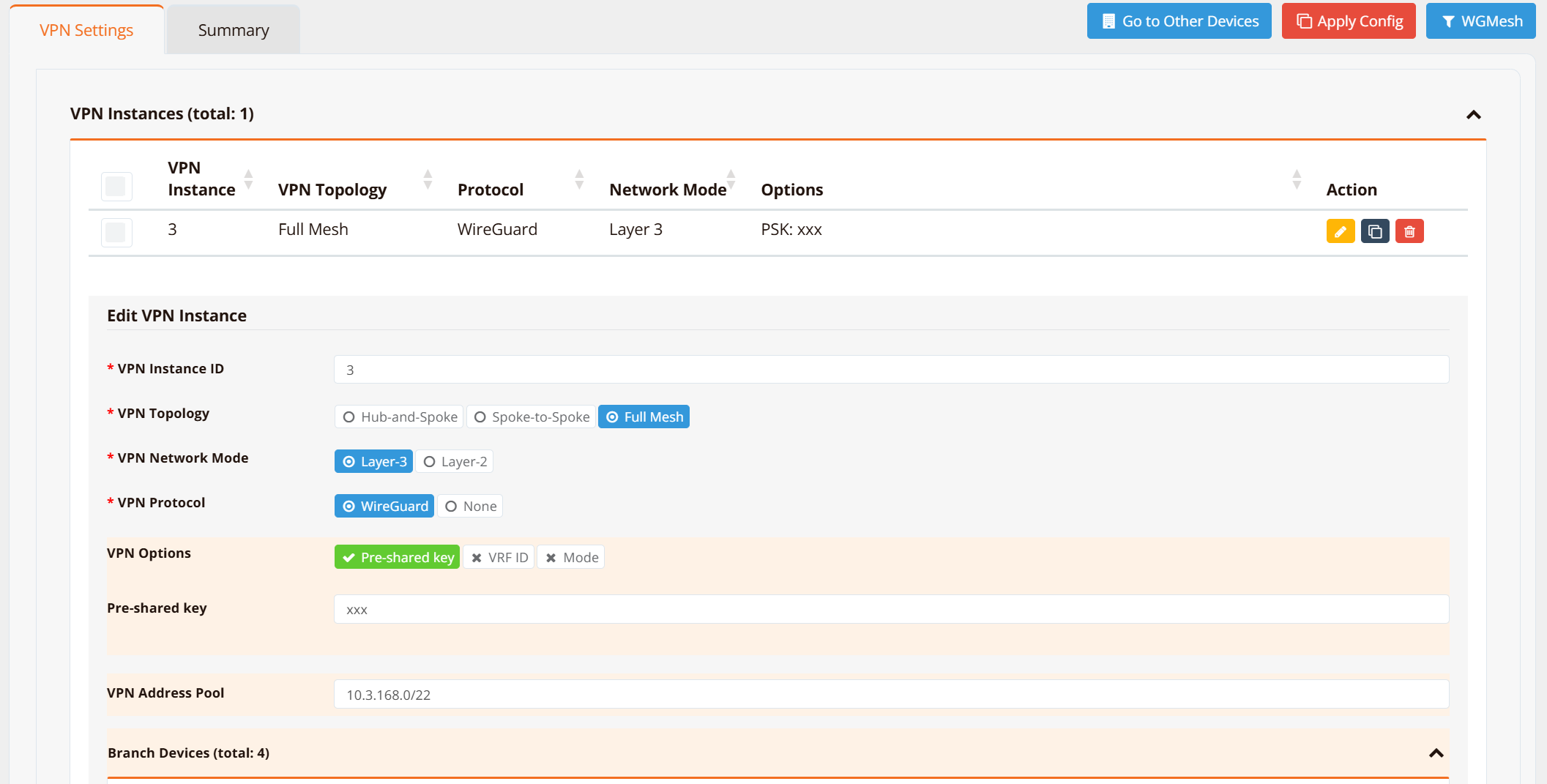
Configure the instance-level settings:
| Field | Value | Notes |
|---|---|---|
| VPN Instance ID | e.g. 3 |
Also determines the deterministic WireGuard listen port (51820 + ID). |
| VPN Topology | Full Mesh | Also available: Hub-and-Spoke, Spoke-to-Spoke. |
| VPN Network Mode | Layer-3 | Layer-2 mode will be discussed seperately. |
| VPN Protocol | WireGuard | Select WireGuard for encryption. |
| VPN Options | Global options | See below note |
| Pre-shared Key | Auto-generated or custom | Shown only if Pre-shared key is toggled on as a global option. |
| VPN Address Pool | e.g. 10.3.168.0/22 |
Pool that tunnel IPs are auto-assigned from. |
Note
Settings configured here at the instance level become the global defaults applied to every device assigned to this VPN instance. The VPN Options toggles (Pre-shared Key, VRF ID, Mode) let you decide which of these are fixed globally versus left open for per-device override — for example, leaving Mode off the global toggle (as in the scenario above) allows individual branch devices to override it to Static, which is what makes hybrid deployments possible.
Step 2: Assign Devices to VPN Instance
Scroll down to the Branch Devices section of the same VPN instance page and add each target device.
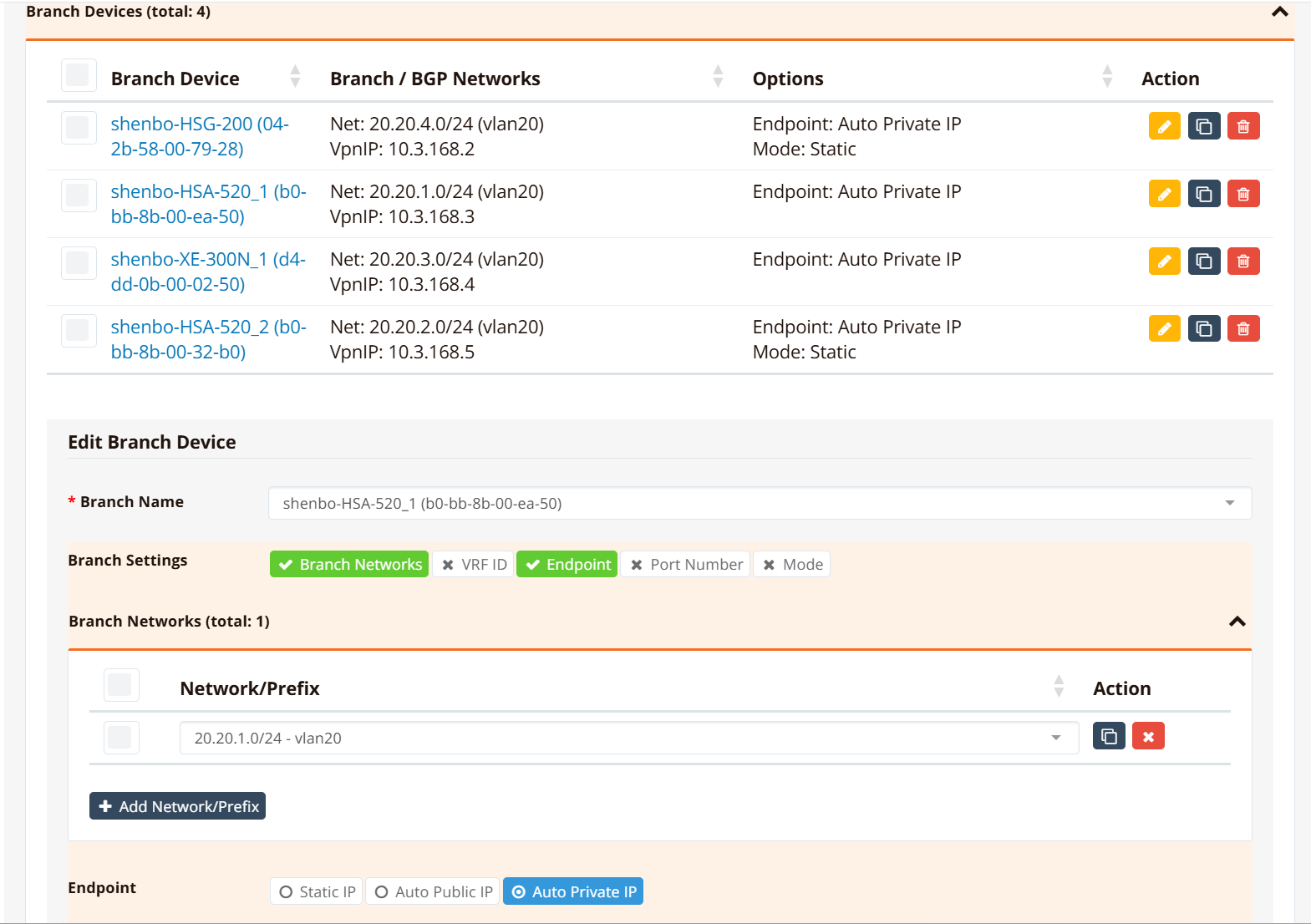
For each device, set:
- Branch / BGP Networks — the device's local LAN network to advertise to the rest of the mesh (e.g.
20.20.1.0/24 - vlan20). - Endpoint — defines how other peers reach this device: Auto Public IP, Auto Private IP, or Static IP — see Endpoint IP above for what each option means and when to use it.
- Mode (optional per-device override) — Static or Dynamic, overriding the instance's global default. Leave unset to inherit the instance default.
- VRF ID / Port Number (optional per-device overrides) — available the same way as Mode, for devices that need a non-default VRF or listen port.
Warning
Once you save and apply, mFusion will auto push CLI config to each router. Do not try to configure mesh VPN using CLI, or modify the mFusion-generated CLI. It is a must to use mFusion to manage all the peers for mesh VPN deployment.
Once the config is pushed, each router registers and syncs its peer state with mFusion and automatically establishes direct tunnels according to its configured mode. Go to the Summary tab to view live mesh registration status:
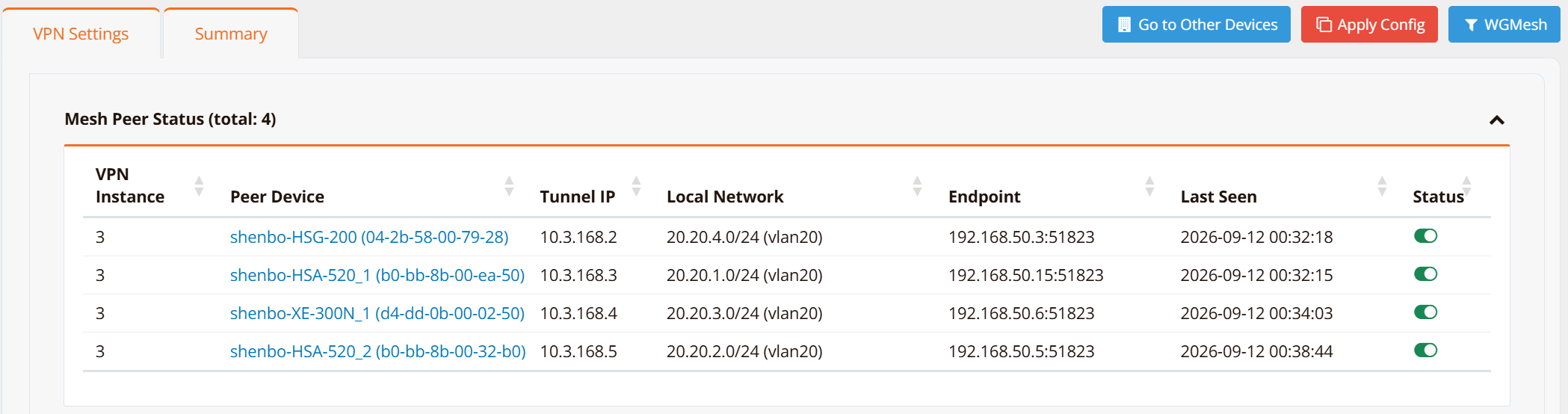
CLI Verification
Use show wg mesh on any mesh-enabled device to view its full mesh peer table, including dormant peers that haven't built a tunnel yet (show wg alone only shows peers with an active WireGuard configuration, so it cannot see dormant peers).
Dynamic mode — before any traffic has crossed the mesh (shenbo-HSA-520_1, instance default = Dynamic):
shenbo-HSA-520_1# show wg mesh
-----------------------
Default WG Instance:
-----------------------
==================================================================================
 Mesh VPN on wg3 (mode: dynamic, local-ip: auto-private)
==================================================================================

Peer                 State      Endpoint               WG-Port   Remote-Net          Rx          Tx          LastHandshake
--------------------------------------------------------------------------------------------------------------------------------
d4-dd-0b-00-02-50    DORMANT    192.168.50.6           51823     20.20.3.0/24        -           -           -
04-2b-58-00-79-28    DORMANT    192.168.50.3           51823     20.20.4.0/24        -           -           -
b0-bb-8b-00-32-b0    DORMANT    192.168.50.5           51823     20.20.2.0/24        -           -           -
All three peers are DORMANT — the router has a route and traffic watch installed for each peer's network, but no WireGuard peer is configured yet, so no tunnel exists.
Now send traffic from the local network (20.20.1.1) toward a dormant peer's network (20.20.3.1, shenbo-XE-300N_1):
shenbo-HSA-520_1# ping 20.20.3.1 source 20.20.1.1
PING 20.20.3.1 (20.20.3.1) from 20.20.1.1: 56 data bytes
sendto: No error information

--- 20.20.3.1 ping statistics ---
1 packets transmitted, 0 packets received, 100% packet loss

shenbo-HSA-520_1# ping 20.20.3.1 source 20.20.1.1
PING 20.20.3.1 (20.20.3.1) from 20.20.1.1: 56 data bytes

--- 20.20.3.1 ping statistics ---
5 packets transmitted, 0 packets received, 100% packet loss

shenbo-HSA-520_1# ping 20.20.3.1 source 20.20.1.1
PING 20.20.3.1 (20.20.3.1) from 20.20.1.1: 56 data bytes
64 bytes from 20.20.3.1: seq=0 ttl=64 time=6.112 ms
64 bytes from 20.20.3.1: seq=1 ttl=64 time=4.981 ms
64 bytes from 20.20.3.1: seq=2 ttl=64 time=4.774 ms
64 bytes from 20.20.3.1: seq=3 ttl=64 time=4.803 ms
64 bytes from 20.20.3.1: seq=4 ttl=64 time=4.699 ms

--- 20.20.3.1 ping statistics ---
5 packets transmitted, 5 packets received, 0% packet loss
The first attempts fail while the tunnel is being triggered and built on both ends; once the WireGuard handshake completes, traffic flows normally. Checking show wg mesh again confirms the peer has been promoted to ACTIVE, while the untouched peers remain DORMANT:
shenbo-HSA-520_1# show wg mesh
-----------------------
Default WG Instance:
-----------------------
==================================================================================
 Mesh VPN on wg3 (mode: dynamic, local-ip: auto-private)
==================================================================================

Peer                 State      Endpoint               WG-Port   Remote-Net          Rx          Tx          LastHandshake
--------------------------------------------------------------------------------------------------------------------------------
d4-dd-0b-00-02-50    ACTIVE     192.168.50.6           51823     20.20.3.0/24        932 B       1576 B      10s ago
04-2b-58-00-79-28    DORMANT    192.168.50.3           51823     20.20.4.0/24        -           -           -
b0-bb-8b-00-32-b0    DORMANT    192.168.50.5           51823     20.20.2.0/24        -           -           -
Static mode — from a device overridden to Static (shenbo-HSA-520_2):
shenbo-HSA-520_2# show wg mesh
-----------------------
Default WG Instance:
-----------------------
==================================================================================
 Mesh VPN on wg3 (mode: static, local-ip: auto-private)
==================================================================================

Peer                 State      Endpoint               WG-Port   Remote-Net          Rx          Tx          LastHandshake
--------------------------------------------------------------------------------------------------------------------------------
04-2b-58-00-79-28    ACTIVE     192.168.50.3           51823     20.20.4.0/24        344 B       564 B       6603s ago
b0-bb-8b-00-ea-50    ACTIVE     192.168.50.15          51823     20.20.1.0/24        568 B       732 B       6032s ago
d4-dd-0b-00-02-50    PENDING    192.168.50.6           51823     20.20.3.0/24        0 B         0 B         never
Here, shenbo-HSA-520_2 itself is Static, so it configures every peer's WireGuard tunnel immediately on save/apply. Its peer to shenbo-HSG-200 (also Static) and to shenbo-HSA-520_1 (Dynamic default, but traffic has already crossed) both show ACTIVE. Its peer to shenbo-XE-300N_1 (Dynamic, no traffic yet) shows PENDING — the local side has already configured the tunnel, but the remote side hasn't triggered its own dormant-to-active promotion, so no handshake has occurred yet.
Tunnel Activation Timing
| Peer Pair | Expected Activation Time |
|---|---|
| Static ↔ Static | Near-instant — both sides configure the tunnel on save/apply. |
| Static ↔ Dynamic | Up to ~15 seconds — the dynamic side must detect matching traffic and promote the peer from dormant to active. |
| Dynamic ↔ Dynamic | Up to ~30 seconds — both sides must independently detect traffic and promote the peer before a handshake can complete. |
Troubleshooting
| Symptom | Likely Cause | Solution |
|---|---|---|
| Peer stuck in DORMANT even after sending traffic | Traffic isn't actually reaching the router's dormant-watch rule (e.g. wrong source network, traffic dropped by firewall before reaching the mesh interface) | Confirm traffic is sourced from the advertised local network and permitted by firewall policy; retry the ping/traffic test and check show wg mesh again after ~30s |
| Peer stuck in PENDING indefinitely | Remote peer is Dynamic and has not seen matching traffic in the reverse direction | Generate traffic from the remote side's network toward this device, or set the remote peer's Mode to Static if it must always be reachable |
| Tunnel never comes up between two Dynamic peers | Both sides waiting on the other to initiate (WireGuard requires both ends configured before a handshake can succeed) | Generate traffic from at least one side toward the other; if the pair must always be up, override one side to Static |
| Device's endpoint IP is wrong or unreachable by peers | Wrong Endpoint mode selected (e.g. Auto Public IP used on a private-only WAN), or — if the router sits behind a separate NAT/firewall — that upstream device isn't forwarding the WireGuard UDP port | Re-check the Endpoint setting for the device in Step 2; if the router is directly on the public IP, the local input rule is auto-permitted by mFusion and does not need checking. If it's behind a separate NAT/firewall, verify that device forwards the WireGuard UDP port to the router |
| Config changes made via CLI don't persist or get reverted | Mesh VPN CLI config is fully managed by mFusion; manual/CLI edits are not supported and will be overwritten on the next mFusion push | Make all mesh VPN changes through the mFusion GUI only |
| New device added but never appears in peer tables | Config not yet applied, or device hasn't synced with mFusion | Confirm Apply Config was clicked after adding the branch device; check the device's connectivity to mFusion |
| A peer's endpoint IP changed but other peers still try the old address | The device or mFusion was unreachable when the change occurred, so the update never propagated | Confirm the affected device and mFusion both have working connectivity; once restored, the new endpoint syncs to all peers automatically — no manual push needed. See Control Plane vs. Data Plane |
Best Practices
Performance and Scale
- Use Dynamic mode as the default for any mesh with more than a handful of sites — it keeps only the tunnels that are actually in use, avoiding the full O(n²) tunnel-pair overhead described on the SD-WAN Topology page.
- Reserve Static mode for a small number of always-on sites (e.g. HQ or a small hub set) in a hybrid deployment, rather than making every site Static.
Operations
- Always manage Mesh VPN through mFusion. Do not configure or edit mesh VPN settings via CLI
- mFusion manages the peer state table. Existing tunnels keep working if mFusion connectivity is lost, but new state changes (e.g. an endpoint IP update) cannot reach other peers until connectivity is restored — see Control Plane vs. Data Plane.
- Use
show wg mesh(notshow wg) when troubleshooting, since it is the only view that shows dormant/pending peers alongside active ones.