Access Rights and Profiles
Access profile combines various permissions/rights (RADIUS attributes) into groups, and when attached to user accounts, it controls the access rights after authentication.
It defines the Authorization component of AAA (Authentication, Authorization, Accounting).
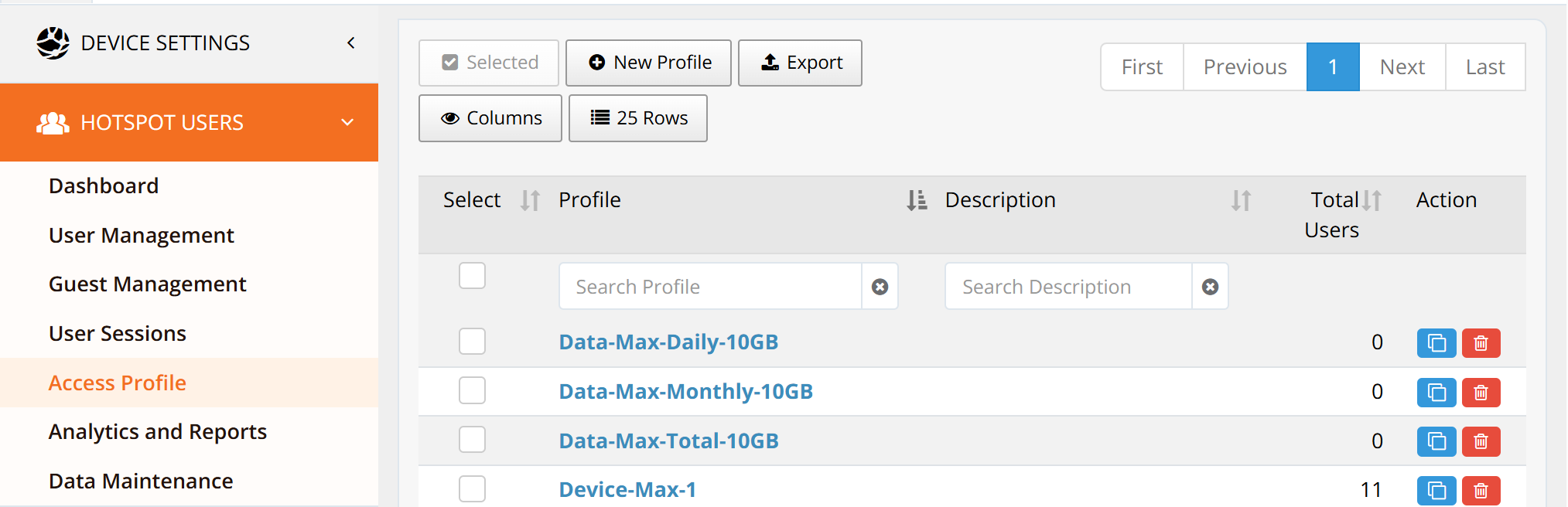
Navigate to HOTSPOT USERS → Access Profile. The system includes several default profiles that you can immediately attach to users.
Click New Profile to create a new profile, or Edit on an existing profile to modify its settings.
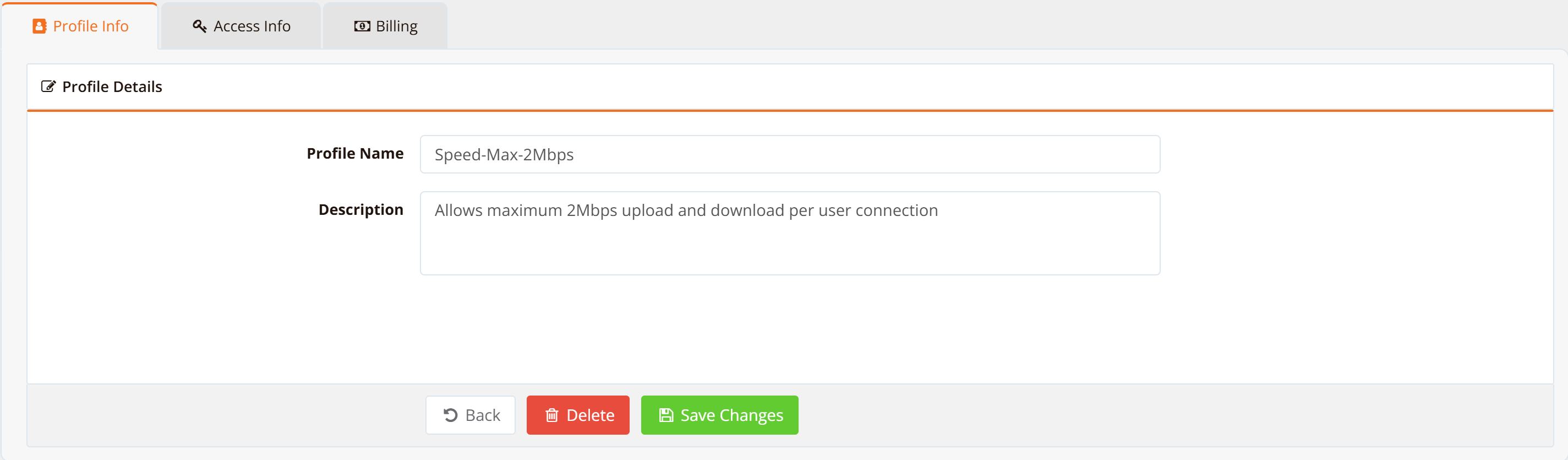
Profile Info
Enter a unique Profile Name and optional Description for easy reference and organization.
| Field | Purpose | Notes |
|---|---|---|
| Profile Name | Unique identifier for this access profile | Used in dropdowns, user assignment, and reporting; no spaces or special characters recommended |
| Description | Human-readable explanation of the profile's purpose | Example: "Premium Hotel Guests - 10 Mbps, 50 GB/month" |
Access Info
This tab defines the access attributes (speed, time limits, data quotas, device limits) that control what users can do after authentication.
Two approaches to organize policies:
- Single attribute per profile — Create many profiles (each with one control), then attach multiple profiles to each user. Flexible but complex.
- Multiple attributes per profile — Create a few profiles (each combining multiple controls), then attach one profile to all users in a tier. Simple and maintainable.
Recommendation: Use approach #2 (multiple attributes per profile) for most deployments. If you need truly granular per-user control beyond a profile, use per-account access rights.
Access Speed (Speed Control)
This attribute sets the maximum upload and download speed per user connection, enforcing bandwidth caps at the application level.

| Setting | Purpose | Notes |
|---|---|---|
| Download Speed | Maximum downstream bandwidth per user | Measured in Kbps (kilobits per second); limits the fastest possible download speed |
| Upload Speed | Maximum upstream bandwidth per user | Measured in Kbps; limits the fastest possible upload speed |
Examples: Differentiate between Premium (50000 Kbps down / 10000 Kbps up) and Standard (10000 Kbps down / 2000 Kbps up) tiers.
Access Time (Time Control)
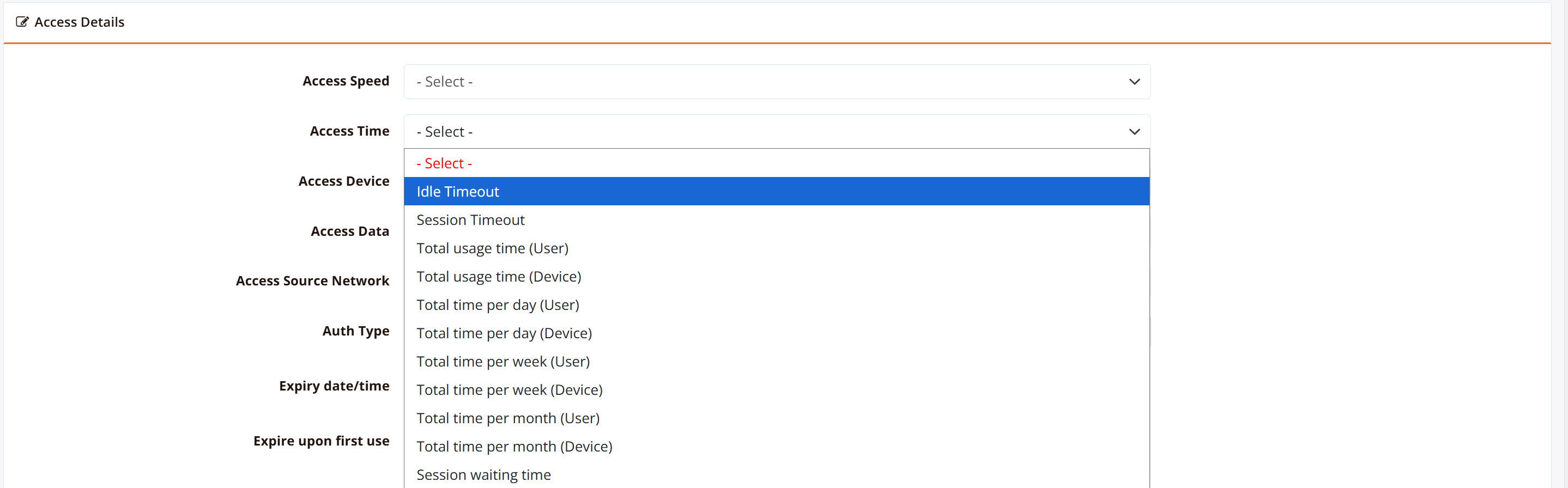
There are several attributes you can use (or combine) for user/device time and session duration control.
| Setting | Purpose | Notes |
|---|---|---|
| Session Time Limit | Maximum duration for a single continuous session | Once limit is reached, user is disconnected and must re-login for a new session |
| Idle Timeout | Disconnect if user is inactive for this duration | Useful to free up resources from inactive devices; user can reconnect immediately |
| Daily Time Quota | Total allowed online time per calendar day | Once consumed, user cannot reconnect until the next day (00:00) |
| Weekly Time Quota | Total allowed online time per week | Reset weekly; use for fair-share bandwidth policies |
| Monthly Time Quota | Total allowed online time per month | Reset monthly; common for monthly subscription plans |
Access Device (Device Control)
Controls device behavior including simultaneous device limits and dynamic VLAN assignment for traffic steering.

| Setting | Purpose | Notes |
|---|---|---|
| No. of concurrent device | Maximum number of devices logged in with this account at the same time | Prevents account sharing across too many devices; common limits are 1, 2, or 5 devices |
| Dynamic VLAN Assignment | Assign user devices to a different VLAN based on profile | Used for traffic steering and access isolation; see VLAN Steering for detailed use cases |
Example: A hotel guest with a Premium account might allow 3 devices (phone, tablet, laptop), while a Standard guest gets 1 device only. Premium devices could be assigned to a high-speed VLAN, while Standard devices use a limited-speed VLAN.
Access Data (Data Quota Control)
Controls how much data (upload + download combined) a user can consume before access is restricted.

| Setting | Purpose | Notes |
|---|---|---|
| Daily Data Quota | Total data allowed per calendar day | Once exceeded, user is blocked until next day (00:00) |
| Weekly Data Quota | Total data allowed per week | Reset weekly; use for fair-share pricing models |
| Monthly Data Quota | Total data allowed per month | Reset monthly; common for monthly subscription plans |
| Data Tracking | Monitor current consumption per user | Enable to show users their remaining quota and usage |
Example: A Premium plan offers 10 GB/month, while a Standard plan offers 2 GB/month.
Access Source Network (Network Control)
Restricts where a user account can login from by specifying which hotspot instance(s) or VLAN(s) are allowed. Useful when the same gateway runs multiple hotspot instances on different SSIDs or VLANs.

Example: A staff account on a hotel network might be allowed on the Staff-VLAN instance only, while guest accounts can use any public instance.
Authentication Type
Controls whether an account is allowed to authenticate or should be rejected. By default, new accounts are enabled (Accept). Use this to disable accounts without deleting them.

| Setting | Purpose | Notes |
|---|---|---|
| Accept | Account is enabled and can authenticate normally | Default state for new accounts |
| Reject | Account is disabled and cannot authenticate | User sees login error; useful for temporary suspension without deletion |
Account Expiry
Sets when and how an account becomes invalid. Accounts can expire at a fixed date/time, or a duration after first use.

| Setting | Purpose | Notes |
|---|---|---|
| Expiry Date | Fixed calendar date when account becomes invalid | Example: 2026-12-31 (useful for seasonal or promotional accounts) |
| Expiry Time | Fixed time-of-day when account resets or expires | Example: 23:59 daily (account active until end of day) |
| Expire After First Use | Account becomes invalid N minutes after first login | Useful for one-time-use vouchers or trial accounts; prevents indefinite reuse |
Example: A hotel guest account might expire on their checkout date, while a trial account might expire 24 hours after first use.
URL Redirect
After successful authentication, users are redirected to a landing URL. This can be set at three levels, with priority from highest to lowest:
If multiple levels are configured, the highest precedence level wins (account-level overrides profile-level, which overrides instance-level).
Use Cases:
- Account-level: VIP guests redirected to personalized welcome page
- Profile-level: All Standard-tier users see the same post-login dashboard
- Instance-level: Default landing page for all users on a hotspot instance