Crew Wi-Fi Hotspot Management
Overview
Many vessels today provide Internet access for crew members, but authenticating users, managing accounts, enforcing usage quotas, and handling billing across a large fleet can become operationally complex — especially when crew assignments rotate between vessels and satellite connectivity is intermittent.
RansNet Hotspot Gateway (HSG) addresses these challenges by automating the end-to-end crew Internet access lifecycle. The solution integrates with COMPAS (and other crew management and payment systems via API), synchronizes crew identities automatically, enforces per-user usage quotas, and allows crew members to self-purchase additional data when needed.
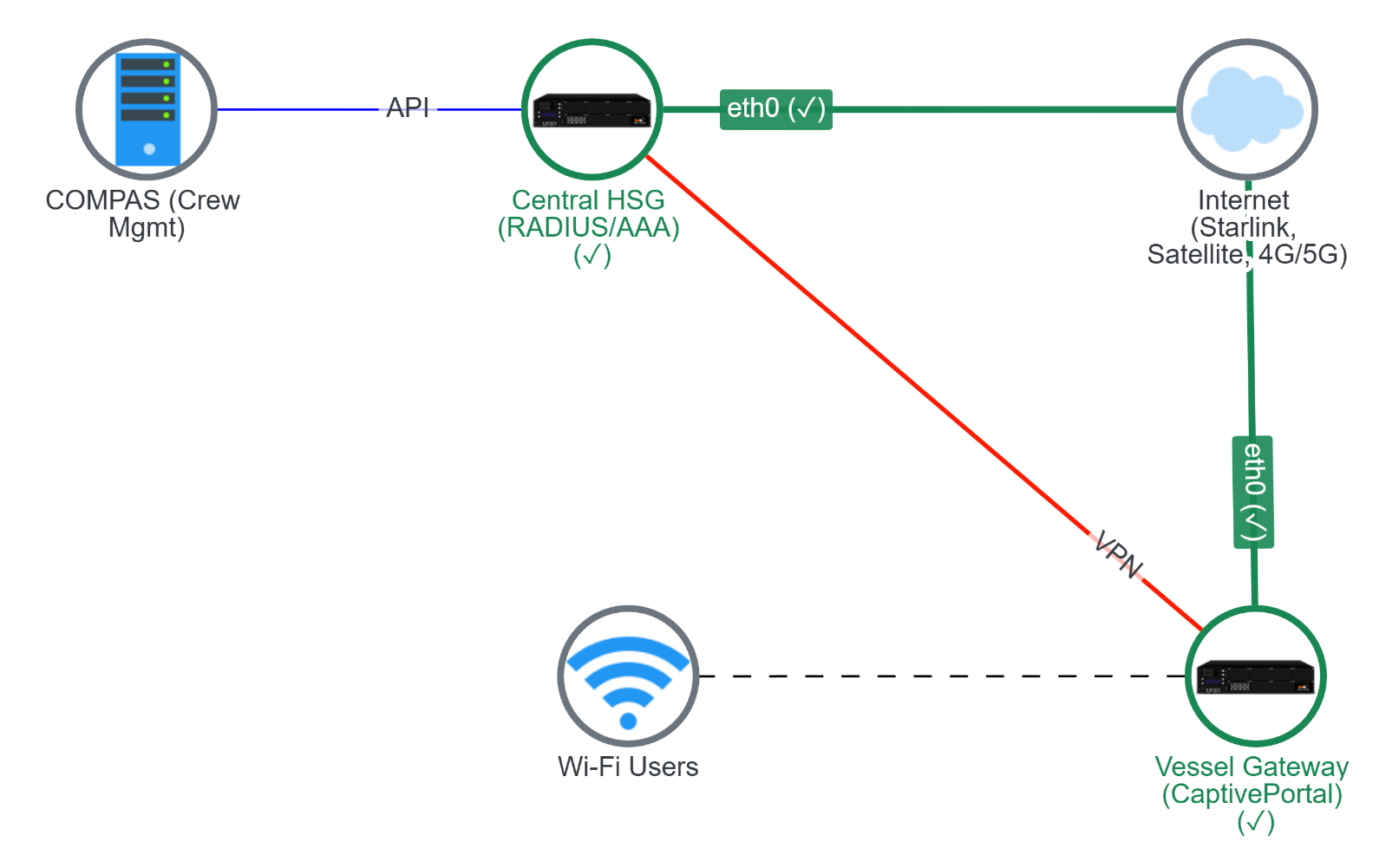
Solution Architecture
The solution uses a two-tier HSG deployment following the Captive Portal over SD-WAN (CloudX) deployment model.
| Component | Role | Location | Purpose |
|---|---|---|---|
| Central HSG | Single source of truth | Operator's data centre or cloud (Azure/AWS) | Crew identity, access profiles, quota management, billing records, API integration with COMPAS |
| Vessel HSG | Local authenticator | On board each vessel | Hosts captive portal; provides fast login even with intermittent satellite connectivity |
An SD-WAN VPN tunnel connects each vessel HSG back to the central HSG, providing the authentication backhaul and synchronization path.
Key Capabilities
- Centralized identity management — Crew IDs are automatically synchronized from COMPAS to the central HSG via API, with vessel assignment determined by the crew scheduling system
- Vessel-bound access — Each crew ID is restricted to authenticate only from its currently assigned vessel network; access automatically follows the crew member's rotation schedule
- Single device enforcement — Each crew ID is permitted to be logged in from one device at a time, preventing account sharing
- Weekly free quota — Every crew member receives a configurable weekly free data quota that resets automatically on a scheduled day and time
- Self-service top-up — Crew members can purchase additional data quota directly through the captive portal; purchased quota does not expire and carries over across vessel reassignments
- Post-billing integration — COMPAS retrieves top-up purchase records from the central HSG via API for reconciliation and billing
- Application access control — Restrict certain applications or destinations based on crew role or department
- Compliance logging — Internet access logs are captured as NetFlow records on the local vessel HSG for security compliance, audit trails, and dispute investigation
Deployment
Step 1: Deploy HSG Appliances and Build SD-WAN
Follow these steps to set up the foundation:
- Follow the Getting Started guide to deploy the central HSG and each vessel HSG appliance
- Configure API access on the central HSG using the Hotspot API guide for COMPAS or other crew management system integration
- Build an SD-WAN VPN tunnel from each vessel HSG to the central HSG
Note
- The central HSG must have a static public IP address so that vessel HSGs can establish outbound SD-WAN VPN tunnels to it
- Vessel HSGs can use any available Internet uplink (satellite, cellular, or shore connection) to initiate the VPN tunnel to the central HSG
Step 2: Configure Access Profiles
On the central HSG, create an access profile for each vessel (each profile maps to a unique Vessel ID). Configure the access rights attached to each profile:
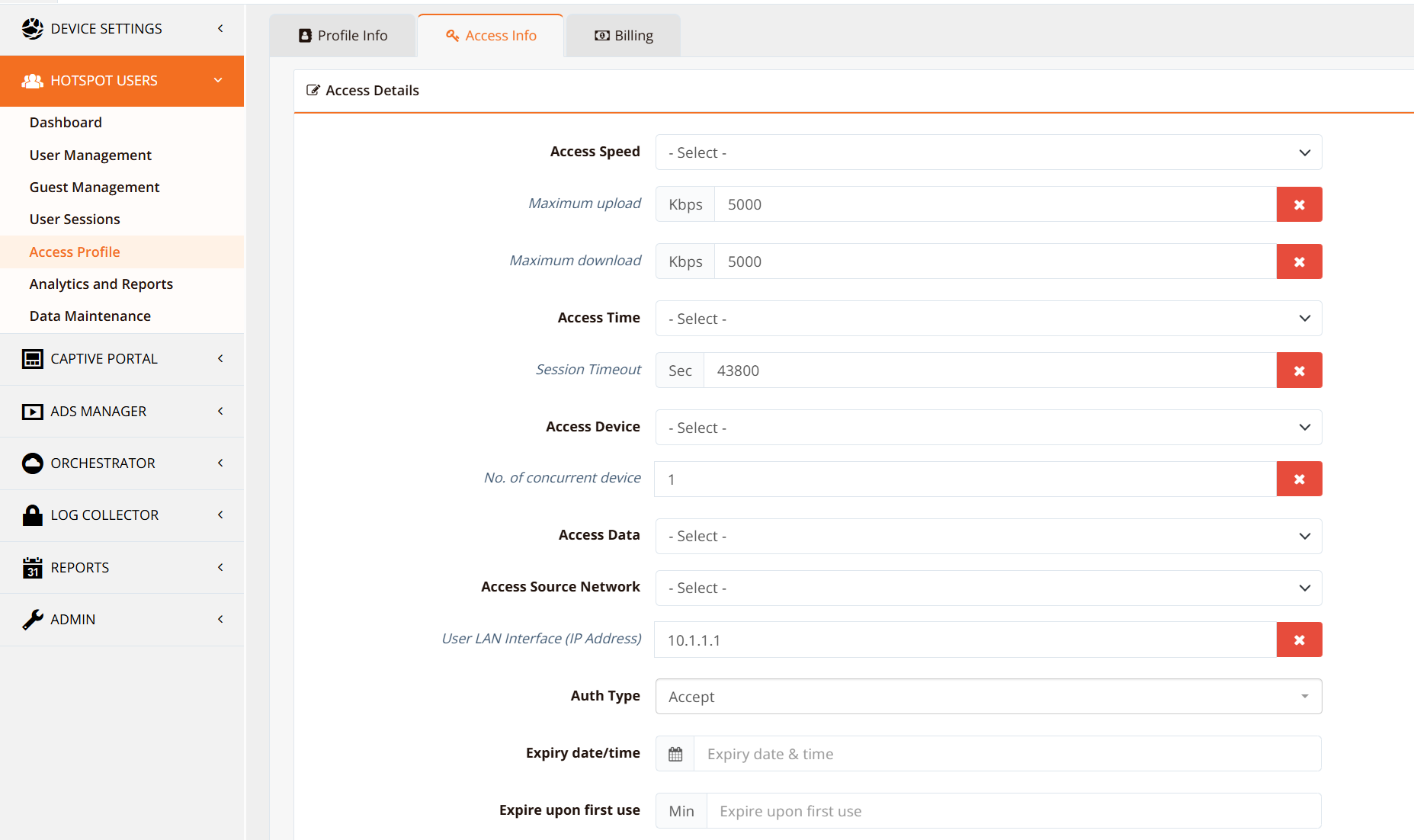
| Access Right | Purpose | Configuration |
|---|---|---|
| Session Timeout | Maximum continuous connection time | Example: 4 hours per session |
| Idle Timeout | Disconnect after period of inactivity | Example: 30 minutes |
| Bandwidth Rate Limits | Maximum upstream and downstream speed | Example: 10 Mbps down / 2 Mbps up |
| Free Quota Allocation | Weekly/monthly data allowance | Example: 5 GB per week |
| Access Control Rules | Permitted or blocked services/destinations | Block streaming; allow email/messaging |
Info
Users assigned to an access profile automatically inherit all access rights defined in that profile. Updating a profile immediately applies to all users assigned to it.
Step 3: Create and Manage Crew Accounts
Crew accounts can be provisioned through multiple methods:
| Method | Use Case | Details |
|---|---|---|
| API automation | Bulk provisioning | Integrate with COMPAS via HSG RESTful API to automate account creation, modification, suspension as crew assignments change |
| Payment gateway | Self-service purchases | Configure payment gateway for crew to self-purchase access plans; HSG handles billing and invoicing |
| Manual VIP accounts | Administrators | Create individual accounts manually and assign directly to access profiles |
| Voucher bulk creation | Physical distribution | Use guest management console to mass-generate and print access vouchers |
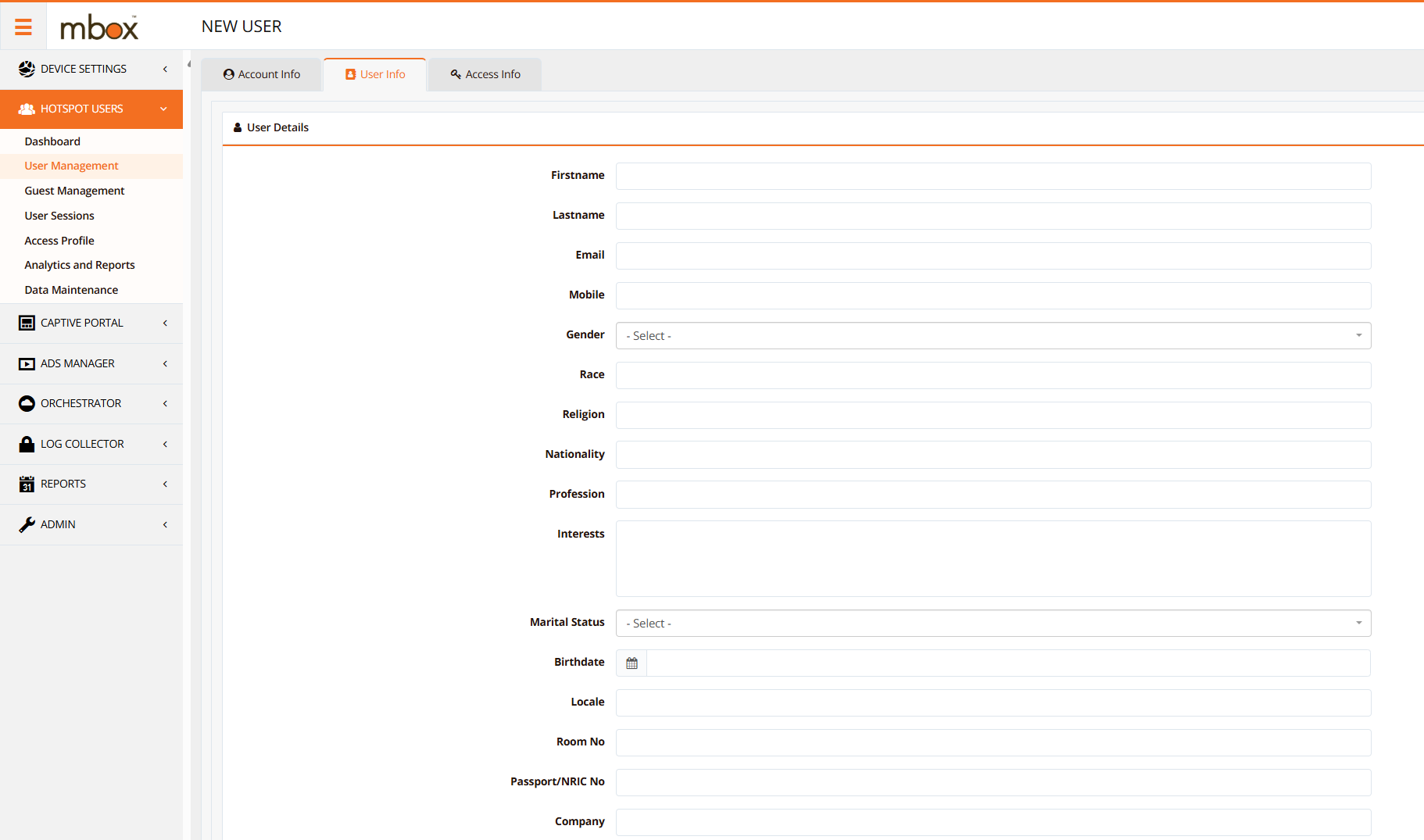
When creating user accounts, assign a user attribute (e.g., crew rank, department, position) to each account. This attribute is used as a matching criterion in automated quota management rules (see Step 4).
Note
If automating quota management — for example, performing weekly free quota resets — it is important to assign a consistent user attribute to each account so that automation rules can accurately identify and target the correct user groups.
Step 4: Configure Automated Quota Management
Under Data Maintenance, create automated rules to assign free data quota based on user attributes (e.g., crew rank). Rules can match on multiple criteria simultaneously, allowing differentiated quota tiers.
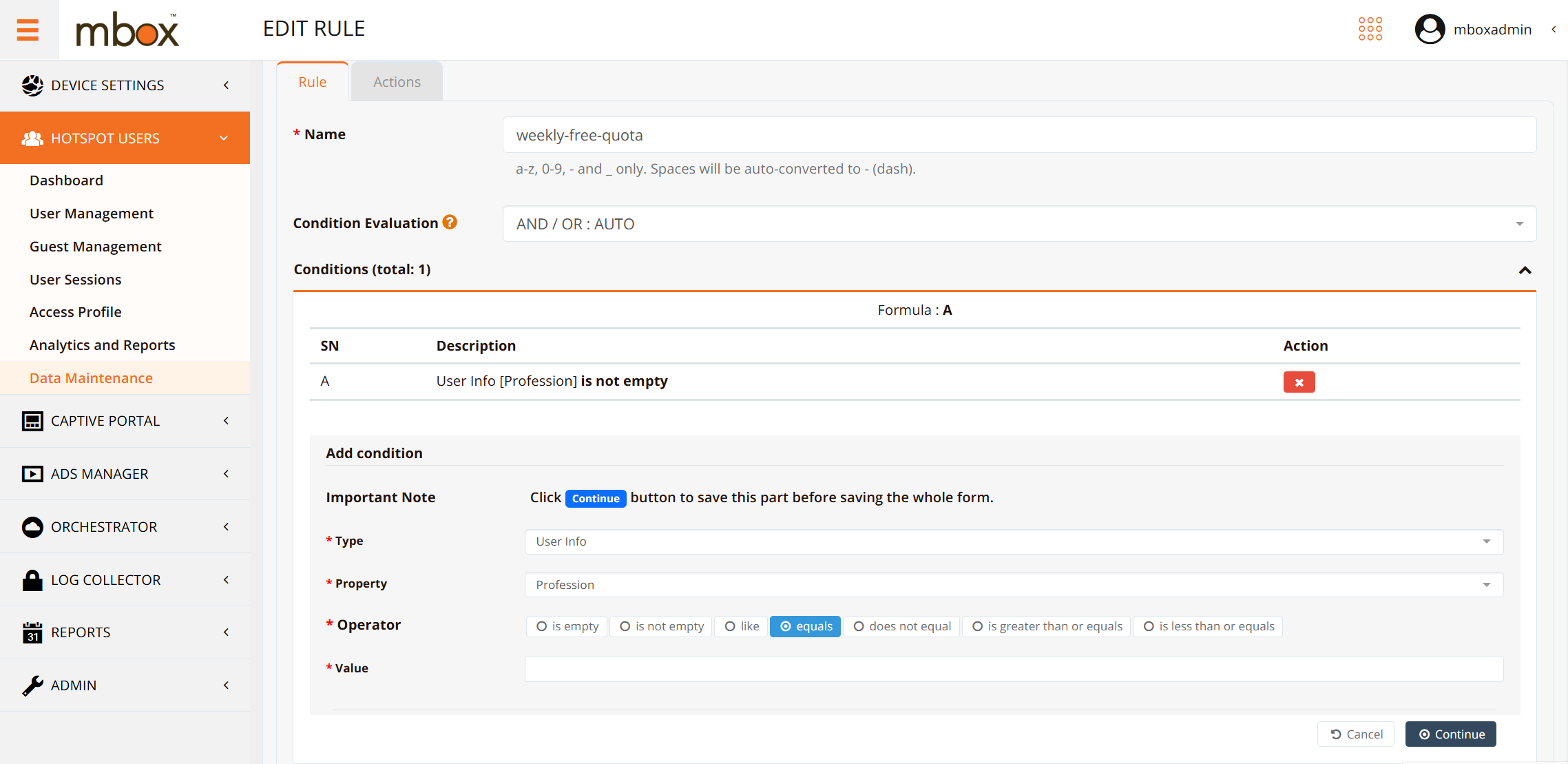
| Tier | Typical Crew Role | Free Quota | Purpose |
|---|---|---|---|
| Officer Tier | Captain, Chief Engineer, Officers | 10 GB/week | Higher quota for management roles |
| Standard Tier | Ratings, Crew | 5 GB/week | Baseline quota for regular crew |
| Limited Tier | Visitors, Contractors | 2 GB/week | Controlled access for non-permanent personnel |
Note
- When a user holds both a free quota allocation and purchased top-up quota, free quota is consumed first. Top-up quota is only drawn down once the free quota is exhausted.
- A scheduled maintenance job runs every Sunday at 00:00 to purge any remaining unused free quota from the previous week, assign the new week's free quota, and carry over any remaining purchased top-up quota to the following week.
Step 5: Create the Crew Login Portal
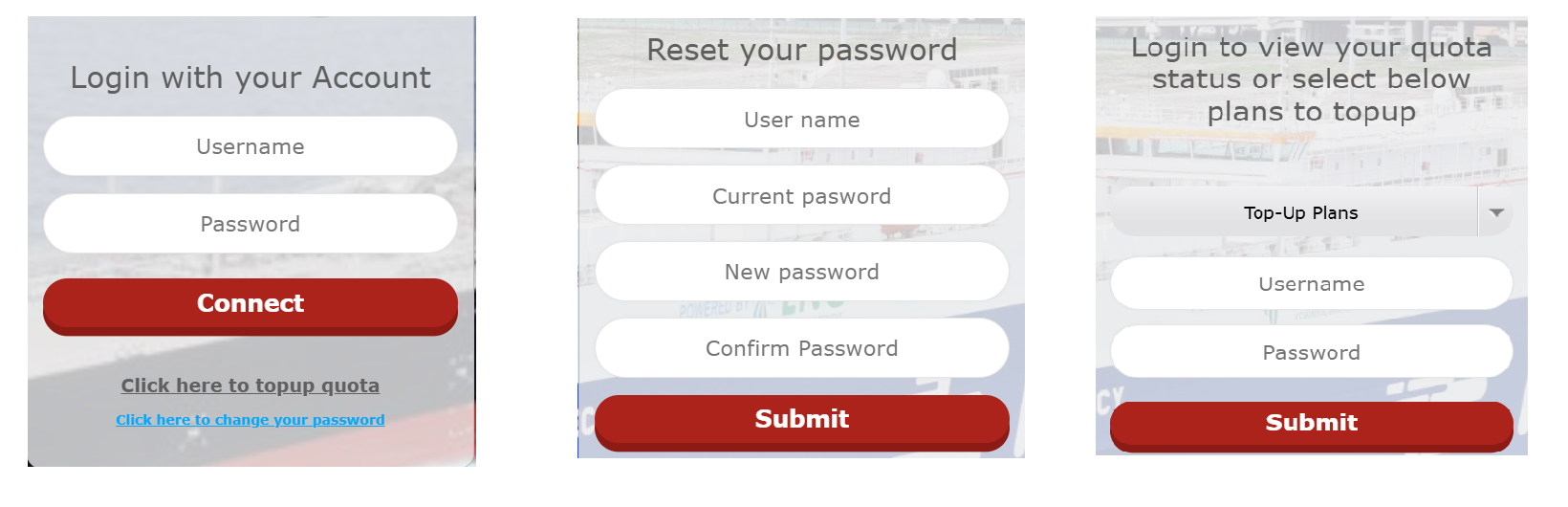
RansNet provides extensive captive portal capabilities with a fully customizable interface. The crew Wi-Fi portal is configured to expose the following self-service functions:
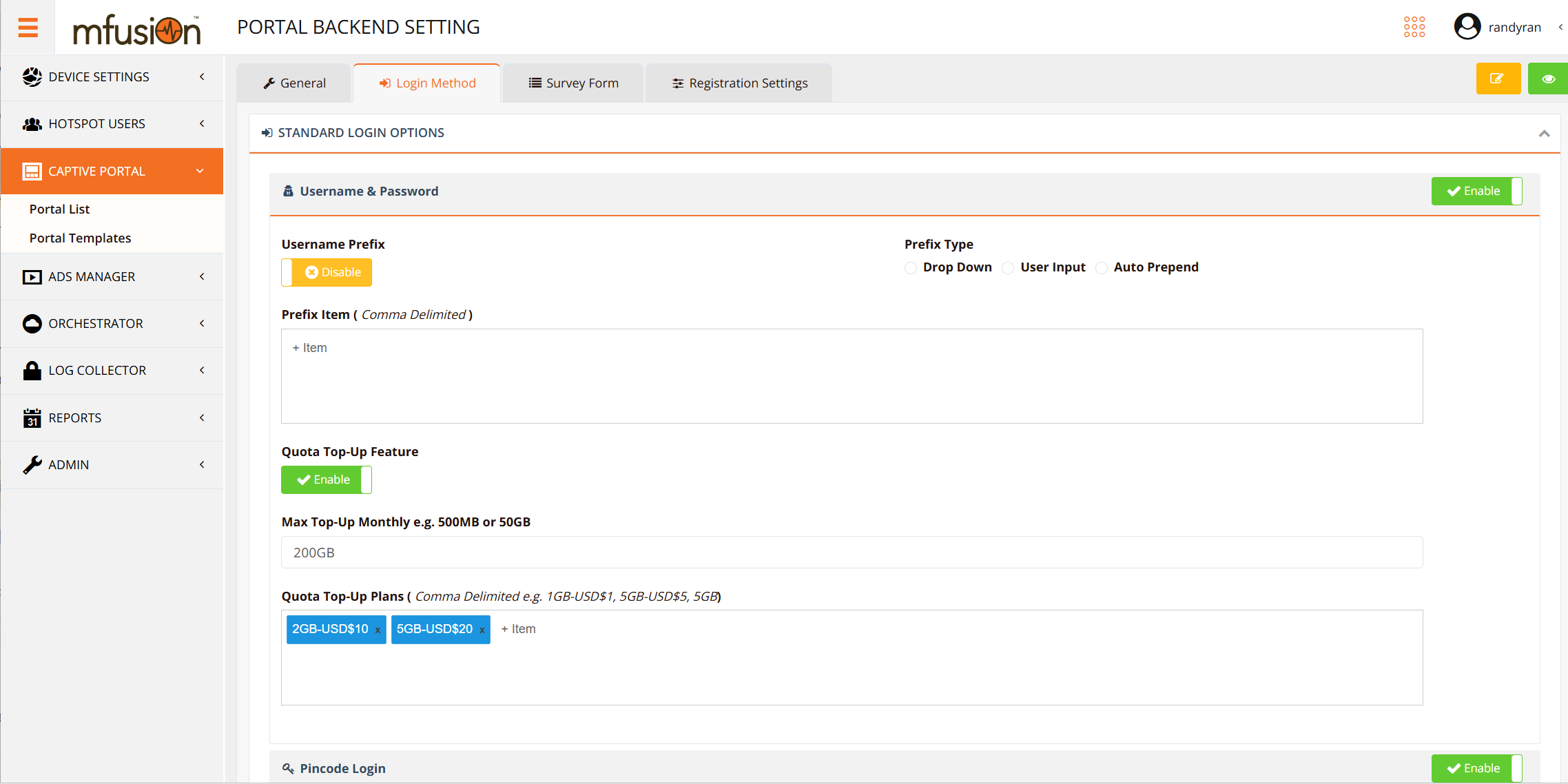
| Feature | Purpose | Benefits |
|---|---|---|
| Quota plan selection | View available data plans and current quota balance | Transparency; helps crew manage usage |
| Password change | Allow crew to update their own login credentials | Security; reduces IT support tickets |
| Data top-up | Self-service purchase of additional data quota | Revenue generation; crew autonomy |
| Billing history | View past transactions and invoices | Transparency; reduces billing disputes |
The portal content is hosted locally on the on-board vessel HSG, providing a fast login experience independent of satellite link quality or latency.
Reporting and Monitoring
The HSG provides comprehensive reporting for fleet administrators and business stakeholders, covering user activity, session history, quota usage, purchase records, and detailed traffic logs.
User Dashboard
A real-time overview of active sessions, connected devices, quota consumption, and system health across the fleet.
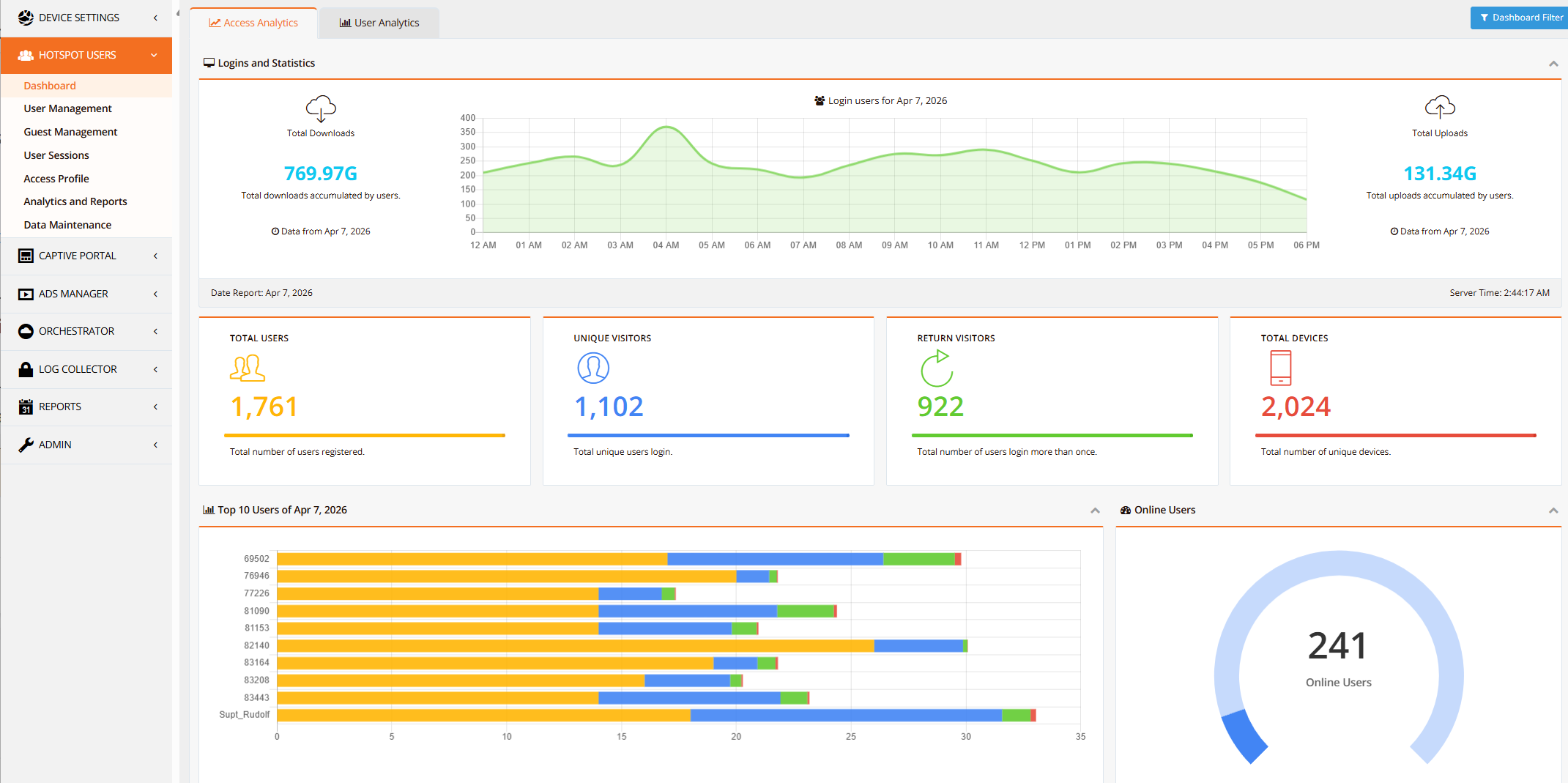
Key Metrics:
- Active crew members currently logged in
- Devices connected per vessel
- Current quota consumption (free vs. purchased)
- System health and uptime per vessel HSG
Session History
Complete historical session records per user, including login time, logout time, device, data consumed per session, and applied access profile. Used for traceability, SLA reporting, and dispute investigation.
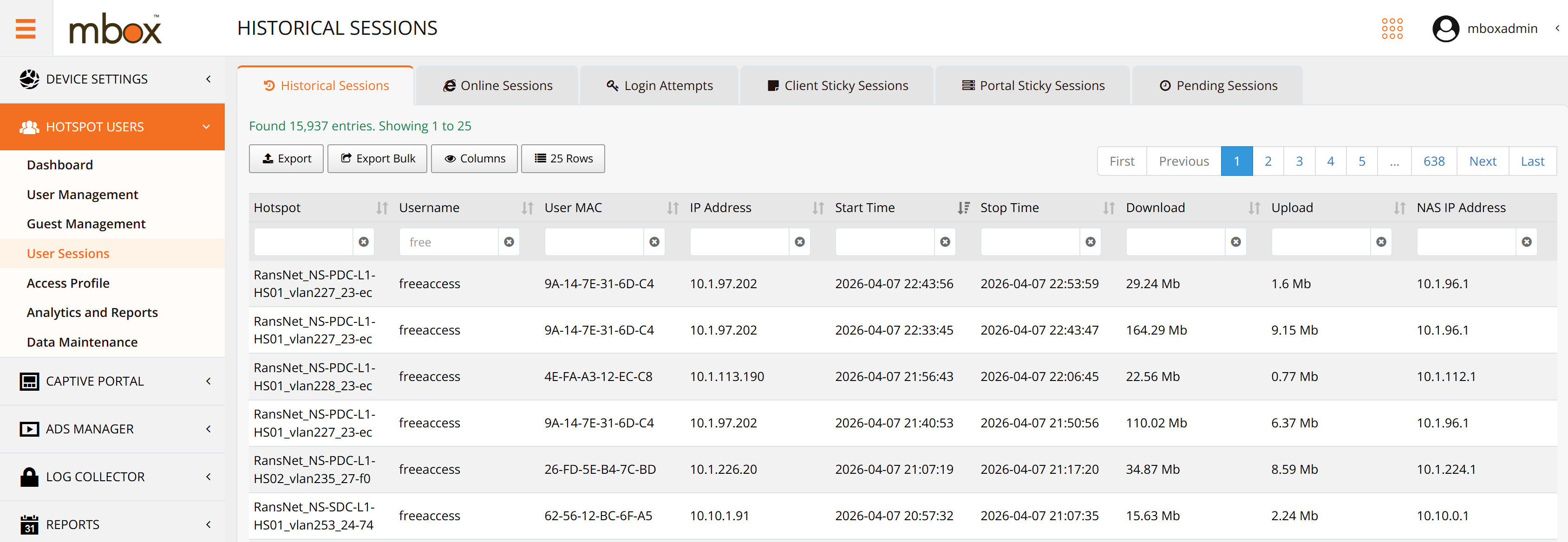
Analysis Capabilities:
- Filter by crew member, vessel, or date range
- Export sessions for billing reconciliation
- Identify peak usage times and patterns
- Correlate sessions with quota consumption
Purchase and Top-Up Records
Full billing history of all self-service data top-up transactions, including amount, plan purchased, payment method, and timestamp. Records are retrievable by COMPAS or external billing systems via the HSG API for post-billing reconciliation.
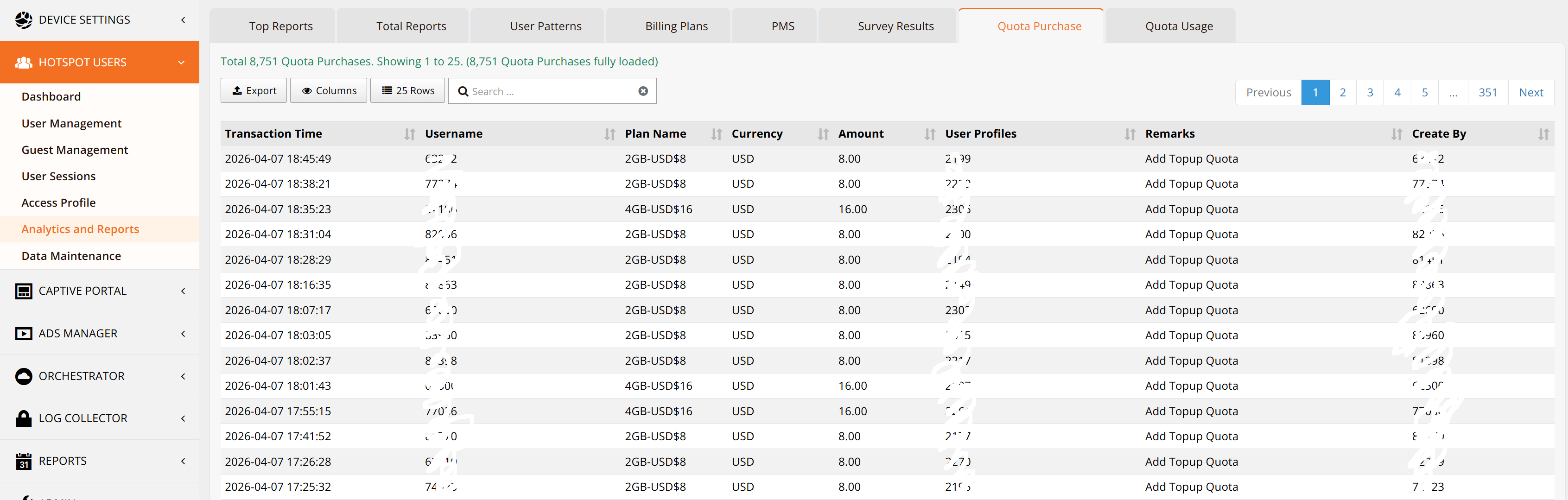
Reconciliation Workflow:
- Crew member purchases top-up via portal
- HSG records transaction with timestamp and payment method
- COMPAS retrieves records via API on a scheduled basis
- Finance team reconciles and invoices crew member
NetFlow Traffic Logs
Granular per-connection traffic records captured as NetFlow data on the local vessel HSG. Provides visibility into individual connection destinations, protocols, and data volumes — supporting deeper user behavior analysis, security audits, and dispute resolution without relying on central connectivity.
Refer to NetFlow Traffic Logs for detailed setup and querying instructions.
Application Access Control
You can optionally use the HSG to restrict access to certain applications or destinations based on crew role, department, or vessel policy. This is useful for enforcing company acceptable-use policies, protecting bandwidth for critical operations, or complying with maritime security requirements.
Use Cases:
| Scenario | Control | Benefit |
|---|---|---|
| Protect bandwidth | Block video streaming during operational hours | Preserve satellite bandwidth for critical applications |
| Security compliance | Block access to known malicious domains | Reduce risk of crew devices being compromised |
| Crew productivity | Allow work applications; limit social media | Encourage focus on duties during work hours |
| Cost control | Throttle peer-to-peer and torrenting | Prevent excessive data consumption |
Implementation Methods:
- IP/Port-based blocking — Block specific destination IPs or ports (e.g., port 6881-6889 for BitTorrent)
- DNS blocking — Intercept DNS queries for blacklisted domains and return no-service response
- Protocol-based filtering — Block or throttle specific protocols (e.g., video streaming protocols)
For detailed configuration examples and role-based access policies, refer to Restricted Applications in Crew Networks.
Best Practices
Quota Management
- Differentiate by role — Officers and essential personnel typically receive higher quotas than general crew
- Monitor consumption — Review quota usage reports weekly to identify power users and trends
- Set realistic limits — Base quotas on actual usage patterns, not guesses; survey crew on expectations
- Communicate policy — Publish quota limits and top-up pricing clearly to crew before deployment
Security and Compliance
- Enable NetFlow logging — Capture traffic logs for audit trails and dispute resolution
- Restrict applications — Block file-sharing, P2P, and streaming to protect bandwidth and prevent malware
- Enforce strong passwords — Require crew to change default credentials on first login
- Monitor access patterns — Review session logs for unusual activity or policy violations
Operational Continuity
- Test vessel disconnections — Verify that crews can still authenticate when the central link is down (local authentication)
- Implement failover — Configure backup authentication paths to ensure crew can always login
- Regular backups — Backup central HSG configuration and crew database regularly
- Coordinate maintenance — Schedule central HSG updates during low-traffic periods to minimize service disruption
Related Features
- Access Rights and Profiles — Detailed access control, quota, and rate-limiting configuration
- Guest Management — Bulk account creation and voucher distribution
- Hotspot API — RESTful API for COMPAS integration and automation
- NetFlow Traffic Analysis — Detailed traffic logs and security monitoring