Smartplug Sensor Monitoring Setup
This guide shows how to provision a smart Wi-Fi power plug to register with an HSA router for MQTT-based sensor monitoring via mfusion. The smartplug sends real-time power, voltage, and current readings to the router, which automatically processes them and forwards them to Zabbix for monitoring.
Prerequisites
- An HSA router (or other RansNet router with MQTT support), online and provisioned in mfusion
- A supported smart Wi-Fi power plug (GemeOpen series)
- The router's LAN IP and upstream Wi-Fi details, so the smartplug can connect and reach the MQTT broker
Step 1: Provision the Smartplug
Configure the smartplug to join your Wi-Fi and publish to the router's MQTT broker.
Step 1a — Enter pairing mode: Press and hold the power button for more than 6 seconds, until the red LED blinks twice. The smartplug now broadcasts a Wi-Fi hotspot for configuration.
Step 1b — Connect to the smartplug hotspot: On your management device (PC or phone), scan for and connect to GemeOpen-<MAC> using PSK Aa123456.
Step 1c — Open the management interface: Once connected, your device should auto-launch a browser to the plug's management page. If it doesn't, open a browser manually and go to http://192.168.4.1.
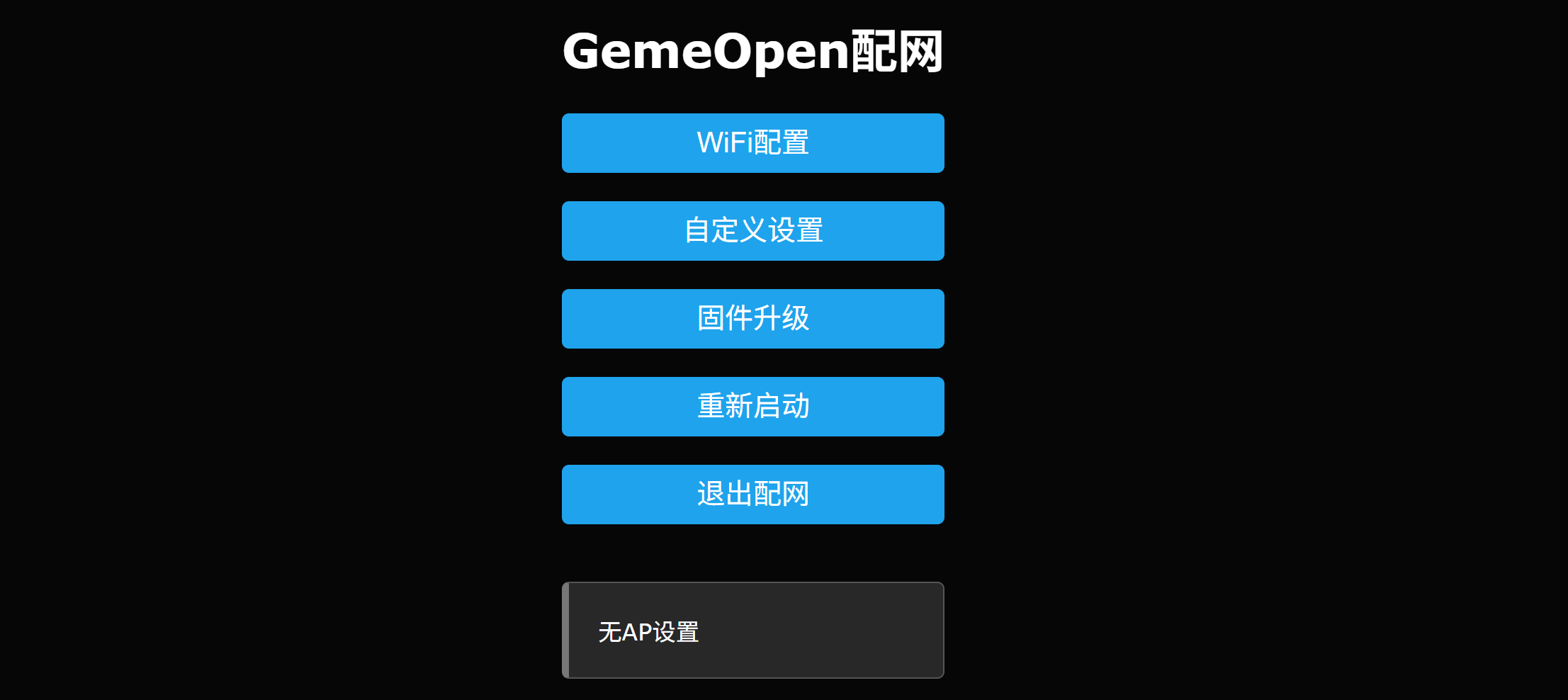
Step 1d — Configure upstream Wi-Fi: Click WiFi Setting, enter the upstream Wi-Fi credentials you want the smartplug to join (e.g., your HSA Wi-Fi), and click Save.
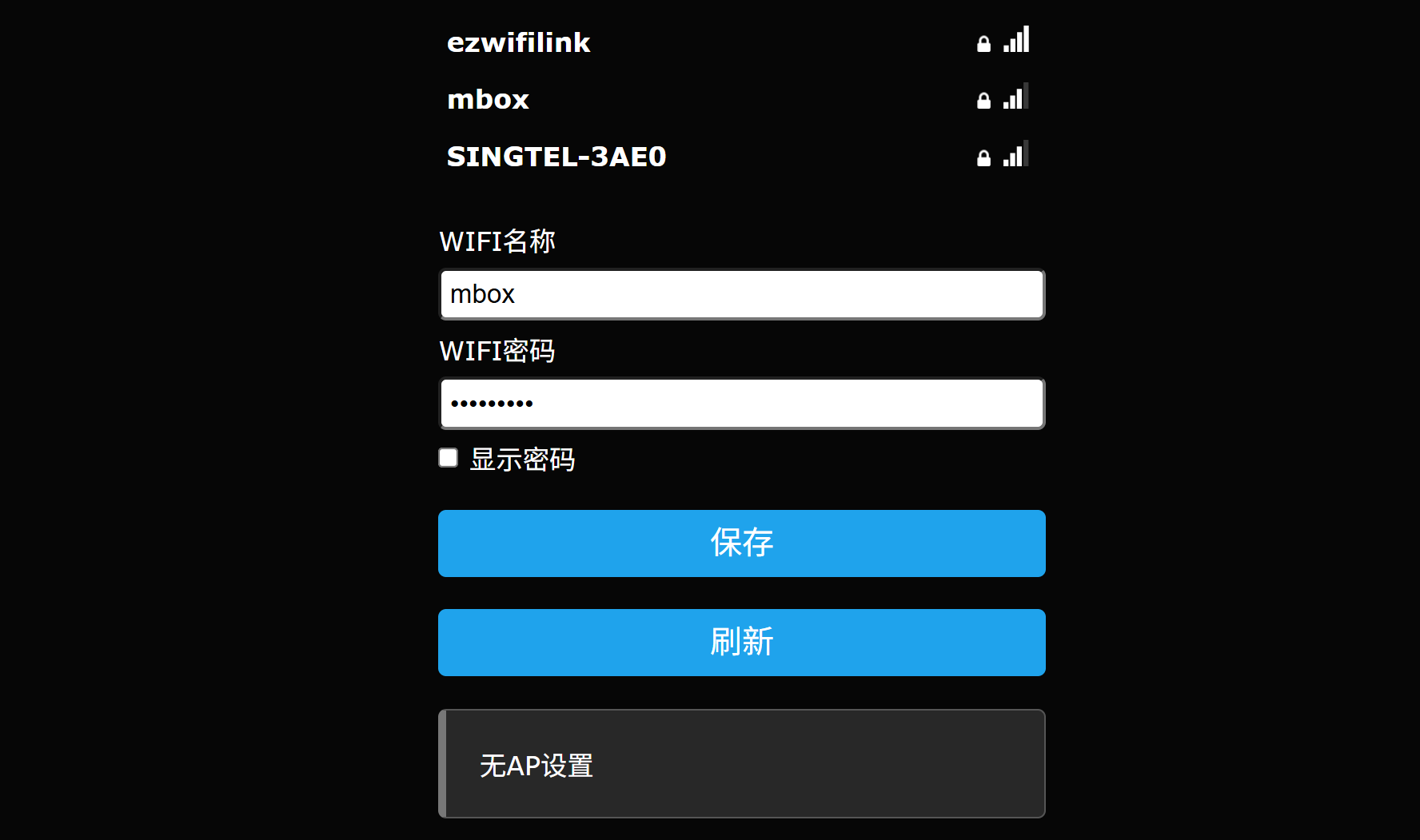
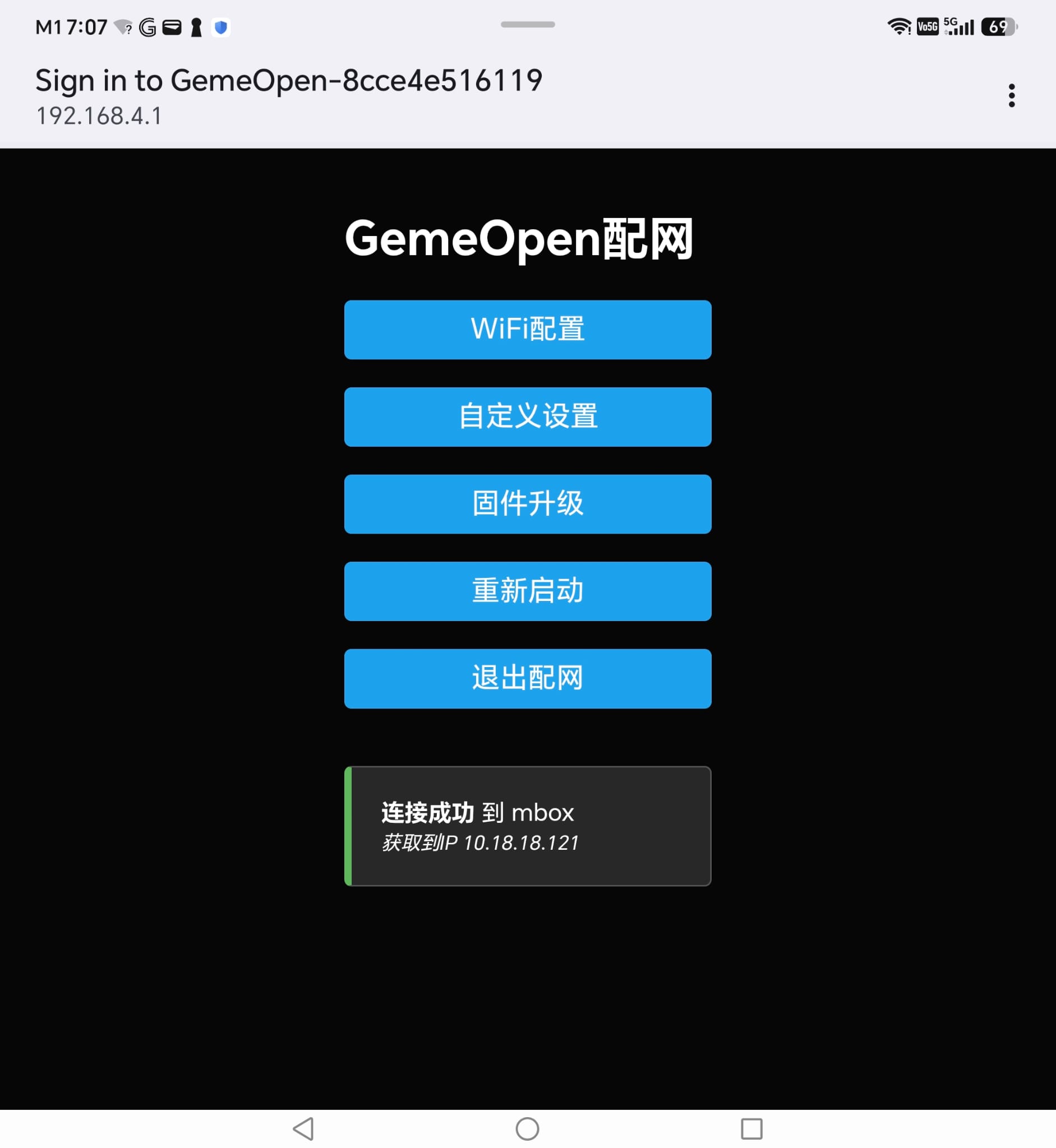
Wait until you see a message confirming the smartplug has connected to the upstream SSID with an assigned IP address. If nothing happens, repeat Steps 1a–1c and confirm the connection message appears with a valid IP.
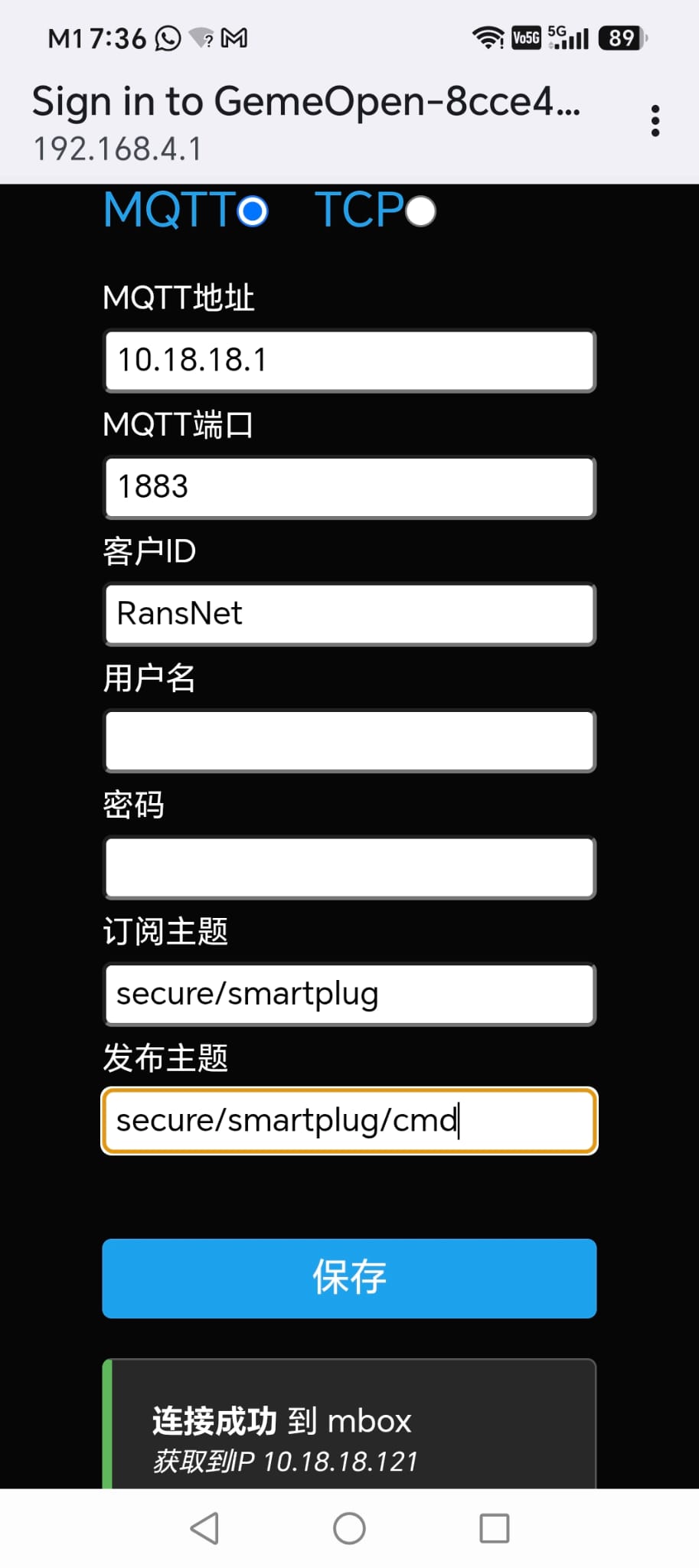
Step 1e — Configure MQTT: Click Custom Setting and configure the MQTT parameters:
| Parameter | Value | Description |
|---|---|---|
| MQTT IP | Router LAN IP (default gateway, e.g., 10.10.201.1) |
Where the smartplug publishes sensor data |
| Port | 1883 |
MQTT broker port |
| Subscribe topic | secure/smartplug |
Smartplug publishes sensor readings here |
| Publish topic | secure/smartplug/cmd |
Router publishes automated commands here |
Topic Security
Topics act as a lightweight pre-shared key (PSK) for identifying trusted sensors. Use topic names that are not easily guessable. The topics configured on the smartplug must exactly match those configured on the router CLI.
Step 2: Configure the Router
On the HSA router, configure the MQTT subscription to match the smartplug settings:
This tells the router to:
- Subscribe to
secure/smartplugto receive sensor data from the smartplug - Start the MQTT broker listening on port
1883
Step 3: Reboot the Smartplug
Click Reboot on the smartplug management page. After it reboots and reconnects to the router's MQTT broker, it begins publishing sensor data automatically. You may need to press the power button to start full operation (e.g., apply power to the connected device).
Data Flow
Once both sides are configured, the smartplug and router communicate automatically:
Smartplug                        Router
   │
   ├─ publishes sensor data ────→  mqtt sub secure/smartplug
   │  (voltage, current,            │
   │   power, energy)               ├─ mfusion processes data
   │                                │
   │  ← automated command ────────── (if thresholds trigger)
   │  receives & executes
   └─ adjusts behavior
      (turn on/off, etc)
Commands are automatically generated by the router's application logic based on configured rules and thresholds — no manual intervention needed.
Verification
After rebooting the smartplug and configuring the router, verify the setup is working:
| Items to Test | Command | Expected Outcome |
|---|---|---|
| Subscriptions configured | show mqtt subscriptions |
Shows secure/smartplug in the list |
| MQTT broker running | show mqtt status |
Status shows RUNNING |
| Data being received | show mqtt status |
Queue has entries; latest readings show voltage/current/power |
| Sensor auto-detected | show mqtt status |
Discovered sensors show the smartplug MAC address(es) |
| Network connectivity | tcpdump interface vlan1 port 1883 |
MQTT packets flowing on port 1883 |
Example output:
Router# show mqtt status
=== MQTT Listener Status ===
Status: RUNNING

=== Queued Readings ===
Entries in queue: 2

Latest 20 readings:
- mqtt.monitoring[8CCE4E519F83] 1782737924 {"mac":"8CCE4E519F83","voltage":238.263,"current":0.542,"power":83.478,"energy":296.379}
- mqtt.monitoring[8cce4e516119] 1782737933 {"mac":"8cce4e516119","voltage":237.39,"current":0.009,"power":0.262,"energy":0}

=== Discovered Sensors ===
Active sensors: 2
8CCE4E519F83
8cce4e516119
Router#
If the smartplug MAC appears in the Active sensors list, the smartplug is successfully connected and sending data to the router.
GUI Verification
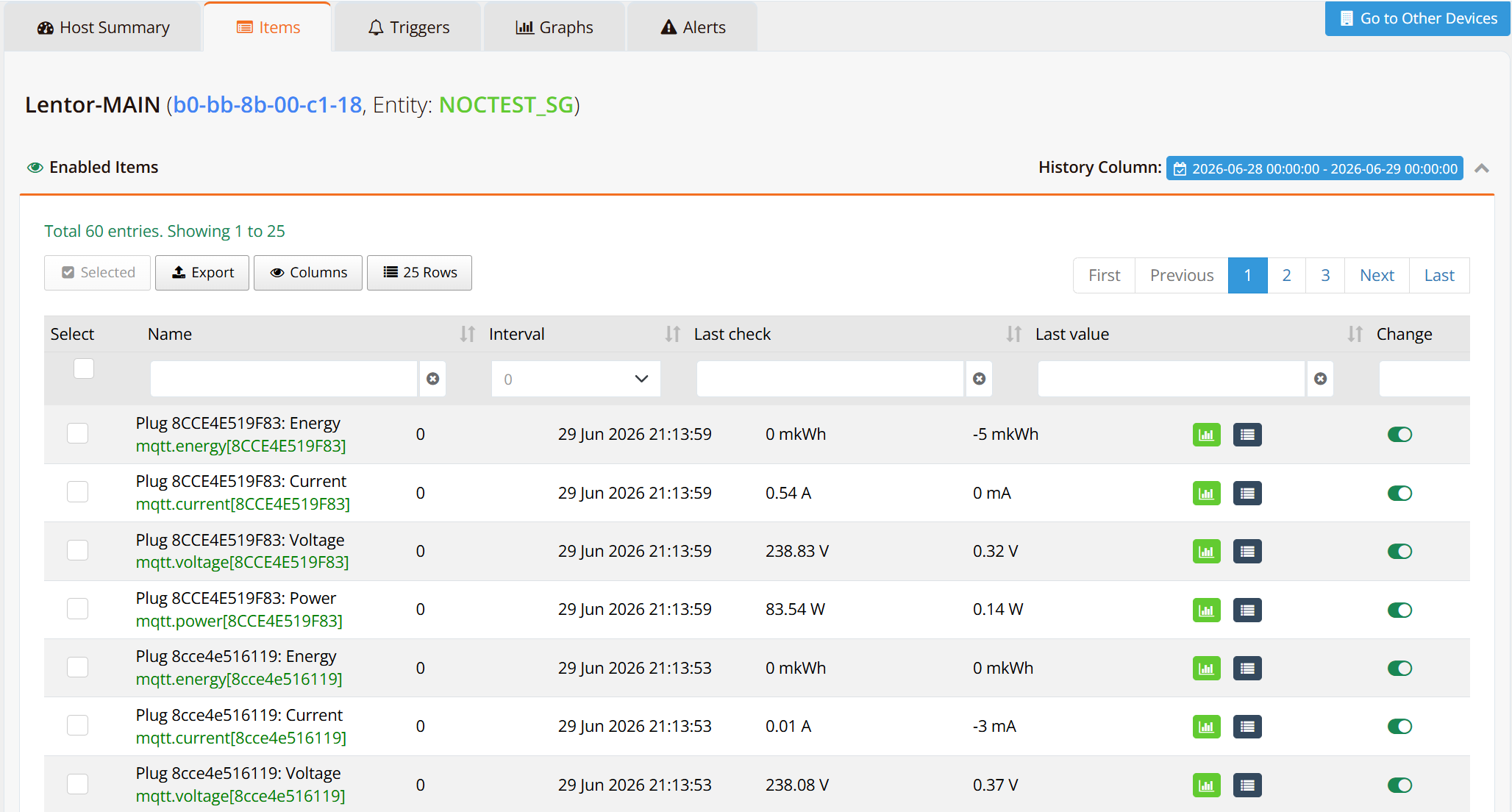
In mfusion monitoring, open your router and select the Items tab. Refer to Monitoring Items.
The plug is auto-discovered and monitored (allow up to 5 minutes after provisioning).
Related Features
- Device Monitoring — Hosts — Per-device monitoring items, triggers, and graphs
- NetFlow Traffic Analysis — Traffic-level visibility alongside sensor telemetry
- Common Troubleshooting Tools —
tcpdumpand diagnostics for verifying MQTT traffic