LDAP Authentication
This guide explains how to configure the mfusion admin portal to authenticate users against a corporate LDAP or Active Directory (AD) server. When enabled, users log in with their directory username and password instead of a local mfusion password.
Key Concepts
- Authentication — LDAP-managed accounts bind against the directory instead of checking a local password. Account enable/disable and lockout apply the same way as local accounts.
- 2FA — If Force 2FA OTP on all users is enabled, an LDAP user must complete OTP login whenever a valid email is synced from the directory — otherwise they log in with password only. LDAP has no per-user OTP setting; delivery is always email, never SMS.
- Provisioning — A new LDAP username is auto-created on first login with the Profile Name and Entity Name configured below. Returning users have their name and email synced on every login.
- Edit page lock — For LDAP-managed users, Admin → Users → Edit only allows Enabled and Delete — everything else is directory-managed. Profile and Entity always come from the configured defaults, never a per-user setting.
- Login — Username-only for all installs. Email is never accepted as a login identifier, whether LDAP is configured or not.
Configuration
Navigate to ADMIN → General → Identity Management, expand Enterprise Identity Integration, and enable Use external LDAP server to reveal the LDAP settings.
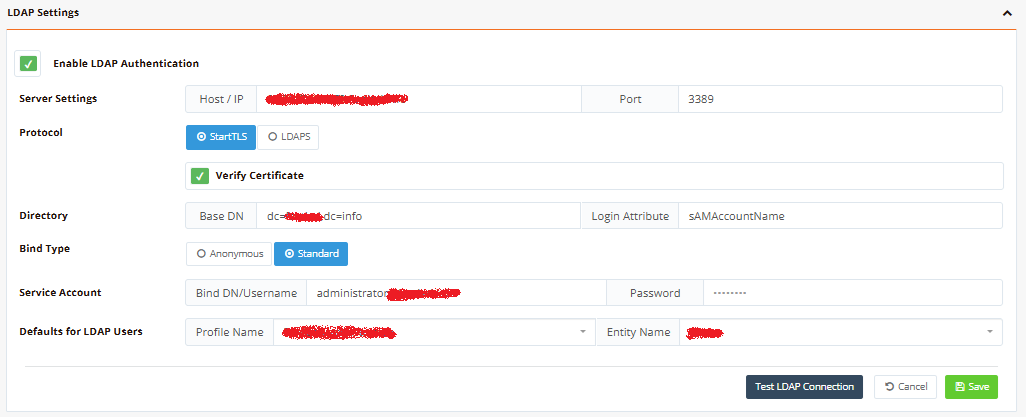
Fill in all fields and click Save.
| Field | Description |
|---|---|
| Host / IP * | Hostname or IP of the LDAP server, e.g. 192.168.1.100. No scheme prefix — the Protocol field below selects StartTLS vs LDAPS. |
| Port | Default 389 for StartTLS. Use 636 for LDAPS. Must be between 1–65535 — clearing it blocks Save. |
| Protocol | StartTLS (default) upgrades a plain connection before credentials are sent, port 389. LDAPS is encrypted from the start, port 636. |
| Verify Certificate | Validates the server's certificate; on by default. Keep enabled unless using a self-signed/internal CA certificate — disabling removes validation and warns on save. |
| Base DN * | The root path to search for users. All user accounts must exist under this path. |
| Login Attribute * | The attribute that holds the login username. Use sAMAccountName for Active Directory or uid for OpenLDAP. |
| Bind Type | Standard (default) — a service account is used; Bind DN becomes required. Anonymous — no service account; Bind DN/Password are cleared and ignored. |
| Bind DN/Username | Required when Bind Type is Standard. A full DN, or (for Active Directory) a shorthand like DOMAIN\username or user@domain — whatever format the server accepts. |
| Password | Required when Bind Type is Standard. Password for the service account. |
| Profile Name * | The profile (permission) assigned to every LDAP user on login. The profile must already exist and be enabled under Admin → Permissions. |
| Entity Name * | The entity assigned to every LDAP user on login. The entity must already exist under Admin → Entities. |
* Required when LDAP is enabled — Save is blocked with an error until the field is filled in.
Testing the Connection
After filling in all fields and clicking Save, click Test LDAP Connection to verify the configuration before any users attempt to log in.

The test performs these steps in sequence:
- TCP connect to the LDAP host and port, using the selected Protocol (StartTLS or LDAPS)
- TLS handshake — StartTLS negotiation on the plain connection, or immediate if LDAPS
- Bind — service account (
Standard) or unauthenticated (Anonymous), per Bind Type - Anonymous only: a directory read, to catch servers (e.g. Active Directory by default) that accept an anonymous bind but then reject every real operation — without this check, Anonymous mode could report success and still fail every subsequent user login
The result (success or error) is shown inline in this section. On failure, a generic message is shown — check the Audit Logs for the detailed reason.

Note
Test LDAP Connection covers only Host / IP, Port, Protocol, Verify Certificate, Bind Type, Bind DN, and Password. Base DN and Login Attribute are checked only at actual user login. Profile Name and Entity Name apply only on first provisioning. A passing test can still fail every user login — verify with a real login after Save.