Managing Apps & Categories
The Apps & Categories page in mFusion shows the app database the routers use, lets you add your own Custom Apps, and answers "which app is this hostname or IP?".
Navigate to ORCHESTRATOR → Apps & Categories. The page has four tabs — Categories, Apps, Custom Apps and Lookup — and shows the installed app database version at the top.
For how routers use these lists, see Apps & Categories.
Categories
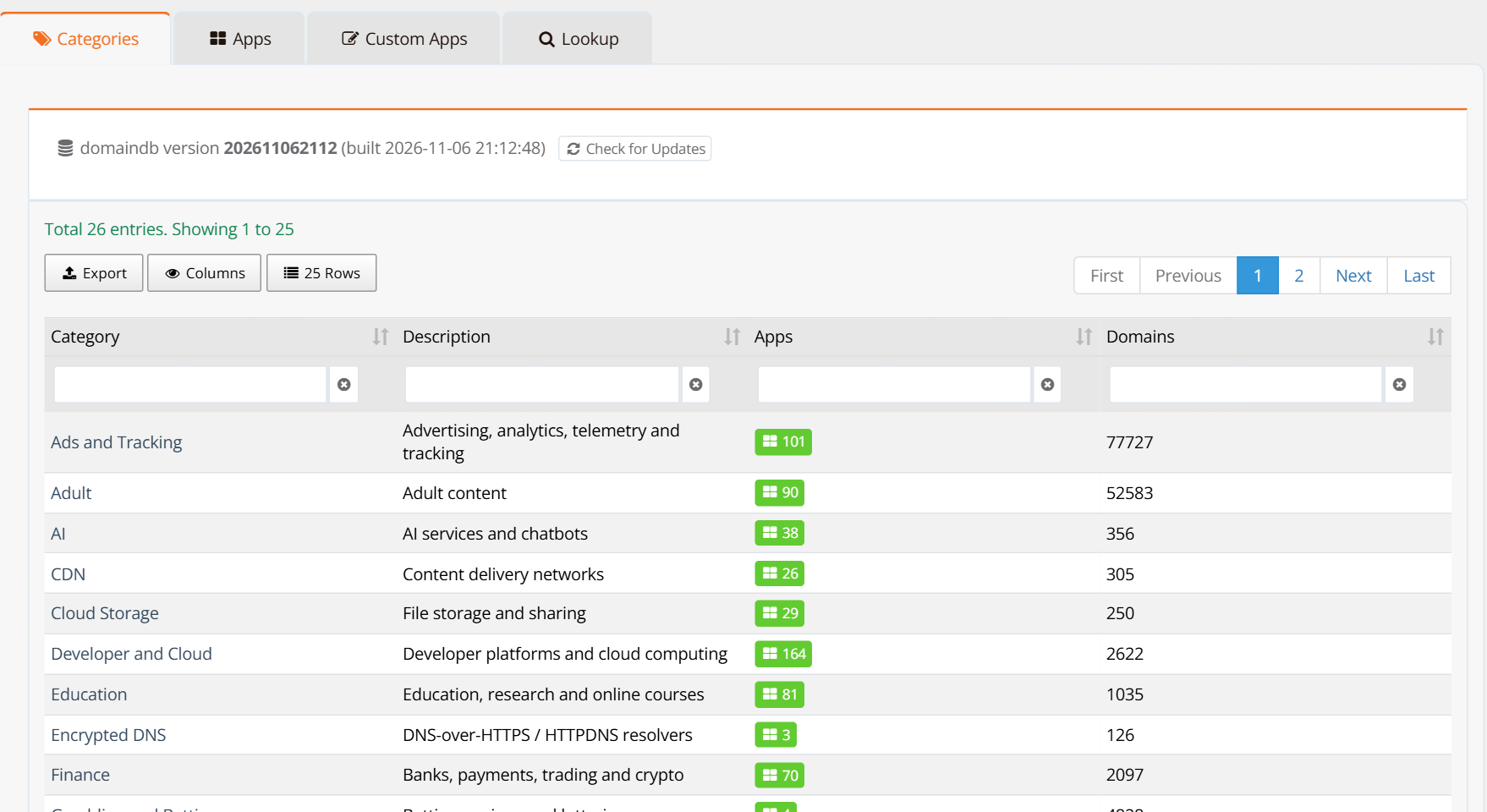
The Categories tab lists every category with its description, the number of apps in it, and the number of domains it covers.
| Column | Description |
|---|---|
| Category | The category name, used in DNS Filter rules and object groups (e.g. Gambling and Betting). Click it to list its apps. |
| Description | What the category covers. |
| Apps | Number of apps in the category. Click to list them. |
| Domains | Number of domains in the category, including domains that belong to no specific app. |
The app database has 26 categories, for example Ads and Tracking, Adult, AI, Encrypted DNS (DNS-over-HTTPS resolvers), Gambling and Betting, Social Media, Streaming and Entertainment and VPN and Proxy.
Tip
A category rule covers every app and domain in the category, including those a later app database update adds. Prefer a category to a long list of individual apps when the intent is "block this kind of site".
Apps
The Apps tab lists all apps — the app database's apps and your Custom Apps (marked Custom) — with their categories and the number of domains and networks each has. Use the Category selector to show one category's apps, and the column filters to search.
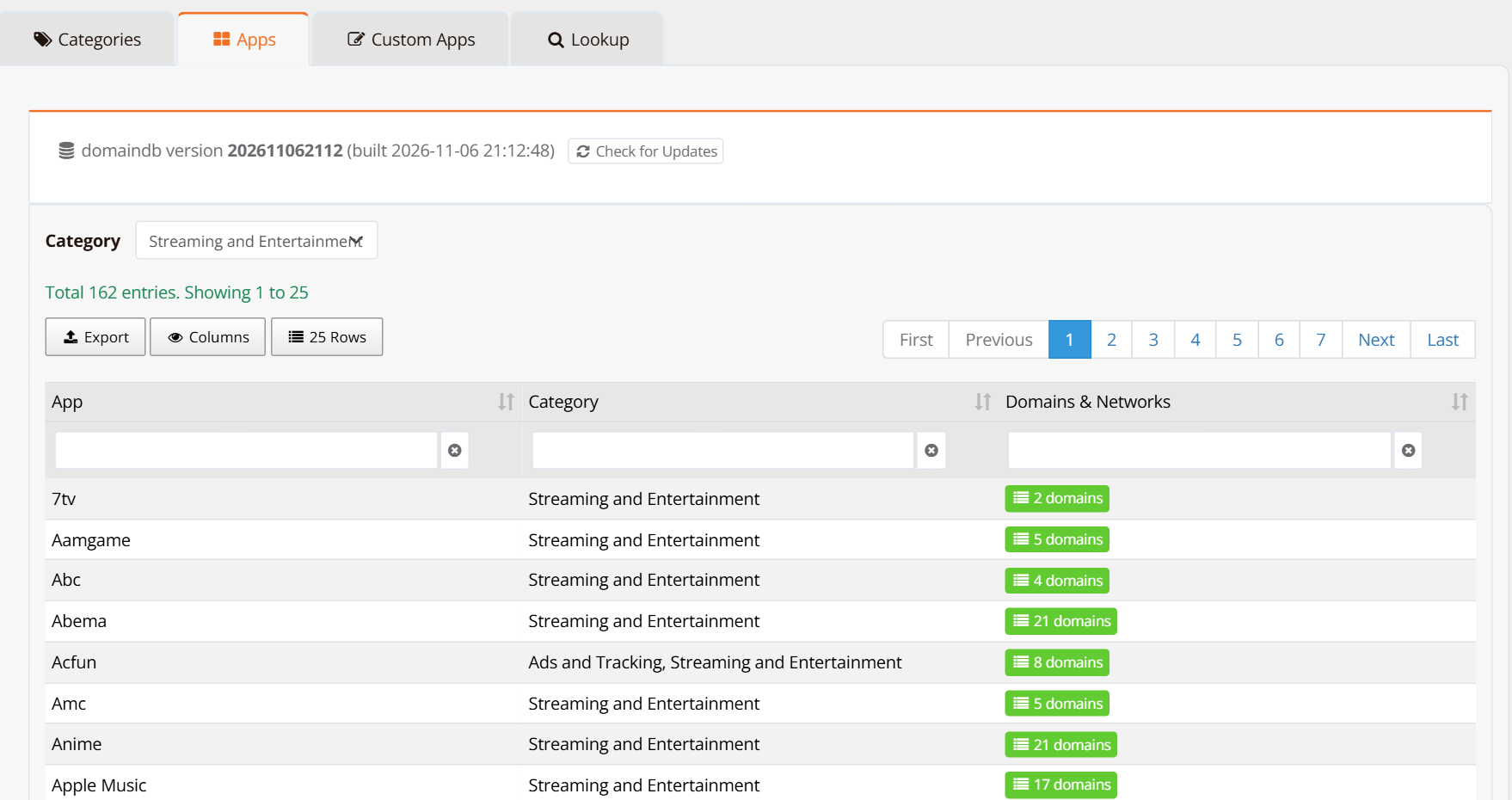
Click the domains button of an app to see its domains and networks.
An app can be listed in more than one category (for example Ads and Tracking and Streaming and Entertainment): a category rule matches the app's domains that are in that category.
Custom Apps
Create a Custom App for a service the app database does not know — an internal portal, a regional service, or a partner site — or to define an app your own way.
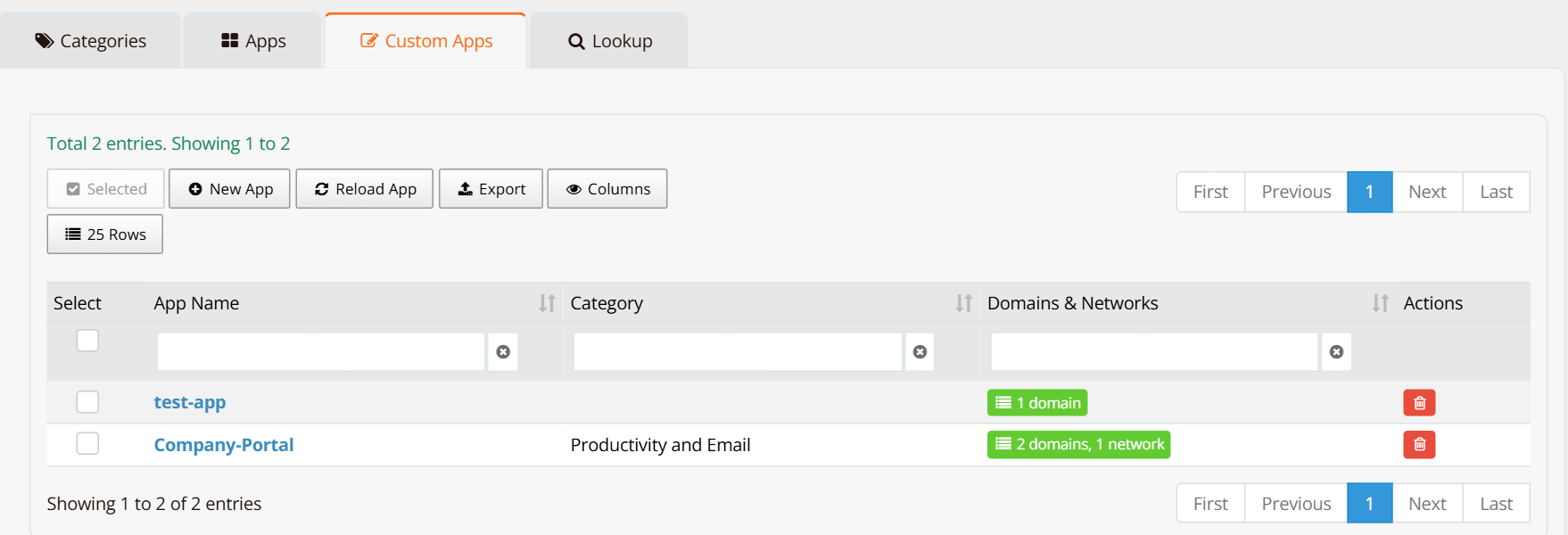
Click New App to create one:
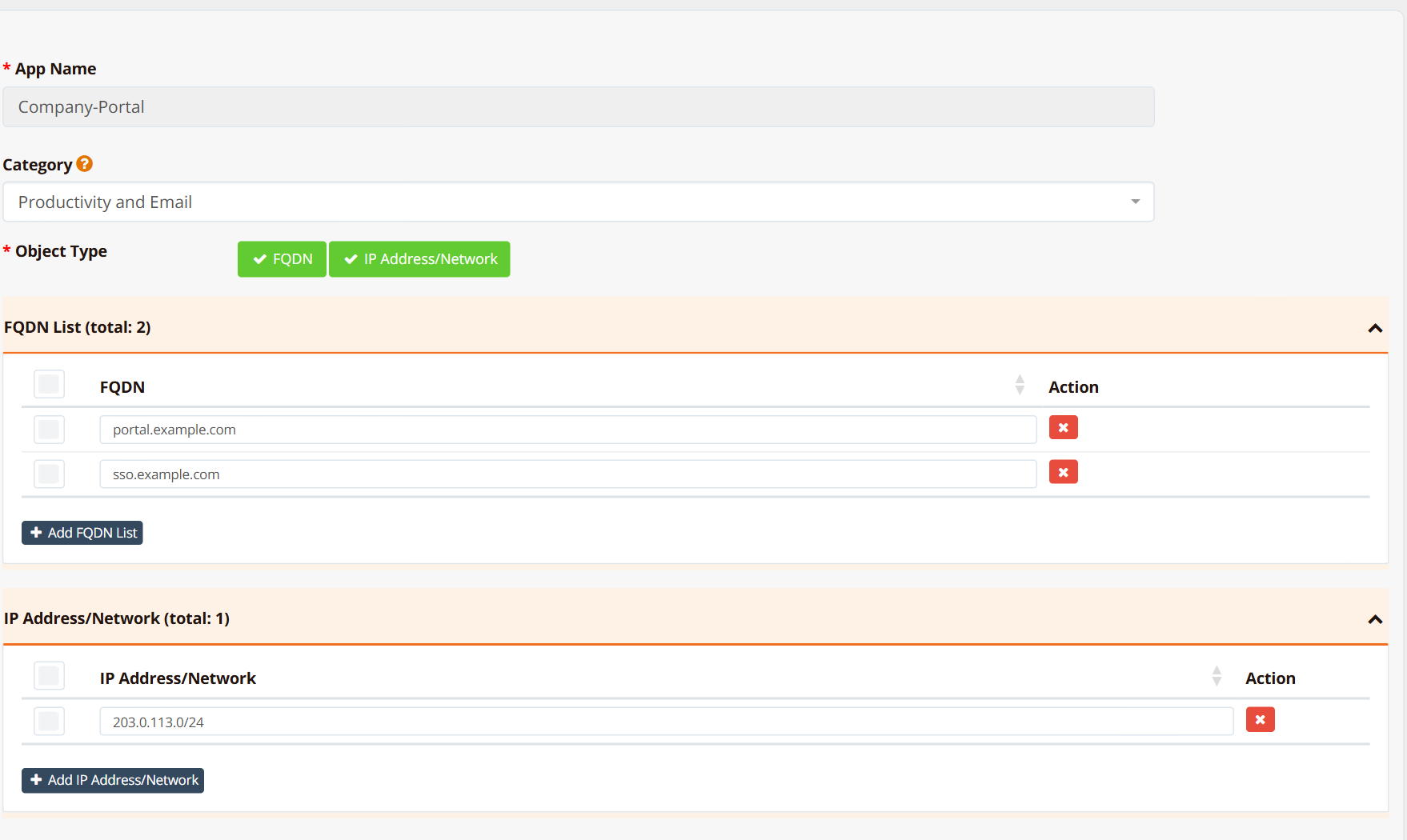
| Field | Example | Description |
|---|---|---|
| App Name | Company-Portal |
The name used in DNS Filter rules and object groups. Letters, digits, ., _ and - (spaces are removed). |
| Category | Productivity and Email |
Optional. A category rule then includes this app's domains and networks. |
| Object Type → FQDN | portal.example.com |
Domains of the app. Each domain also covers its subdomains. |
| Object Type → IP Address/Network | 203.0.113.0/24 |
Networks of the app, in CIDR notation. Used by object groups (steering and firewall rules); DNS Filter does not use networks. |
Key points:
- A Custom App with the same name as an app in the app database replaces it: routers then get your definition instead.
- Changes reach the routers on their next check (within 10 minutes) — no Apply Config is needed for a changed Custom App.
- Custom Apps also label destinations on the Usage Dashboard, including past usage, tagged custom.
- Export saves the selected Custom Apps to an encrypted backup file; Reload App imports such a file (for example on another mFusion).
Lookup
The Lookup tab tells you which app and category a hostname or IP address belongs to — useful to check what a rule will match, or to identify a domain seen in DNS logs.
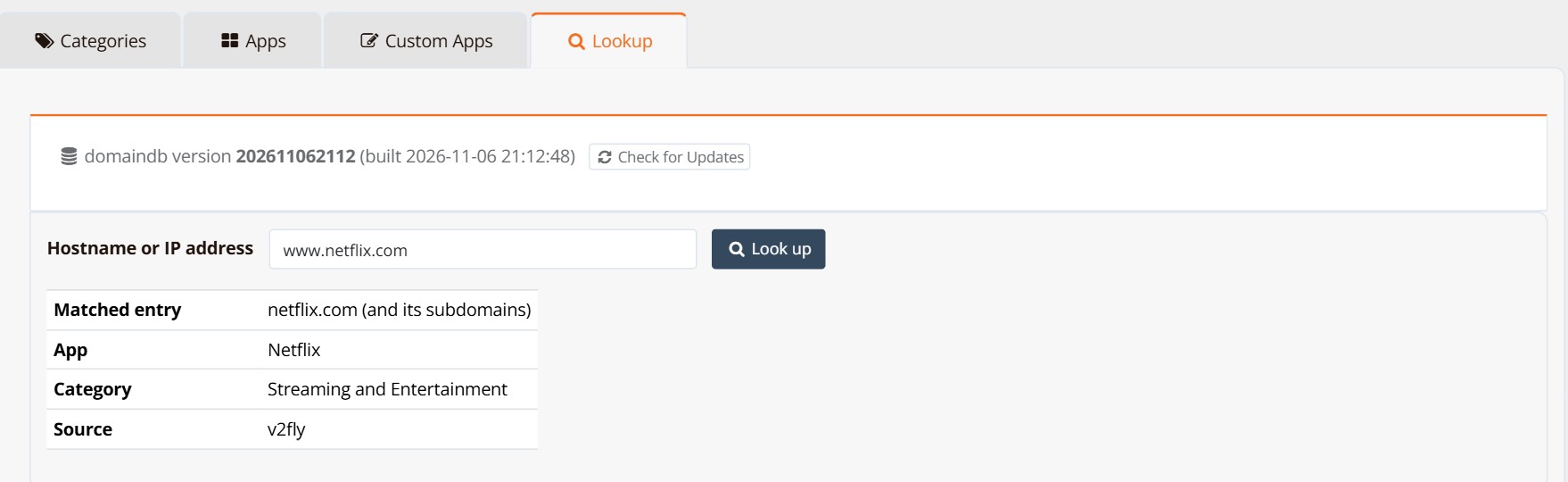
Enter a hostname or an IP address and click Look up:
| Result | Meaning |
|---|---|
| Matched entry | The app database entry that matched — the name itself or a parent domain (e.g. netflix.com (and its subdomains) for www.netflix.com). |
| App / Category | The app and category the routers will use for this name. |
| Source | The public list the entry comes from. |
| Custom app / Matched item | Shown instead when a Custom App lists the hostname or a parent domain of it, or (for an IP address) one of its networks contains it. Custom Apps take priority; the row below shows what the app database alone would match. |
| Network owner | For an IP address: the organisation and AS number that own the network, with the app and category when the app database knows them. |
Updating the App Database
Each mFusion release includes an app database version, and an upgrade never installs an older version than the one in use. Between releases, update it online:
Step 1: On any Apps & Categories tab, click Check for Updates next to the app database version.
Step 2: If a newer version is available, click Update now. mFusion downloads the release, verifies its checksums and version, and loads it (about 10 seconds).

| Message | Meaning |
|---|---|
| Up to date (latest release …) | The installed version is the latest release. |
| Version … is available. with an Update now button | A newer release exists. |
| unable to reach the release server | mFusion has no outbound HTTPS access to GitHub. Update with the next mFusion upgrade instead. |
| this is a read-only (replica) server | On an HA pair, update the app database on the primary; the replica receives it. |
After an update, routers download the changed lists on their next check (within 10 minutes).
Verification
| Items to Test | Where / Command | Expected Outcome |
|---|---|---|
| App database installed | ORCHESTRATOR → Apps & Categories | The page shows the app database version and 26 categories. |
| App and category of a domain | Lookup tab, e.g. www.netflix.com |
App Netflix, category Streaming and Entertainment. |
| Custom App in the lists | Apps tab, filter by name | The app is listed with the Custom label and its category. |
| Router received a list | Router CLI: show dns-filter |
The rule shows the list size, e.g. Gambling and Betting (4828 domains); (list not received) means the router could not download it yet. |
Troubleshooting
| Symptom | Likely Cause | Solution |
|---|---|---|
| Check for Updates says the server is unreachable | No outbound HTTPS from mFusion to GitHub | Allow HTTPS to api.github.com and codeload.github.com, or update with the next mFusion upgrade. |
| A rule shows not found in Apps & Categories | The app or category was renamed or removed by an app database update, or the Custom App was deleted | Edit the rule and pick a current app or category. Routers keep the last list they received until then. |
| A Custom App's change does not reach the routers | Routers check every 10 minutes | Wait for the next check, or on the router re-apply the rule (e.g. no dns-filter … and add it again). |
| A domain is not matched by its app | The app database does not list that domain | Use Lookup to confirm, then create a Custom App (or add the domain to one) and use it in the rule. |
Related Features
- Apps & Categories overview — how routers use the lists, platform support
- Web Filtering — DNS Filtering
- Traffic Steering by App or Category
- Firewall Objects