Client Flow
Client Flow records how much data each LAN client or hotspot user transfers, and to which destinations. For every client the router counts download and upload bytes per destination, names each destination by the hostname the client looked up (for example mmg.whatsapp.net), and uploads the totals to mFusion every 15 minutes. On mFusion the data appears on the Usage tab of the dashboard, with apps, categories and history of up to 45 days.
Typical uses:
- Bandwidth accounting: which users or devices use the most data, and on which apps and services
- Usage disputes: show a hotspot user exactly which destinations account for their volume
- Capacity planning: see what fills the WAN links (video, updates, social media) before upgrading them
- Policy decisions: find the traffic worth limiting, blocking or steering to another link
The router counts bytes from its connection-tracking table, so the totals stay accurate even when hardware/fast-path forwarding is active, and nothing is written to flash. To view the live 15-minute window on the router itself, see Common Tools: Client Flow.
Client Flow vs NetFlow
Both features report traffic per destination, but they answer different questions:
| Client Flow | NetFlow Export | |
|---|---|---|
| Protocol | RansNet proprietary; needs RansNet routers end to end, reporting to mFusion | Industry standard (NetFlow v5/v9); export to mFusion or any third-party collector |
| Answers | Who used the data, and on which apps and sites? | Which connections crossed this interface? |
| Client identity | Hotspot username or device name, plus MAC and IP | IP address only |
| Destinations | Hostnames (from DNS), apps and categories | IP addresses and ports |
| Accuracy | No sampling: every connection's bytes are counted | Sampled (1 in 10 packets by default), so totals are estimates |
| Granularity | 15-minute totals per client and destination | Individual flow records with timestamps and TCP flags |
| Best for | Per-user usage, billing disputes, bandwidth by app, hotspot and crew Wi-Fi reporting | Security analysis and forensics (SOC view), integration with existing NetFlow tools |
The two can run side by side on the same interface.
How It Works
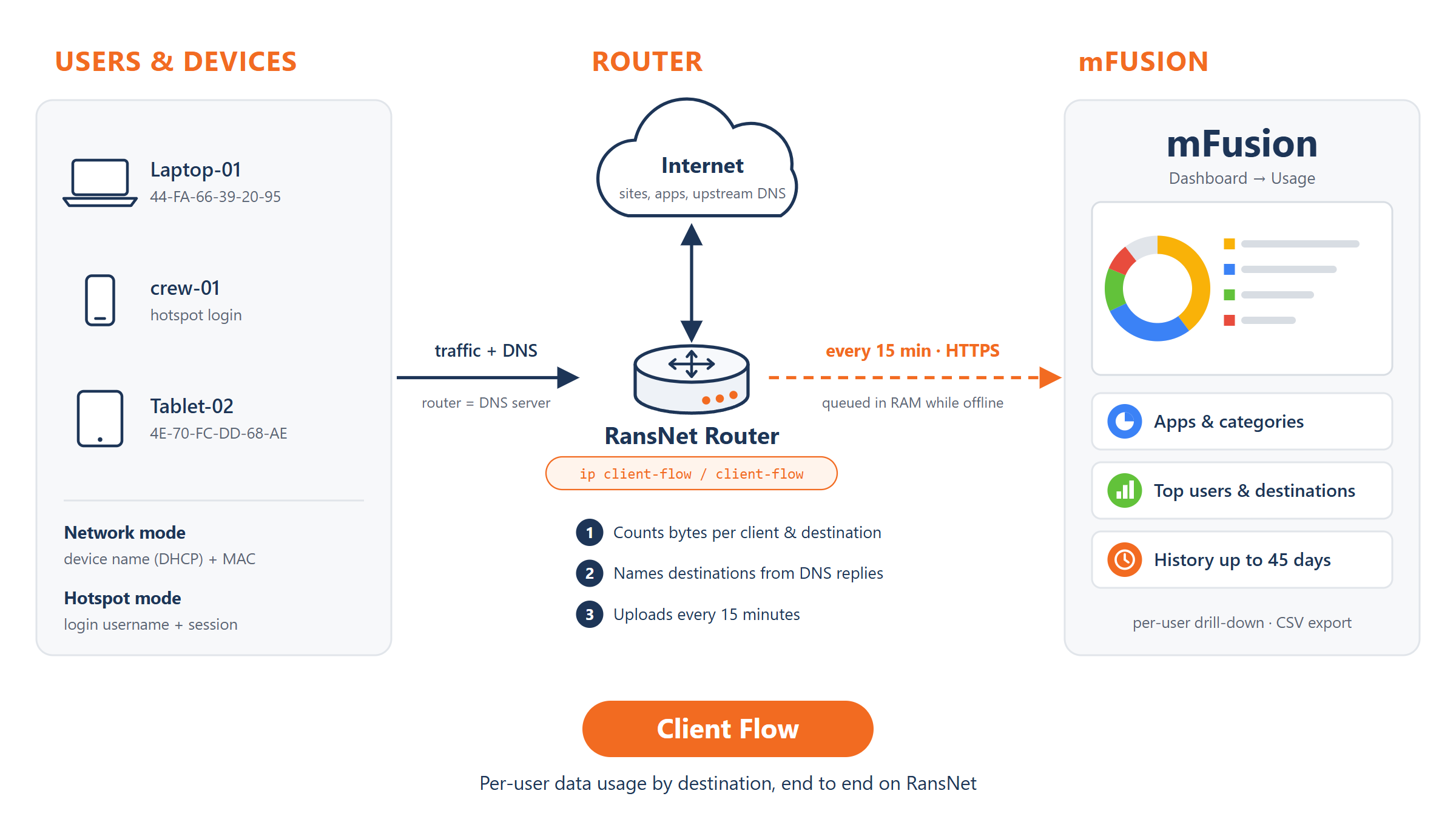
Topology Summary:
LAN devices (network mode) and hotspot users (hotspot mode) reach the Internet through the RansNet router, which is also their DNS server. With ip client-flow or client-flow enabled, the router counts each client's bytes per destination and names the destinations from the DNS replies it returns. Every 15 minutes it uploads the totals to mFusion over HTTPS, where they appear on the Usage tab. Network-mode devices are identified by DHCP name and MAC, hotspot users by login username and session.
- Counting: the router adds up the bytes of each connection per client, destination IP, protocol and port.
- Naming: the router reads the DNS replies it sends to clients and labels each destination IP with the hostname the client looked up. This is why clients must use the router as their DNS server (see Requirements).
- Identifying the client: in network mode by DHCP hostname and MAC; in hotspot mode by login username, MAC and hotspot session.
- Uploading: every 15 minutes on the clock (and when a hotspot user logs out), the router uploads the closed window to mFusion. Uploads that fail, for example while the WAN is down, are queued in RAM (capped at 10% of RAM) and retried with a back-off of 2 to 60 minutes.
- Reporting: mFusion stores the data and labels destinations with apps and categories. See Usage Dashboard.
Client Flow runs in one of two modes, depending on where you enable it:
| Mode | Enable With | Client Identified By | Typical Use |
|---|---|---|---|
| Network mode | ip client-flow under a LAN interface |
Device name (DHCP hostname) and MAC | Office or branch LAN, per-device usage |
| Hotspot mode | client-flow under a security hotspot instance |
Login username, MAC and hotspot session | Guest, crew or hotel Wi-Fi, per-user usage and billing disputes |
Requirements
| Requirement | Details |
|---|---|
| Firmware | Release 20261025-0100 or later. See Release Notes. |
| Models | All branch series routers (HSA-520, UA-520, UAP-520, XE-300) and gateway series (HSG, CMG) on Debian 12. |
| mFusion | The router must be a registered, enabled host on mFusion. Uploads go to the router's mFusion server over HTTPS, and the router is identified by its MAC address. |
| DNS | Compulsory: clients must use the router's LAN IP (hotspot: the hotspot gateway IP) as their DNS server, and the router must accept DNS queries from them. See below. |
| Time | NTP must be working; windows are aligned to the clock. |
Why the Router Must Be the Clients' DNS Server
Hostnames come from the DNS replies the router sees. When clients are handed a well-known public resolver such as 8.8.8.8 (Google) or 1.1.1.1 (Cloudflare), Windows 11, macOS, Android and Chrome automatically switch to encrypted DNS (DNS over HTTPS or TLS) with that resolver. The router can't read encrypted lookups, so most destinations then show only an IP address and the network owner (for example "Google LLC") instead of a hostname.
With the router as their only DNS server, clients use plain DNS, the router forwards the queries to its own upstream servers (ip name-server), and hostnames are captured.
The defaults hand out public resolvers
A new dhcp-server hands out dns 8.8.8.8 8.8.4.4, and a hotspot instance hands out its own IP plus 8.8.8.8 as the second server. Both must be changed for Client Flow, as shown in the configuration below. Give the router's IP twice; a public resolver as the second server is enough to trigger encrypted DNS.
Clients pick up the new DNS server when they renew their DHCP lease (up to 24 hours with the default lease time), or right away when they reconnect. Until then, their destinations keep showing as IP addresses.
Configuration: Network Mode
Enable Client Flow on the LAN interface, hand out the router's LAN IP as the clients' DNS server, and permit DNS queries from the LAN to the router:
interface vlan 1 1
 description "Default VLAN for all LAN ports"
 bridge
 enable
 ip address 10.18.18.1/24
 ip client-flow
 dhcp-server
  router 10.18.18.1
  dns 10.18.18.1 10.18.18.1
  range 10.18.18.2 10.18.18.254
  enable
!
firewall-input 101 permit inbound br-vlan1 udp dport 53 remark "allow DNS from LAN"
ip client-flowstarts Client Flow onvlan1. Repeat it on each LAN interface you want to report on.dns 10.18.18.1 10.18.18.1makes the router (10.18.18.1) the clients' only DNS server. The command takes two addresses.firewall-input 101 permit inbound br-vlan1 udp dport 53lets LAN clients query the router's DNS service. Becausevlan1is bridged (bridge), the kernel interface isbr-vlan1, so the rule uses that name. On a LAN interface withoutbridge, use the interface name itself (e.g.vlan1).
Bridged interfaces
ip client-flow stays under the CLI interface (interface vlan 1 1) even when the interface is bridged. The router follows the br-vlan1 device automatically.
Configuration: Hotspot Mode
Enable Client Flow in the hotspot instance, hand out the hotspot gateway IP as the only DNS server, and let the hotspot answer DNS itself. Example from a vessel hotspot (radius-server and hotspot-portal lines omitted):
security hotspot vlan20
 hotspot-server 192.168.81.1 ports 4258 5202
 client-local-dns
 client-flow
 client-network 192.168.81.0 255.255.255.0
 client-dhcp-dns 192.168.81.1 192.168.81.1
 client-static 192.168.81.0 255.255.255.0
 start
!
client-flowstarts Client Flow for this hotspot instance. Only authenticated users are tracked; clients still at the login page have no usage to report.client-dhcp-dns 192.168.81.1 192.168.81.1hands out the hotspot gateway IP (hotspot-server, which users also have as their default gateway) as the only DNS server.client-local-dnsmakes the router answer the hotspot's DNS queries itself, and redirects plain DNS that clients send to other servers (for example a hard-coded8.8.8.8) to the router, so those lookups are captured too.
Give the hotspot IP twice
The second address of client-dhcp-dns is optional, and when it's left out the hotspot keeps handing out 8.8.8.8 as the second DNS server. client-dhcp-dns 192.168.81.1 alone is therefore not enough; use client-dhcp-dns 192.168.81.1 192.168.81.1.
The instance may be named after the CLI interface (security hotspot vlan20) or the bridge device (security hotspot br-vlan20); Client Flow works with either.
In hotspot mode each user's usage is linked to their hotspot (RADIUS accounting) session, so mFusion can match the per-destination breakdown against the session's accounting totals. For the other hotspot settings, see Hotspot Instance.
Parameters
| Command | Where | Description | Default |
|---|---|---|---|
ip client-flow |
interface <lan-if> |
Enable Client Flow in network mode on this interface | Disabled |
client-flow |
security hotspot <instance> |
Enable Client Flow in hotspot mode for this instance | Disabled |
dns <ip> <ip> |
interface <lan-if> → dhcp-server |
DNS servers handed out by DHCP; set both to the router's LAN IP | 8.8.8.8 8.8.4.4 |
client-dhcp-dns <ip> <ip> |
security hotspot <instance> |
DNS servers handed out to hotspot users; set both to the hotspot gateway IP | Hotspot IP + 8.8.8.8 |
client-local-dns |
security hotspot <instance> |
The router answers hotspot DNS and redirects plain DNS sent elsewhere | Disabled |
firewall-input <seq> permit inbound <lan-if> udp dport 53 |
global | Permit LAN clients to query the router's DNS (network mode) | — |
Use no ip client-flow or no client-flow to disable it. Data that has not been uploaded yet is discarded.
Verification
| Items to Test | Command | Expected Outcome |
|---|---|---|
| Client Flow is running | show ip client-flow |
The interface or hotspot instance is listed with its mode, e.g. vlan1 (network mode), followed by the active clients. |
| Uploads reach mFusion | show ip client-flow |
queue: 0 chunk(s) and a last: line ending in OK <n> within the last 15 minutes. |
| Hostnames are captured | show ip client-flow mac <MAC> |
Most destinations show a hostname. A row - <router-ip> udp/53 shows the client querying the router. |
| Clients got the router as DNS | show ip dhcp-lease vlan1 on the router; ipconfig /all (Windows) or Wi-Fi details on the client |
The client's DNS server is the router's LAN IP (hotspot: the hotspot gateway IP) only. |
| Data is on mFusion | ORCHESTRATOR → Monitoring → Dashboard → Usage | The router appears in the Routers panel with status Reporting, and its clients in Top 20 Users / Devices within 30 minutes. |
Example output for network mode (device names anonymized):
RansNet# show ip client-flow
upload: portal.ransnet.com  queue: 0 chunk(s)
last: 20261025 08:01:12 portal.ransnet.com: 12 file(s) 8806B: OK 12
range: 20261025 08:00:00 - 20261025 08:15:00 (now 08:08:37)

vlan1 (network mode)
Device                   MAC                IP                 Download      Upload  Dests
------------------------------------------------------------------------------------------
Laptop-01                44-FA-66-39-20-95  10.18.18.76          5.0 MB      1.2 MB     92
Phone-01                 56-61-7D-A9-C3-56  10.18.18.52          1.8 MB    304.5 KB     15
(no name)                D4-DD-0B-00-16-A0  10.18.18.93        409.8 KB    169.8 KB      7
MacBook-01               EA-7C-AC-85-84-9A  10.18.18.24        857.7 KB    636.2 KB     47
Desktop-01               44-85-00-64-3A-02  10.18.18.131         5.6 MB      3.9 MB     85
Tablet-02                4E-70-FC-DD-68-AE  10.18.18.192        86.2 KB     73.7 KB      5

(current 15-minute window so far; closed windows are queued for upload, then on mFusion's Usage tab)
For more output examples and how to read them, see Common Tools: Client Flow.
Troubleshooting
| Symptom | Likely Cause | Solution |
|---|---|---|
Most destinations show only an IP address (on the CLI -, on mFusion the network owner such as "Google LLC") |
Clients use a public DNS server and switched to encrypted DNS | Set dns <router-ip> <router-ip> (network mode) or client-dhcp-dns <hotspot-ip> <hotspot-ip> plus client-local-dns (hotspot). Clients pick it up at lease renewal or after reconnecting. |
| One device stays IP-only although others show hostnames | The device has encrypted DNS turned on explicitly: Android Private DNS set to a hostname, Firefox DNS over HTTPS, iCloud Private Relay, or a VPN app | Expected; the router can't read those lookups. Check the device's DNS settings. The destination's network owner is still shown on mFusion. |
| A few destinations stay IP-only even with the router as DNS | Some apps (for example Facebook, Instagram, WhatsApp) connect to server IPs supplied by the app itself, without a DNS lookup | Expected. mFusion labels these by network owner ("Facebook, Inc."). |
| Clients can't resolve names after the DNS change (network mode) | DNS from the LAN to the router is blocked | Add firewall-input <seq> permit inbound <lan-if> udp dport 53 (use br-<if> for a bridged LAN). Test with nslookup example.com <router-ip> from a client. |
queue: keeps growing and last: shows an error |
mFusion unreachable, or the router isn't a registered and enabled host on mFusion | Check WAN and routing to mFusion, and that the host exists and is enabled in ORCHESTRATOR → Monitoring → Hosts. Queued windows upload automatically once it works. |
show ip client-flow says Client Flow is not running |
Not enabled, or enabled on a different interface | Check ip client-flow under the LAN interface, or client-flow under the hotspot instance. |
A device shows as (no name) |
The device sent no hostname in its DHCP request | Expected; it is identified by MAC. On mFusion it shows by MAC (or IP). |
MAC shows as - |
The client isn't in the router's ARP table, e.g. a static IP behind another router | Expected; such clients are identified by IP only. |
| Hotspot users missing | Users haven't logged in yet | Only authenticated users are tracked. Check with show security hotspot clients <instance>. |
Best Practices
- Make the router the only DNS server in every network you report on. Without it, the reports show mostly IP addresses.
- Enable it where you need the visibility: LAN interfaces and hotspot instances whose usage you report on or bill for. It adds little load and can stay on permanently.
- Lease time: after changing the DHCP DNS, allow one lease period (24 hours by default) before judging the hostname coverage, or ask users to reconnect.
- Use the CLI for "right now", mFusion for history:
show ip client-flowcovers only the current 15-minute window. Earlier windows are on the mFusion Usage tab.
Security and Privacy
- Treat usage data as personal data: destination lists reveal which apps and services a person uses. Limit router CLI and mFusion Usage access to staff who need it.
- Inform users where local privacy rules or your acceptable-use policy require it, for example in the hotspot terms of use.
- Anonymize before sharing: remove device names, usernames and MACs from CLI output or CSV exports used in tickets and documentation.
- Device hardening: see Device Hardening.
Related Features
- Usage Dashboard: history, apps, categories and per-user drill-down on mFusion
- Common Tools: Client Flow: reading
show ip client-flowwhile troubleshooting - Hotspot Instance: hotspot settings, including
client-dhcp-dnsandclient-local-dns - NetFlow Export: packet-sampled flow export to a NetFlow collector
- DNS Rewrite: DHCP DNS assignment and transparent DNS redirection