Quota Management
Quota Management gives hotspot users a free data quota that resets every week or every month, and lets them add top-up quota (manual or purchased) on top of it. Free quota is assigned by rules that match the user's profession or company. Users that no rule matches get the default free quota. This page explains how the quota is worked out, how to set the rules and settings, and how to turn quota management on for a user.
Overview
Quota management is built for sites where many users share a limited uplink and each user gets a data allowance per period. Typical examples are crew Wi-Fi on vessels, staff and student housing, and dormitories.
| Term | Meaning |
|---|---|
| Free quota | Data the user gets each reset cycle at no cost. It is set by the first rule that matches the user, or by the default free quota |
| Reset cycle | When free quota is given again: Weekly (Sunday) or Monthly (1st of month) |
| Top-up quota | Extra data added by an administrator (Manual Top-Up Quota) or bought by the user on the captive portal. It is used only after the free quota runs out |
| Data cap | What the user can use in the current cycle: free quota + top-up balance. Usage is counted from the start of the cycle |
Use cases:
- Crew Wi-Fi: officers get 10 GB a week and ratings 5 GB a week; crew buy more on the portal when they run out (see Crew Wi-Fi)
- Staff and contractor housing: a monthly allowance per company, so a contractor's staff all get the same quota
- Tiered membership: a profession such as VIP or GOLD gets a larger allowance
Requirements
| Item | Requirement |
|---|---|
| User attribute | A Profession or Company on the user's User Info tab (for rule matching). Users without one can still get the default free quota |
| Per-user switch | Auto quota management ticked on the user's Access Info tab (see Turning Quota Management On for a User) |
| Purchased top-up (optional) | A captive portal with payment set up (see Paid Hotspot) |
Free Quota Rules
Navigate to HOTSPOT USERS → Quota Management. The page has two tabs: Free Quota Rules and Settings. Each tab has its own Save button.
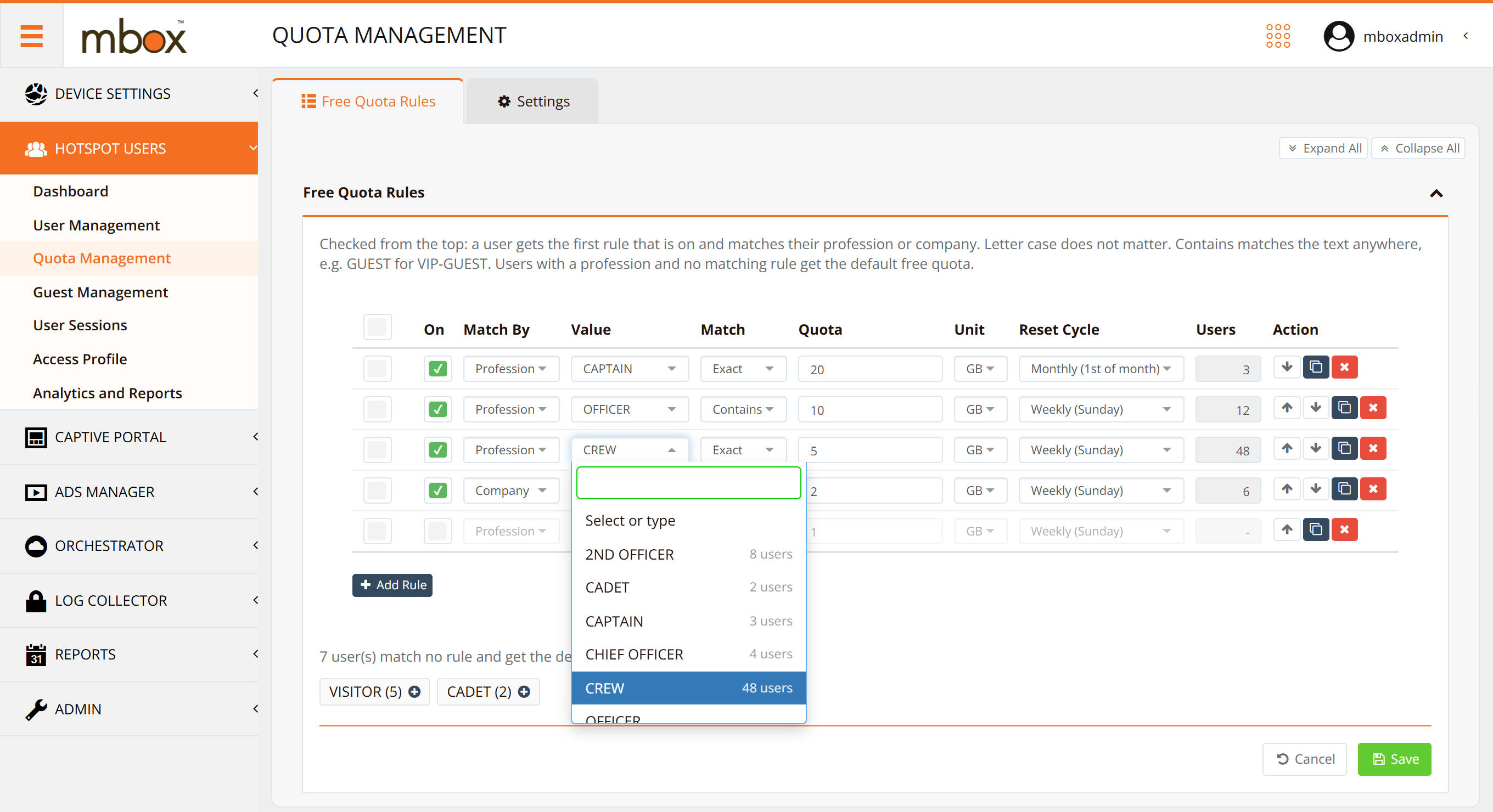
Rules are checked from the top. A user gets the first rule that is on and matches. Users that no rule matches get the default free quota (set on the Settings tab).
| Column | Description | Example |
|---|---|---|
| On | The rule is used only when ticked. A rule that is off is greyed out and kept for later | Ticked |
| Match By | Which user field the rule checks: Profession or Company | Profession |
| Value | Text to match. Pick a profession or company your users already have (the list shows how many users have each one), or type a new value and press Enter | CREW |
| Match | Exact: the whole field equals the value. Contains: the value appears anywhere in the field. Letter case does not matter | Contains (OFFICER matches CHIEF OFFICER and 2ND OFFICER) |
| Quota / Unit | Free quota per cycle, in GB or MB | 5 GB |
| Reset Cycle | Weekly (Sunday), Monthly (1st of month), or Unlimited (no free quota cap for these users) | Weekly (Sunday) |
| Users | How many users get this rule now (read only; shows - for a rule that is off) | 48 |
Working with rules:
| Action | How |
|---|---|
| Add a rule | Click Add Rule |
| Change the order | Use the ↑ and ↓ buttons in Action. Put specific rules (Exact) above broad ones (Contains) |
| Copy or delete a rule | Use the copy and × buttons in Action |
| Turn several rules on or off | Tick the rows on the left, then click Turn On Selected or Turn Off Selected |
| Find typos | Below the list, the page shows the professions and companies that match no rule, with their user counts. Click + on one to add a rule for it |
Click Save to apply the rules. Users switch to their new rule straight away.
Note
Save is refused while quota management is on if a change would move users that already have a rule to a different reset cycle, or leave them with no rule. The message names the rules and the number of users. To restructure the rules, untick Enable quota management on the Settings tab and save, change the rules, then turn it on again.
Settings
The Settings tab turns quota management on and sets what happens to unused quota at the start of each cycle. The other settings appear only while Enable quota management is ticked. When it is unticked, they keep their saved values.
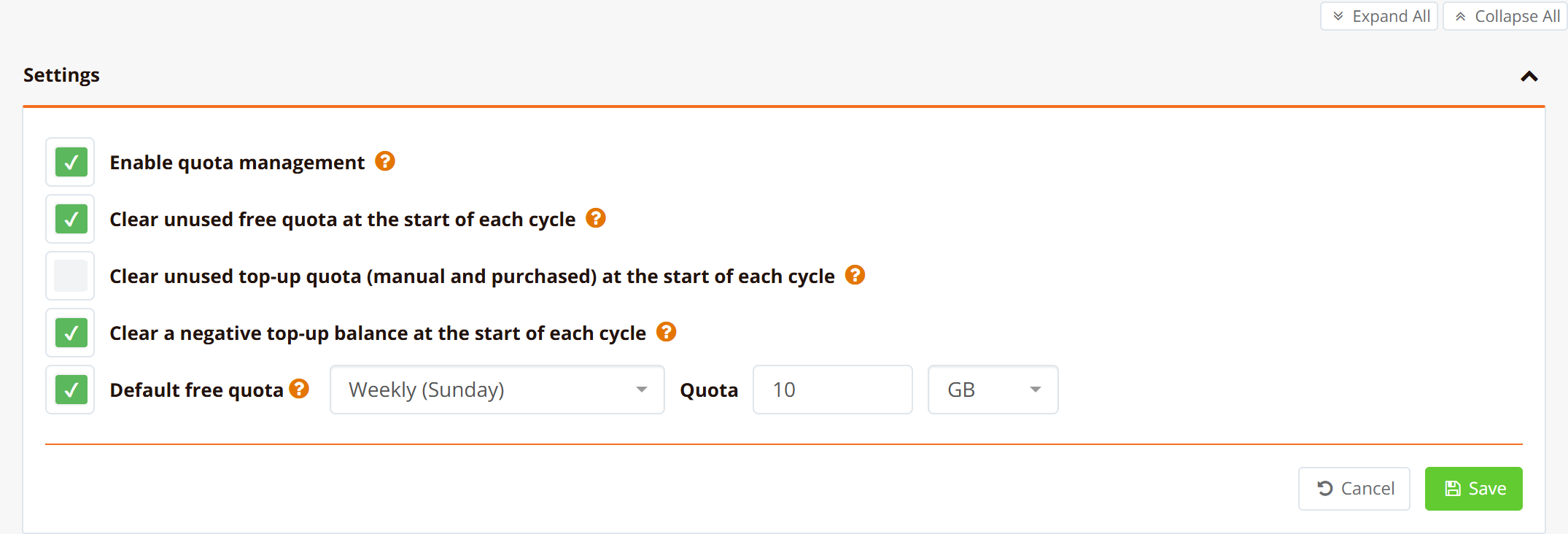
| Setting | Default | Description |
|---|---|---|
| Enable quota management | Off | Off: no free quota is given or reset, and users keep the quota they have |
| Clear unused free quota at the start of each cycle | On | On: free quota a user did not use is gone when the next cycle starts. Off: it is added to the next cycle's free quota (it can build up over cycles) |
| Clear unused top-up quota (manual and purchased) at the start of each cycle | Off | Off: unused top-up carries over until used. On: a top-up is good for the current cycle only |
| Clear a negative top-up balance at the start of each cycle | Off | Usage can run slightly past the cap between nightly runs, leaving a negative top-up balance. On: it is reset to 0 at the start of each cycle. Off: it carries over and reduces the next cap |
| Default free quota | On | Reset cycle and quota for users with Auto quota management on that no rule matches, including users with no profession or company. Unticked: these users get no free quota |
Every change made at the start of a cycle (free quota given, unused quota cleared or carried over) is recorded in the user's quota records.
Turning Quota Management On for a User
Quota management applies only to users with Auto quota management ticked. Open the user in HOTSPOT USERS → User Management, then go to the Access Info tab. The switch is in the Access Data section.
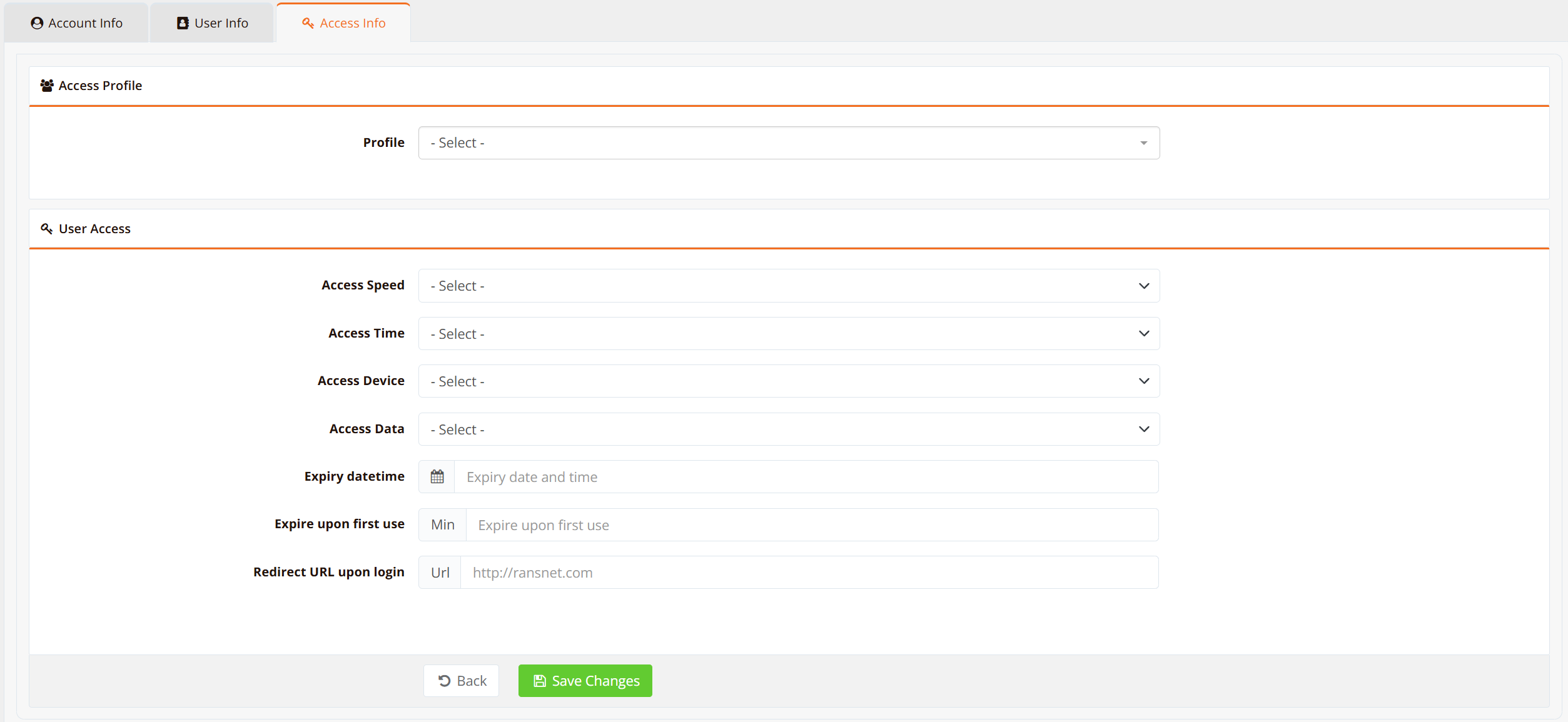
| Situation | Result |
|---|---|
| A Profession or Company is entered on the User Info tab | Auto quota management is ticked for you |
| Ticked, and a rule matches | The user gets that rule's free quota and reset cycle |
| Ticked, and no rule matches (or no profession or company) | The user gets the default free quota, if it is on |
| Unticked | Quota management leaves the user alone. The user's own Access Data values apply |
While the switch is ticked and quota management is on:
- Data per week and Data per month are set by quota management and greyed out.
- Manual Top-Up Quota appears next to the switch. Use it to add top-up quota to the user.
Upgrading from Quota Mgmt
Earlier releases set free quota on a Quota Mgmt tab under User Management. On upgrade:
- The existing quota rules are converted to Free Quota Rules automatically. Rules that were disabled come over turned off.
- Users that already have a profession get Auto quota management ticked, so their quota does not change.
- The Quota Mgmt tab is no longer shown. Quota Management is its own menu, and administrator profiles get it at the same access level they have for User Management.
After upgrading, open Quota Management, check the rules and the Users counts, then click Save on each tab.
Verification
| Items to Test | Where | Expected Outcome |
|---|---|---|
| Rule matches the right users | Free Quota Rules → Users column | Each rule shows the expected user count; no unexpected professions are listed as matching no rule |
| User is managed | User → Access Info → Access Data | Auto quota management ticked; Data per week or Data per month shows the rule's quota, greyed out |
| Top-up adds to the cap | User → Access Info → Manual Top-Up Quota | The top-up appears in the user's quota records and the cap grows by that amount |
| Cycle reset | User's quota records after the cycle starts | A new free quota entry, with unused quota cleared or carried over as set on the Settings tab |
| Portal shows the quota | Account Status page | The user's data remaining, top-up balance and quota changes |
Troubleshooting
| Symptom | Likely Cause | Solution |
|---|---|---|
| User gets the default free quota instead of a rule | Profession or company spelled differently from the rule, or a rule above it matches first | Check the list below the rules for the user's profession; fix the spelling or the rule order |
| User gets no free quota | Auto quota management unticked, or no rule matches and Default free quota is off | Tick the switch on Access Info, or turn on Default free quota |
| Data per month cannot be edited | The user is managed by quota management | Untick Auto quota management to set the user's own data limits |
| Save refused: "Cannot switch reset cycle" or "Users would no longer match a rule" | The change would affect users mid-cycle | See the note under Free Quota Rules |
| Settings other than Enable quota management are missing | Quota management is off | Tick Enable quota management |
Best Practices
- Set the profession or company at account creation — import it with the users (CSV, PMS or API) so the right rule applies from the first login.
- Use the Value list — picking existing values avoids typos; check the "match no rule" list after each import.
- Order rules from specific to broad — an Exact rule above a Contains rule that would also match.
- Turn rules off instead of deleting them — keep seasonal or temporary tiers ready to turn back on.
- Decide the carry-over policy before go-live — changing the clear settings later affects what users expect at the next cycle; publish the quota policy and top-up pricing to users.
- Restrict who can change quota — give front-desk admin profiles read-only access to the Quota Management menu (see Admin Profile and Account Setup for Frontdesk), so only managers change rules.
Related Features
- User Management — user accounts, profession and company, the Access Info tab
- Access Profiles — data and time limits shared by many users
- Account Status — the page where users see their quota and usage
- Paid Hotspot — selling top-up quota on the captive portal
- Crew Wi-Fi — a complete quota management deployment