Usage Dashboard
The Usage tab shows how much data each hotspot user and LAN device used, and on what: which destinations, apps and categories, over the last hour up to the last 45 days. Routers with Client Flow enabled upload their usage every 15 minutes; mFusion stores it, labels each destination with an app and category, and lets you drill down from the whole fleet to one user's destinations.
Navigate to ORCHESTRATOR → Monitoring → Dashboard and select the Usage tab. The [Entity] button in the top-right corner scopes the tab to one customer or site, as on the other dashboard tabs.
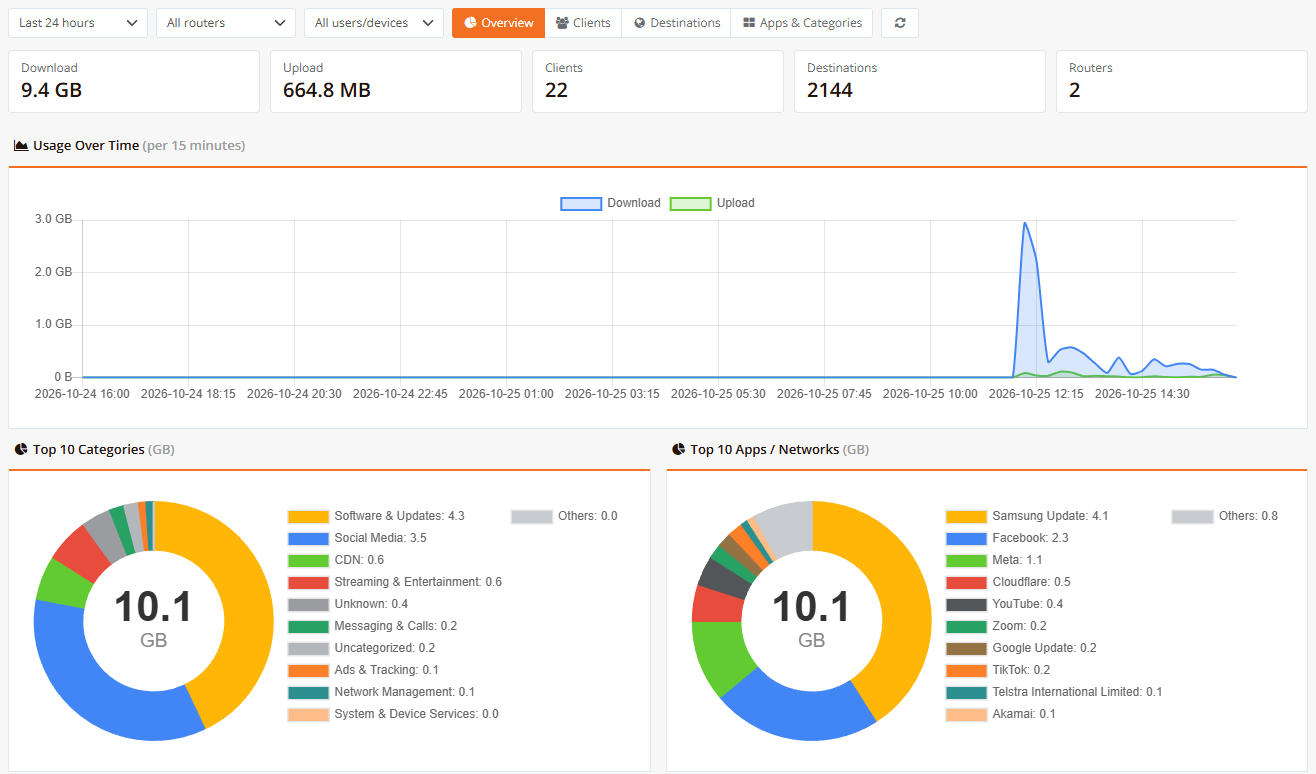
Router names and usernames are anonymized in the screenshots on this page.
Key Use Cases
| Use Case | Where to Look |
|---|---|
| Who is using the bandwidth | Top 20 Users / Devices, or the Clients view sorted by Total |
| What the bandwidth is used for | Top 10 Categories and Top 10 Apps / Networks |
| A user disputes their data usage | Click the session in HOTSPOT USERS → User Sessions → Historical Sessions to see that session's destinations next to its accounted volume, and export them as CSV (see Hotspot Session Breakdown) |
| A spike on the WAN link | Usage Over Time for when; then the top destinations and users of that range |
| Who uses a specific app or site | Click the app, category or destination to open Who used |
| Which sites report and which don't | The Routers panel: status and last upload per router |
Requirements
- Routers on release
20261025-0100or later, managed by this mFusion, with Client Flow enabled:ip client-flowon LAN interfaces (network mode) orclient-flowin hotspot instances (hotspot mode). See Client Flow. - Clients must use the router as their DNS server. Otherwise most destinations show only an IP address and its network owner. See Client Flow: Requirements.
- An mFusion login with access to the entity. Read-only users can view the tab too; access follows the same entity (tenant) scoping as the other dashboard tabs.
Toolbar and KPIs
| Control | Description |
|---|---|
| Range | Last hour, Last 24 hours, Last 7 days, Last 15 / 30 / 45 days. Your choice is remembered in the browser. |
| Router | All routers, or one router (only routers that have uploaded data are listed). |
| User type | All users/devices, Hotspot users (hotspot mode) or Network devices (network mode). |
| View | Overview, Clients, Destinations, Apps & Categories. |
| Reload | Fetch the data again. |
The KPI tiles show the Download, Upload, number of Clients, Destinations and Routers for the selection.
Data is up to 30 minutes behind
Routers upload each 15-minute window when it closes, so the most recent 15 to 30 minutes may not be on the tab yet. For the current window, use show ip client-flow on the router. See Common Tools: Client Flow.
Overview
The Overview view is the starting point.
Usage Over Time charts download and upload for the range: per 15 minutes for the last hour and 24 hours, hourly for 7 days, daily for 15 to 45 days.
Top 10 Categories and Top 10 Apps / Networks break the volume down by category (Social Media, Streaming & Entertainment, Software & Updates…) and by app or network (Facebook, YouTube, Samsung Update…). Everything beyond the top 10 is summed into a grey Others slice. Click a slice to see who used it.
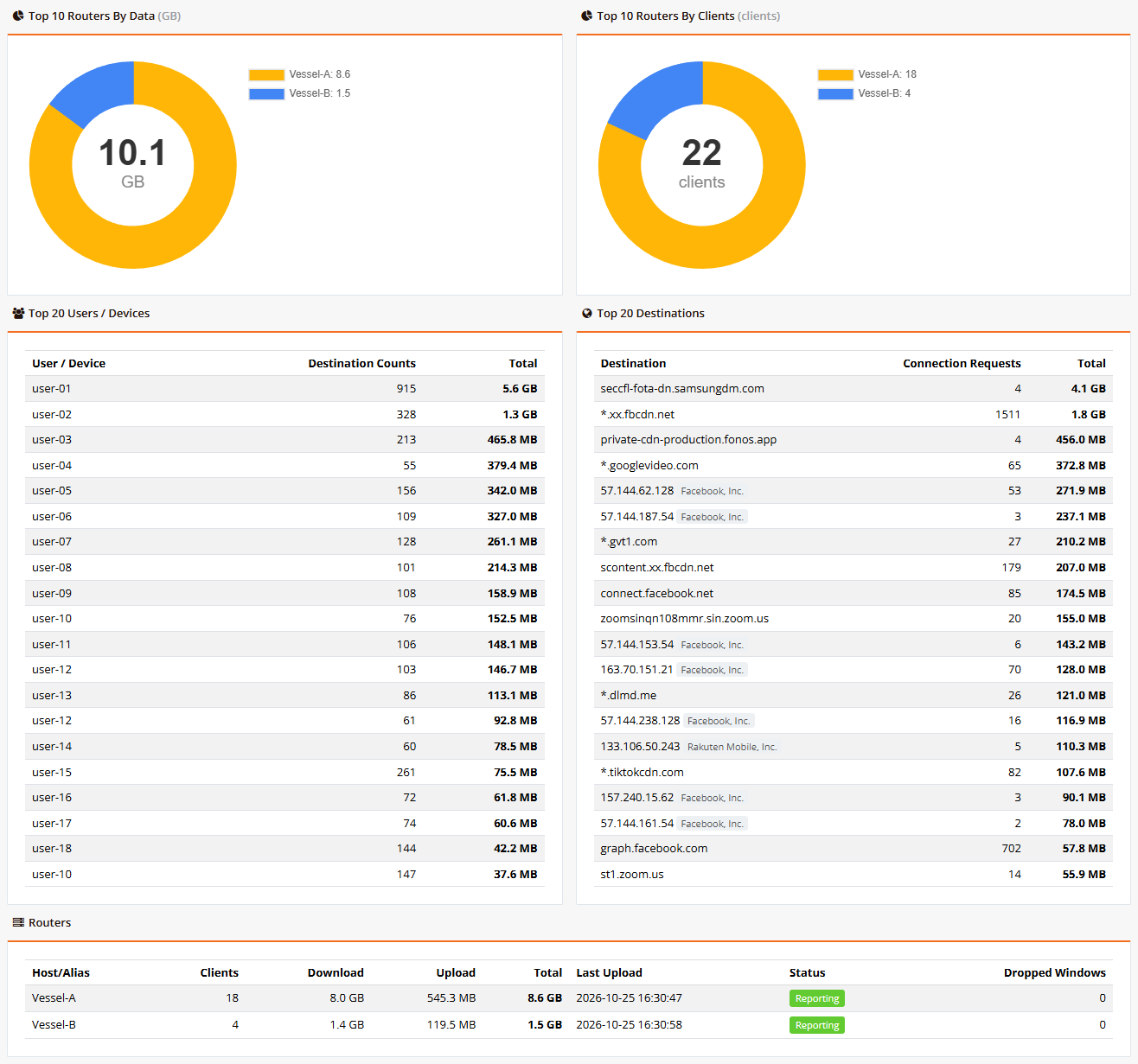
| Panel | Description |
|---|---|
| Top 10 Routers By Data / By Clients | Shown when two or more routers report. Click a slice to narrow the whole tab to that router. |
| Top 20 Users / Devices | Heaviest users (hotspot username) or devices (DHCP hostname) with their destination count and total. A device without a name shows its MAC (or IP) in grey. Click a row for that client's destinations. |
| Top 20 Destinations | Heaviest destinations with their connection count and total. An IP without a hostname shows its network owner as a tag (e.g. "Facebook, Inc."). Click a row to see who used it. |
| Routers | Per router: clients, download, upload, total, last upload, status and dropped windows (see below). |
Router status:
| Status | Meaning |
|---|---|
| Reporting | Uploaded within the last 35 minutes. |
| Delayed | Last upload is older, shown with how long ago. The router is offline or can't reach mFusion; it keeps its windows queued (up to 10% of its RAM) and uploads them when it reconnects. |
| Not reporting | No upload in the last 24 hours: Client Flow is off, the router is offline, or mFusion is unreachable. |
Dropped Windows counts 15-minute windows the router had to discard because its upload queue was full (capped at 10% of its RAM) during a long outage. Usage in those windows is missing from the tab.
Clients
The Clients view lists every user and device in the range, heaviest first.
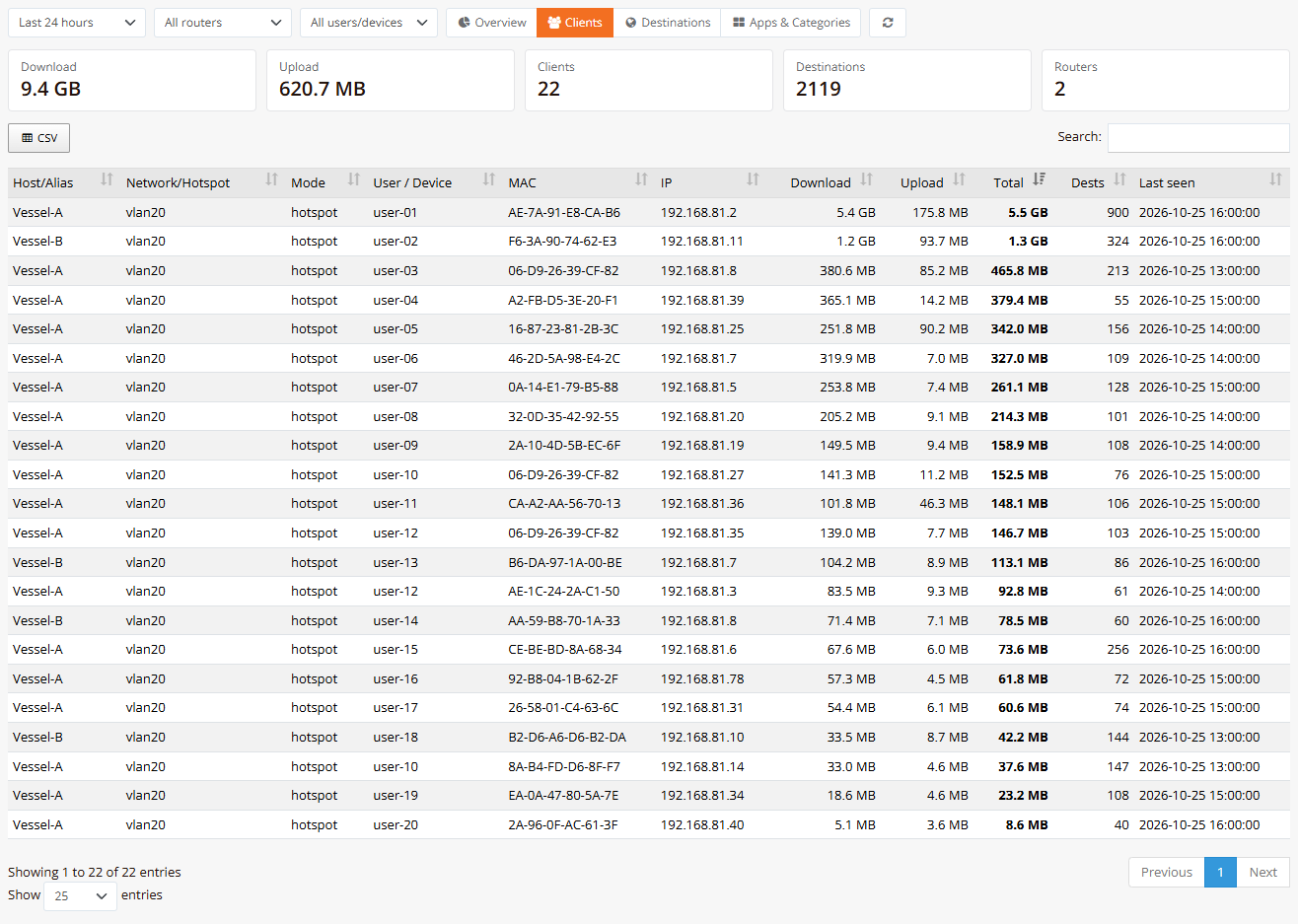
| Column | Description |
|---|---|
| Host/Alias | The router (mFusion host name or alias). |
| Network/Hotspot | The LAN interface or hotspot instance. |
| Mode | hotspot or network. |
| User / Device | Hotspot login username, or the device's DHCP hostname. (no name) if the device sent none. |
| MAC, IP | The client's MAC and last IP address. |
| Download, Upload, Total | Volume in the range. |
| Dests | Number of distinct destinations. |
| Last seen | The last hour (or day) with data. |
Click a row to open the client's destinations:
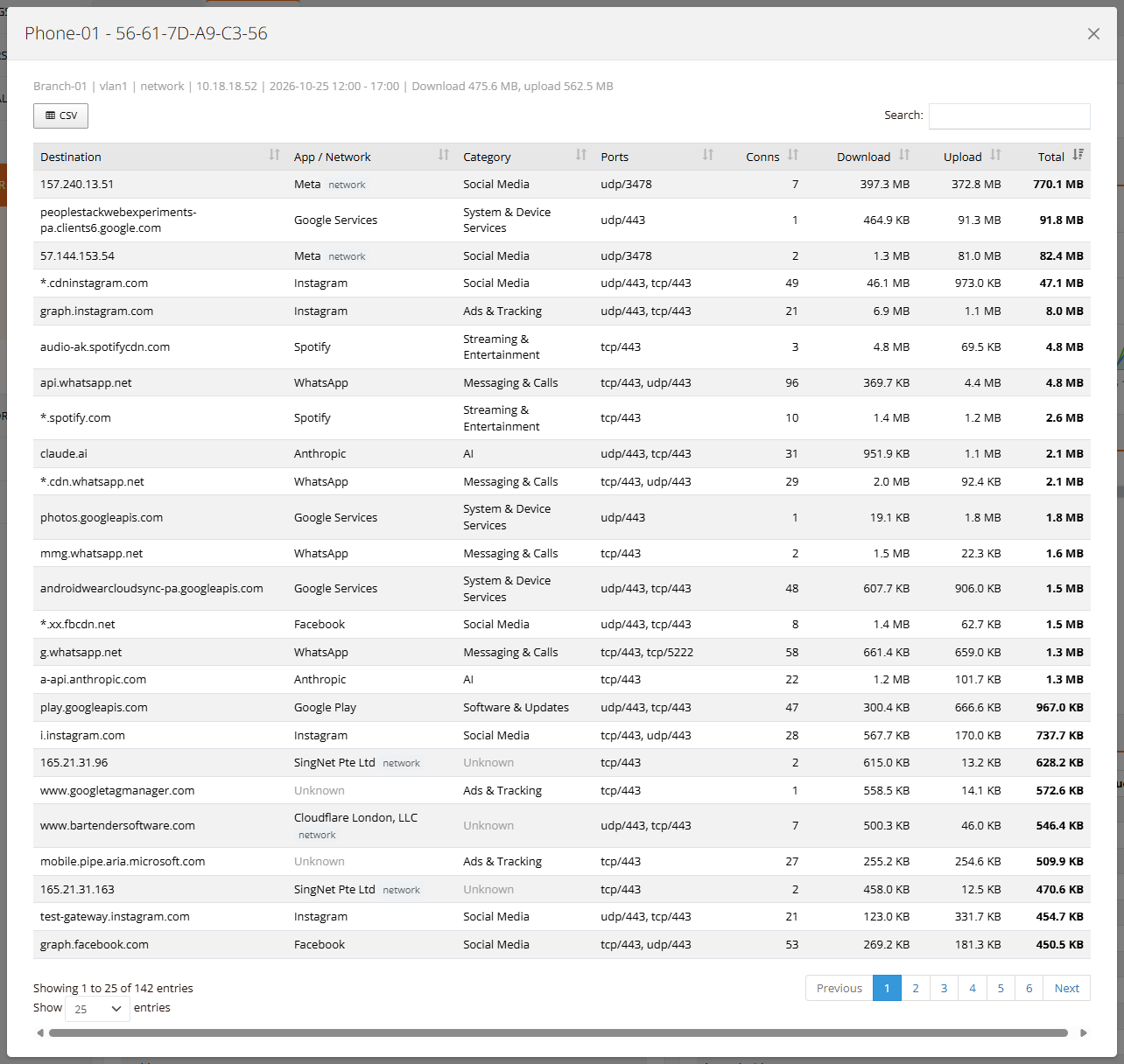
The pop-up lists every destination the client used in the range, with App / Network, Category, Ports, connection count and volume, and the client's first-to-last time span in the header. Use CSV to export it, for example as evidence in a usage dispute.
In this example, the top row is an IP address on udp/3478 owned by Meta: WhatsApp or Messenger voice and video calls, which connect by IP without a DNS lookup. Rows like this show the network owner with a small network tag instead of a hostname.
Destinations
The Destinations view lists every destination in the range, heaviest first.
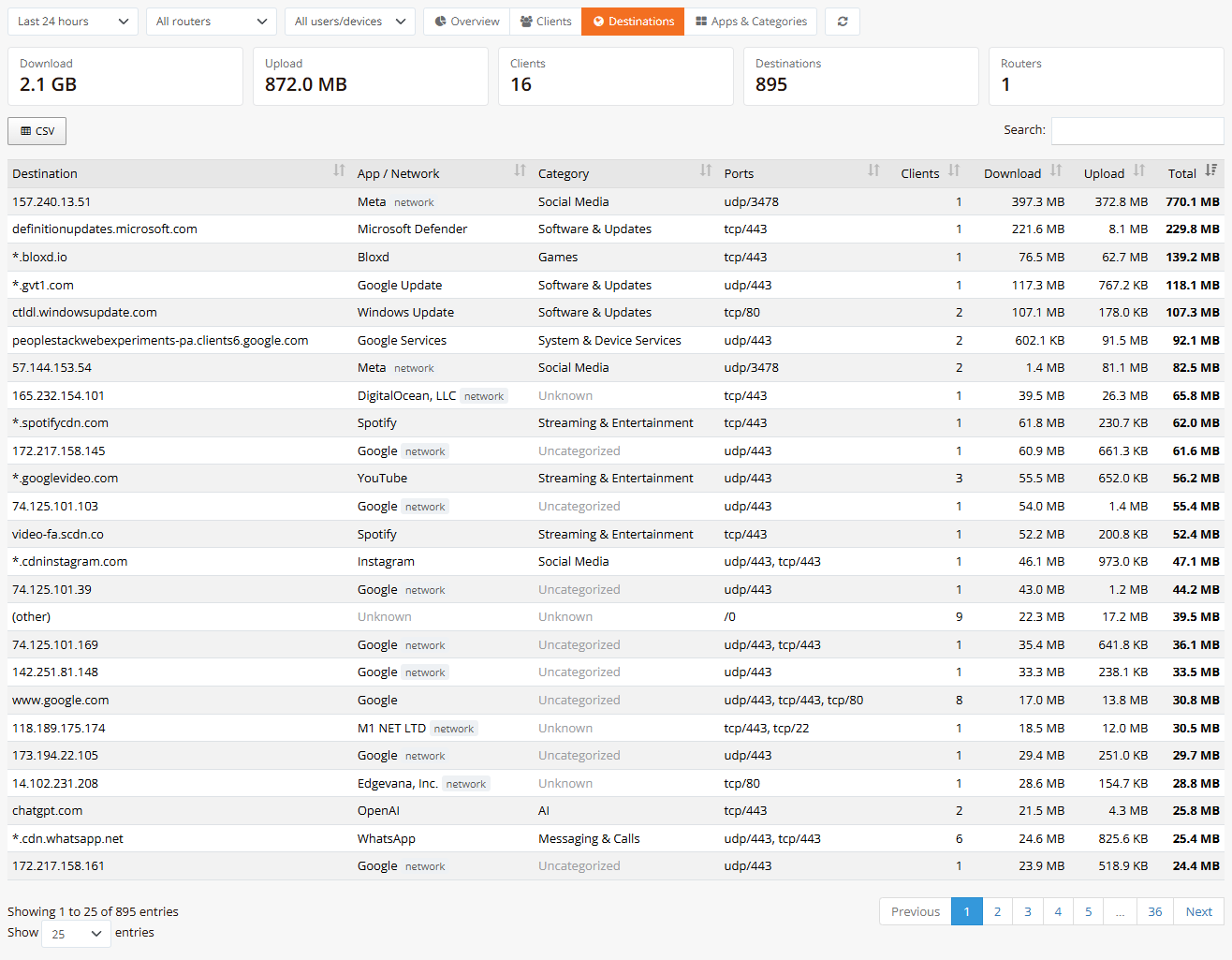
| Column | Description |
|---|---|
| Destination | Hostname, or the IP address when no DNS lookup was seen. Hover for the IP the hostname resolved to. |
| App / Network | The app (e.g. WhatsApp), or the network owner with a network tag when matched by IP. |
| Category | See How Destinations Are Classified. |
| Ports | Protocols and ports used, e.g. udp/443, tcp/443. |
| Clients | Number of users or devices that used it. |
| Download, Upload, Total | Volume in the range. |
Numbered servers of the same CDN are combined into one row, for example scontent-sin2-3.cdninstagram.com and scontent-sin6-1.cdninstagram.com appear as *.cdninstagram.com, and rr4---sn-npoeenek.googlevideo.com as *.googlevideo.com.
Click a row to see who used it:
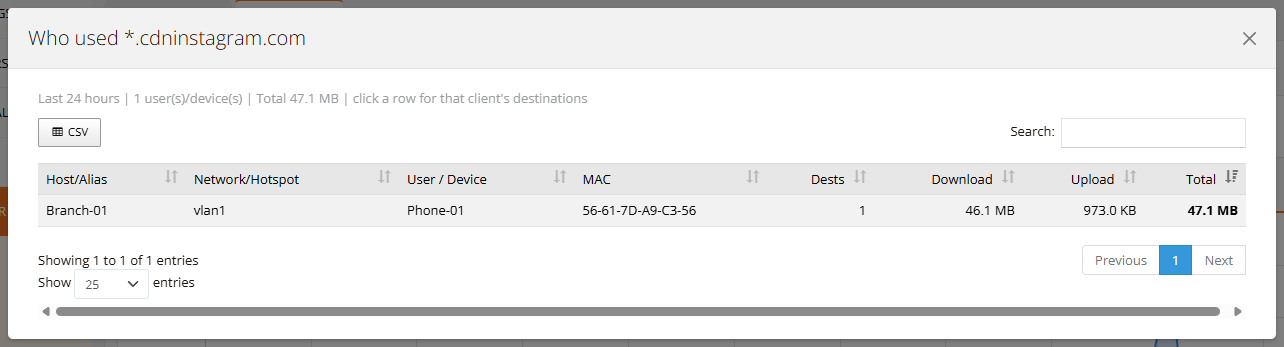
Who used lists the users and devices behind a destination, app or category, with their volume for that item only. Click a row to open that client's destinations.
Hotspot Session Breakdown
Every hotspot login session recorded by RADIUS accounting can be opened with its own destination breakdown. In HOTSPOT USERS → User Sessions → Historical Sessions, click a session row: a pop-up opens on the same page with that session's details.
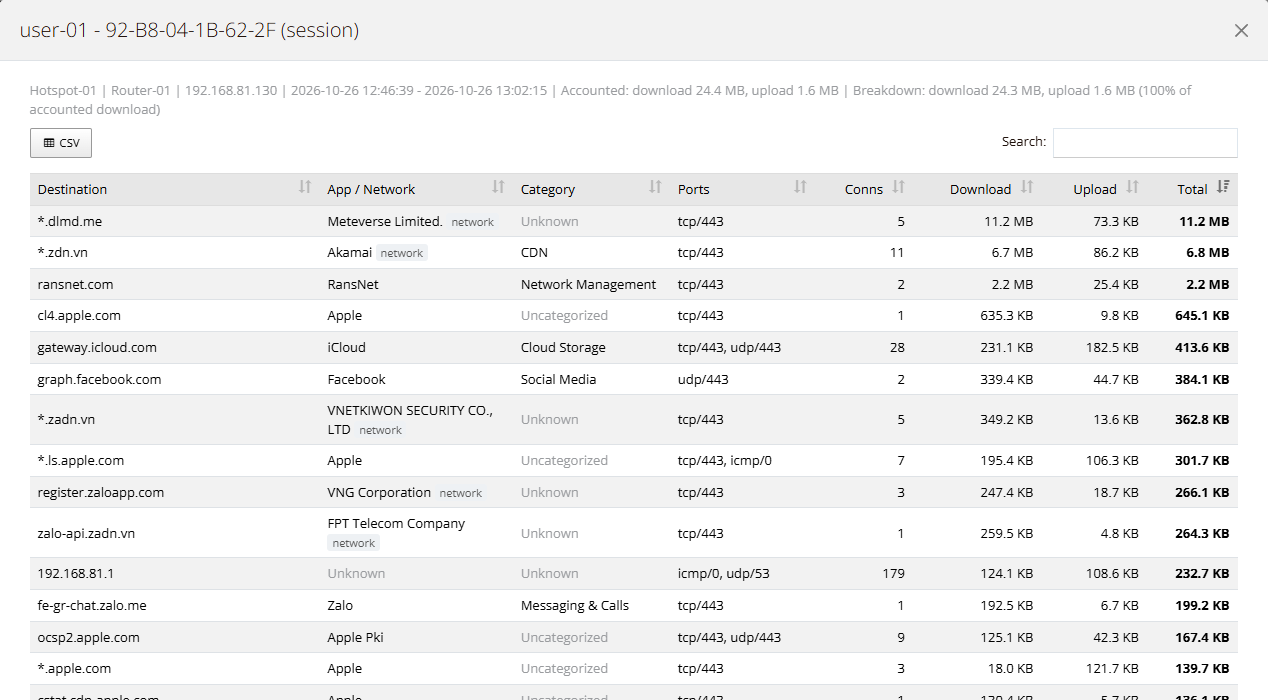
The header shows the hotspot, router, IP address, session start and stop time, and two sets of totals:
| Field | Description |
|---|---|
| Accounted | Download and upload recorded by RADIUS accounting for the session — the figures used for quotas and billing. |
| Breakdown | Download and upload of the destinations listed below, from Client Flow, with the percentage of the accounted download they cover. |
The table lists every destination of the session with its app, category, ports, connections and volume; use CSV to export it as evidence in a usage dispute.
The breakdown normally covers close to 100% of the accounted download. When it doesn't, the header says why:
| Message | Meaning |
|---|---|
| the last 15 to 30 minutes are not uploaded yet | The user is still online; the router uploads each 15-minute window when it closes. |
| No breakdown for this session | Client Flow isn't enabled in that hotspot instance (client-flow), or the router hasn't uploaded the session yet. |
| Breakdown expired (kept 45 days) | The session started more than 45 days ago; accounting records are kept longer than the breakdown. |
Sessions are matched by their RADIUS accounting session ID, username and MAC address. Opening a session breakdown is recorded in the admin log, like the client pop-up.
Apps & Categories
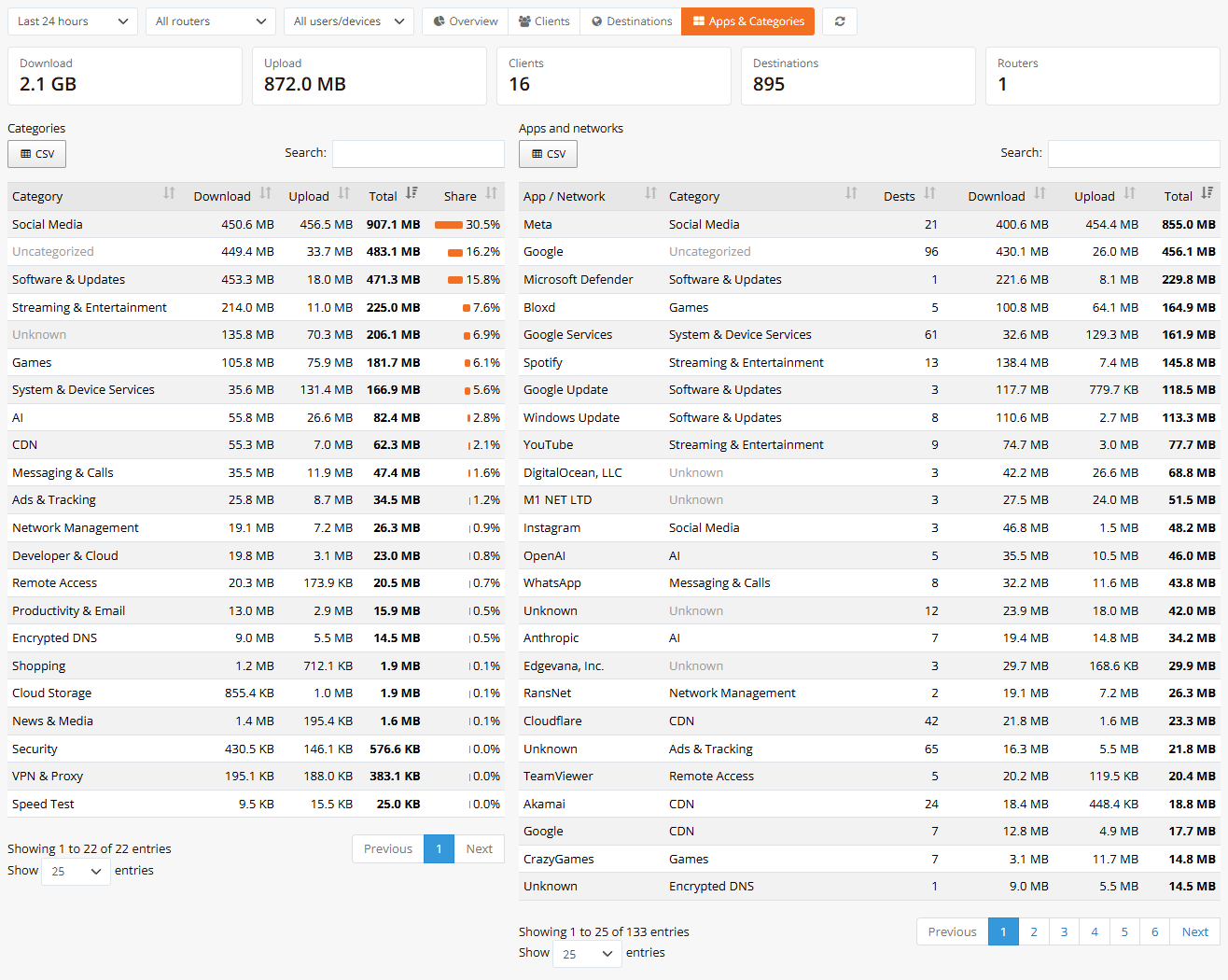
The Apps & Categories view totals the range by category (with share bars) and by app or network (with its category and number of destinations). Click a row to see who used it.
How Destinations Are Classified
mFusion labels each destination when the tab is displayed, using its built-in classification database (domain names to apps and categories, and IP ranges to network owners):
- By hostname: the hostname or its parent domain is looked up, longest match first.
rr3---sn-x.googlevideo.commatchesgooglevideo.com→ YouTube, Streaming & Entertainment. - By network owner: a destination without a hostname, or with an unknown one, is labelled by the owner of its IP range (e.g. "Google LLC", "Facebook, Inc."), with an app and category for the big networks.
- Otherwise the category is Uncategorized (the app is known but spans many services, e.g.
www.google.comor Google's own network) or Unknown (the destination isn't in the database).
| Category | Examples |
|---|---|
| Ads & Tracking | doubleclick.net, analytics, telemetry |
| Social Media | Facebook, Instagram, TikTok, X |
| Messaging & Calls | WhatsApp, Telegram, Zoom, Teams, Google Meet |
| Streaming & Entertainment | YouTube, Netflix, Spotify, Disney+ |
| Games | Steam, Epic Games, browser games |
| News & Media | news sites, MSN |
| Shopping | Amazon, Shopee, Lazada, Grab |
| Finance | banks, payments, trading, crypto |
| Education | universities, online courses |
| AI | ChatGPT, Claude, Gemini |
| Cloud Storage | iCloud, OneDrive, Google Drive, Dropbox |
| Software & Updates | Windows Update, app stores, Samsung and Apple updates, browsers |
| Developer & Cloud | GitHub, Firebase, AWS |
| CDN | Akamai, Cloudflare, Fastly, gstatic.com |
| VPN & Proxy | VPN services, iCloud Private Relay |
| Remote Access | AnyDesk, TeamViewer |
| Adult | adult content |
| Security | antivirus, password managers |
| Government | government services |
| Encrypted DNS | dns.google, cloudflare-dns.com (DNS over HTTPS/TLS) |
| Speed Test | Speedtest, fast.com |
| Productivity & Email | Gmail, Google Docs, Microsoft 365, Outlook |
| System & Device Services | accounts, push notifications, sync and other OS background services |
| Network Management | RansNet router management and monitoring |
The classification database is updated with mFusion releases; since destinations are labelled when displayed, an update also relabels past data.
A large Unknown or Encrypted DNS share
Many destinations shown only as IP addresses, or a visible Encrypted DNS category, mean that clients bypass the router's DNS. Make the router the clients' only DNS server: see Client Flow: Requirements.
Network owner data: IP to ASN data by DB-IP, licensed under CC BY 4.0.
Data Retention
| Range | Detail Level | Kept For |
|---|---|---|
| Last hour, Last 24 hours | Hourly totals; 15-minute chart | 15-minute detail 1 day, hourly 7 days |
| Last 7 days | Hourly | 7 days |
| Last 15 / 30 / 45 days | Daily | 45 days |
Usage data isn't part of the mFusion configuration backup. When the mFusion disk runs low, the daily retention is reduced automatically (down to 7 days) before other data is affected.
Troubleshooting
| Symptom | Likely Cause | Solution |
|---|---|---|
| A router or its users are missing for one login but not another | The login's entities don't include that router | Usage follows entity scoping. Select All Entities, or ask a super admin to give the account access to the entity. |
| A router is missing | Client Flow isn't enabled, or the router hasn't uploaded yet | Enable ip client-flow or client-flow on the router (see Client Flow) and allow 15 to 30 minutes. Check that the router is in the selected entity. |
| Router status Delayed or Not reporting | Router offline, or can't reach mFusion | On the router, show ip client-flow shows queue: and the last upload result. Queued windows upload once it reconnects. |
| Most destinations are IP addresses with a network owner | Clients use a public DNS server and switched to encrypted DNS | Make the router the clients' only DNS server; see Client Flow: Requirements. Clients pick it up at lease renewal. |
A few IP-only rows remain, e.g. Meta on udp/3478 |
Apps that connect by IP without a DNS lookup (voice/video calls, some social apps) | Expected. They are labelled by network owner. |
| A user's total differs slightly from their hotspot accounting | Client Flow counts per connection, and windows still in transit aren't on the tab yet | Compare after the session has ended and 30 minutes have passed. The Hotspot Session Breakdown shows both figures side by side, with the coverage percentage. |
| Dropped Windows above 0 | The router was offline longer than its upload queue can hold | Usage in those windows is lost. Restore the router's connection to mFusion. |
Best Practices
- Start with the Overview, then drill down: a category or app slice → Who used → the client's destinations.
- Use Hotspot users / Network devices to separate guest or crew traffic from office devices on the same router.
- Export before it ages out: for disputes, export the client pop-up as CSV while the range still has the detail you need (daily data is kept 45 days).
- Watch the Routers panel for routers that stop reporting.
Security and Privacy
- Usage data is personal data: it shows which apps and sites a person uses. Access follows entity scoping, and mFusion records each client and "who used" view in the admin log. Grant entity access with that in mind.
- Inform users where required by local privacy rules or your acceptable-use policy, for example in hotspot terms of use.
- CSV exports keep the router, network and user columns. Handle them like the tab itself, and anonymize them before sharing outside the team.
Related Features
- Client Flow: enable usage reporting on routers, requirements and DNS setup
- Common Tools: Client Flow: the live 15-minute view on the router
- Hotspot Instance: Client Flow in hotspot instances
- NetFlow Traffic Analysis: packet-sampled flow analytics and security (NOC/SOC) views
- Monitoring Dashboard: the other dashboard tabs