Application Settings
Navigate to ADMIN → General → Application Settings.
This tab configures the backend services mFusion relies on: outbound email, file transfer to external servers, SMS delivery, and a few platform-wide options. Each section is collapsible and saved on its own with its Save button.
SMTP Server Settings
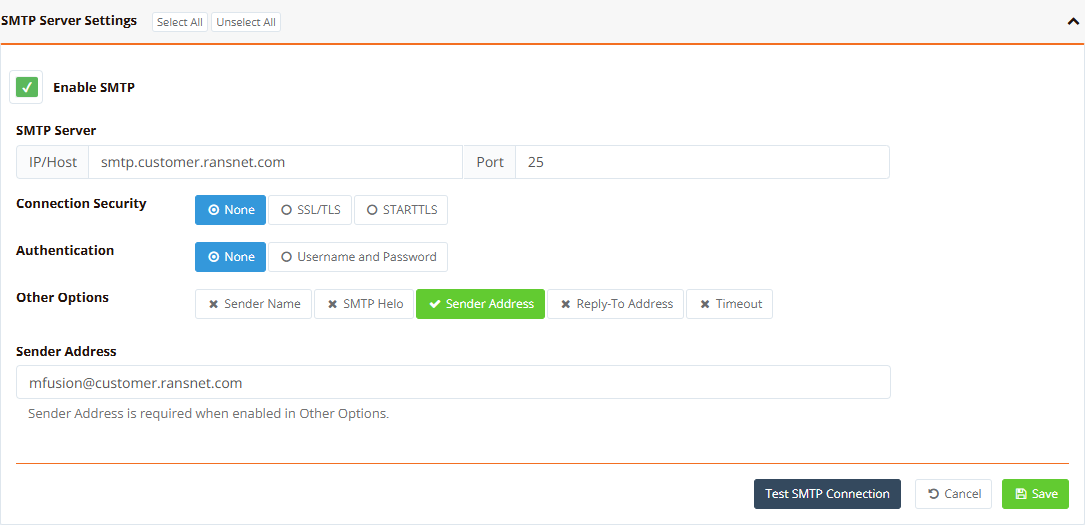
SMTP is used for two purposes: delivering scheduled reports (hotspot usage, network monitoring) to recipients, and sending email OTP codes for two-factor authentication (2FA) at dashboard login. mFusion relays all outbound mail through the external SMTP server configured here, for example your corporate mail server, Gmail or SendGrid.
| Field | Example | Description |
|---|---|---|
| Enable SMTP | ticked | Master toggle for outbound email |
| SMTP Server: IP/Host, Port | smtp.customer.ransnet.com, 587 |
SMTP server hostname or IP address and port: commonly 25 (unencrypted), 587 (STARTTLS) or 465 (SSL/TLS) |
| Connection Security | STARTTLS |
None, SSL/TLS (encrypted from the start) or STARTTLS (upgrades a plain connection before credentials are sent) |
| Authentication | Username and Password |
None or Username and Password; with authentication, enter the SMTP account credentials |
| Other Options | Sender Address | Optional fields, shown when their button is turned on: Sender Name (display name in the From field), SMTP Helo (override the HELO hostname), Sender Address (envelope From address), Reply-To Address and Timeout (seconds) |
Note
When Authentication is None, turn on Sender Address: with no authenticated account to derive it from, mFusion needs an explicit From address for outbound mail.
After saving, click Test SMTP Connection to verify the configuration. On failure, check the Audit Logs for the detailed reason.
FTP Connections
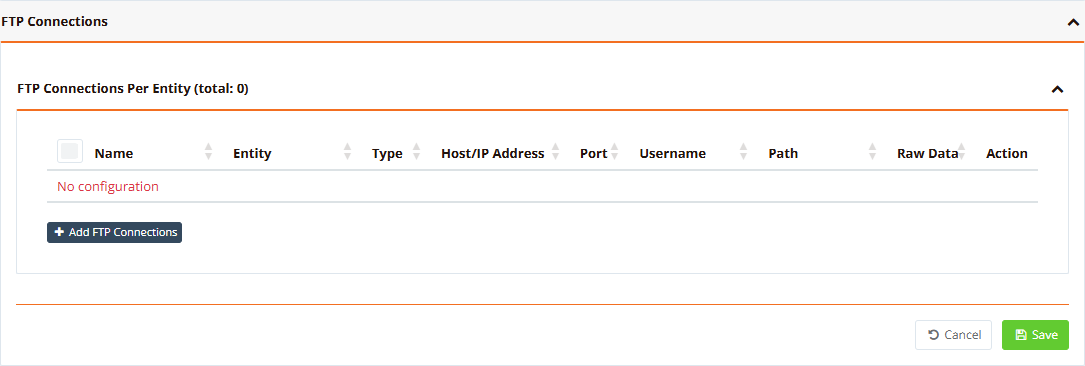
FTP and SFTP connections let mFusion push files to external NAS or file servers. They are used by:
- Data Maintenance: Export to SFTP server for archive files, and Export reports to SFTP server
- Auto backup, see Backup and Restore
- Box-level RAW data reports (the connection marked Raw Data)
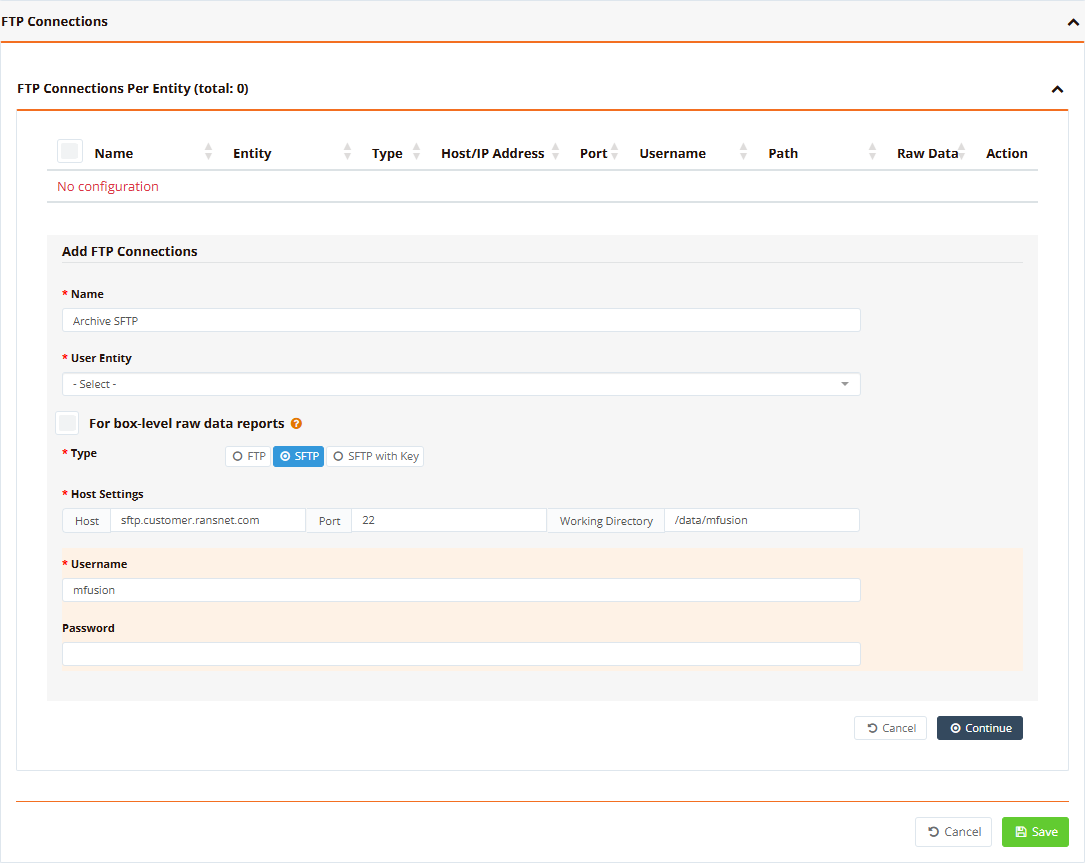
Connections are scoped to an entity, so each tenant can have its own server. Click + Add FTP Connections to add one:
| Field | Example | Description |
|---|---|---|
| Name | Archive SFTP |
A label identifying this connection |
| User Entity | GLOBAL |
The entity (tenant) this connection belongs to |
| For box-level raw data reports | unticked | Marks the connection that receives box-level RAW data reports. Only one connection can carry it: setting it here clears it from the one that had it. |
| Type | SFTP |
FTP, SFTP (password) or SFTP with Key (SSH key) |
| Host Settings: Host, Port, Working Directory | sftp.customer.ransnet.com, 22, /data/mfusion |
Address of the remote server, its port (21 for FTP, 22 for SFTP) and the remote directory files are written to |
| Passive Mode | enabled | FTP only: use passive mode (needed behind most firewalls and NAT) |
| Username / Password | mfusion |
Login credentials; with SFTP with Key, paste the private SSH Key instead of a password |
Click Continue, then Save. Use the Test action in the list to check that mFusion can log in and write to the directory.
SMS Gateway
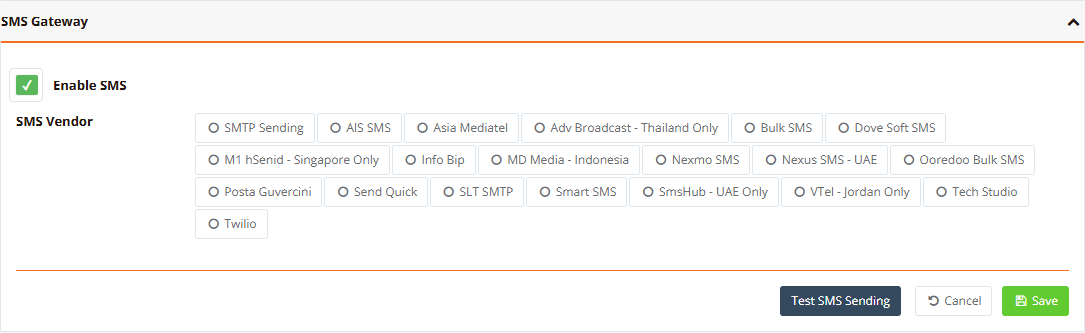
The SMS gateway sends OTP codes for 2FA dashboard login. Tick Enable SMS, pick the SMS Vendor, then enter the credentials that vendor issued (host, username, password, sender ID and so on; the fields change with the vendor).
Supported vendors: SMTP Sending (email-to-SMS), AIS SMS, Asia Mediatel, Adv Broadcast (Thailand), Bulk SMS, Dove Soft SMS, M1 hSenid (Singapore), Info Bip, MD Media (Indonesia), Nexmo SMS, Nexus SMS (UAE), Ooredoo Bulk SMS, Posta Guvercini, Send Quick, SLT SMTP, Smart SMS, SmsHub (UAE), VTel (Jordan), Tech Studio and Twilio.
After saving, click Test SMS Sending to send a test message and confirm the gateway works.
Other Settings
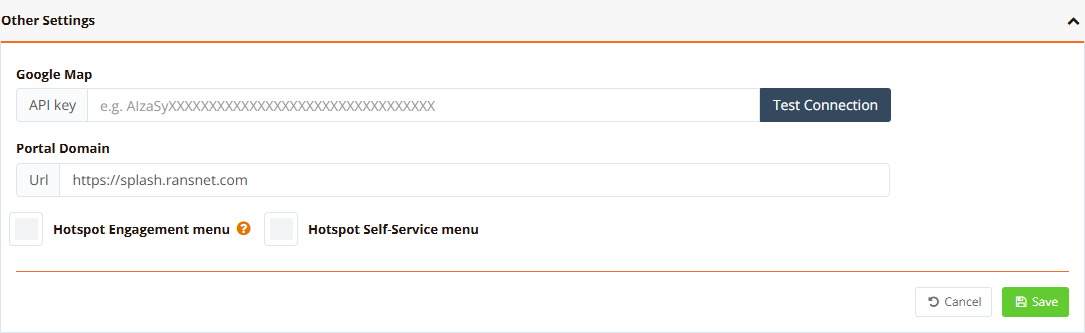
| Field | Example | Description |
|---|---|---|
| Google Map: API key | AIzaSy… |
Google Maps JavaScript API key for the maps in mFusion, such as device locations. Click Test Connection to check the key. |
| Portal Domain: Url | https://splash.ransnet.com |
Base URL of the captive portal server. Captive Portal builds each portal's address from it (<Url>/pid/<portal>), so set it to the name guests' devices reach. Shown only when the Captive Portal module is on. |
| Hotspot Engagement menu | unticked | Shows the User Engagement menu under HOTSPOT USERS. Hidden by default. |
| Hotspot Self-Service menu | unticked | Shows the Self Registration menu under HOTSPOT USERS. Hidden by default. |
Troubleshooting
| Symptom | Likely Cause | Solution |
|---|---|---|
| Test SMTP Connection fails | Wrong port / security pair, or authentication refused | Match the port to the security (587 STARTTLS, 465 SSL/TLS); check the Audit Logs for the server's reply |
| Mail sent but not received | No Sender Address with Authentication None, or the mail was filtered |
Turn on Sender Address with a domain the SMTP server may send for |
| FTP Test fails | Firewall, wrong type, or no write permission on the directory | Allow mFusion to reach the server on the port; check the type (FTP / SFTP / SFTP with Key) and that the user can write to the working directory |
| Archive files not uploaded | Connection not selected in Data Maintenance, or upload failing | Pick the connection under Export to SFTP server; failed uploads are in the audit log |
| Test SMS Sending fails | Wrong vendor credentials or sender ID not approved | Check the credentials with the vendor; some countries require a registered sender ID |
Related Features
- Identity Management: 2FA by email and SMS
- Data Maintenance: archive and report export to SFTP
- Backup and Restore