Data Maintenance
Navigate to ADMIN → General → Data Maintenance.
Data Maintenance is the one place that decides how long mFusion keeps each kind of data it collects, from hotspot sessions and monitoring history to client flow usage, syslog and admin logs. A nightly job removes what is older than you set, can archive it to CSV files first (and upload them to an SFTP server), and a disk guard frees space automatically before a disk fills up.
It replaces the retention settings that used to be spread across the product: data-lifetime under security radius-server and mfusion server in the CLI, HOTSPOT USERS → Data Maintenance, the Log Collector Archives tab, and the audit log archive.

How It Works
Each section of the page is one area (Hotspot & RADIUS, mFusion Monitoring, and so on), and each row is one kind of data in it:
| Control | Description |
|---|---|
| Tick box + Keep … for (Days) | Ticked: the data is cleaned up nightly once it is older than this many days. Unticked: never cleaned up, the data is kept. Each item has an allowed range; the minimum protects what other features need (for example 32 days of sessions for monthly quotas). |
| Archive | Before the nightly cleanup deletes the expired data, write it to an archive file. See Archive Files. |
| Partition (greyed, always ticked) | The table holds one partition per day, so an expired day is dropped at once instead of deleted row by row. Fixed by design for the large tables; not a setting. |
| Select All / Unselect All | Tick or untick every row of the section. The account deletion options of Hotspot & RADIUS are left out, so they are never ticked by accident. |
| Save | Each section is saved on its own. Changes take effect at the next nightly run. |
| ? | Hover for what the row holds, its default and allowed range, its current size, and its last cleanup result. |
The cleanup runs every night at 05:00, one area after another (see Scheduled Jobs). On an HA pair it runs on the primary only, and the secondary follows by replication.
Storage Overview
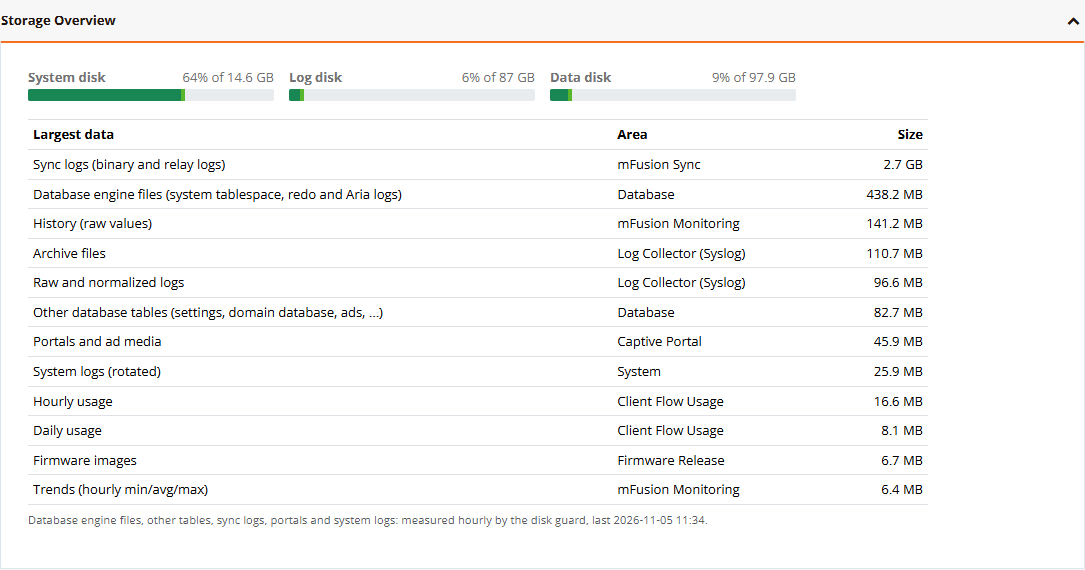
The overview shows how full each disk is and which data takes the most space, so you know which setting to change when a disk grows.
| Part | Description |
|---|---|
| System disk, Log disk, Data disk | Used space per disk. The database and the data folder often share one disk. The bar turns amber at 80% and red at 90%. |
| Largest data | The 12 biggest items, with the area that keeps them. |
Besides the items of this page, the table includes everything else that grows:
| Row | What it is |
|---|---|
| Sync logs (binary and relay logs) | mFusion sync replication logs, on an HA pair. On a busy primary this can be the largest item. |
| Database engine files | The database's own files: system tablespace, redo and Aria logs. They do not shrink after a large delete. |
| Other database tables | Settings, the domain database, ads and other tables not listed on this page |
| Portals and ad media | Captive portal pages and uploaded ad media |
| System logs (rotated) | /var/log, rotated automatically |
| Firmware images, Backups, Report output | Files kept by Firmware Releases, Backup and Restore and Scheduled Reports |
| Archive files, Temporary files | Archive files of each area, and temporary files (removed automatically) |
| Other files (not managed here: check by hand) | Anything else in the data folder over 10 MB, for example copies left by hand |
The database files, sync logs, portals and system logs are measured hourly by the disk guard; the note under the table shows when.
Disk Guard
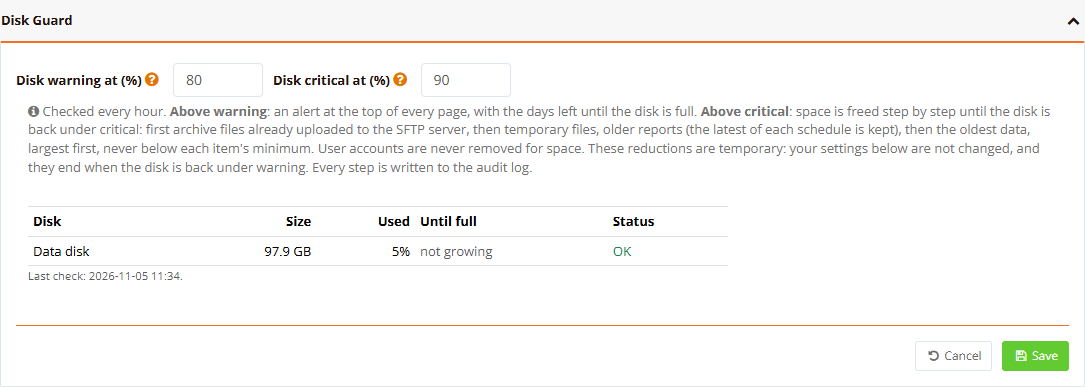
The disk guard checks the disks holding the database and the data folder every hour.
| Setting | Default | Range | Description |
|---|---|---|---|
| Disk warning at (%) | 80 | 50–95 | Above this, an alert is shown at the top of every page for super admins, with the days left until the disk is full at the last week's growth. |
| Disk critical at (%) | 90 | 60–98 | Above this, space is freed automatically until the disk is back under it. |
Above critical, space is freed step by step, cheapest loss first, checking the disk after each step:
- Archive files already uploaded to the SFTP server
- Temporary files
- Older reports (the latest of each schedule is kept)
- The oldest data, largest first: an item's keep period is halved, never below its minimum
User accounts are never removed for space. These reductions are temporary: your settings on this page are not changed, and the reductions end when the disk is back under warning. Every step is written to the audit log. The table under the settings shows each disk's size, use, days until full and status.
Note
On an HA secondary, the disk guard only raises the alert: its data comes from the primary, so space is freed there.
Hotspot & RADIUS
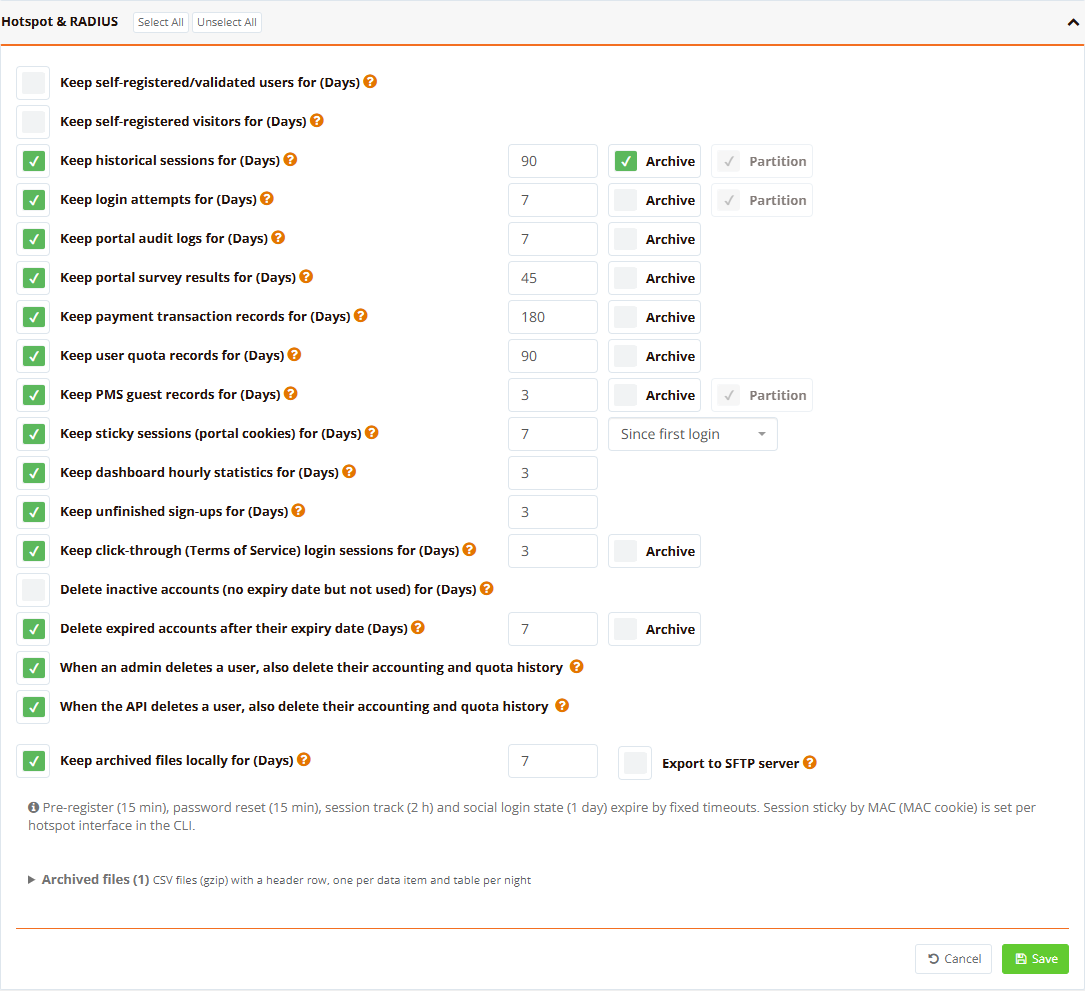
| Item | Default | Range (days) | What it holds |
|---|---|---|---|
| Keep self-registered/validated users for | off, 45 | 7–3650 | Accounts that guests created on the portal (self-registration, validation) |
| Keep self-registered visitors for | off, 45 | 7–3650 | Visitor records captured at portal sign-up |
| Keep historical sessions for | 90 | 32–730 | RADIUS accounting sessions. At least 32 days: monthly quota counters add up the month from them. |
| Keep login attempts for | 7 | 3–90 | Successful and failed RADIUS logins |
| Keep portal audit logs for | 7 | 7–365 | Each guest's steps through the captive portal |
| Keep portal survey results for | 45 | 7–3650 | Portal survey answers |
| Keep payment transaction records for | 180 | 30–3650 | Online payments and purchases |
| Keep user quota records for | 90 | 30–3650 | Quota top-ups and usage records; the balance carried forward is kept |
| Keep PMS guest records for | 3 | 2–90 | Guest records received from the hotel PMS |
| Keep sticky sessions (portal cookies) for | 7 | 1–365 | Remembered portal logins, counted Since first login or Since last login |
| Keep dashboard hourly statistics for | 3 | 1–730 | Hourly figures of the hotspot Dashboard |
| Keep unfinished sign-ups for | 3 | 1–90 | Sign-ups the guest never completed |
| Keep click-through (Terms of Service) login sessions for | 3 | 1–365 | Click-through logins |
Account Deletion
These rows delete accounts, so they sit apart from Select All:
| Item | Default | Range (days) | Description |
|---|---|---|---|
| Delete inactive accounts (no expiry date but not used) for | off, 180 | 30–3650 | Accounts created by an admin, CSV import, the front desk, the API or a purchase, without an expiry date, and with no login for that many days. Self-registered accounts follow their own row above. |
| Delete expired accounts after their expiry date | on, 7 | 1–365 | Any account with an expiry date, that many days after it. Its sessions stay with the historical sessions. |
| When an admin deletes a user, also delete their accounting and quota history | on | – | Hotspot user delete in the GUI |
| When the API deletes a user, also delete their accounting and quota history | on | – | User delete through the Hotspot API |
Warning
Keep both "also delete their accounting and quota history" options ticked unless you need the history of deleted users. Quota is counted by username: when they are unticked, a new account created with the same username starts with the old account's usage already counted.
Pre-register (15 min), password reset (15 min), session track (2 h) and social login state (1 day) expire by fixed timeouts. Session sticky by MAC (MAC cookie) is set per hotspot interface in the CLI.
mFusion Monitoring
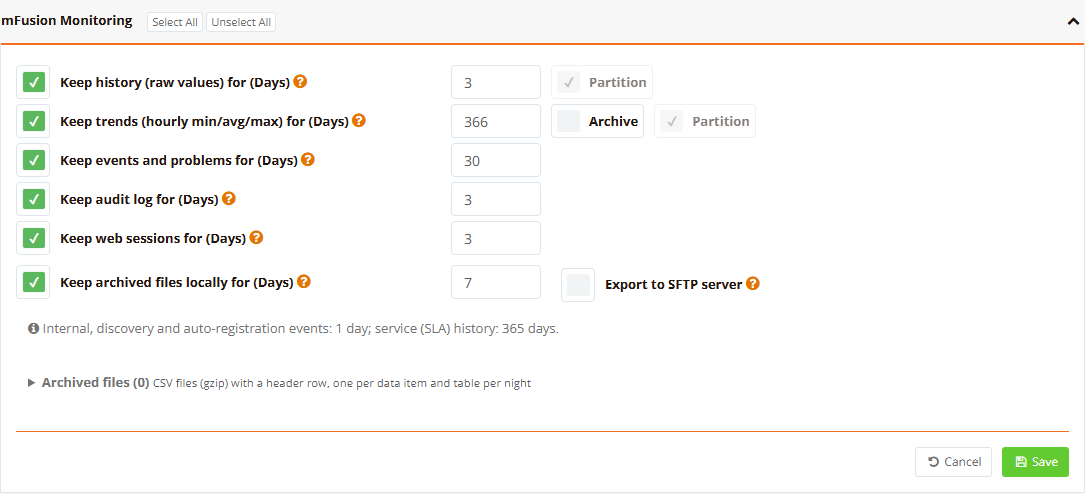
| Item | Default | Range (days) | What it holds |
|---|---|---|---|
| Keep history (raw values) for | 3 | 1–31 | Every polled value. Partitioned daily. |
| Keep trends (hourly min/avg/max) for | 366 | 31–1095 | Hourly summaries kept for the long term: graphs older than the history period come from here. Can be archived. |
| Keep events and problems for | 30 | 1–365 | Trigger events with their problems, recoveries, tags, acknowledgements and alerts |
| Keep audit log for | 3 | 1–365 | The monitoring engine's own audit log |
| Keep web sessions for | 3 | 1–30 | Monitoring web sessions |
Internal, discovery and auto-registration events are kept 1 day, and service (SLA) history 365 days.
Client Flow Usage
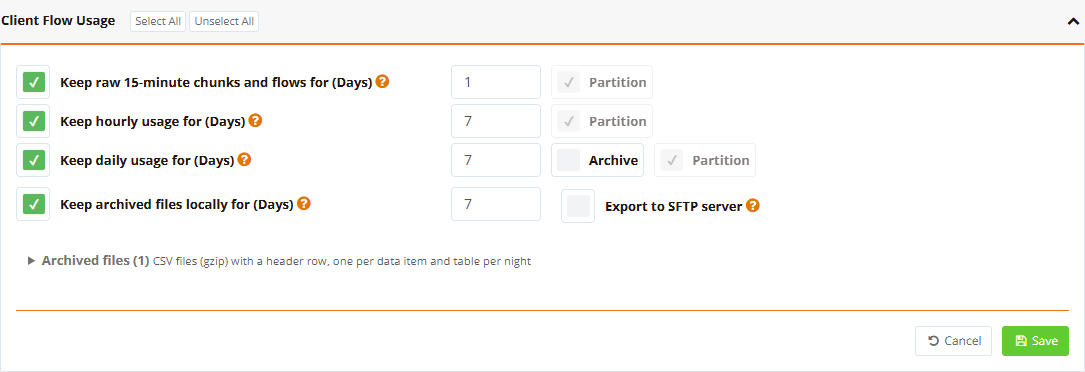
| Item | Default | Range (days) | What it holds |
|---|---|---|---|
| Keep raw 15-minute chunks and flows for | 1 | 1–3 | Every 15-minute report of every client, with its destinations |
| Keep hourly usage for | 7 | 1–31 | Usage per client, destination and hour (at least as long as the raw data) |
| Keep daily usage for | 7 | 1–365 | Usage per client and destination per day. Can be archived. |
Tip
The hotspot Account Status page shows usage for up to 45 days. To give guests the full breakdown for the 30 and 45-day periods, keep daily usage for at least 45 days. One day of daily usage can reach about 1.4 GB at a large site, so check the Storage Overview after raising it.
Log Collector (Syslog)
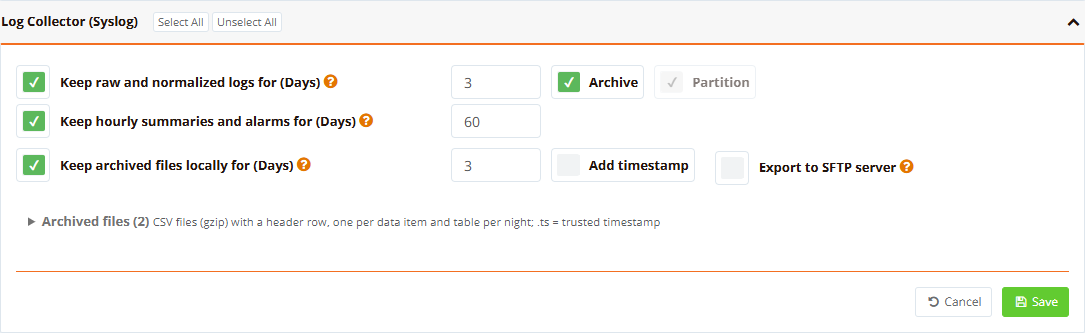
| Item | Default | Range (days) | What it holds |
|---|---|---|---|
| Keep raw and normalized logs for | 3 | 1–90 | Every log line received, with its normalized fields. Can be archived. |
| Keep hourly summaries and alarms for | 60 | 7–365 | Log counts per hour (dashboard) and the alarm rules' results |
Add timestamp adds an RFC 3161 trusted timestamp from freetsa.org (needs Internet access) to each archive file. It proves the file existed unchanged at that time, which is useful when logs are kept for compliance. The timestamp is saved next to the file as <file>.ts and uploaded with it; a failed timestamp is written to the audit log and the file is kept.
This job runs only while Log Collector is enabled on the box.
Admin & Orchestrator
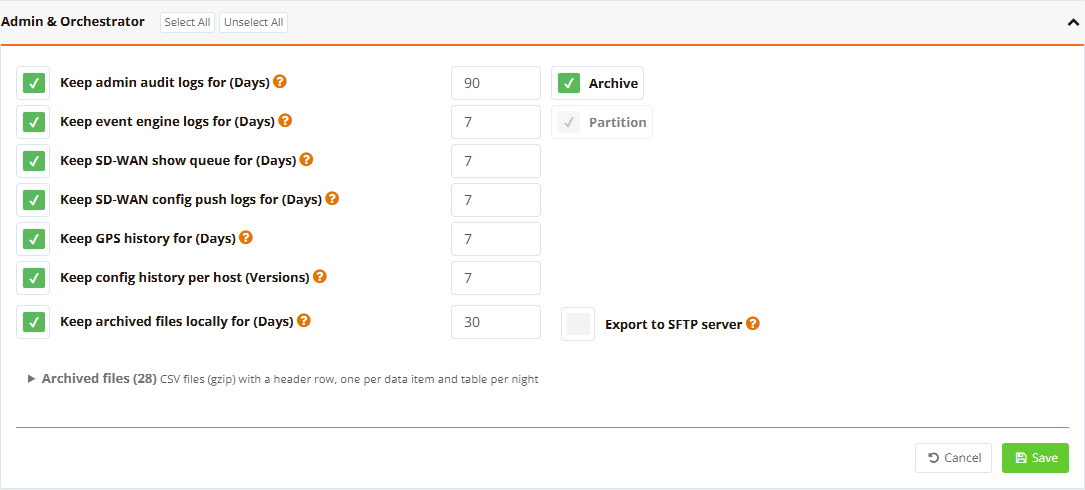
| Item | Default | Range | What it holds |
|---|---|---|---|
| Keep admin audit logs for | 90 days | 7–365 | Every admin, API and job action on this box (Audit Logs). Can be archived. |
| Keep event engine logs for | 7 days | 3–90 | Event rule results and engine logs |
| Keep SD-WAN show queue for | 7 days | 1–30 | Show commands sent to routers and their output |
| Keep SD-WAN config push logs for | 7 days | 1–30 | The output of each config push |
| Keep GPS history for | 7 days | 7–365 | Router positions; the latest position of each router is always kept |
| Keep config history per host | 7 versions | 3–100 | Orchestrator config versions of each router; the history of deleted routers goes too |
Scheduled Reports
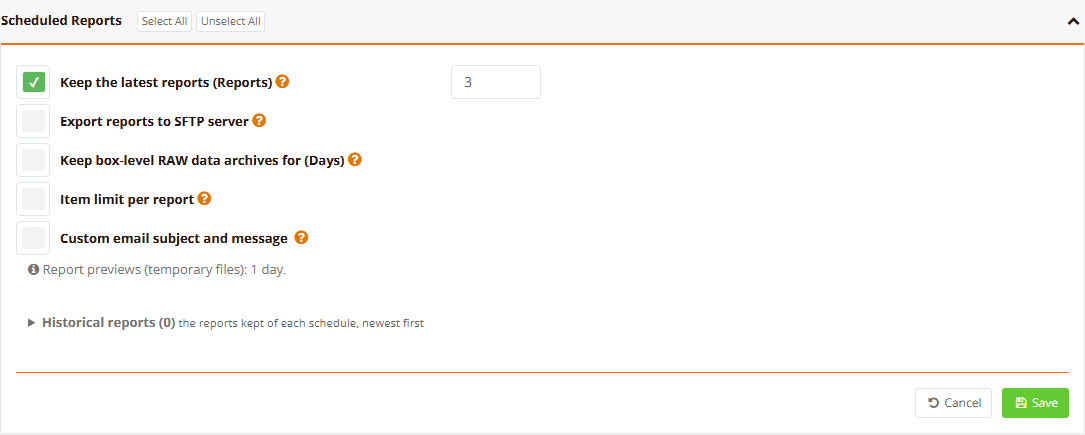
| Item | Default | Description |
|---|---|---|
| Keep the latest reports | 3 reports (1–365) | The latest reports of each report schedule, enabled or not; a report with its extra files counts as one. The folder of a deleted report goes too. |
| Export reports to SFTP server | off | Every new report of every schedule is uploaded once, nightly, besides the report's own email or FTP delivery |
| Keep box-level RAW data archives for | off, 7 days (1–365) | Ticked: box-level RAW data reports are enabled ("Box-Level RAW Data Report" is offered as an output type when creating a report, super admin only) and their archives are kept this many days. Unticked: not offered; archives left from before are still removed. |
| Item limit per report | off (300) | At most this many items (for example hosts) per report |
| Custom email subject and message | off | Your own subject and message for report emails, with placeholders for the report name, start date and end date |
Report previews (temporary files) are kept 1 day. Historical reports lists the reports kept for each schedule, newest first. See Reports.
Archive Files
Archive saves data before it is deleted. It is not a second copy of the data in the database: a row is written to an archive file only on the night the cleanup deletes it from the database. While data is in the database, it is in no archive file.
Each area with archiving has two settings at the bottom of its section:
| Setting | Description |
|---|---|
| Keep archived files locally for (Days) | Archive files stay in the data folder this many days, then are removed. Defaults: Hotspot & RADIUS 7, mFusion Monitoring 7, Client Flow Usage 7, Log Collector 3 (a day of raw logs can be about 5 GB at a large site), Admin & Orchestrator 30. |
| Export to SFTP server | Upload each new archive file to the selected FTP connection, nightly. A failed upload is written to the audit log. |
The two are independent: an area archives when either is ticked, so you can, for example, upload to SFTP without keeping local copies.
Timeline Example
Client Flow Usage with Keep daily usage for 7 days, Archive ticked, and Keep archived files locally for 7 days:
| Age of the data | Where it is |
|---|---|
| Day 1–7 | In the database only: shown in the GUI and on the Account Status page |
| Day 8–14 | In archive files only: deleted from the database, saved to CSV first |
| Older than 14 days | Only on the SFTP server, if Export to SFTP server is on |
So the database and the archive cover two different weeks. Ticking Archive later does not bring back data already deleted: the first file appears after the next nightly cleanup and holds the day that crossed the cut-off that night.
How each kind of data is archived:
| Kind of data | Archived as |
|---|---|
| Partitioned tables (sessions, login attempts, PMS, monitoring history and trends, flow usage, raw syslog) | A whole day at a time, just before its partition is dropped |
| Other tables | The rows past the cut-off, just before they are deleted |
| Expired or inactive accounts | The account's records, when the account is deleted |
| Rows without an Archive option | Not archived: deleted outright |
If writing an archive fails, that item's cleanup is held for the night, so nothing is deleted without its archive.
Archived Files
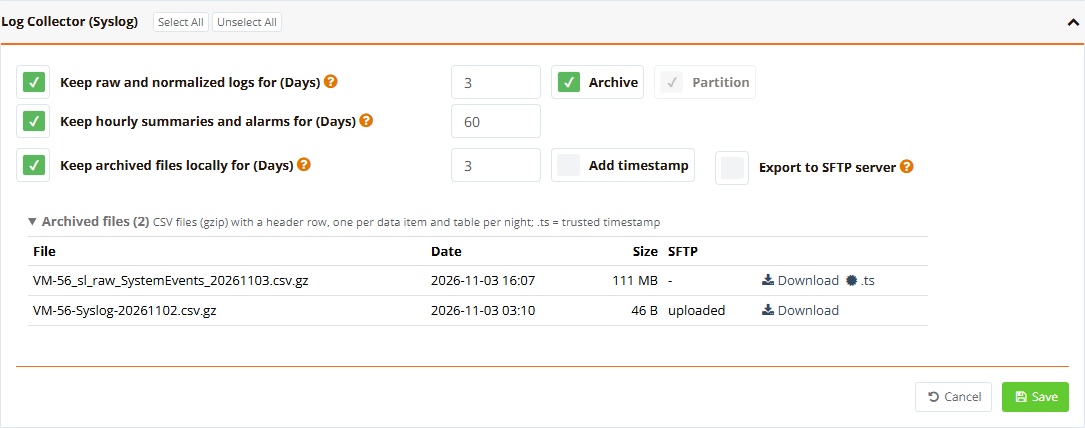
Expand Archived files at the bottom of a section to list its archive files: gzip CSV files with a header row, one per data item and table per night. Each row shows the date, size and SFTP upload status (uploaded or -), with a Download link, and a .ts link where a trusted timestamp was added.
Scheduled Jobs
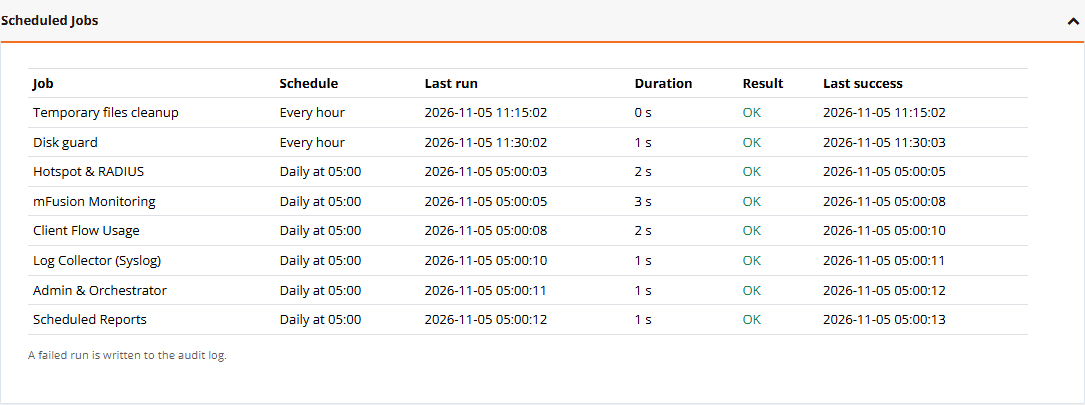
| Job | Schedule | Description |
|---|---|---|
| Temporary files cleanup | Every hour | Removes expired temporary files |
| Disk guard | Every hour | Checks the disks, raises the alert and frees space (Disk Guard) |
| One job per area | Daily at 05:00 | The nightly cleanup and archive of that area |
The table shows each job's last run, duration, result and last success. A job that does not run on this box says why instead, for example Not running: Log Collector is off, Not running: RADIUS is off, or Not running: HA secondary, runs on the primary. A failed run is retried after 30 minutes (at most 3 times a day) and written to the audit log. A box that was off at 05:00 catches up on the first run after it starts.
Upgrading from Earlier Versions
The first upgrade to this version converts the old settings: the data-lifetime values of security radius-server and mfusion server, the hotspot Data Maintenance page, and the Log Collector and audit log archive settings. The data-lifetime lines are removed from the startup config; the commands remain in the CLI only as deprecated.
Important
Review every section after the upgrade. Items that had no setting before start with the defaults shown on this page, and some old settings (for example fixed 7-day archives) have no exact equivalent.
Verification
| Items to Test | Command | Expected Outcome |
|---|---|---|
| Nightly cleanup ran | Scheduled Jobs table | Each area's job OK, last run today at about 05:00 |
| An item is cleaned up | ? of the item | Last cleanup result with the number of rows removed |
| Archive files are written | Archived files of the section | A new file per archived item the morning after the data crossed its cut-off |
| SFTP export works | Archived files | SFTP column uploaded |
| Disk guard is watching | Disk Guard table | Each disk with status OK and the time of the last check |
| Cleanup failures | Audit Logs, filter DataMaint |
No Failed or Held entries |
Troubleshooting
| Symptom | Likely Cause | Solution |
|---|---|---|
| A job shows Not running | The module is off on this box, or this is an HA secondary | Expected: the job runs where the module runs, on the primary |
| A job shows failed | Database busy or a table missing | Check the audit log entry DataMaint.Job Failed; the job retries after 30 minutes |
DataMaint.Purge Held in the audit log |
Writing the archive failed (disk full, permissions) | Free space or turn off Archive for the item; nothing was deleted |
| Archive files not uploaded | No connection selected, or the SFTP server refused | Select the connection in Export to SFTP server and use Test under FTP Connections |
| Disk alert stays on | Data grows faster than it is cleaned up | Use the Storage Overview to find the largest item and shorten its keep period |
| Account Status shows no breakdown for older sessions | Daily usage kept shorter than the period | Raise Keep daily usage for |
| A recreated hotspot user is out of quota at once | Deleted user's history was kept | Tick the two "also delete their accounting and quota history" options |
Best Practices
- Keep only what you use: long keep periods on large items (monitoring history, flow usage, raw syslog) cost the most disk.
- Archive to SFTP for compliance: keep the database short and the archive on a server with its own backup, instead of long local retention.
- Add timestamps for logs kept as evidence: the trusted timestamp shows a syslog archive was not changed later.
- Watch the Storage Overview after changes: the effect shows the morning after the next nightly run.
- Mind the HA sync logs: on an HA primary they can outgrow the data itself; see mFusion Sync.
Related Features
- Application Settings: FTP connections for archive export
- Account Status: guest usage history, limited by Client Flow Usage retention
- Reports
- Audit Logs