User Sessions
User Sessions is where you see who is using the hotspot right now, who used it before, and every login attempt RADIUS accepted or rejected. It covers the Accounting part of AAA (Authentication, Authorization, Accounting): each session records the user, device, address, start and stop time, and traffic used.
Navigate to HOTSPOT USERS → User Sessions. The page has six tabs:
| Tab | Shows | Typical Use |
|---|---|---|
| Historical Sessions | Every session, current and ended | Usage history, audit, "when was this user online?" |
| Online Sessions | Users connected right now | Live view; disconnect a user |
| Login Attempts | Every RADIUS authentication request and its result | Troubleshoot "I can't log in" |
| Client Sticky Sessions | Devices remembered for automatic re-login (client-sticky) | Check or clear a remembered device |
| Portal Sticky Sessions | Devices remembered for automatic re-login (portal-sticky) | Check or clear a remembered device |
| Pending Sessions | Queued session actions not yet applied | Check that a disconnect or change has gone through |
Note
Screenshots on this page have usernames, passwords and the last three bytes of each MAC address masked.
Common Table Controls
Every tab uses the same table controls:
- Search boxes under each column header filter that column; click ⓧ to clear one.
- Export downloads the current view (with your filters applied). Export Bulk (Historical Sessions) exports large result sets in the background.
- Columns shows or hides columns; 25 Rows sets the page size.
- Click a column header to sort by it.
Historical Sessions
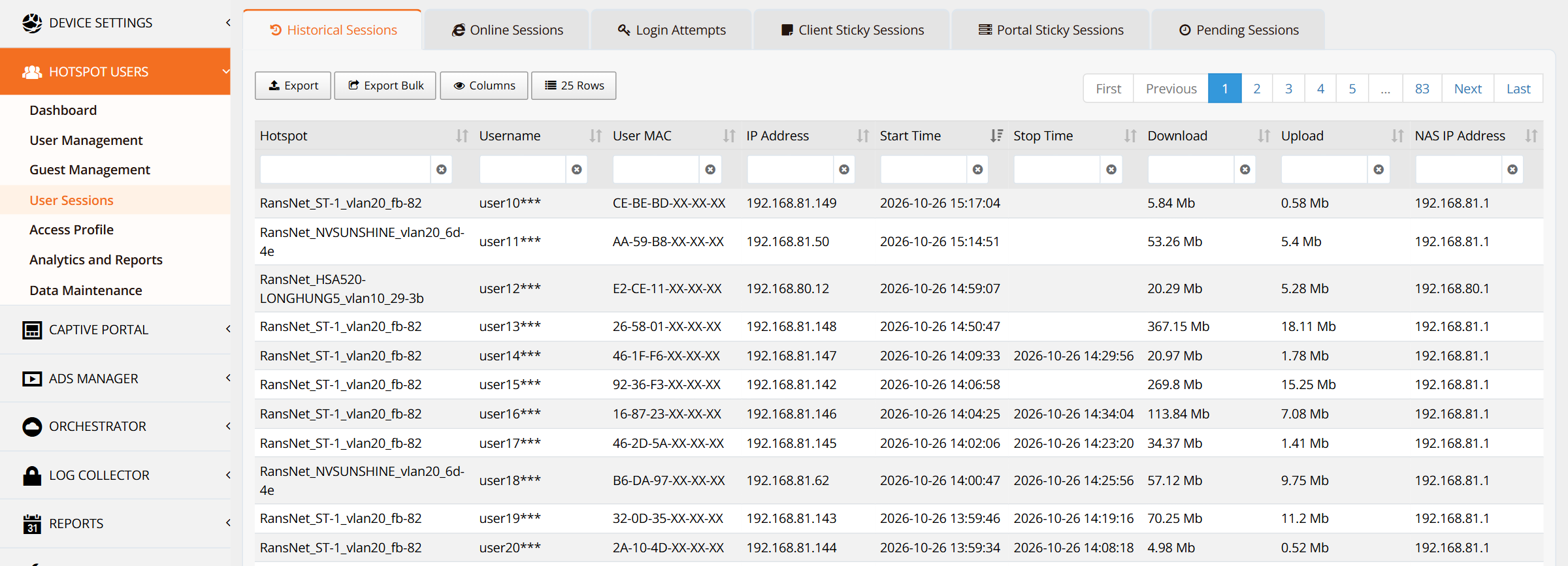
Lists every session — sessions still in progress have no Stop Time. Newest sessions are shown first.
| Column | Description |
|---|---|
| Hotspot | The hotspot instance (gateway and VLAN) the session ran on |
| Username | The account that logged in |
| User MAC | The client device's MAC address |
| IP Address | The address the device received from the hotspot |
| Start Time / Stop Time | When the session started and ended (blank stop time = still online) |
| Download / Upload | Traffic used in the session |
| NAS IP Address | The hotspot gateway address that reported the session to RADIUS |
The same user can appear on several rows: each login, re-login or device creates its own session.
Online Sessions
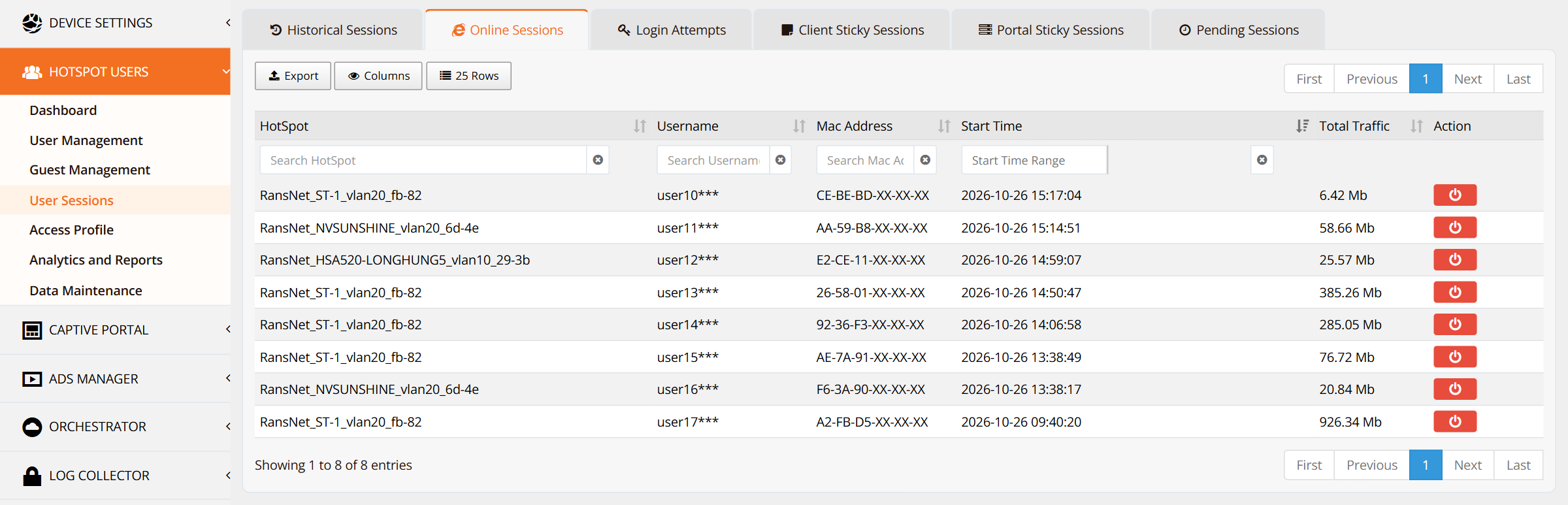
Lists users connected right now, with their total traffic so far in the session.
To disconnect a user, click the red ⏻ button in the Action column. The user is logged out and must authenticate again on the captive portal. Disconnecting does not delete or disable the account — to stop the user logging in again, disable the account in User Management.
Login Attempts
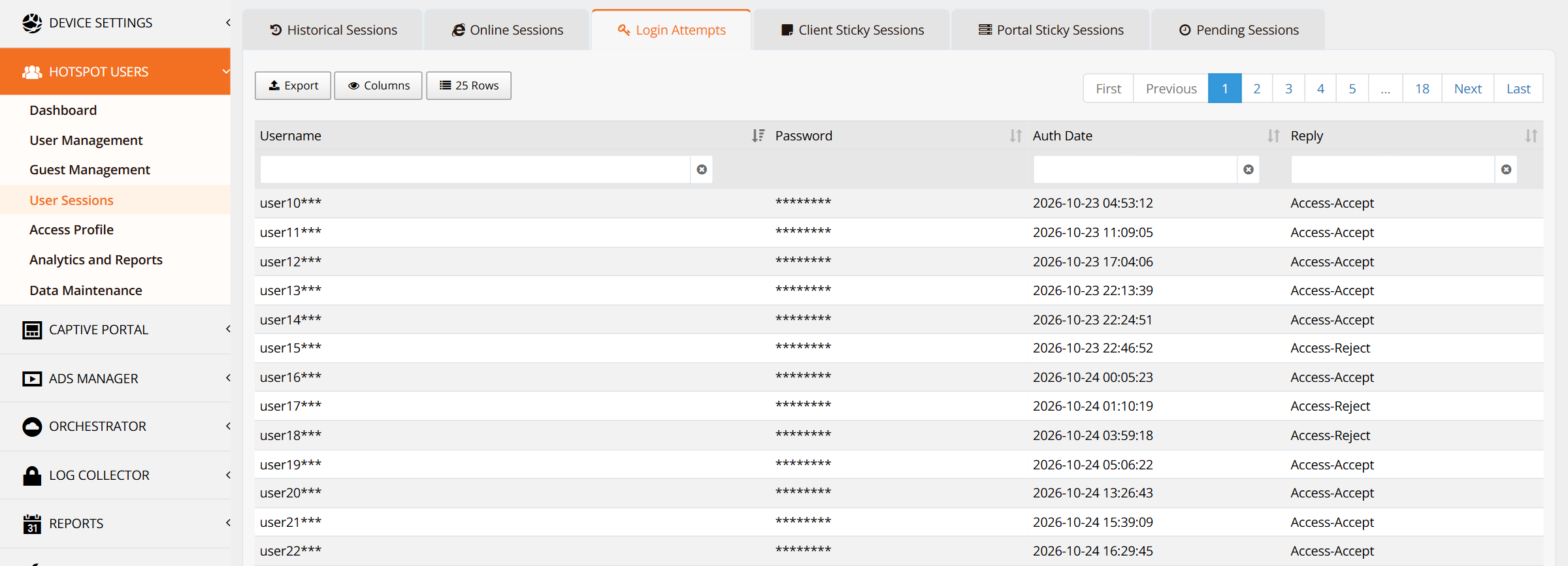
Lists every authentication request RADIUS received, with its result in the Reply column:
| Reply | Meaning |
|---|---|
| Access-Accept | Login succeeded |
| Access-Reject | Login refused — wrong password, disabled or expired account, or a quota/time limit reached |
Passwords are shown partially masked. This tab is the first place to look when a guest reports they cannot log in: filter by Username and check the reply for their recent attempts.
Client Sticky Sessions

Lists devices the gateway has remembered under client-sticky, so they are logged in again automatically without the portal page. Each row shows the VLAN, device MAC, username, and when the entry was created and last updated.
Select entries and use Action (or Selected for several at once) to remove them — the device then has to log in through the portal on its next connection. See Hotspot Instance — client-sticky.
Portal Sticky Sessions
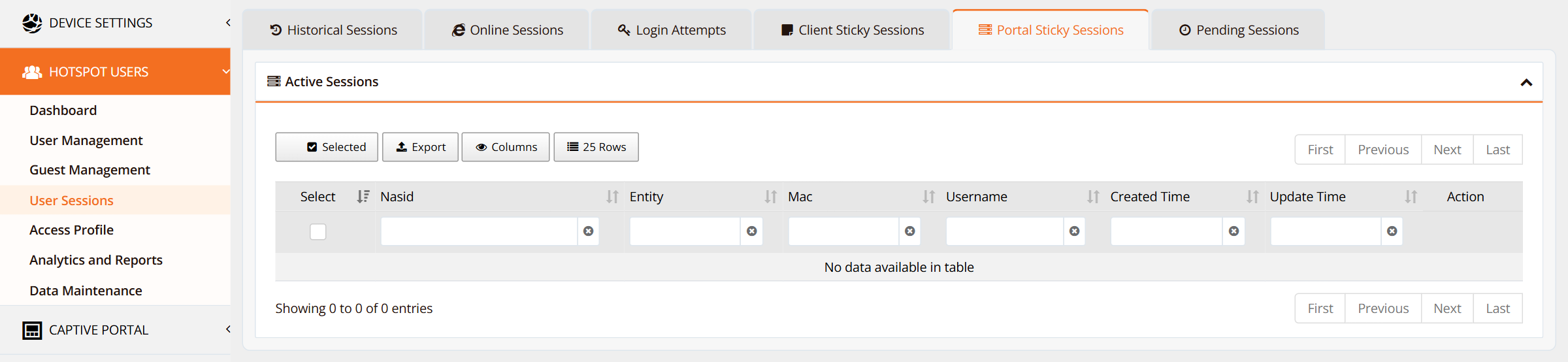
Lists devices remembered under portal-sticky (seamless re-login handled by the captive portal), with the gateway (Nasid), entity, device MAC and username. Remove entries the same way as client-sticky entries. See Captive Portal — Portal-sticky.
Pending Sessions

Lists session actions — such as a disconnect — that have been queued but not yet applied on the gateway, with the username, MAC address, action code and time. The list is normally empty; an entry that stays here usually means the gateway is not reachable from mFusion.
Verification
| Items to Test | Where | Expected Outcome |
|---|---|---|
| A guest is online | Online Sessions, search by username | One row per connected device, with traffic increasing |
| Why a guest cannot log in | Login Attempts, search by username | Most recent attempt shows Access-Accept, or Access-Reject pointing to the account/password |
| Disconnect works | Click ⏻ on Online Sessions | Row disappears; the session gains a Stop Time in Historical Sessions |
| Session history is recorded | Historical Sessions | Ended sessions show both start and stop time with traffic totals |
Best Practices
- Use Login Attempts for login complaints — it shows exactly what RADIUS replied, which is faster than guessing at account settings.
- Disable, don't just disconnect — a disconnected user can log straight back in; disable or delete the account to block access.
- Clear sticky entries when a device changes hands — otherwise the device keeps logging in automatically as the previous user.
- Export before data is purged — session history is kept only as long as HOTSPOT USERS → Data Maintenance allows; export anything you need to keep longer.
Related Features
- User Management — create, disable and delete accounts
- Access Profile — time, data and device limits that can cause Access-Reject
- UAM/AAA/RADIUS — how authentication and accounting work
- Analytics and Reports — usage trends and top users