Check Hotspot Account
The account status page lets hotspot users check their own Wi-Fi account at any time: account expiry, data quota and usage, recent sessions and purchases. From the same page they can change their password, or request a new one when they have forgotten it. This guide explains what the page offers, what to set up on the hotspot gateway, and how the Forgot password? checks work.
Overview
The page is served by the hotspot gateway that runs the RADIUS server, at:
For example, https://customer.ransnet.com/hotspot/acctinfo/. Users log in with the same username and password they use on the Wi-Fi captive portal, and see only their own account.
| Feature | What the user can do |
|---|---|
| Account summary | See account expiry, data remaining or quota balance, and speed limits |
| Recent transactions | See the last 30 days of Wi-Fi sessions, top-ups, plan purchases and quota changes |
| Change Password | Set a new password after confirming the current one |
| Forgot password? | Receive a new random password by email, without logging in |
| Check Account link | Optionally reach the page from a link on the captive portal login page |
Use Cases
- Quota and prepaid plans: users check their remaining data, top-up balance and purchases before buying more.
- Member and residential accounts: users check when their account expires and how much they have used this month.
- Self-service passwords: users change or recover their password without calling the help desk.
- Shared accounts: a team or department account whose owner is named in the access profile can still be recovered by that owner.
Requirements
| Requirement | Details |
|---|---|
| Hotspot RADIUS server | The page is available only while the RADIUS server runs on the gateway (security radius-server → start) |
| User accounts | Accounts with a username and password (pre-created accounts, self-registered users, imported users) |
| HTTPS access | Users reach the gateway's host name over HTTPS. Plain HTTP requests are redirected to HTTPS |
| Outgoing email | Required for Forgot password? only: an SMTP server set in the mbox GUI Application Settings |
| Recovery email | Required for Forgot password? only: an email address the system can match to the account (see How the Email Is Matched) |
| Captive portal | Optional, for the Check Account link: a portal on the same gateway, upgraded to a template release that includes the link |
Setup
Step 1: Enable the Account Status Page
The page follows the RADIUS server: it is enabled when RADIUS starts and disabled when RADIUS stops. It is also off after a reboot until the startup configuration starts RADIUS again. If RADIUS already runs on your hotspot gateway, there is nothing to do.
To verify, open https://<server>/hotspot/acctinfo/ in a browser. The Account Status login page appears.
Note
Stopping the RADIUS server (no start) also removes the account status page, so it is never reachable while RADIUS is down.
Step 2: Set Up Outgoing Email
Forgot password? sends the new password by email through the mail server of the mbox GUI.
Navigate to Admin → General Settings, open the Application Settings tab, then complete SMTP Server Settings:
| Field | Description |
|---|---|
| Enable SMTP | Ticked, to send through an external SMTP server |
| SMTP Server | IP address or host name of the mail server, and its port |
| Connection Security | None, SSL/TLS or STARTTLS, as the mail server requires |
| Authentication | None, or Username and Password for an authenticated mail server |
The page uses these settings directly; it has no mail settings of its own. If they change, the next password email uses the new values.
Step 3: Show the Check Account Link on the Login Page
To give users a link to the account status page from the captive portal:
- Navigate to Captive Portal → Portal List.
- Click the Backend Setting button (sliders icon) of the portal.
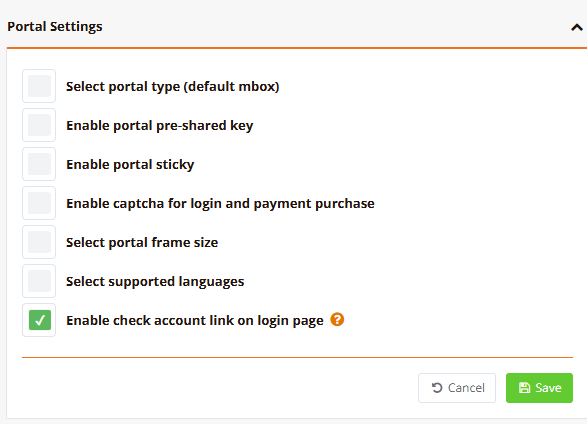
- On the Settings tab, in Portal Settings, tick Enable check account link on login page.
- Click Save in the Portal Settings section.
| Field | Description |
|---|---|
| Enable check account link on login page | Shows a Check Account link below the login button of the portal. The link opens https://<portal host>/hotspot/acctinfo/, the account status page on the same server as the portal |
Note
The link is part of the portal template. A portal created from an older template shows it only after the portal is upgraded: in Portal List, click the portal's Upgrade button (refresh icon). New portals include it automatically.
Step 4: Prepare Recovery Emails (Optional)
Forgot password? sends a new password only to an email address that belongs to the account. Make sure each account has one of the following:
- The username is an email address, as with users who registered with their email.
- An email in the user's profile information. See User Profile Information.
- An email in the description of the user's access profile, for shared accounts. For example, a profile Description of
Staff Wi-Fi, contact it-admin@example.com. See Profile Info.
What Users See
Check Account Link
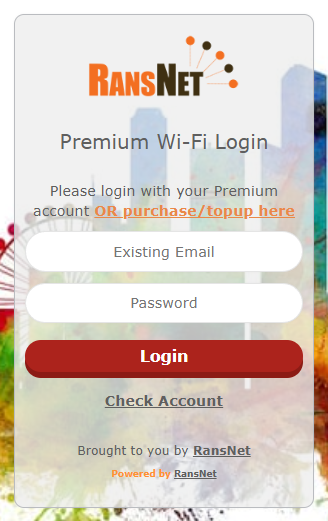
With the option enabled, the portal login page shows Check Account below the Login button. It opens the account status page in a new browser tab.
Account Status Login
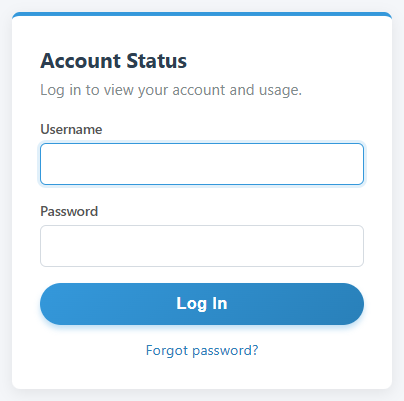
Users log in with their Wi-Fi username and password. The Forgot password? link sits below the Log In button.
Account Dashboard
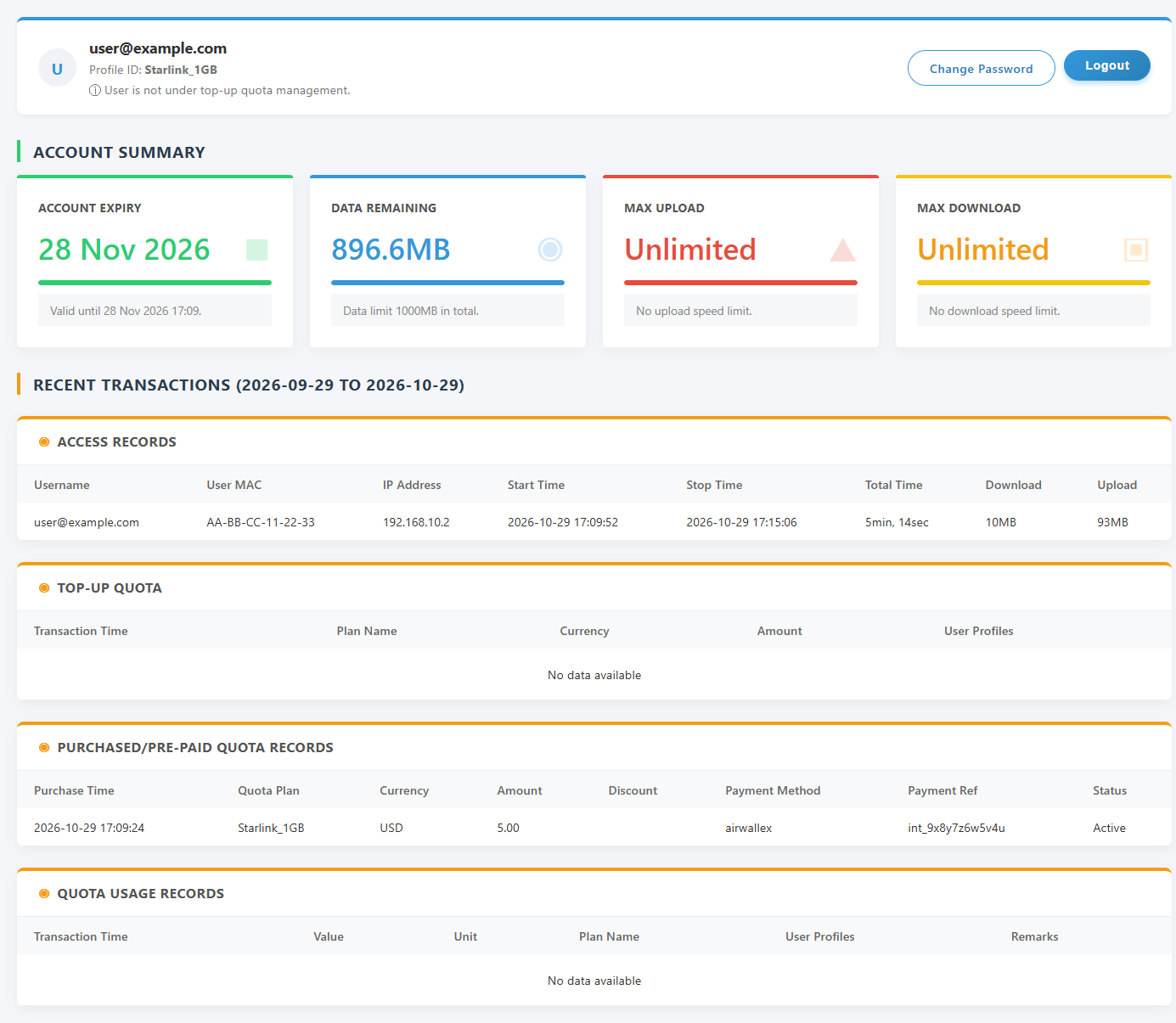
After logging in, users see their account at a glance. The header shows the username and the access profile, with Change Password and Logout buttons.
| Section | Content |
|---|---|
| Account Summary | For accounts outside quota management: Account Expiry, Data Remaining (or Data Used when there is no data limit), Max Upload and Max Download |
| Weekly or Monthly Summary | Shown instead, for accounts under top-up quota management: Starting Quota, Used Quota, Free Quota Balance and Top-up Quota Balance for the current week or month |
| Access Records | Wi-Fi sessions of the last 30 days: device MAC address, IP address, start and stop time, duration, download and upload |
| Top-up Quota | Quota top-ups of the last 30 days |
| Purchased/Pre-paid Quota Records | Plans bought in the last 30 days: plan, amount, payment method, payment reference and status |
| Quota Usage Records | Quota changes of the last 30 days |
Change Password
Users click Change Password, enter their current password, then the new password twice.
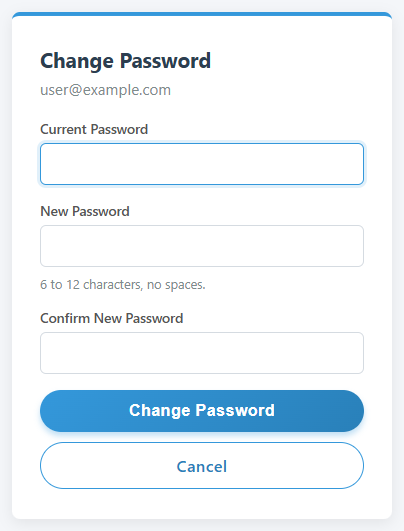
- The new password must be 6 to 12 characters, without spaces, and different from the current one.
- The new password applies straight away, to the Wi-Fi login as well.
- Shared guest accounts (accounts whose profession is set to guest) cannot change the password, so one user cannot lock out the others.
Forgot Password
How It Works
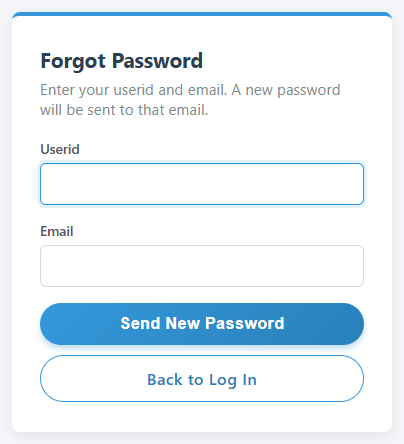
- On the Account Status login page, the user clicks Forgot password?.
- The user enters their Userid and an Email, then clicks Send New Password.
- The system checks whether the email belongs to that account (see below).
- If it does, the system creates a new random password, emails it to that address, and the page shows
A new password has been sent to <email>. - The user logs in with the new password, and can then change it with Change Password.
Note
The new password replaces the old one immediately, for the Wi-Fi login as well. The email contains the username, the new password and a link back to the account status page. The new password is 8 random letters and digits, avoiding characters that are easy to confuse, such as 0 and O.
How the Email Is Matched
The system sends a new password only to an email address that belongs to the account. It checks the following, in this order, and stops at the first match. Upper and lower case do not matter.
| Order | The email matches when... | Example |
|---|---|---|
| 1 | The userid itself is that email address | Userid alice@example.com, email alice@example.com |
| 2 | It is the email saved in the user's profile information | Userid room1203, with email bob@example.com in the user's profile. Email entered: bob@example.com |
| 3 | It appears in the description of an access profile attached to the user | Userid staff-wifi, whose access profile Staff has the description Contact it-admin@example.com. Email entered: it-admin@example.com |
The whole email address must match. Part of an address, such as admin@example.com for it-admin@example.com, does not match.
Results
| Situation | What happens | Message shown |
|---|---|---|
| The email matches the account, and the email is sent | The password is changed and emailed | A new password has been sent to <email>. |
| The userid does not exist, or the email does not belong to it | Nothing changes | Either userid or email is wrong. Please check. |
| The email matches, but cannot be sent (mail server unavailable) | The old password stays in place | Unable to send the email right now. Please try again later. |
| More than 5 requests within 15 minutes, from the same device or for the same userid | The request is refused | Too many requests. Please try again later. |
Tip
The page gives the same message for an unknown userid and for a wrong email, so it does not reveal which userids exist.
Checking Password Reset Requests
Every forgot-password request for an existing account is recorded in the portal audit log, whether it succeeded or not. Check it when a user reports that they did not receive a password, or that their password was changed without their knowledge.
Navigate to Hotspot Users → Analytics and Reports, open the Portal Audit Logs tab, and type Forgot password in the search box, then press Enter.
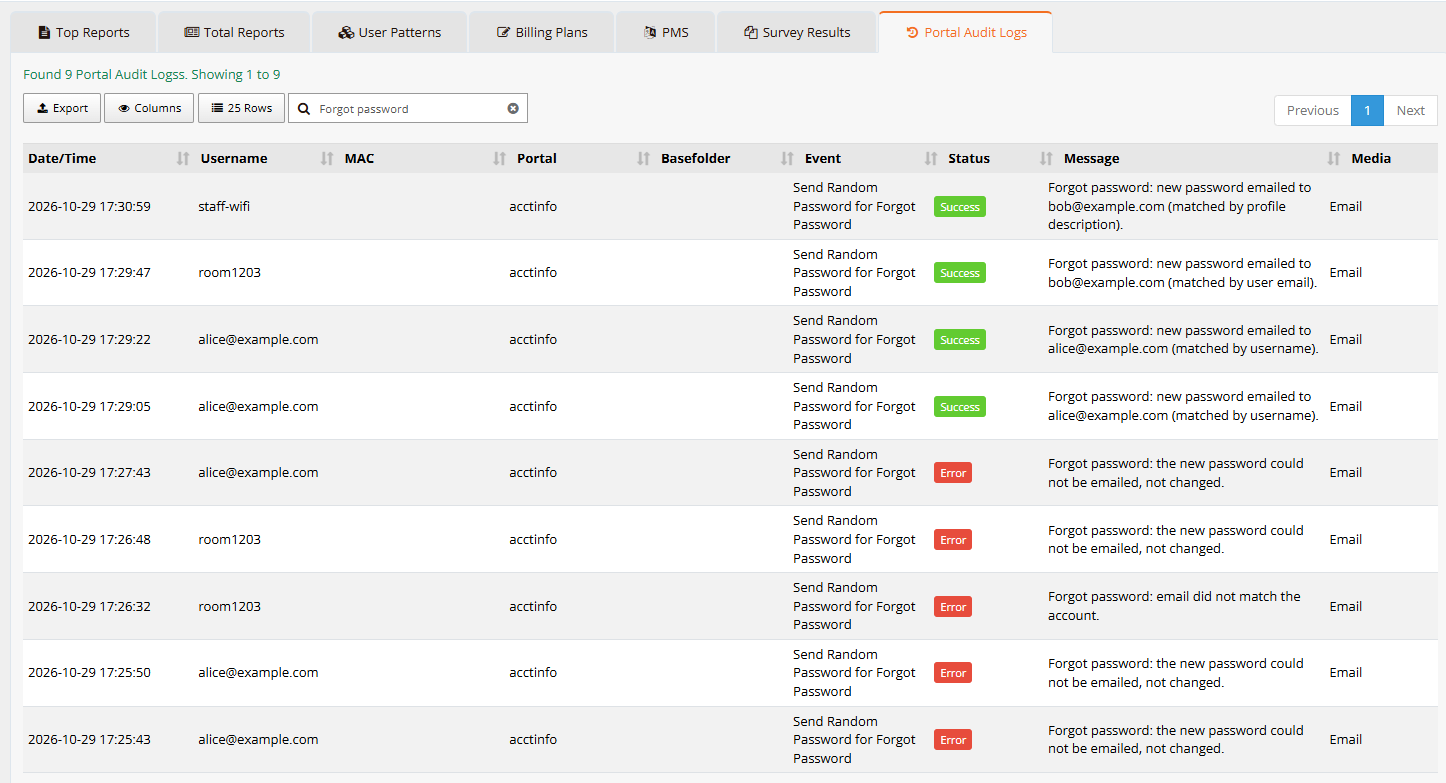
| Column | Description |
|---|---|
| Date/Time | When the request was made |
| Username | The account the request was for |
| Portal | acctinfo: the request came from the account status page |
| Event | Send Random Password for Forgot Password |
| Status | Success when a new password was emailed, Error otherwise |
| Message | What happened, and the address the password was sent to (see below) |
| Media | Email |
| Message | Meaning |
|---|---|
new password emailed to <email> (matched by username) |
The userid is the email address (check 1) |
new password emailed to <email> (matched by user email) |
The email in the user's profile information matched (check 2) |
new password emailed to <email> (matched by profile description) |
An email in the access profile's description matched (check 3) |
email did not match the account. |
The userid exists, but the email entered belongs to none of the three. Repeated entries can mean someone is guessing the user's email |
the new password could not be emailed, not changed. |
The email matched, but the mail server did not accept the message. The old password still works. Check SMTP Server Settings |
Note
Requests for a userid that does not exist are not recorded, as there is no account to record them against. The password itself never appears in the log. Password changes made with Change Password appear in the same log, with the event Change Password.
Security
| Protection | Details |
|---|---|
| HTTPS only | Plain HTTP requests are redirected to HTTPS |
| Own account only | Users see and change only the account they logged in with |
| Login lockout | After 10 failed logins within 15 minutes, from one device or for one account, further logins are refused until the 15 minutes pass |
| Session timeout | Users are logged out after 15 minutes without activity, after 2 hours in any case, and when the password is changed elsewhere |
| Password reset limit | 5 requests within 15 minutes, per device and per userid |
| Audit trail | Every password change, and every forgot-password request for an existing account, is recorded in the portal audit log, without the password itself. See Checking Password Reset Requests |
Verification
| Items to Test | Command / Action | Expected Outcome |
|---|---|---|
| Page enabled | Open https://<server>/hotspot/acctinfo/ |
The Account Status login page appears |
| Login | Log in with a Wi-Fi username and password | The account dashboard shows the user's account |
| Check Account link | Open the portal login page | Check Account appears below the login button |
| Forgot password | Request a new password for a test account with a known email | The email arrives, and the new password works on the Wi-Fi portal and on the account page |
| Audit trail | Navigate to Hotspot Users → Analytics and Reports, Portal Audit Logs tab, and search Forgot password |
The reset appears with Success and the address it was emailed to |
Troubleshooting
| Symptom | Likely Cause | Solution |
|---|---|---|
| The page does not open (not found) | The RADIUS server is not running | Run start under security radius-server, or check why RADIUS stopped |
| Check Account does not appear on the login page | The option is not enabled, or the portal uses an older template | Tick Enable check account link on login page, then upgrade the portal from Portal List |
Invalid username or password. |
Wrong credentials, or the account has no password (for example, a MAC-based or click-through login) | Use the Wi-Fi username and password. Accounts without a password cannot use the page |
Too many failed attempts. Please try again later. |
10 failed logins within 15 minutes | Wait 15 minutes, or use Forgot password? |
Either userid or email is wrong. Please check. |
The email does not belong to the account by any of the three checks | Use the email that is the userid, the one in the user's profile, or the one in the access profile's description. An administrator can add the email to the user's profile |
Unable to send the email right now. |
The SMTP server is not set up or not reachable | Check SMTP Server Settings in Admin → General Settings (Application Settings tab). The old password still works |
| The email does not arrive | Spam filtering, or the mail server rejected the message | Check the user's spam folder and the mail server's logs |
Best Practices
Recovery Emails
- Prefer email addresses as usernames for self-service accounts: password recovery then works without any extra data.
- For accounts with other usernames, such as room numbers or member IDs, keep the email in the user's profile information.
- For shared accounts, write the owner's email into the access profile's Description, so only the owner can recover the password.
Communicating the Page to Users
- Enable the Check Account link on the portals of venues where users buy quota or plans, so they can check their balance before buying more.
- Mention the page and its address in your welcome email or venue signage.
Related Features
- Captive Portal: create and customize portals
- User Management: create accounts and keep their profile information
- Access Rights and Profiles: access profiles, quotas and profile descriptions
- AAA / RADIUS: RADIUS server setup
- Portal Login Guide: end-user guide for the portal login